> For the complete documentation index, see [llms.txt](https://help.parta.io/llms.txt). Markdown versions of documentation pages are available by appending `.md` to page URLs; this page is available as [Markdown](https://help.parta.io/editor/edit-blocks/add-a-block.md).
# Add a Block
## What is a Block?
A **block** is a building unit of a section to create its content structure.
A block consisits of [elements](/editor/edit-elements.md).
## Add a Block
After [creating a section](/project/set-sections.md), add blocks using default or custom [templates](/editor/edit-blocks/manage-templates.md).
{% hint style="success" %}
Customize templates and save them in different folders to avoid creating identical blocks from scratch.
{% endhint %}
{% stepper %}
{% step %}
[Open an editor ](/editor/work-in-the-editor.md)and add a new block:
> **a.** Click **+ Add block** at the bottom of the editor field.
>
> **b.** Click **+ Add block** at the bottom of the **Section block list** menu tab.
>
> **c.** Double-click an existing block and click the **plus** button up or down the block.\
> \
> A pop-up window will appear.
>
> {% hint style="success" %}
> A **Parta Quick-Start Collection** folder will open by default. Go to the **All** tab to view a list of all standard templates, or select a tab with logically grouped templates.
> {% endhint %}
{% endstep %}
{% step %}
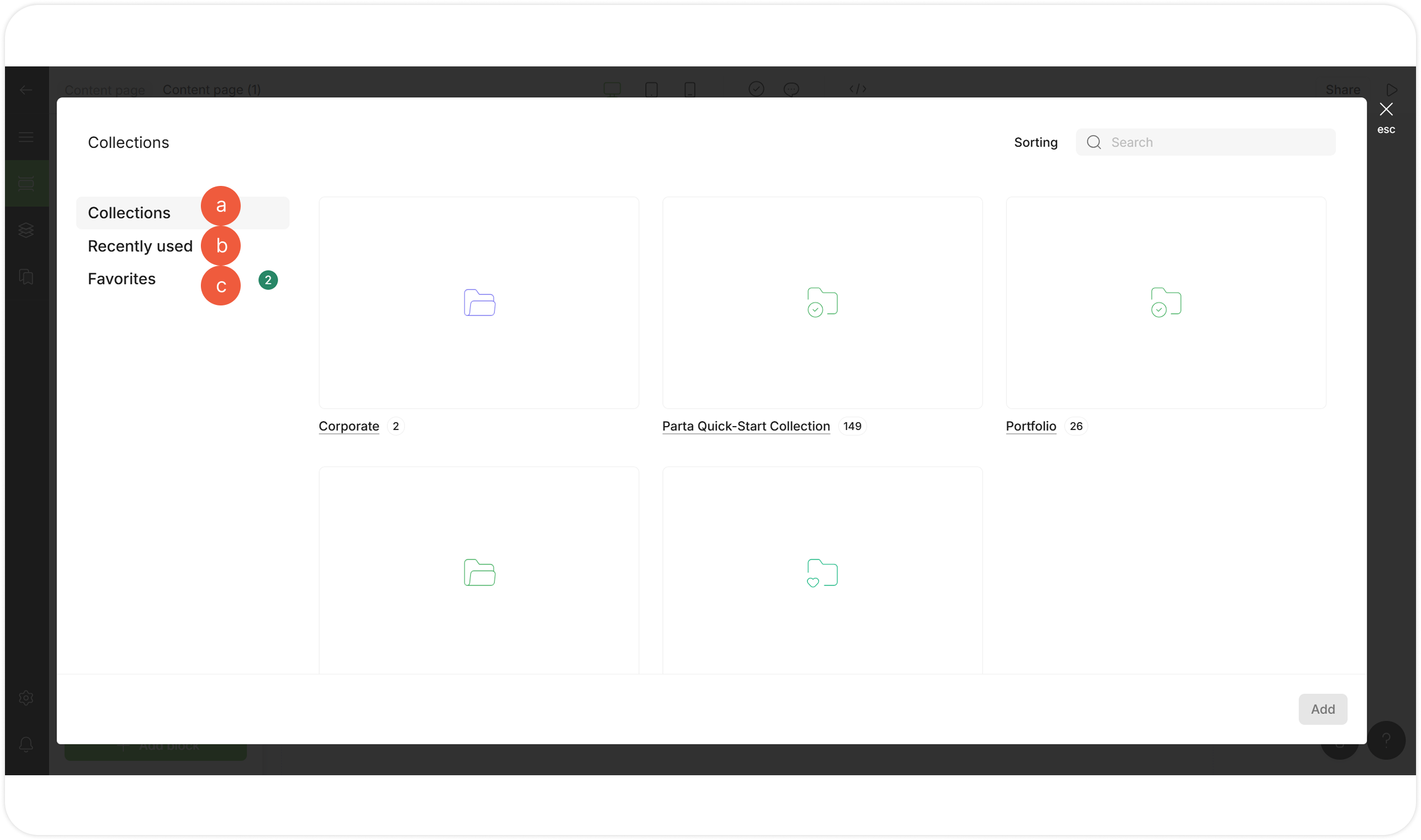
Go to the Collections selection window to access [templates collections](/editor/edit-blocks/manage-templates.md).
Select a tab:
> **a.** Go to the **Collections** tab to select a template from company, project or private collections grouped into folders;
>
> **b.** Go to the **Recently used** tab to select a recently added template;
>
> **c.** Go to the **Favorites** tab to select a saved default or customized template.
>
> {% hint style="success" %}
> Go to the **Quick add tab** to get access to the **Recently used** or **Favorites** templates tabs or click the **All templates** button to open templates collections window.
> {% endhint %}
> {% endstep %}
{% step %}
Select an available template.
List of available default templates depends on the section type.
{% endstep %}
{% step %}
Click the **Add** button.
The selected template will appear in the editor as a block to modify.
{% endstep %}
{% endstepper %}