> For the complete documentation index, see [llms.txt](https://help.parta.io/llms.txt). Markdown versions of documentation pages are available by appending `.md` to page URLs; this page is available as [Markdown](https://help.parta.io/editor/edit-blocks/manage-a-block.md).
# Manage a Block
After [adding a block](/editor/edit-blocks/add-a-block.md), manage it according to the assigned [roles / permissions](/workspace/set-a-workspace.md).
{% hint style="success" %}
Click on the block either in the editor or at the **Section block list** to select it.
{% endhint %}
## Move a Block
{% stepper %}
{% step %}
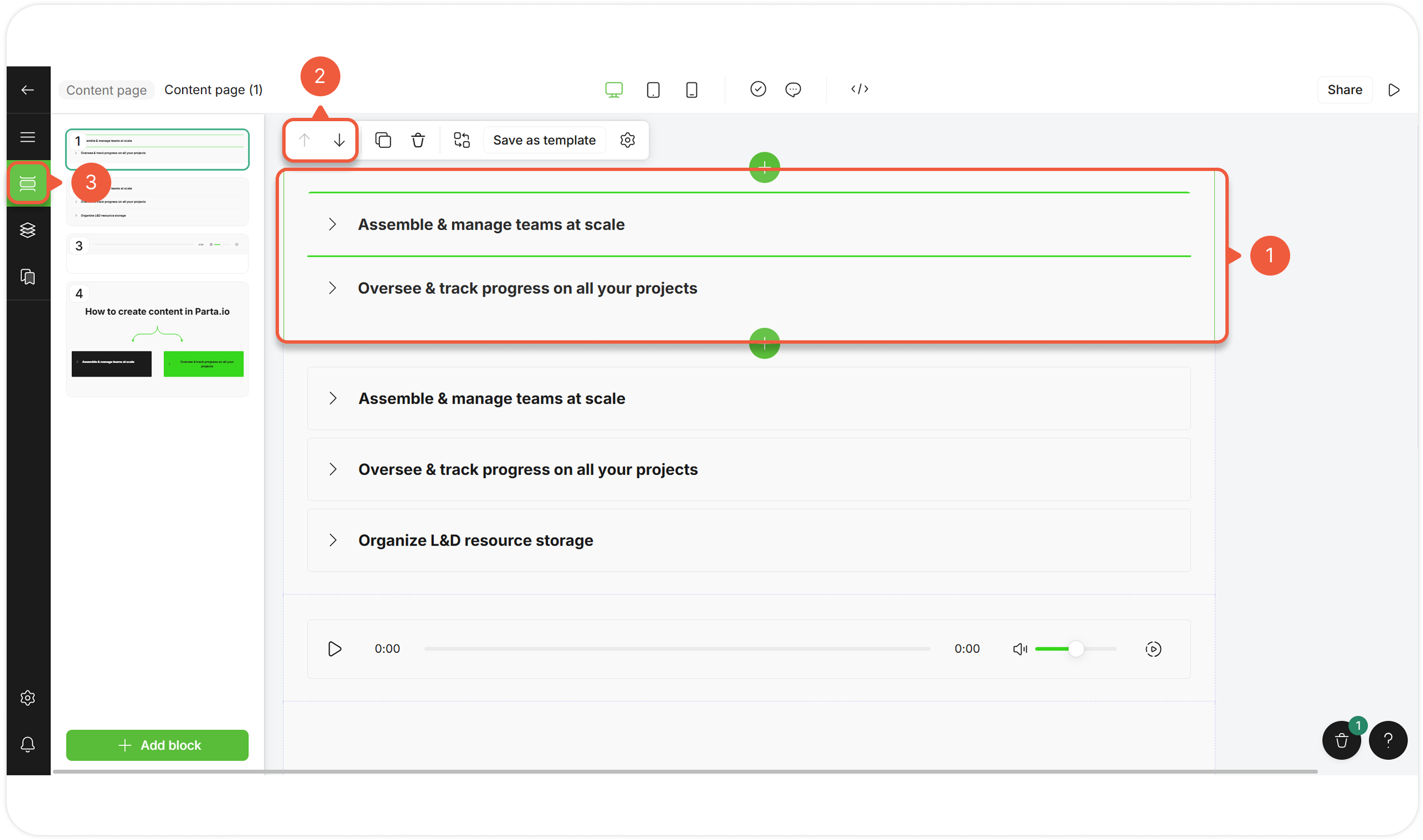
[Open an editor](/editor/work-in-the-editor.md) and select a block.
{% endstep %}
{% step %}
Use arrows to move a block up or down the current position.
{% endstep %}
{% step %}
Use **Section block list** tab to [drag the blocks](/editor/work-in-the-editor.md#move-between-blocks).
{% endstep %}
{% endstepper %}
## Clone a Block
{% stepper %}
{% step %}
[Open an editor](/editor/work-in-the-editor.md) and select a block.
{% endstep %}
{% step %}
Click the **Clone block** icon.
The block copy will appear below the original block.
{% endstep %}
{% endstepper %}
## Delete a Block
{% stepper %}
{% step %}
[Open an editor](/editor/work-in-the-editor.md) and select a block.
{% endstep %}
{% step %}
Click the **Delete** icon.
{% endstep %}
{% endstepper %}
## Restore a Block
{% stepper %}
{% step %}
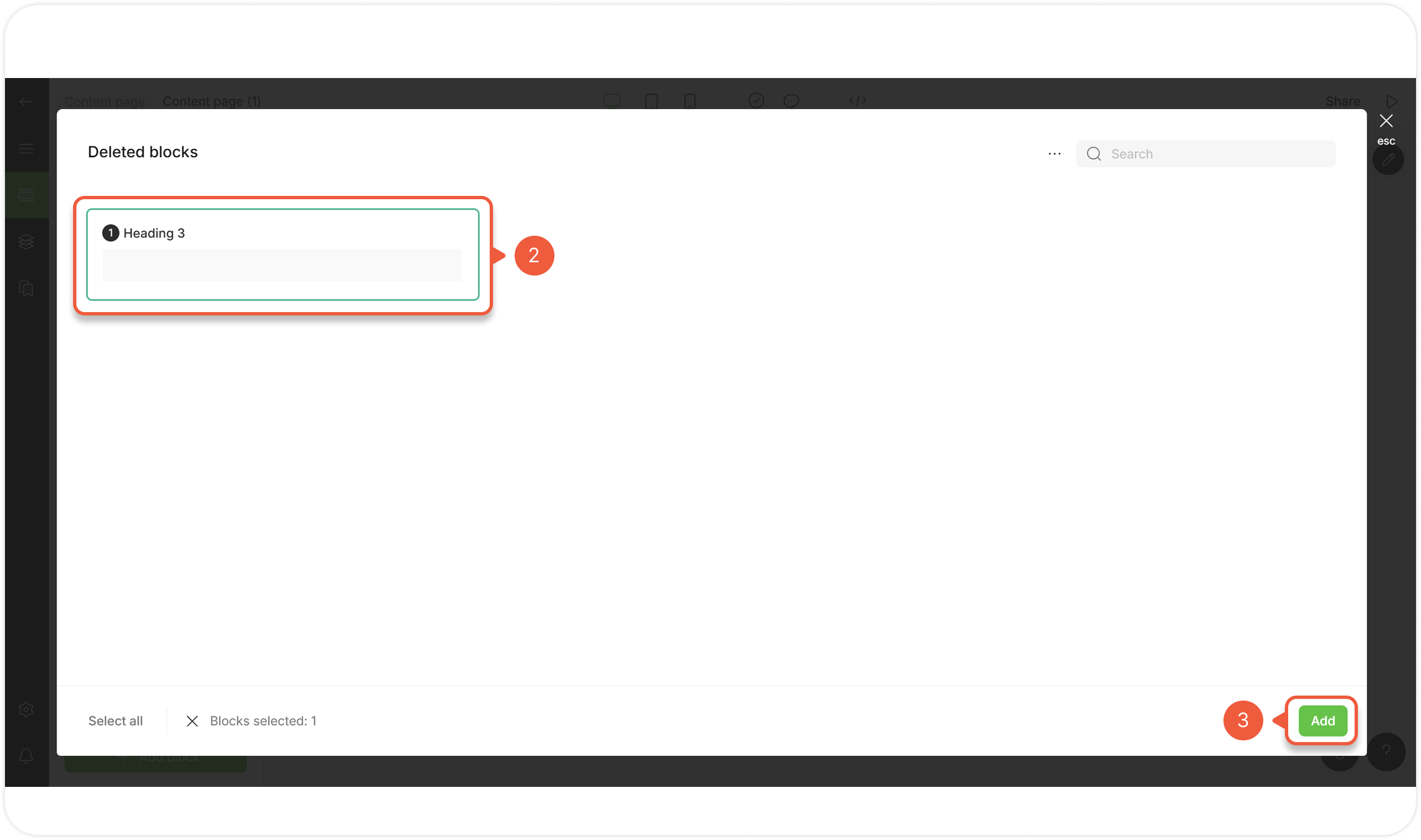
[Open an editor](/editor/work-in-the-editor.md) and and click on the basket at the right bottom corner.
A pop-up window will appear.
{% endstep %}
{% step %}
Select one or more blocks.
{% endstep %}
{% step %}
Click the **Add** button.
The restored block(s) will appear at the bottom of the editor.
{% endstep %}
{% endstepper %}
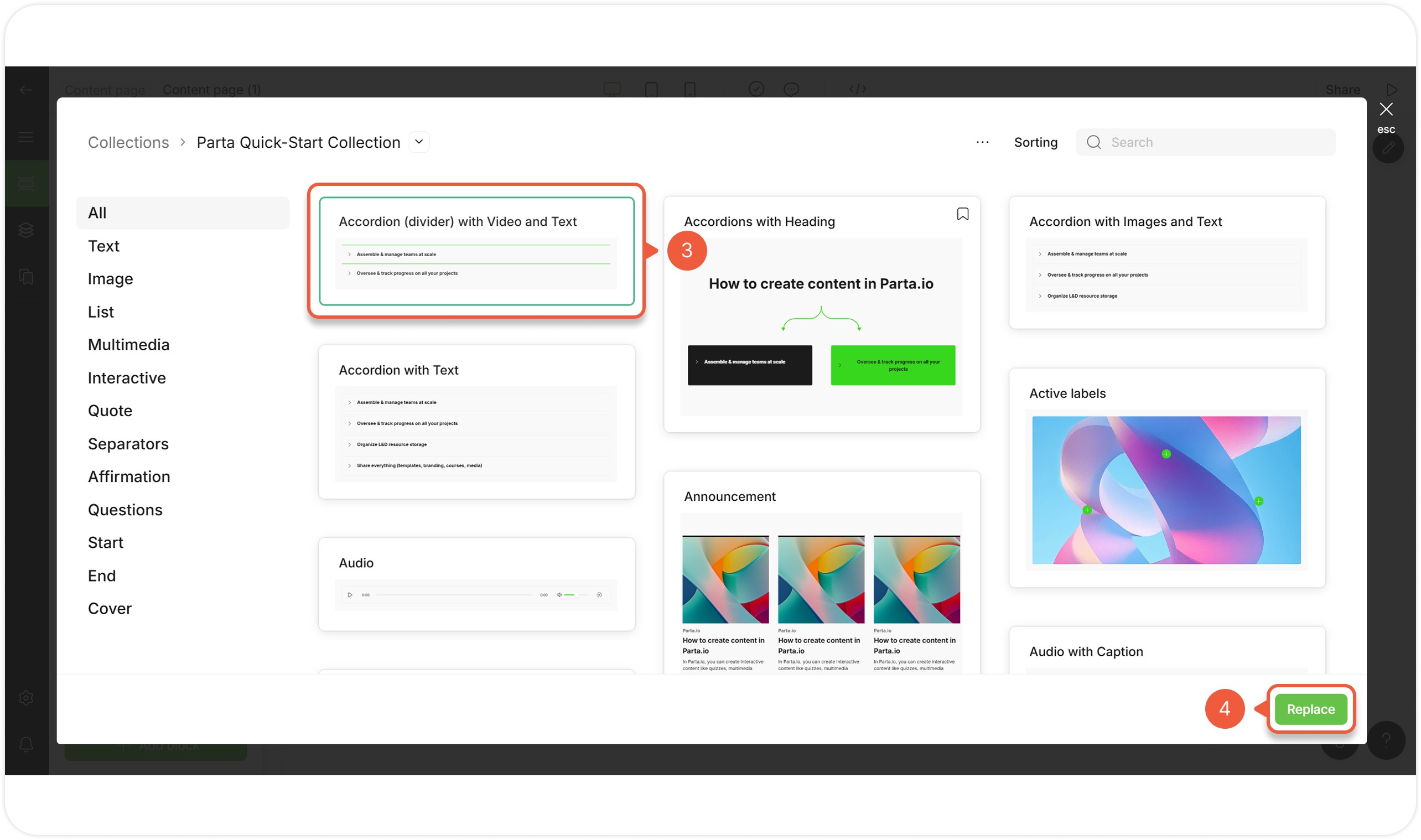
## Replace a Block with Another Template
{% stepper %}
{% step %}
[Open an editor](/editor/work-in-the-editor.md) and select a block.
{% endstep %}
{% step %}
Click the **Replace template** icon.
A pop-up window will appear.
{% endstep %}
{% step %}
Select a new block.
Navigate in the same way as when [adding a block](/editor/edit-blocks/add-a-block.md).
{% endstep %}
{% step %}
Click the **Replace** button.
{% endstep %}
{% endstepper %}
## Replace a Block Saving Text Content
Replace a whole block to see the same content in a different format using AI.
{% stepper %}
{% step %}
[Open an editor](/editor/work-in-the-editor.md) and select a block.
{% endstep %}
{% step %}
Select **AI replace**.
A pop-up window will appear.
{% endstep %}
{% step %}
Select **AI template replace** option.
A pop-up window will appear.
{% endstep %}
{% step %}
Select a new block.
Navigate in the same way as when [adding a block](/editor/edit-blocks/add-a-block.md).
{% endstep %}
{% step %}
Click the **Replace** button.
A new block with replaced template and same text content will appear below the selected block.
{% endstep %}
{% endstepper %}
## Replace Text Content within a Block
Keep the block and refresh the text inside using AI.
{% stepper %}
{% step %}
[Open an editor](/editor/work-in-the-editor.md) and select a block.
{% endstep %}
{% step %}
Select **AI replace**.
A pop-up window will appear.
{% endstep %}
{% step %}
Select **AI text replace** option.
A pop-up window will appear.
{% endstep %}
{% step %}
Enter a text at the **Your text** field.
{% endstep %}
{% step %}
Click the **Replace text** button.
A new block with replaced text content will appear below the selected block.
{% endstep %}
{% endstepper %}
## Save a Block as a Template
{% stepper %}
{% step %}
[Open an editor](/editor/work-in-the-editor.md) and select a block.
{% endstep %}
{% step %}
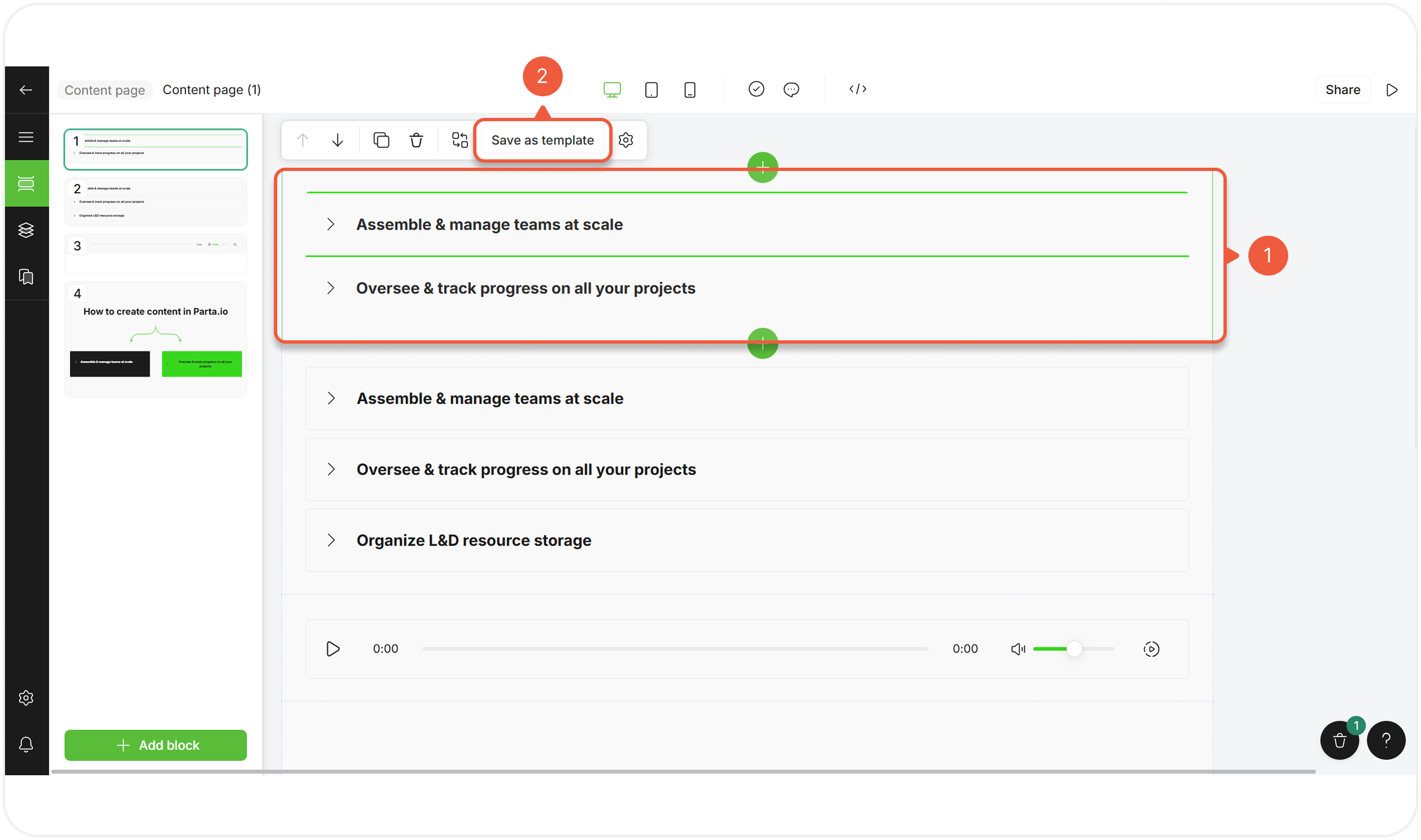
Select **Save as template**.
A pop-up window will appear.
{% endstep %}
{% step %}
Set a name for a template.
{% endstep %}
{% step %}
Set a template location.
Select a template collection folder to save a new template.
{% endstep %}
{% step %}
Set a one or more group names to logically separate templates within the collection.
{% endstep %}
{% step %}
Click the **Save** button.
You can find the saved template at the **Collections** tab.
{% endstep %}
{% endstepper %}
## Lock Block Editing
Make a block non-editable. Locked blocks are still available for viewing, but not changing.
Non-editable blocks are **unable to delete / change settings**, but **available for moving / saving as a template / duplicating / copying to another project**. Duplicated / copied sections will be editable.
{% stepper %}
{% step %}
[Open an editor](/editor/work-in-the-editor.md) and select a block.
{% endstep %}
{% step %}
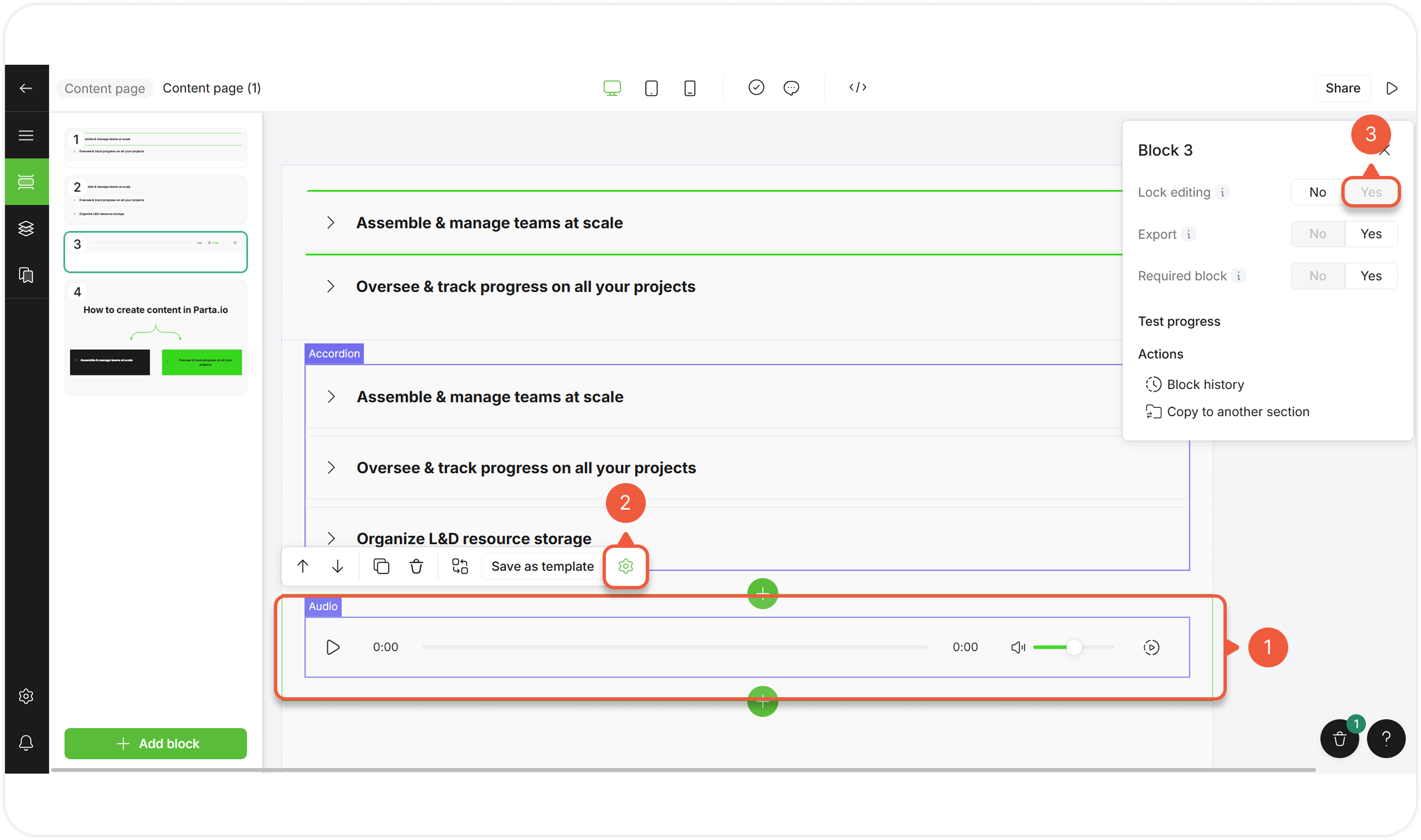
Click the **Block settings** icon.
A pop-up window will appear.
{% endstep %}
{% step %}
Click **Yes** next to the **Lock editing** setting.
A lock icon will appear at the block upper right corner at the **Section block list** menu.\
\
The changes will be saved automatically.
{% endstep %}
{% endstepper %}
## Exclude a Block from Export
Hide blocks that are not relevant to certain users. Excluded materials won't appear in export or preview.
{% stepper %}
{% step %}
[Open an editor](/editor/work-in-the-editor.md) and select a block.
{% endstep %}
{% step %}
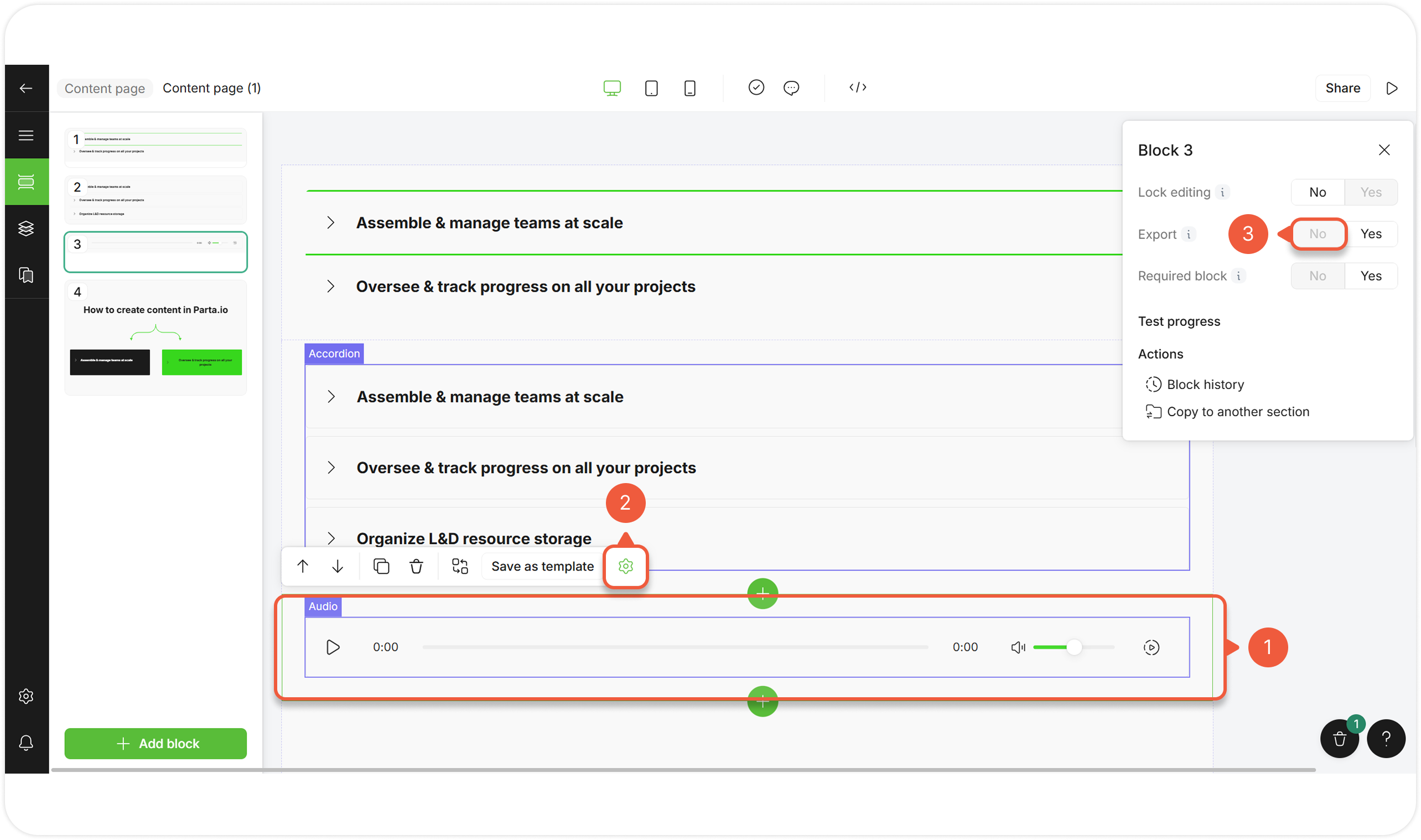
Click the **Block settings** icon.
A pop-up window will appear.
{% endstep %}
{% step %}
Click **No** next to the **Export setting**.
The changes will be saved automatically.
{% endstep %}
{% endstepper %}
## Exclude a Block from Required
Make a block unnecessary to complete the course.
{% stepper %}
{% step %}
[Open an editor](/editor/work-in-the-editor.md) and select a block.
{% endstep %}
{% step %}
Click the **Block settings** icon.
A pop-up window will appear.
{% endstep %}
{% step %}
Click **No** next to the **Required block** setting.
The changes will be saved automatically.
{% endstep %}
{% endstepper %}
## Manage Block History
Switch between different versions of a block to cancel the non-relevant changes.
{% stepper %}
{% step %}
[Open an editor](/editor/work-in-the-editor.md) and select a block.
{% endstep %}
{% step %}
Click the **Block settings** icon.
A pop-up window will appear.
{% endstep %}
{% step %}
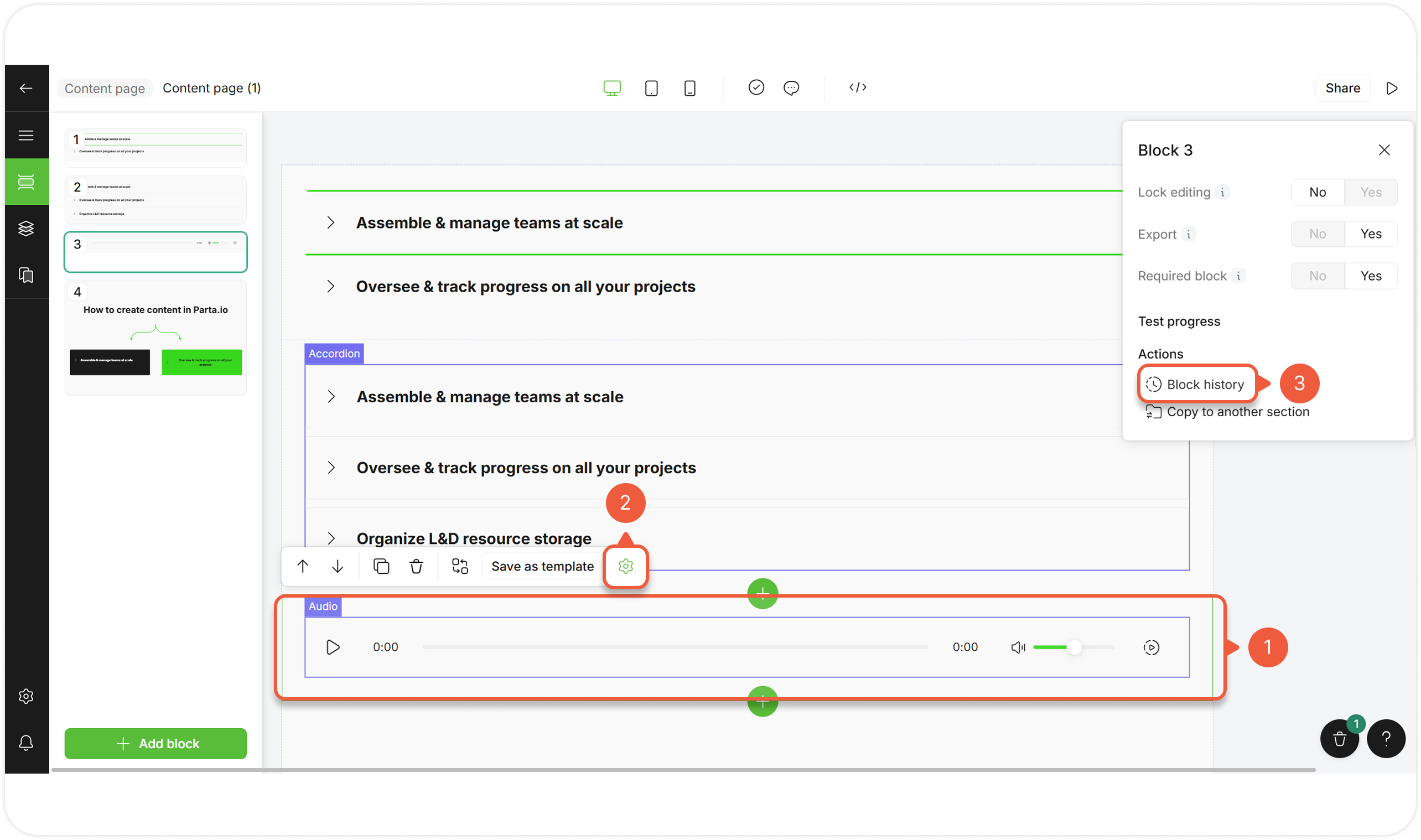
Click **Block history**.
A pop-up window will appear.
{% endstep %}
{% step %}
Select the version of the block made by the specified user.
Click through block versions to view or restore them.
{% endstep %}
{% step %}
Click the **Apply** button to save the changes.
{% endstep %}
{% endstepper %}
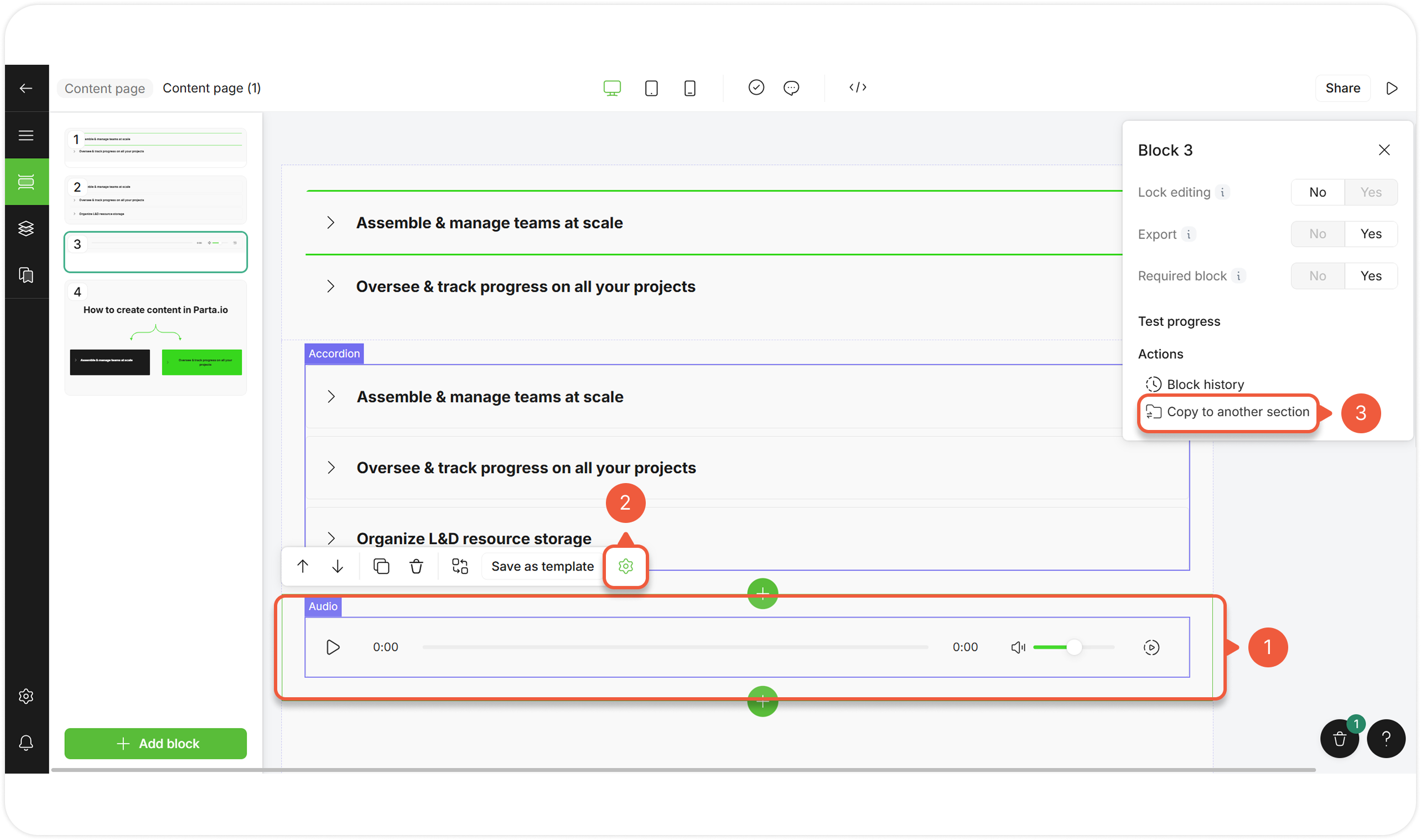
## Copy a Block to Another Section
{% stepper %}
{% step %}
[Open an editor](/editor/work-in-the-editor.md) and select a block.
{% endstep %}
{% step %}
Click the **Block settings** icon.
A pop-up window will appear.
{% endstep %}
{% step %}
Select **Copy to another section**.
A pop-up window will appear.
{% endstep %}
{% step %}
Select a section to insert a copied section.
The selected section will appear.
The block copy will appear at the bottom of the opened section.
{% endstep %}
{% endstepper %}
## Perform Bulk Actions
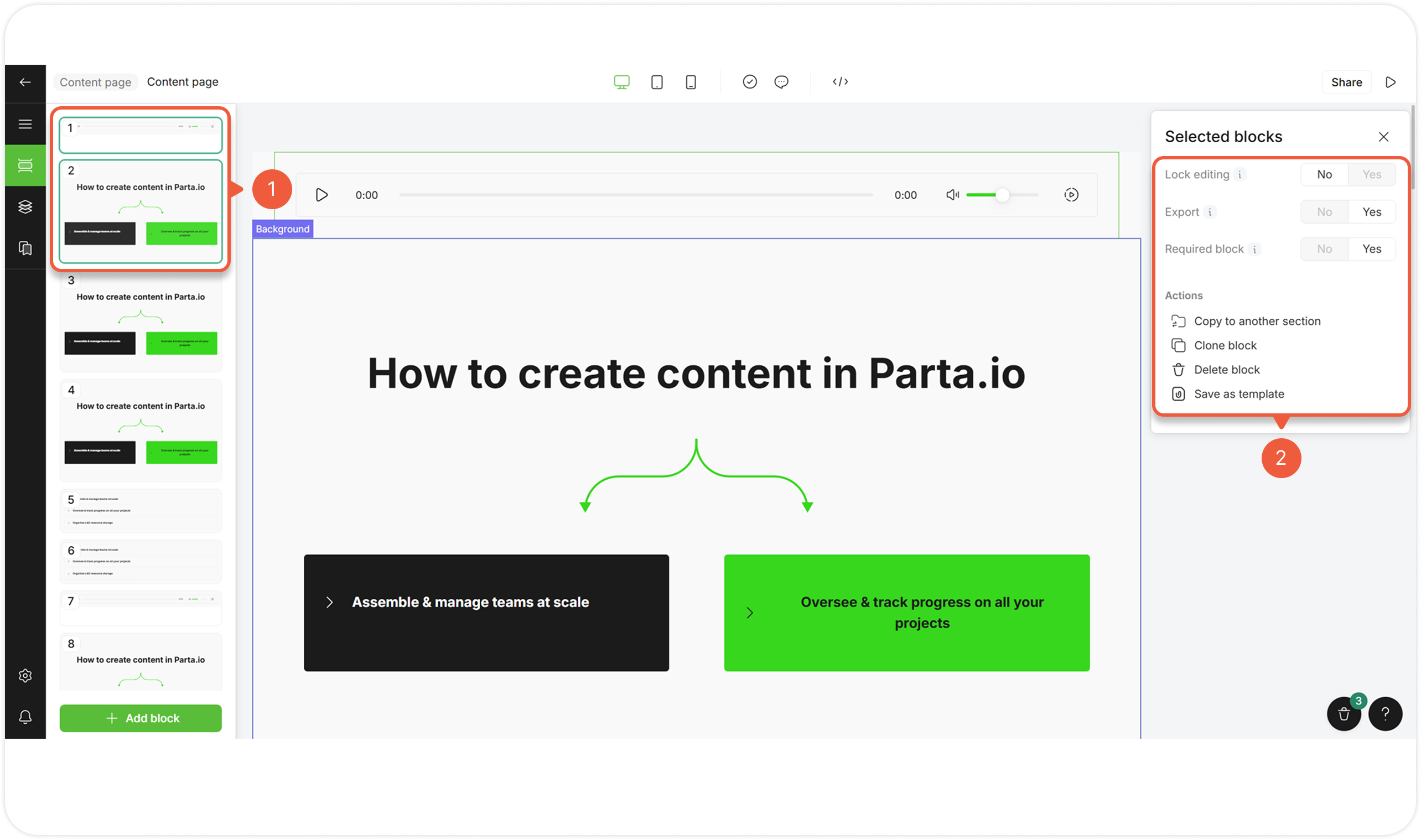
[Save as a template](#save-a-block-as-a-template), [lock editing](#lock-block-editing), [exclude from export](#exclude-a-block-from-export), [duplicate](#clone-a-block), [copy to another section](#copy-a-block-to-another-section) or [delete](#delete-a-block) multiple blocks at once.
{% stepper %}
{% step %}
[Open an editor](/editor/work-in-the-editor.md) and go to the **Section block list** tab.
{% endstep %}
{% step %}
Select multiple blocks:
* Press and hold **Shift** key and click on the several blocks to select them, including all blocks in between;
* Press and hold **Ctrl** (or **Cmd** on Apple devices) and click on the blocks to select them randomly.
A pop-up window will appear.
{% endstep %}
{% step %}
Select the required action from the action menu.
Actions for multiple blocks work the same as actions for a single block.
{% endstep %}
{% endstepper %}





.png?alt=media&token=f7f2fa5b-22c1-4e92-bd18-1e0bc51841fc)