> For the complete documentation index, see [llms.txt](https://help.parta.io/llms.txt). Markdown versions of documentation pages are available by appending `.md` to page URLs; this page is available as [Markdown](https://help.parta.io/editor/edit-blocks/manage-templates.md).
# Manage Templates
## Create and Save Templates
[Create a template](#create-a-template)
[Delete a template](#delete-a-template)
[Add templates to Favorite](#add-templates-to-favorite)
Any content you've created while working on your e-learning project can be saved as a template for future use. This significantly speeds up the work of other content creators by allowing them to use pre-made professional L\&D templates, and gives managers the ability to set course development standards.
### Create a template
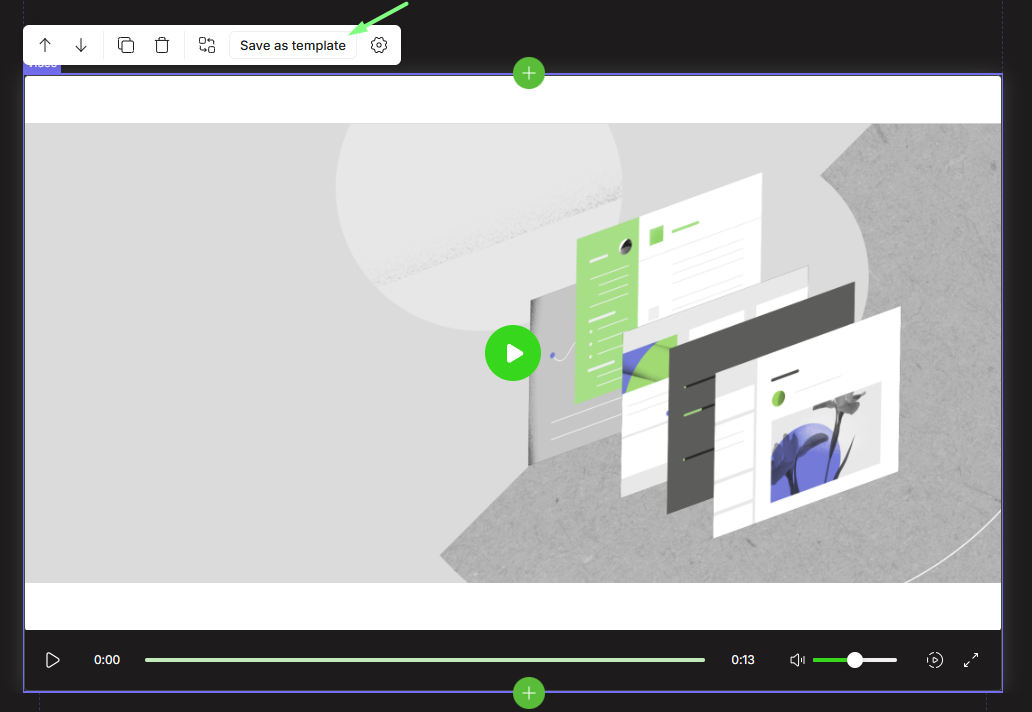
To create a template, select the desired block in the editor, then click "**save as template**" near block
You will then be able to choose a template name and category (Personal, Project, or custom category).
This allows you to choose the level to which the template can be applied:
* Personal templates are only visible to you,
* Project templates can only be applied to the specified project,
* Custom templates can be applied to all projects in the company.
You will also be able to choose a category for elements to describe your template (Text, List, Multimedia, Interactive, etc.).
Once you create a template, it will become available to use for course content creation under the specified categories.
### Delete a template
You can delete your own templates.
* Navigate to collections
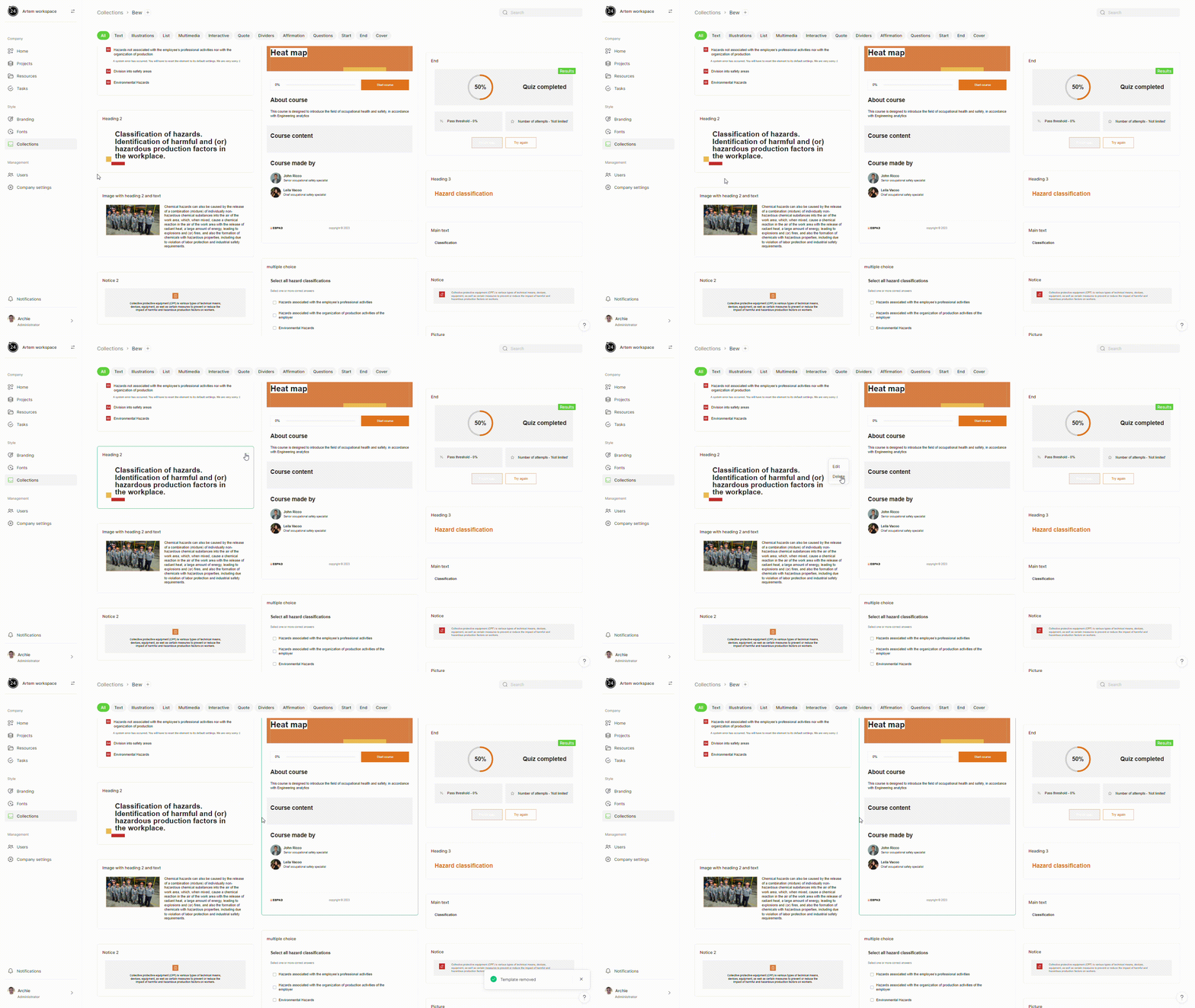
Open the collection, hover over the template you want to delete, click the **three dots (⋯)**, and select **Delete**.
### Add templates to Favorite
To add a template to favorites, follow these steps:
1. Open the template selection modal window.
2. Find the template you need.
3. Click on the bookmark icon in the bottom right corner
## Organize Templates into Collections
{% hint style="info" %}
A collection is a group of related templates for easy administration.
{% endhint %}
On the Collections page, you can create your own custom collections, as well as delete and edit them.
{% hint style="success" %}
Each company has pre-made templates available for you.
{% endhint %}
### Create collection
To create collection, click the "**plus**" button
Name your collection, choose a color for the collection folder, and select a branding to check how your templates will look with the new style.
### Edit collection
To **edit** a collection, hover your mouse over the **collection**, click on "**...**" and then select "**Edit**".
### Delete collection
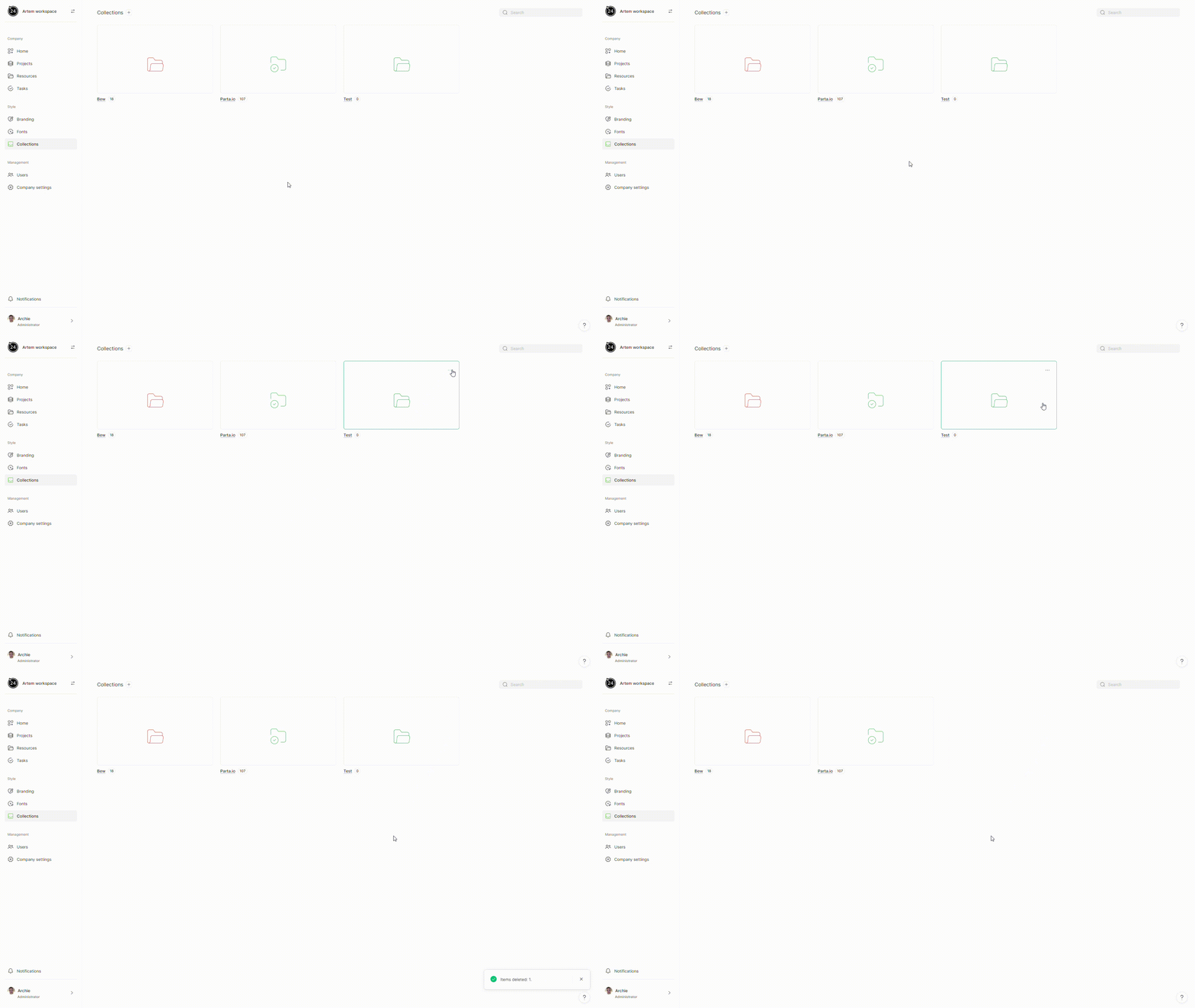
To **delete** a collection, hover your mouse over the **collection**, click on "**...**" and then select "**Delete**".
### Delete template from specific collection
To **delete** a template from the collection, hover your mouse over the **template**, click on "**...**" and then select "**Delete**".