# Accordion

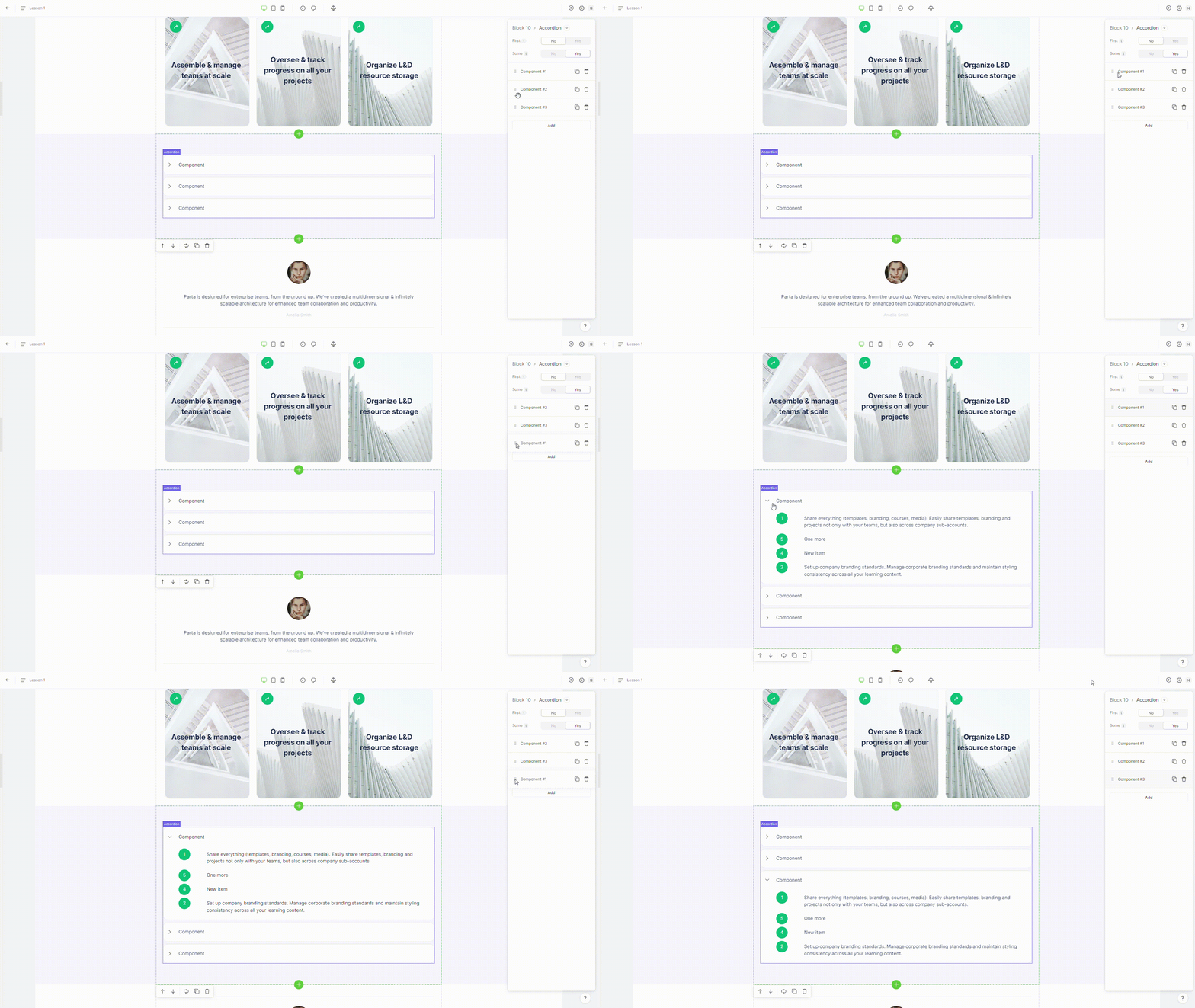
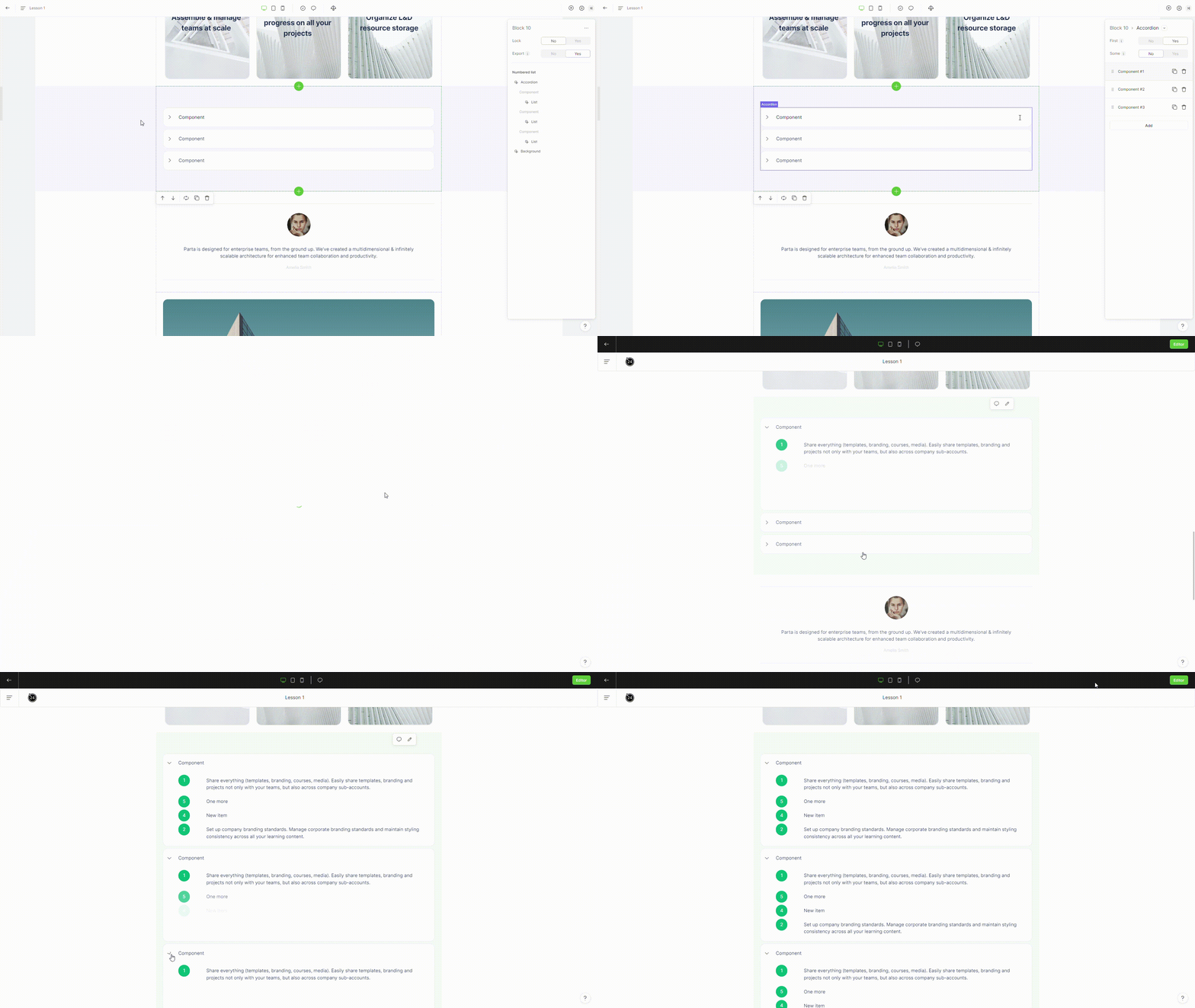
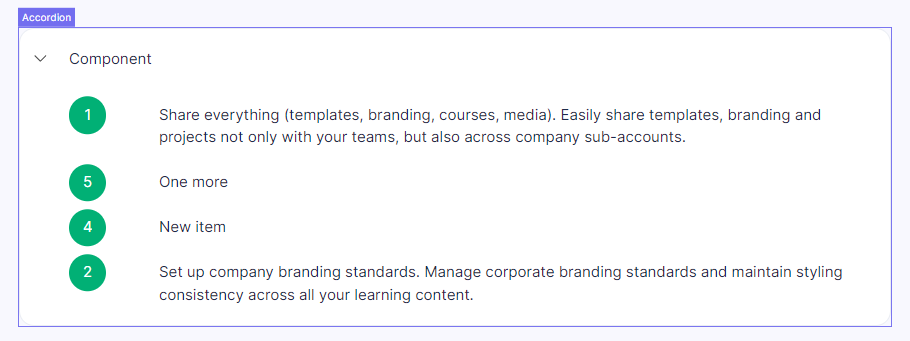
Represents a list of items, where each item has a title and content that can be expanded or collapsed. The user can click on the title to open or close the corresponding content.

<figure><img src="https://3560131808-files.gitbook.io/~/files/v0/b/gitbook-x-prod.appspot.com/o/spaces%2FoKhlOpFC8JmF8TcxylWx%2Fuploads%2FUlFGFKsfN3kpgF4n4pJF%2FScreenshot_12.png?alt=media&#x26;token=a53a1503-9bc5-4150-99cb-04a8481e5a67" alt=""><figcaption></figcaption></figure>

#### Double-click on an element to view its settings.

<figure><img src="https://3560131808-files.gitbook.io/~/files/v0/b/gitbook-x-prod.appspot.com/o/spaces%2FoKhlOpFC8JmF8TcxylWx%2Fuploads%2F2qNoSUnBPQ0QNRRsHtEo%2FScreenshot_13.png?alt=media&#x26;token=df69732a-71f9-4d50-b968-1da808a0f2ce" alt=""><figcaption></figcaption></figure>

### 1. Add component item

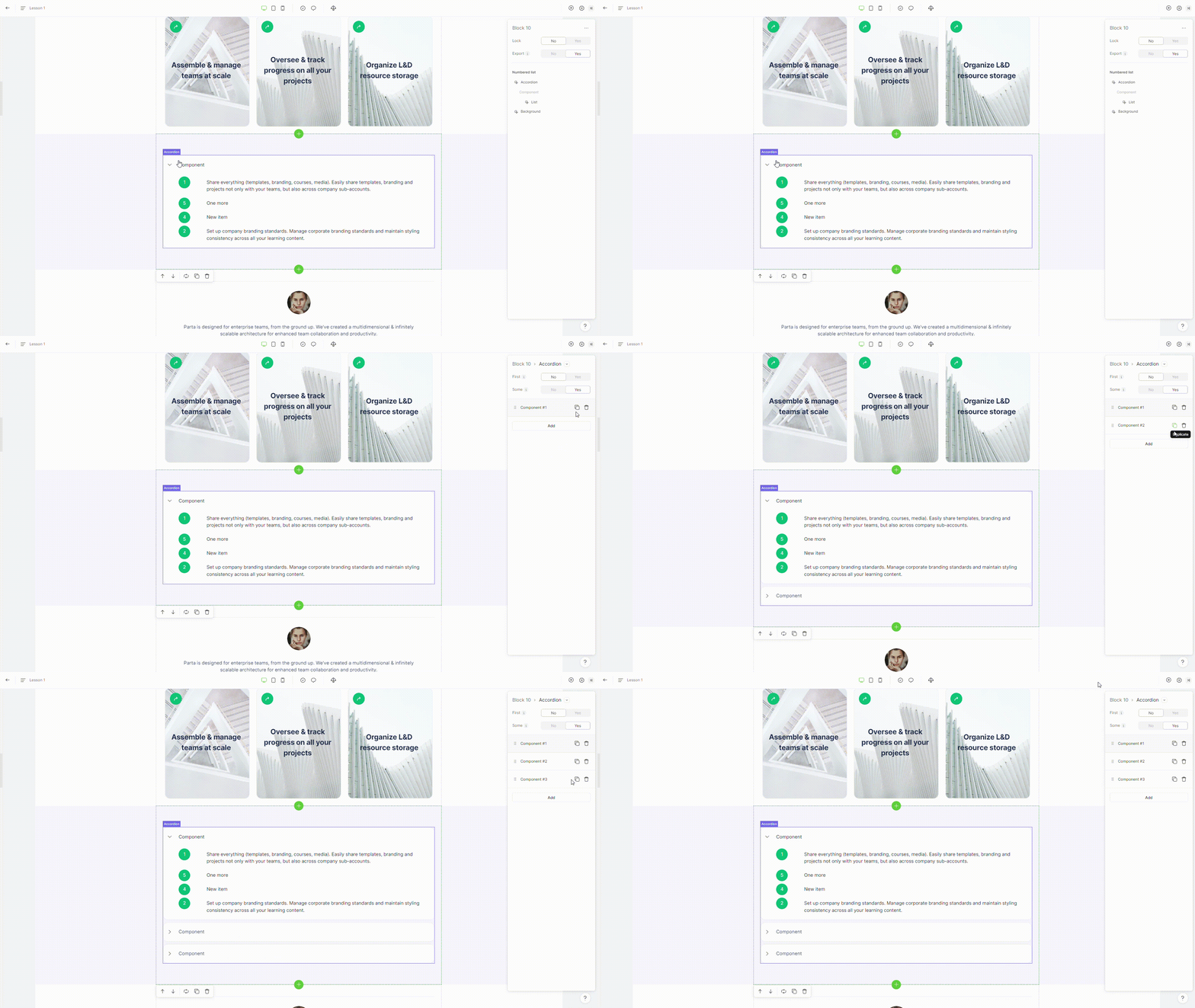
To add a new component item, click on "**Add**" button placed in the element settings

<figure><img src="https://3560131808-files.gitbook.io/~/files/v0/b/gitbook-x-prod.appspot.com/o/spaces%2FoKhlOpFC8JmF8TcxylWx%2Fuploads%2FRyCI94PoTE1Y10p2YqtU%2FEditor%20-%20Google%20Chrome%202024-03-06%2019-55-51.gif?alt=media&#x26;token=a7d4ac35-b88b-4a7f-8a9c-3b014a0c2bca" alt=""><figcaption></figcaption></figure>

### 2. Make first accordion item opened

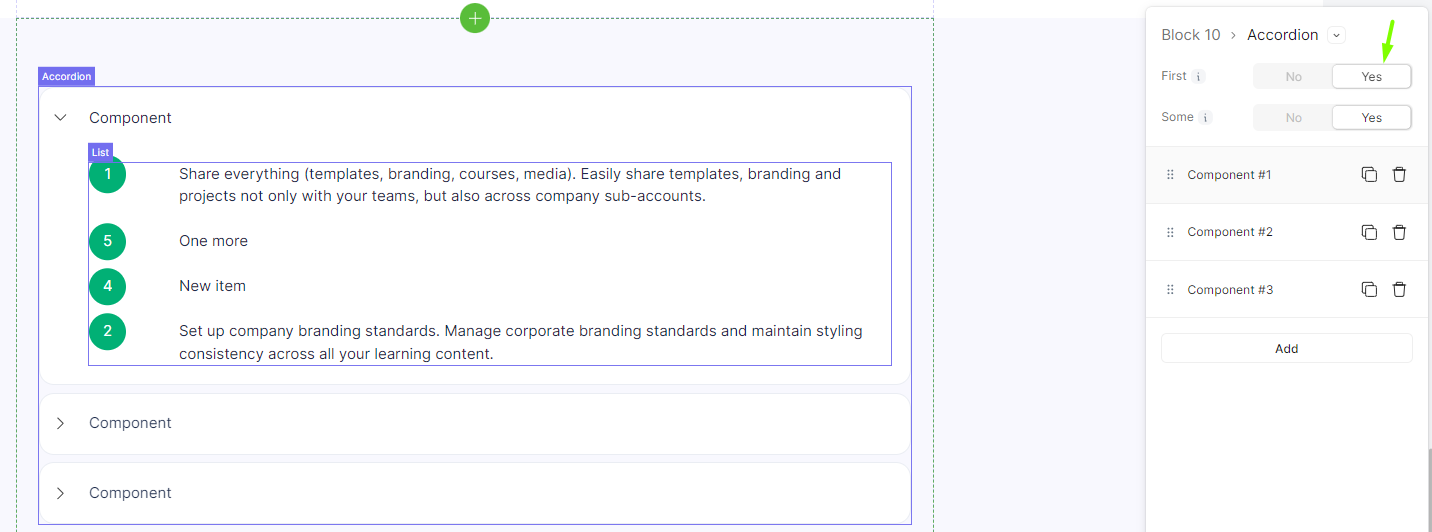
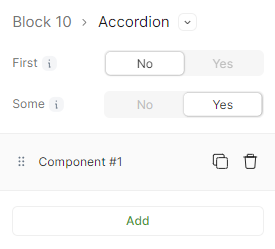
To make first accordion opened, switch property **first** to **yes.**

<figure><img src="https://3560131808-files.gitbook.io/~/files/v0/b/gitbook-x-prod.appspot.com/o/spaces%2FoKhlOpFC8JmF8TcxylWx%2Fuploads%2FltMXJiwntJk2SIVaEakt%2FScreenshot_14.png?alt=media&#x26;token=a0e41580-207e-40ad-a7bd-7cab293e5282" alt=""><figcaption></figcaption></figure>

### 3. Delete accordion item

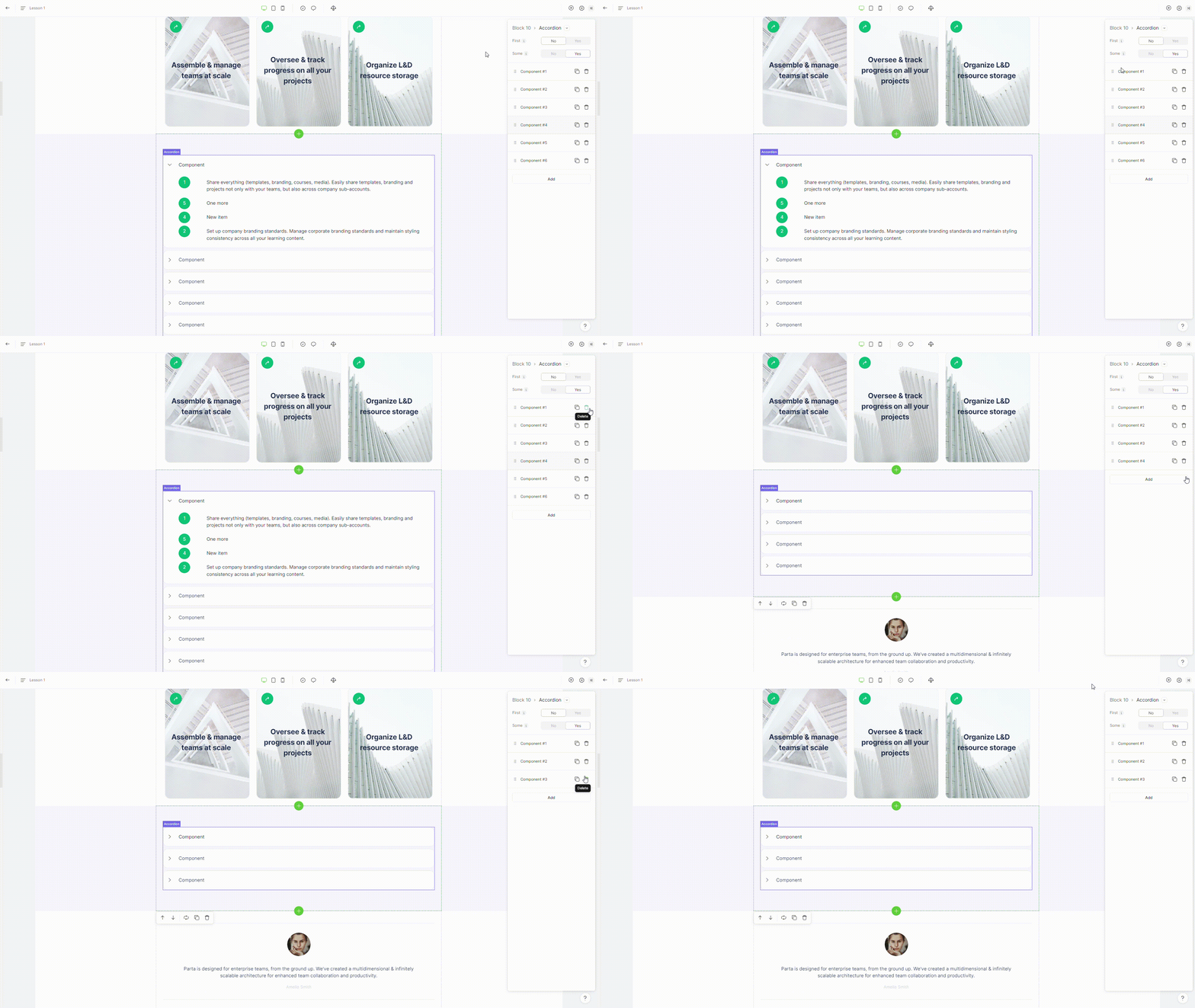
To remove an accordion item, select the **"delete"** option in the element settings.

<figure><img src="https://3560131808-files.gitbook.io/~/files/v0/b/gitbook-x-prod.appspot.com/o/spaces%2FoKhlOpFC8JmF8TcxylWx%2Fuploads%2FR6zakTqCne9r4NZaPTAY%2FEditor%20-%20Google%20Chrome%202024-03-06%2019-56-23.gif?alt=media&#x26;token=22f13d4f-0926-4a9a-be07-f851d2e00ce4" alt=""><figcaption></figcaption></figure>

### 4. Duplicate accordion item

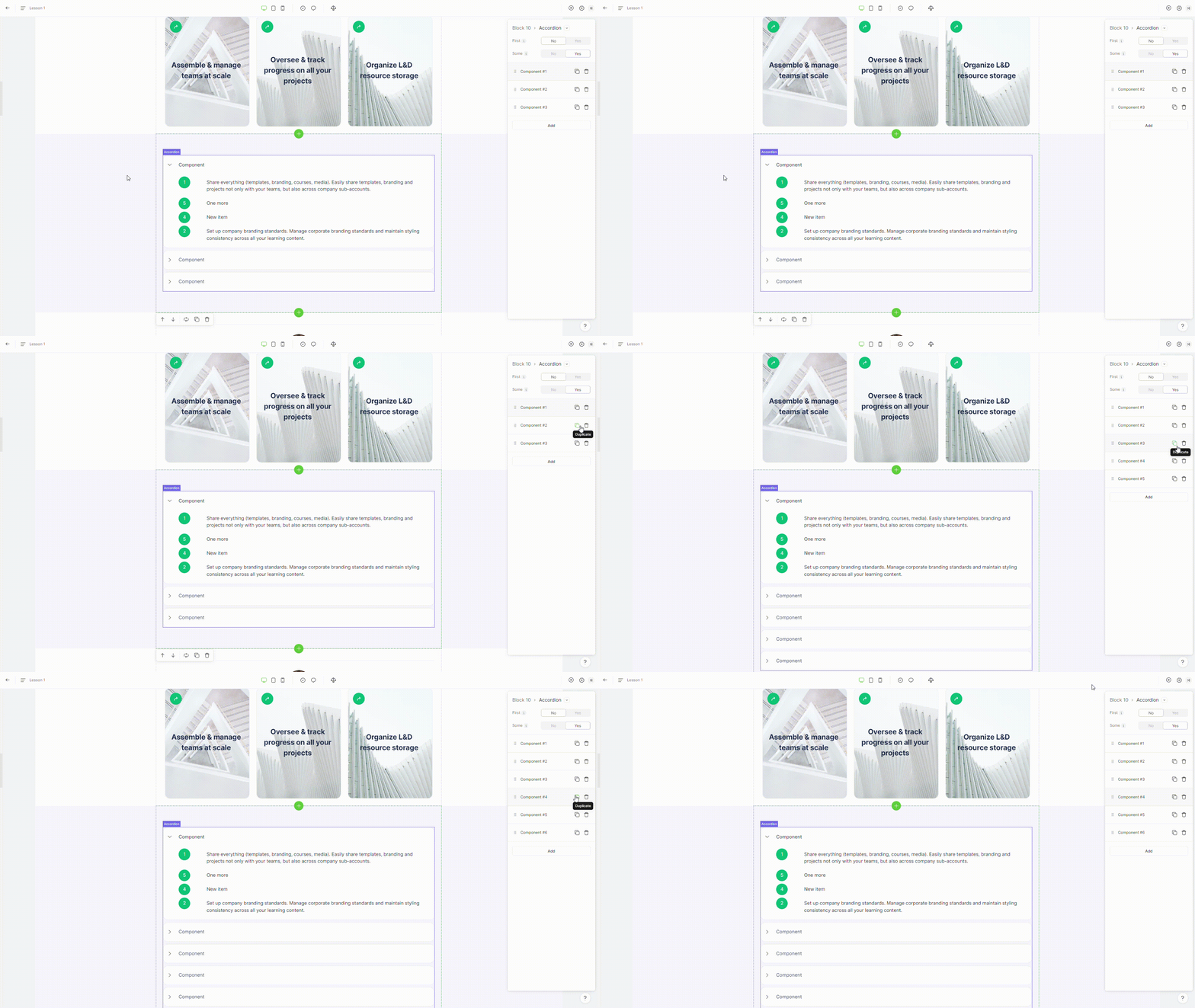
To duplicate an accordion item, select the **"duplicate"** option in the element settings.

<figure><img src="https://3560131808-files.gitbook.io/~/files/v0/b/gitbook-x-prod.appspot.com/o/spaces%2FoKhlOpFC8JmF8TcxylWx%2Fuploads%2FW7TQBAH8ufuAJ7XsxfYt%2FEditor%20-%20Google%20Chrome%202024-03-06%2019-56-08.gif?alt=media&#x26;token=d61a8554-b1ba-4654-98c0-707fb1781790" alt=""><figcaption></figcaption></figure>

### 5. Move accordion item

To move an accordion item, just drag the accordion item to where you want it to appear.

<figure><img src="https://3560131808-files.gitbook.io/~/files/v0/b/gitbook-x-prod.appspot.com/o/spaces%2FoKhlOpFC8JmF8TcxylWx%2Fuploads%2FGxdz9Fx5JF7rDnRuV4fj%2FEditor%20-%20Google%20Chrome%202024-03-06%2019-57-14.gif?alt=media&#x26;token=a54acdfc-4279-4a0f-93f7-abf6b9d4a72a" alt=""><figcaption></figcaption></figure>

### 6. Allow multiple accordion items to be open at the same time.

To allow multiple accordion items to be open at the same time, switch property **some** to **yes.**
<figure><img src="https://3560131808-files.gitbook.io/~/files/v0/b/gitbook-x-prod.appspot.com/o/spaces%2FoKhlOpFC8JmF8TcxylWx%2Fuploads%2FBaZK2gOL5hX60guy8aUw%2FEditor%20-%20Google%20Chrome%202024-03-06%2020-13-19.gif?alt=media&#x26;token=86ead833-d2ac-4ad6-a3b2-9e1787e4fb6b" alt=""><figcaption></figcaption></figure>