# Active labels

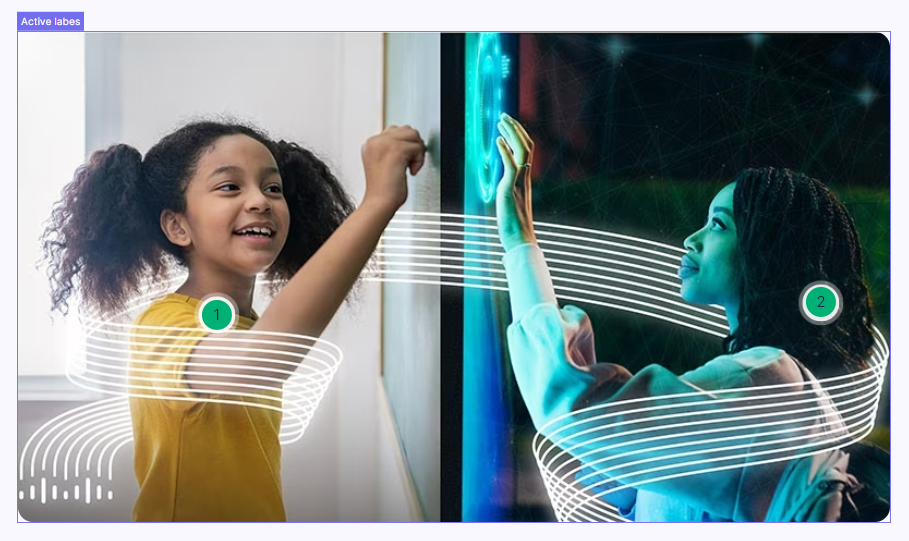
An interactive picture with clickable labels. Clicking these labels shows more information to the user.

<figure><img src="https://3560131808-files.gitbook.io/~/files/v0/b/gitbook-x-prod.appspot.com/o/spaces%2FoKhlOpFC8JmF8TcxylWx%2Fuploads%2F49EOdO6cQlp7pOEd56H5%2FScreenshot_15.png?alt=media&#x26;token=4e672fb8-eca2-4aa6-bf88-997430d57149" alt=""><figcaption></figcaption></figure>

#### Double-click on an element to view its settings.

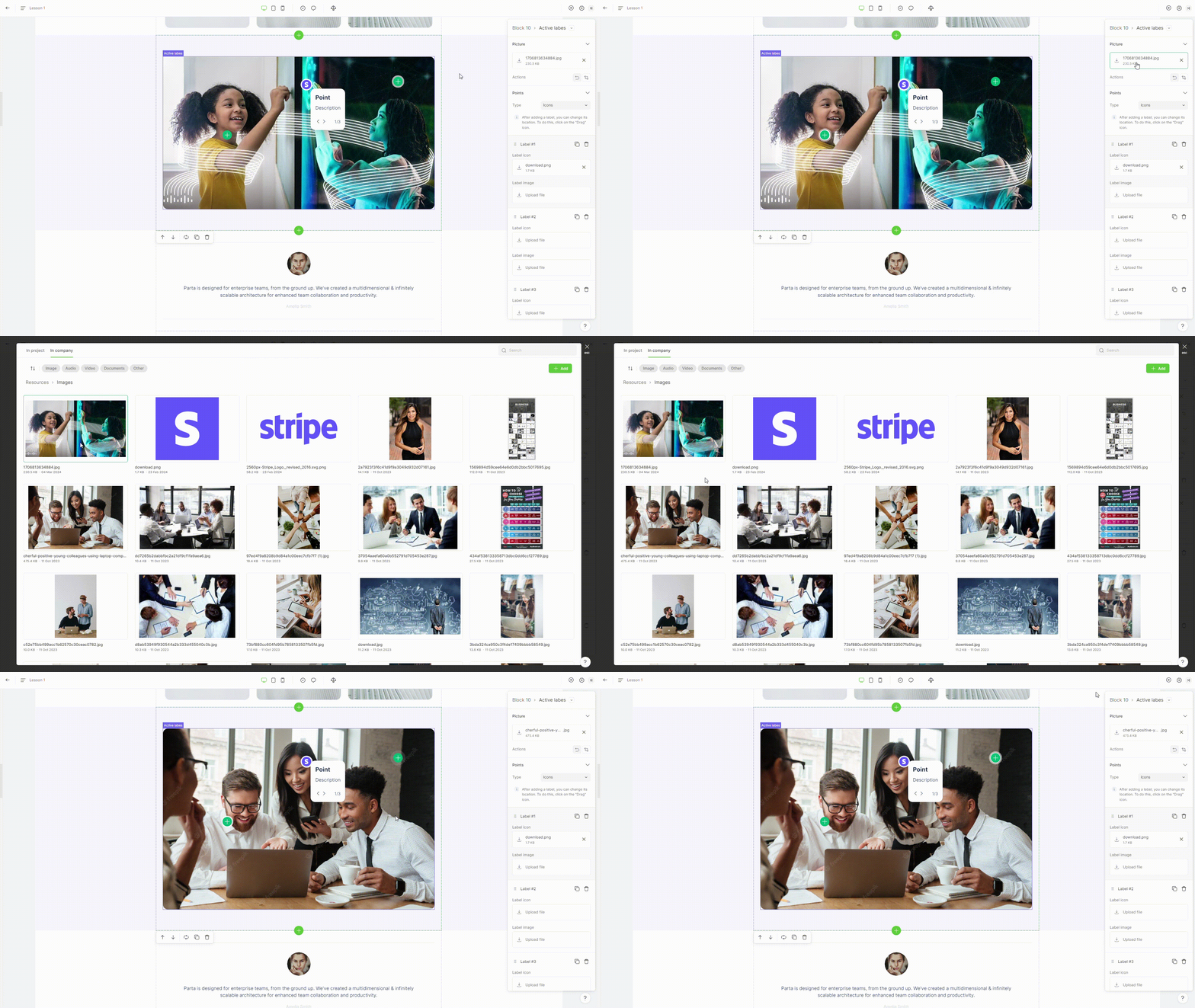
### 1. Change image

To change the image, click on the image file's name and select or [upload ](https://help.parta.io/editor/edit-elements/set-interactive-elements/broken-reference)new image.

<figure><img src="https://3560131808-files.gitbook.io/~/files/v0/b/gitbook-x-prod.appspot.com/o/spaces%2FoKhlOpFC8JmF8TcxylWx%2Fuploads%2FaJNX9cUcXMJPCR3BTlx4%2FEditor%20-%20Google%20Chrome%202024-03-06%2020-40-48.gif?alt=media&#x26;token=28ae53b8-8cc5-4a9b-b79e-43dcd329a823" alt=""><figcaption></figcaption></figure>

### 2. Add label

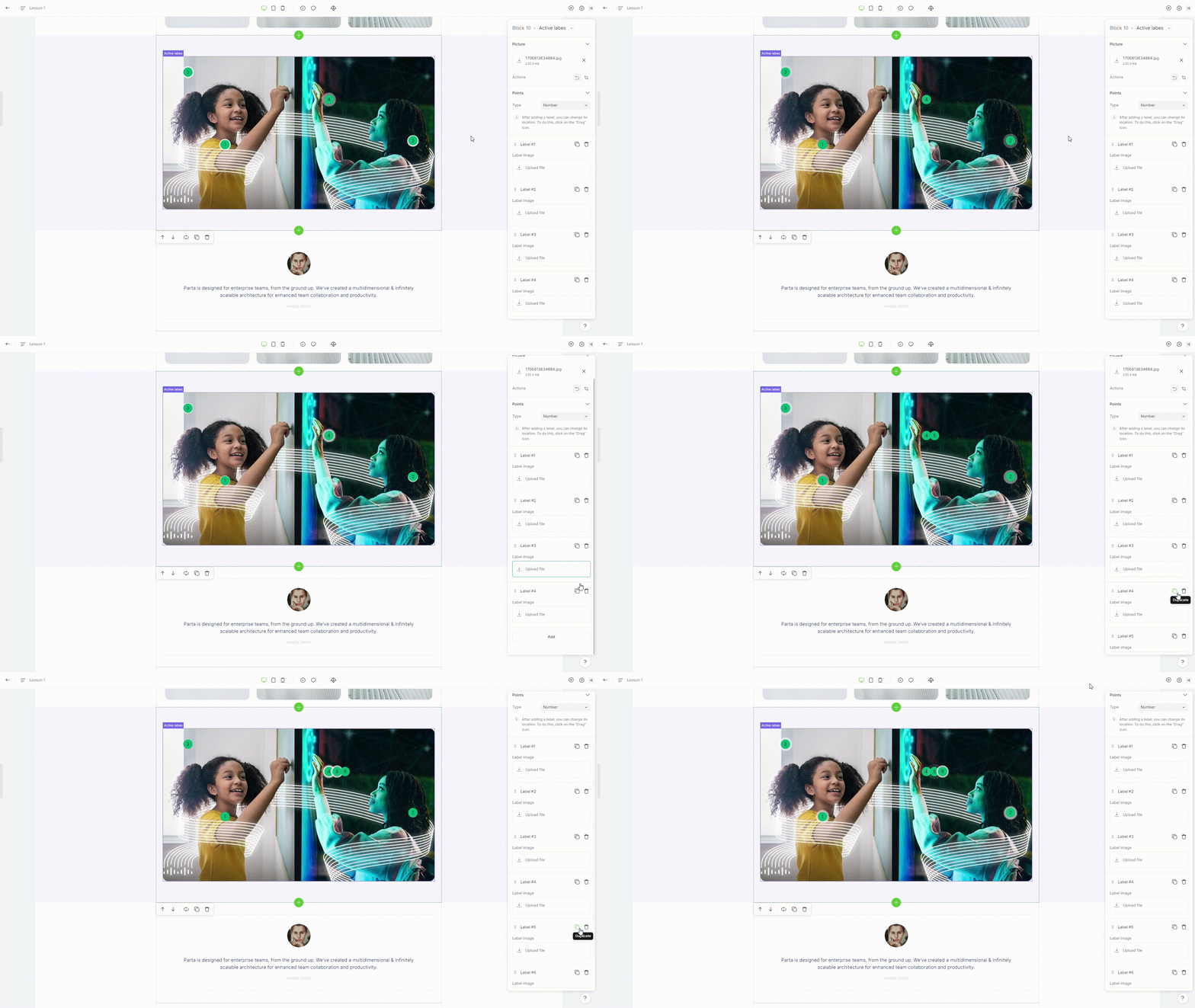
To add a new label, click on "**Add**" button placed in the element settings

<figure><img src="https://3560131808-files.gitbook.io/~/files/v0/b/gitbook-x-prod.appspot.com/o/spaces%2FoKhlOpFC8JmF8TcxylWx%2Fuploads%2F3HcbNlG62V2D7lJUm33X%2FEditor%20-%20Google%20Chrome%202024-03-06%2020-39-19.gif?alt=media&#x26;token=057a15f8-3abf-4425-bbff-482d96922302" alt=""><figcaption></figcaption></figure>

### 3. Change label type

{% hint style="info" %}
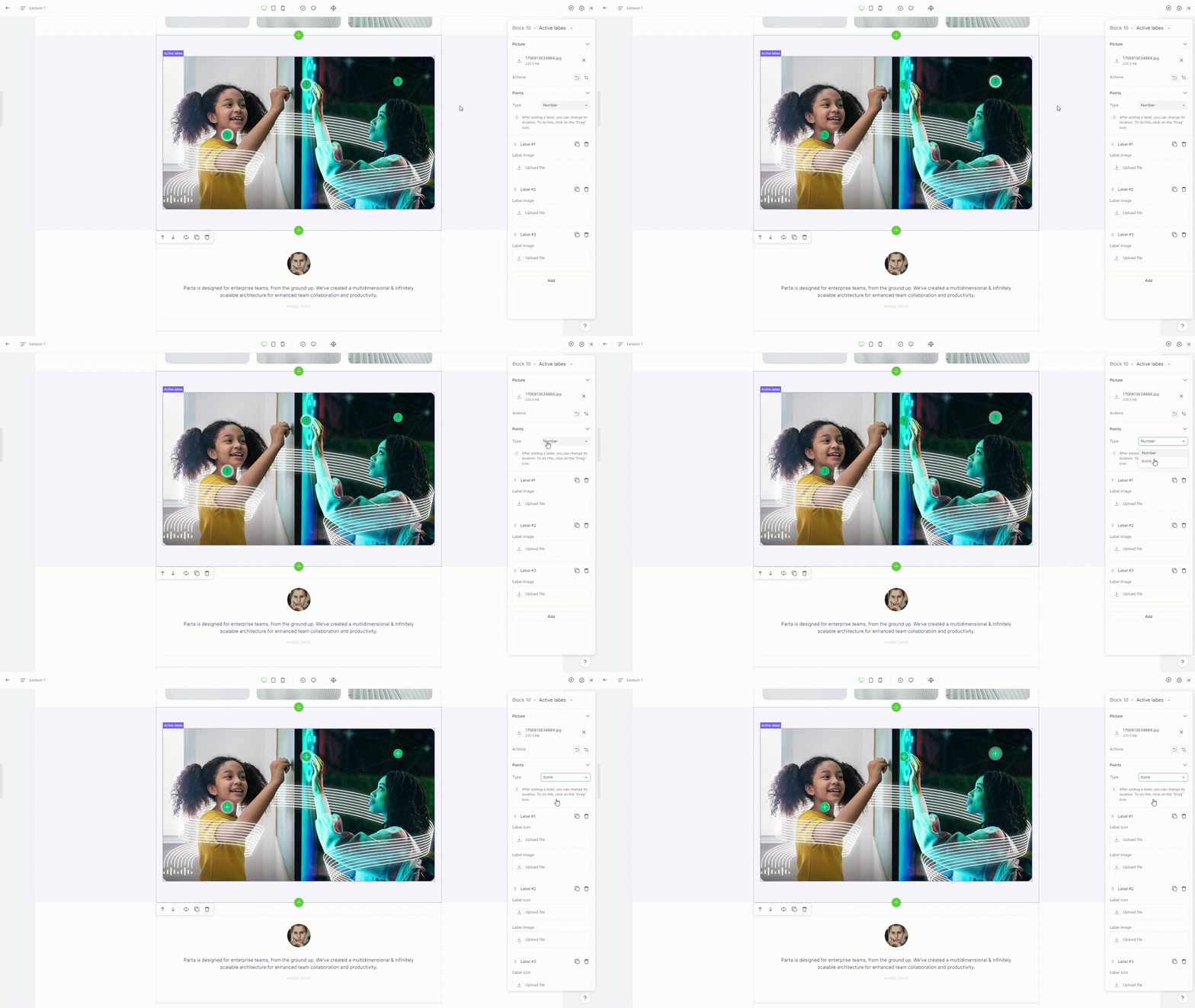
Active label can be two types: icon and number.
{% endhint %}

To change active label view, switch property **type** in the element settings.

<figure><img src="https://3560131808-files.gitbook.io/~/files/v0/b/gitbook-x-prod.appspot.com/o/spaces%2FoKhlOpFC8JmF8TcxylWx%2Fuploads%2FCAW1dZLGQwo26KoOcmRY%2FEditor%20-%20Google%20Chrome%202024-03-06%2020-40-14.gif?alt=media&#x26;token=262fe0ef-d0c0-4a0f-9b17-22d22cb9c103" alt=""><figcaption></figcaption></figure>

### 4. Delete label

To remove a label, select the **"delete"** option in the element settings.

<figure><img src="https://3560131808-files.gitbook.io/~/files/v0/b/gitbook-x-prod.appspot.com/o/spaces%2FoKhlOpFC8JmF8TcxylWx%2Fuploads%2FFzYOOBXiyLfEwqmCEx5F%2FEditor%20-%20Google%20Chrome%202024-03-06%2020-39-41.gif?alt=media&#x26;token=3d66545b-590c-4011-a508-d1137ec364ec" alt=""><figcaption></figcaption></figure>

### 5. Duplicate label

To duplicate a label, select the **"duplicate"** option in the element settings.

<figure><img src="https://3560131808-files.gitbook.io/~/files/v0/b/gitbook-x-prod.appspot.com/o/spaces%2FoKhlOpFC8JmF8TcxylWx%2Fuploads%2FcvchODC2k3jBziTF4rH9%2FEditor%20-%20Google%20Chrome%202024-03-06%2020-39-30.gif?alt=media&#x26;token=ed5b1ea5-9761-4f08-995c-8e8816014b66" alt=""><figcaption></figcaption></figure>

### 6. Move label

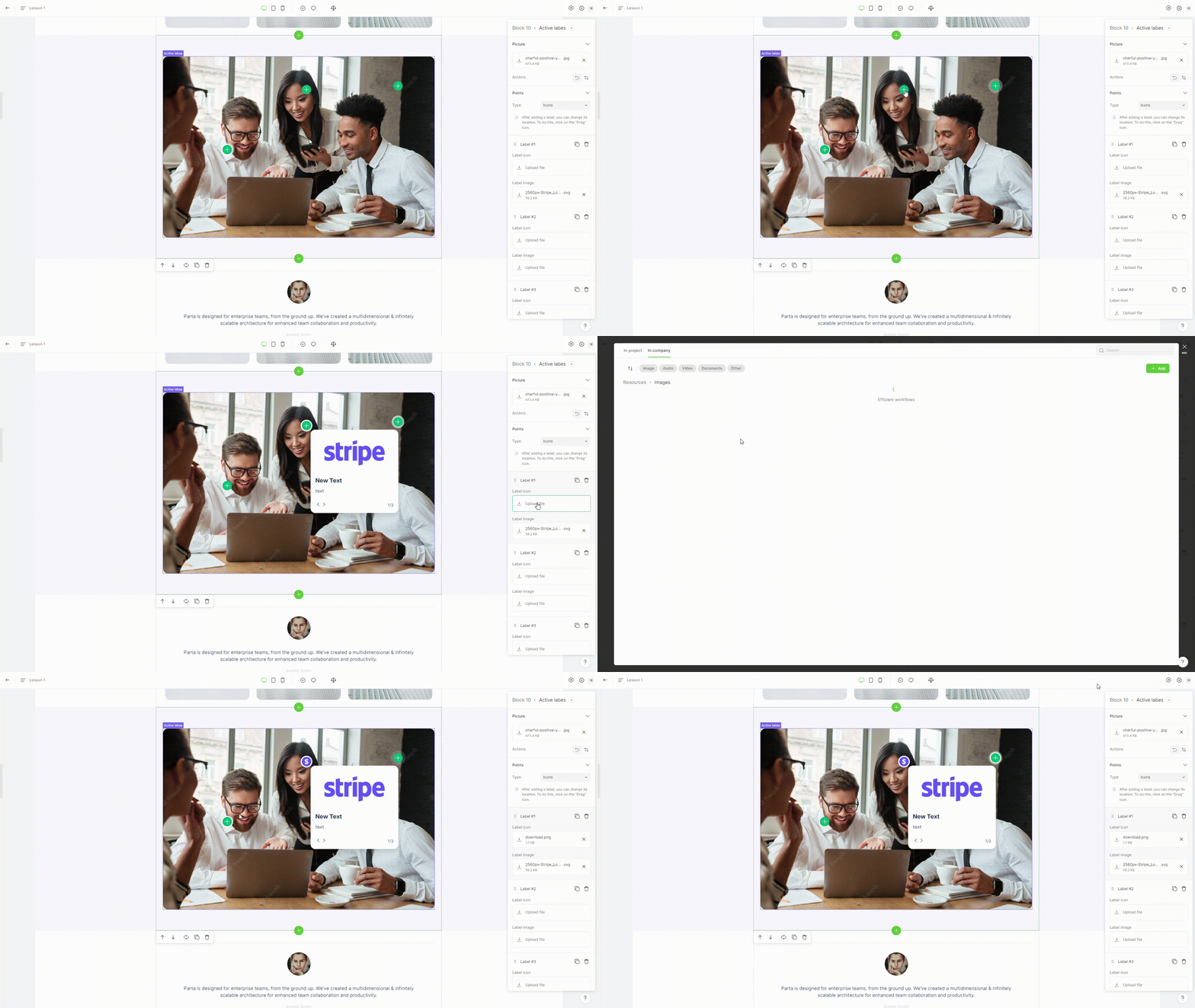
To move a label, just drag the label to where you want it to appear.

<figure><img src="https://3560131808-files.gitbook.io/~/files/v0/b/gitbook-x-prod.appspot.com/o/spaces%2FoKhlOpFC8JmF8TcxylWx%2Fuploads%2FjGIf4q8B2fZr7ShsDNEU%2FEditor%20-%20Google%20Chrome%202024-03-06%2020-39-51.gif?alt=media&#x26;token=dc21c86e-dba1-4ec3-a224-75921547b540" alt=""><figcaption></figcaption></figure>

### 7. Add label content

To add text content to a label, click on a label and insert required information.

<figure><img src="https://3560131808-files.gitbook.io/~/files/v0/b/gitbook-x-prod.appspot.com/o/spaces%2FoKhlOpFC8JmF8TcxylWx%2Fuploads%2FEmGrZfhJcfTQEHUaJjC6%2FEditor%20-%20Google%20Chrome%202024-03-06%2020-55-43.gif?alt=media&#x26;token=0be75016-1312-450f-8458-c0a4a56914ed" alt=""><figcaption></figcaption></figure>

To add an image to a label, click on a label setting "**upload file**" and select or [upload ](https://help.parta.io/editor/edit-elements/set-interactive-elements/broken-reference)new image.

<figure><img src="https://3560131808-files.gitbook.io/~/files/v0/b/gitbook-x-prod.appspot.com/o/spaces%2FoKhlOpFC8JmF8TcxylWx%2Fuploads%2Fa2SuwkhsiUTBogtythtz%2FEditor%20-%20Google%20Chrome%202024-03-06%2020-56-02.gif?alt=media&#x26;token=a218ad79-0fd0-498d-b684-c662acb3c843" alt=""><figcaption></figcaption></figure>

### 8. Change label icon

To change a label icon, click on a "**label icon**" property and  select or [upload ](https://help.parta.io/editor/edit-elements/set-interactive-elements/broken-reference)new image.

<figure><img src="https://3560131808-files.gitbook.io/~/files/v0/b/gitbook-x-prod.appspot.com/o/spaces%2FoKhlOpFC8JmF8TcxylWx%2Fuploads%2FMBftsLrc3ByA7U24KHsz%2FEditor%20-%20Google%20Chrome%202024-03-06%2021-00-34.gif?alt=media&#x26;token=31b32fae-3eb9-4732-8edd-45fd07b8e0cd" alt=""><figcaption></figcaption></figure>