# Card

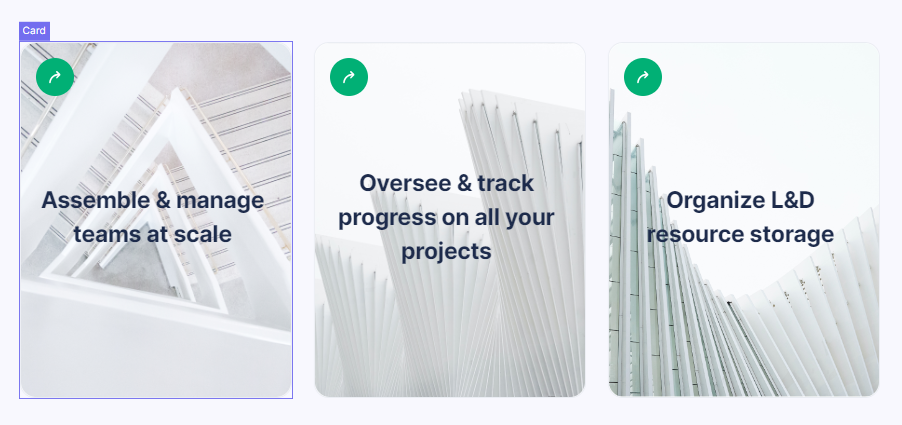
An interactive element that is a compact container with text and an image. The user can interact with the card, for example, by clicking on it to get more information.

<figure><img src="https://3560131808-files.gitbook.io/~/files/v0/b/gitbook-x-prod.appspot.com/o/spaces%2FoKhlOpFC8JmF8TcxylWx%2Fuploads%2Fda7i7RHsWPdUuiRUhyiw%2FScreenshot_1.png?alt=media&#x26;token=7f9973ed-a544-4302-b9c6-b1852bbaf881" alt=""><figcaption></figcaption></figure>

#### Double-click on an element to view its settings.

### 1. Change image

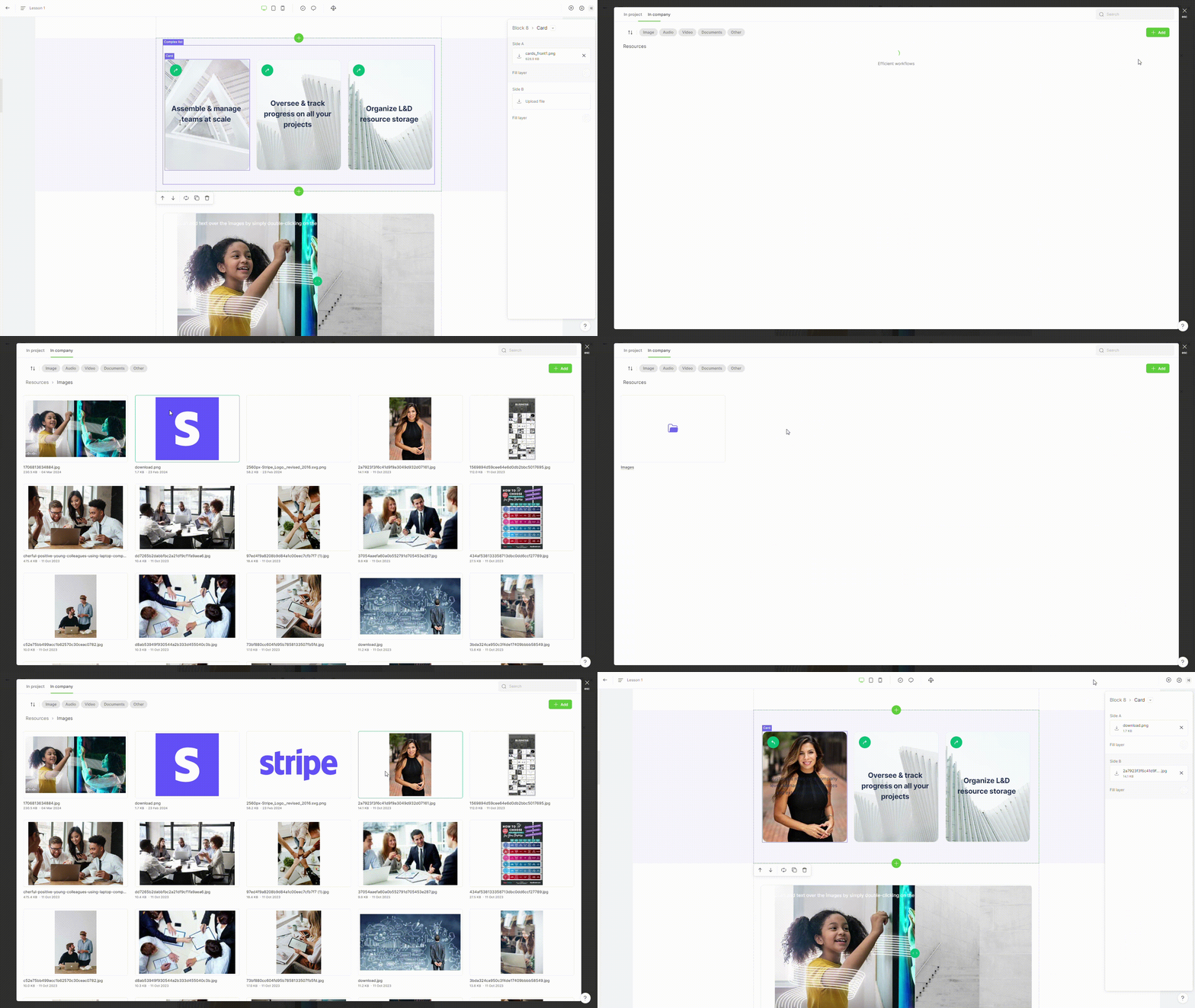
To change the image, click on the image file's name and select or [upload ](https://help.parta.io/editor/edit-elements/set-interactive-elements/broken-reference)new image.

<figure><img src="https://3560131808-files.gitbook.io/~/files/v0/b/gitbook-x-prod.appspot.com/o/spaces%2FoKhlOpFC8JmF8TcxylWx%2Fuploads%2FzS8XPNANYJt2zS1tsAi8%2FEditor%20-%20Google%20Chrome%202024-03-09%2014-16-14.gif?alt=media&#x26;token=e980b900-7f26-4de9-abce-193da373ac61" alt=""><figcaption></figcaption></figure>

### 2. Add text

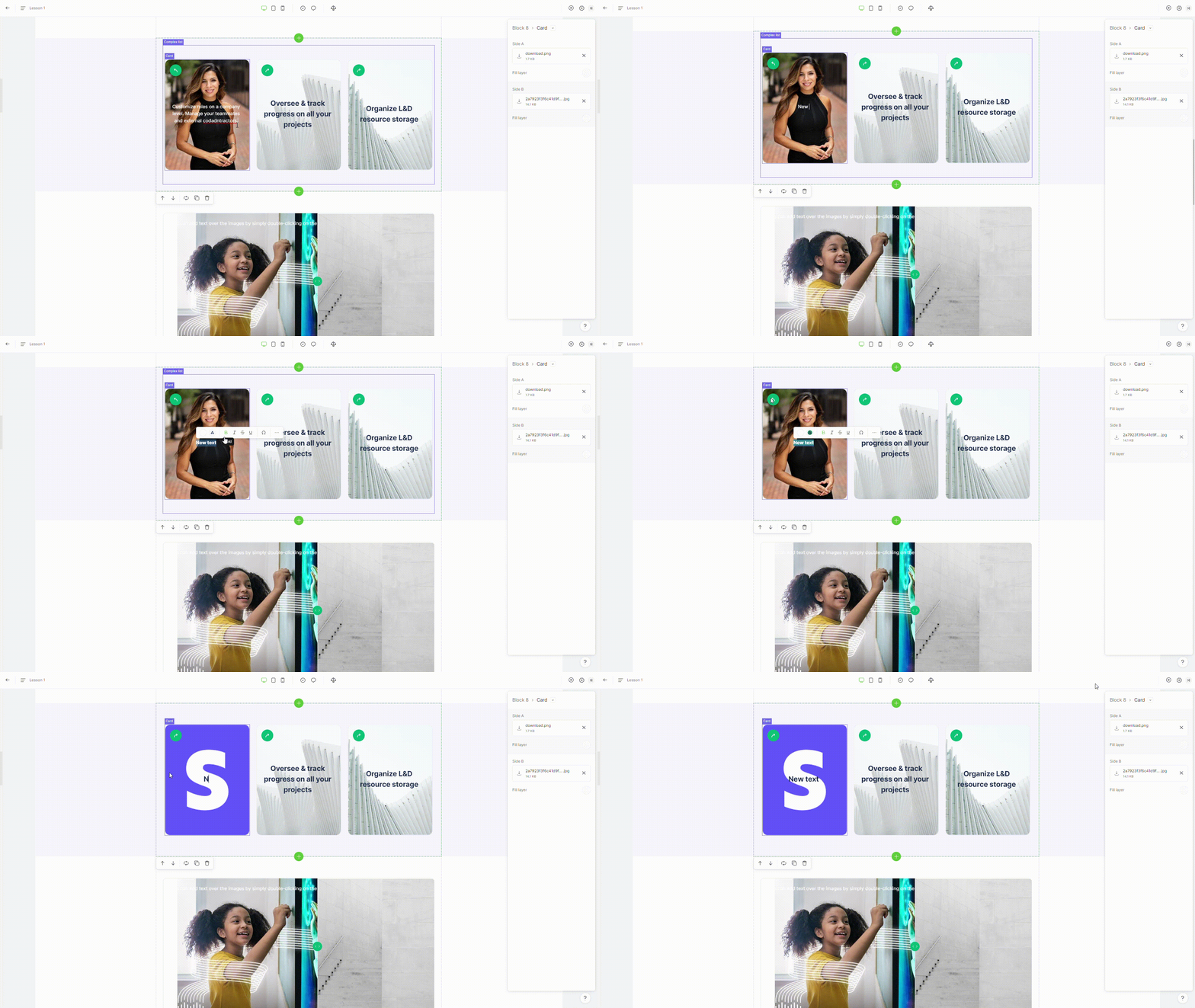
To add text, click on the card's image and begin typing.

<figure><img src="https://3560131808-files.gitbook.io/~/files/v0/b/gitbook-x-prod.appspot.com/o/spaces%2FoKhlOpFC8JmF8TcxylWx%2Fuploads%2Fdh2HBf6wt08Y1rQsg1Tn%2FEditor%20-%20Google%20Chrome%202024-03-09%2014-16-47.gif?alt=media&#x26;token=96c0e898-6c09-43da-ba40-d3b4f780f500" alt=""><figcaption></figcaption></figure>

### 3. Rotate card

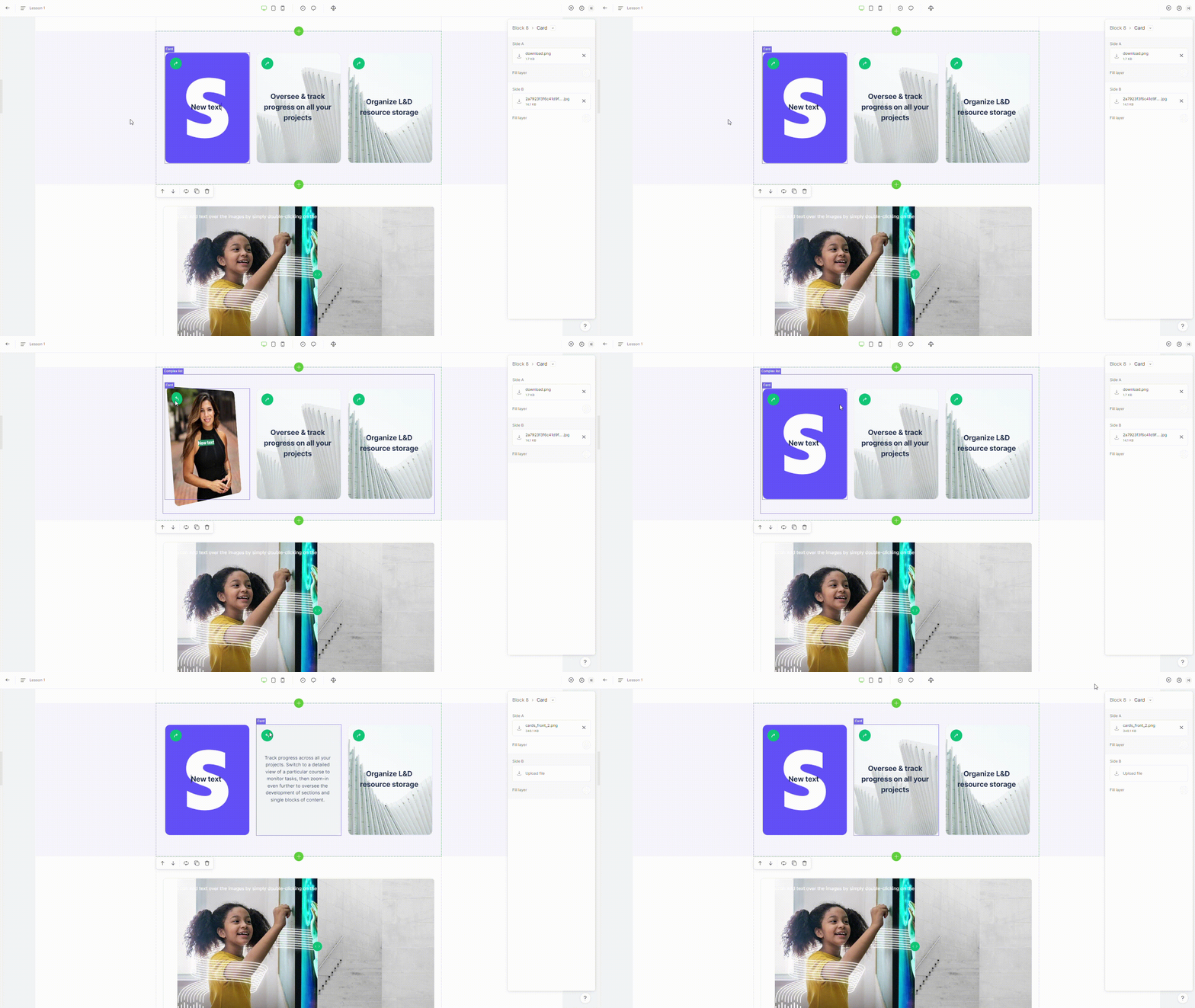
To rotate the card, click on the card icon "**rotate**".

<figure><img src="https://3560131808-files.gitbook.io/~/files/v0/b/gitbook-x-prod.appspot.com/o/spaces%2FoKhlOpFC8JmF8TcxylWx%2Fuploads%2FkJ06wmHEYqWNSAdQ9LEG%2FEditor%20-%20Google%20Chrome%202024-03-09%2014-17-12.gif?alt=media&#x26;token=f0a0437b-cb82-4e94-8c2c-2afbce8b8ced" alt=""><figcaption></figcaption></figure>

### 4. Add extra card

To add an extra card, switch to [pro-mode](https://help.parta.io/editor/edit-elements/set-interactive-elements/broken-reference).