# Charts

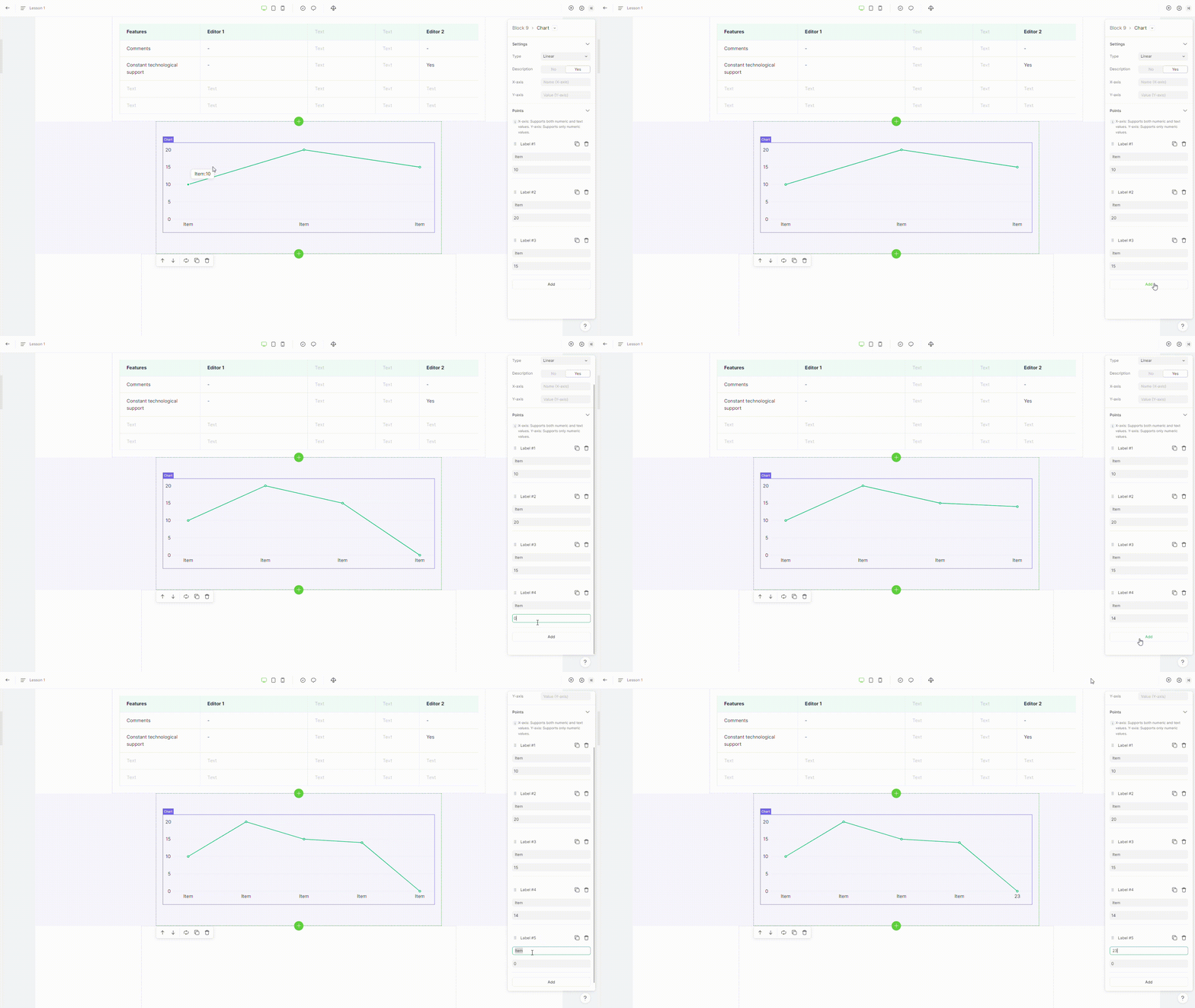
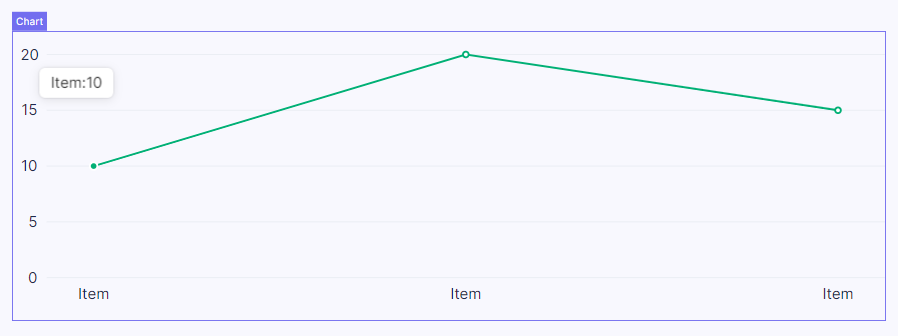
The chart element shows data as bar charts, line charts, or pie charts, making it easier to see and analyze the information visually.

<figure><img src="https://3560131808-files.gitbook.io/~/files/v0/b/gitbook-x-prod.appspot.com/o/spaces%2FoKhlOpFC8JmF8TcxylWx%2Fuploads%2FtPTerLnzYhOCFo7zFXG5%2FScreenshot_3.png?alt=media&#x26;token=bf49a2d6-c4f4-49af-99d9-fb62cc7f8b16" alt=""><figcaption></figcaption></figure>

#### Double-click on an element to view its settings.

### 1. Add chart item

To add a new chart item, click on "**Add**" button placed in the element settings

<figure><img src="https://3560131808-files.gitbook.io/~/files/v0/b/gitbook-x-prod.appspot.com/o/spaces%2FoKhlOpFC8JmF8TcxylWx%2Fuploads%2FCTM4Npl2Z3YWoNOTxGpL%2FEditor%20-%20Google%20Chrome%202024-03-06%2017-43-39.gif?alt=media&#x26;token=f8dffa57-e457-45f1-bdc7-77981f28b779" alt=""><figcaption></figcaption></figure>

### 2. Change chart type

{% hint style="info" %}
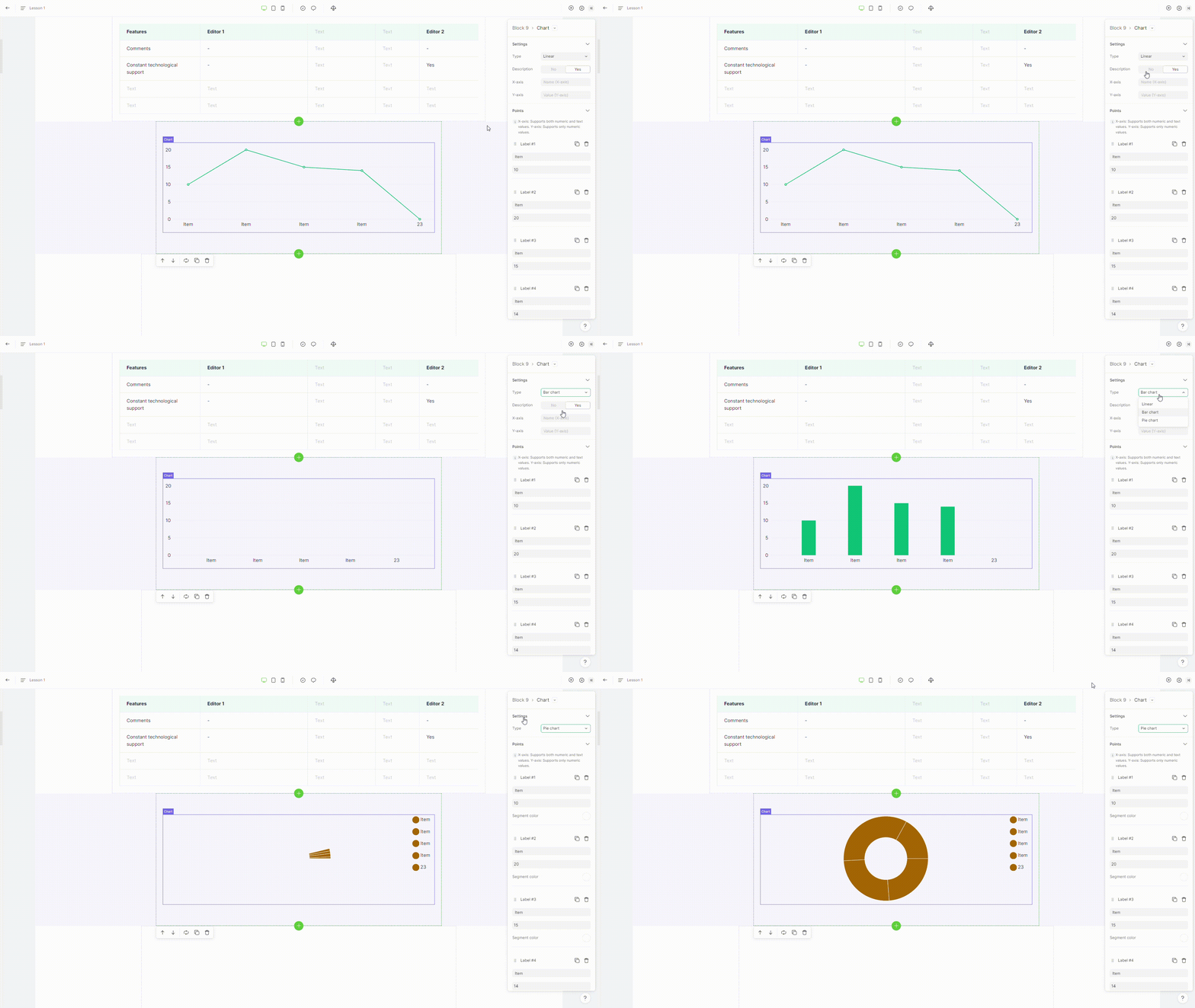
Chart supports three types: linear, bar chart, pie chart
{% endhint %}

To change chart type, switch property **chart type** in the element settings.

<figure><img src="https://3560131808-files.gitbook.io/~/files/v0/b/gitbook-x-prod.appspot.com/o/spaces%2FoKhlOpFC8JmF8TcxylWx%2Fuploads%2Fu1sDNuXBlwisLniT1q4F%2FEditor%20-%20Google%20Chrome%202024-03-06%2017-49-24.gif?alt=media&#x26;token=69ed6080-9b65-424c-b2d4-b082c9dc1141" alt=""><figcaption></figcaption></figure>

### 3. Delete list item

To remove a list item, select the **"delete"** option in the element settings.

<figure><img src="https://3560131808-files.gitbook.io/~/files/v0/b/gitbook-x-prod.appspot.com/o/spaces%2FoKhlOpFC8JmF8TcxylWx%2Fuploads%2FXkPtquEv7qNCIEn1KevT%2FEditor%20-%20Google%20Chrome%202024-03-06%2017-51-57.gif?alt=media&#x26;token=b0acd9e5-d6db-4125-9584-af4a5c456ae7" alt=""><figcaption></figcaption></figure>

### 4. Duplicate list item

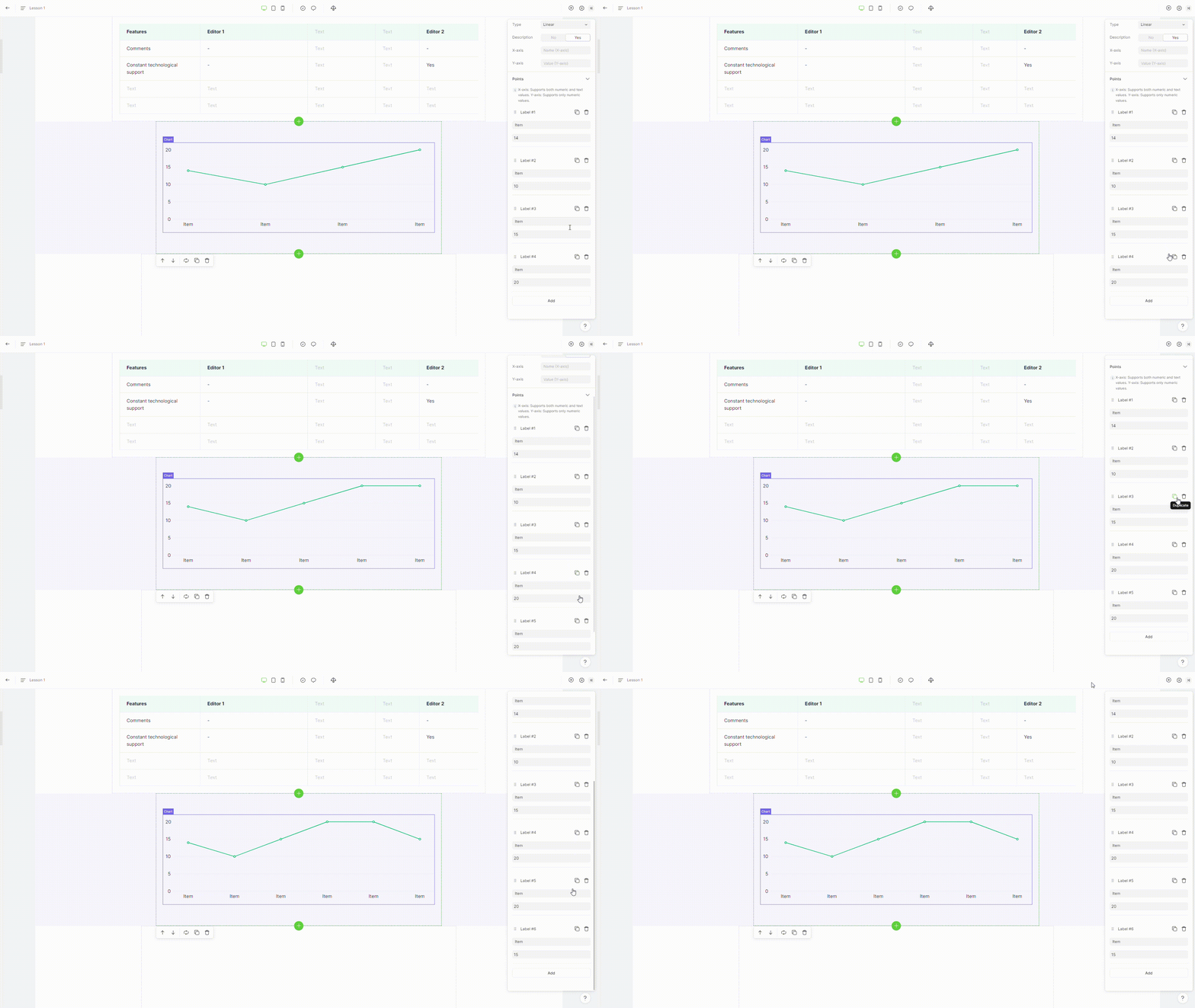
To duplicate a list item, select the **"duplicate"** option in the element settings.

<figure><img src="https://3560131808-files.gitbook.io/~/files/v0/b/gitbook-x-prod.appspot.com/o/spaces%2FoKhlOpFC8JmF8TcxylWx%2Fuploads%2FcKuChixYJFpt38irgTcB%2FEditor%20-%20Google%20Chrome%202024-03-06%2017-51-45.gif?alt=media&#x26;token=ac603a1d-e349-4646-885d-158f9a58b5af" alt=""><figcaption></figcaption></figure>

### 5. Move list item

To move a list item, just drag the list item to where you want it to appear.
<figure><img src="https://3560131808-files.gitbook.io/~/files/v0/b/gitbook-x-prod.appspot.com/o/spaces%2FoKhlOpFC8JmF8TcxylWx%2Fuploads%2F1y1dSrkl82Y5JIStxobP%2FEditor%20-%20Google%20Chrome%202024-03-06%2017-52-19.gif?alt=media&#x26;token=a729ee05-bb50-4783-8a85-347455850629" alt=""><figcaption></figcaption></figure>