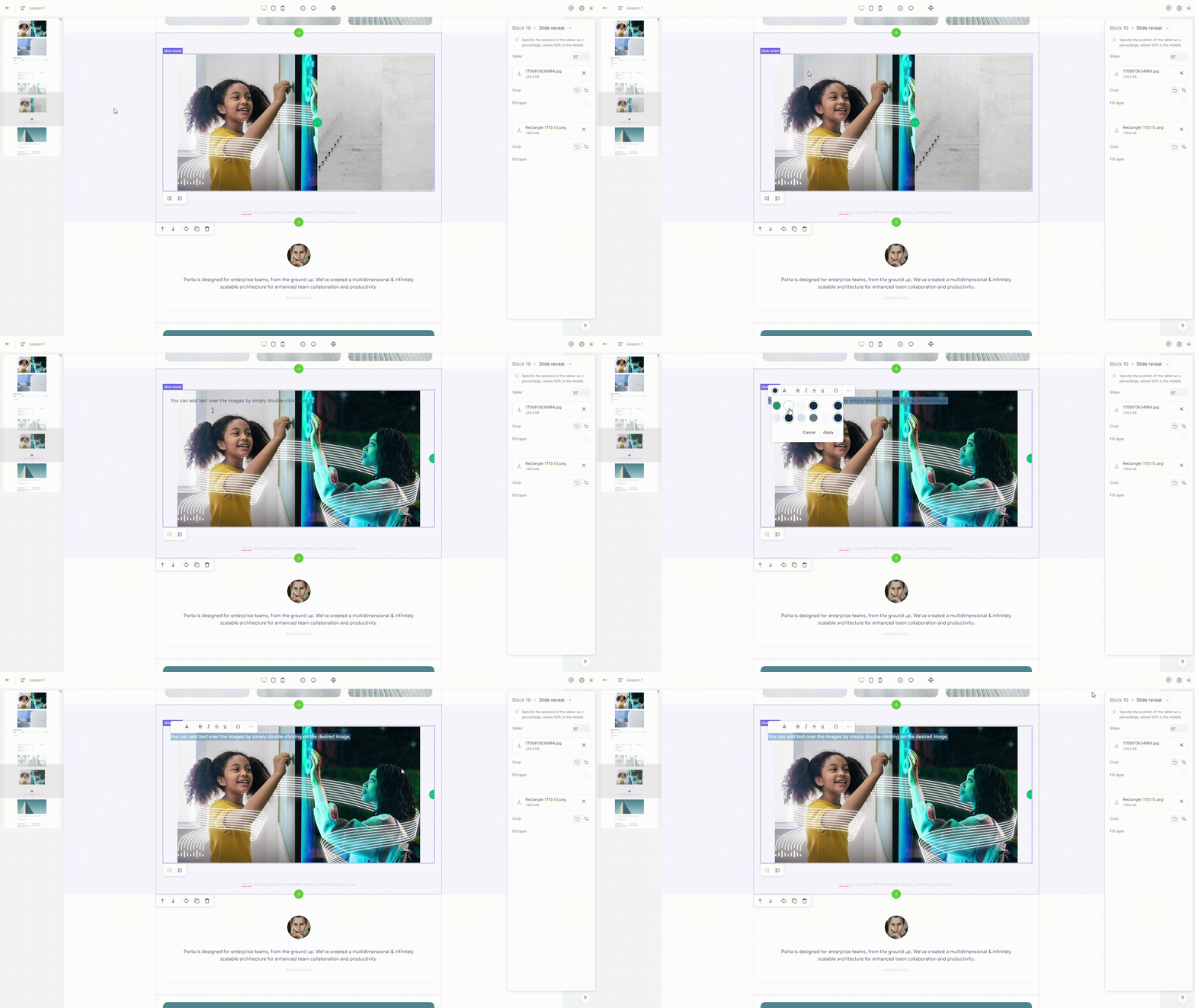
# Slide reveal

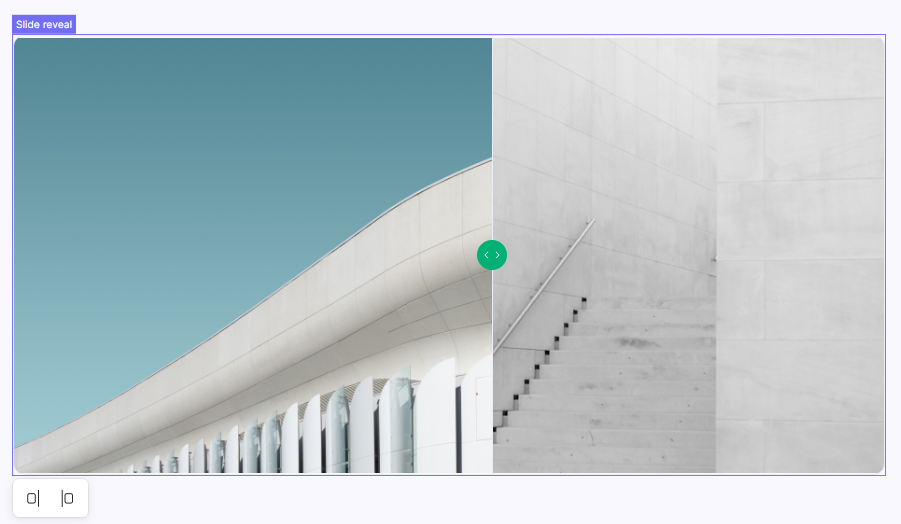
An interactive element that hides/reveals content when the slider is being moved.

<figure><img src="https://3560131808-files.gitbook.io/~/files/v0/b/gitbook-x-prod.appspot.com/o/spaces%2FoKhlOpFC8JmF8TcxylWx%2Fuploads%2FMLVXmektlpCmoqr04piy%2FScreenshot_5.png?alt=media&#x26;token=c47c6b15-6771-4406-a01c-225f2e147724" alt=""><figcaption></figcaption></figure>

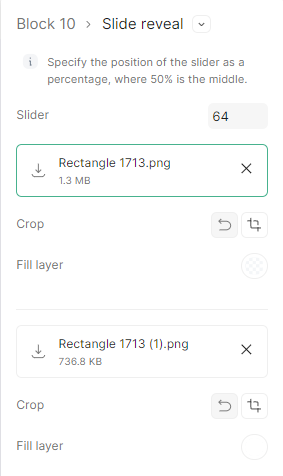
#### Double-click on an element to view its settings.

<figure><img src="https://3560131808-files.gitbook.io/~/files/v0/b/gitbook-x-prod.appspot.com/o/spaces%2FoKhlOpFC8JmF8TcxylWx%2Fuploads%2FkJATun3gPlLFY9w4JeGY%2FScreenshot_6.png?alt=media&#x26;token=d3bb9a09-a85a-423f-8b9a-b68dc335793d" alt=""><figcaption></figcaption></figure>

### 1. Default slider position

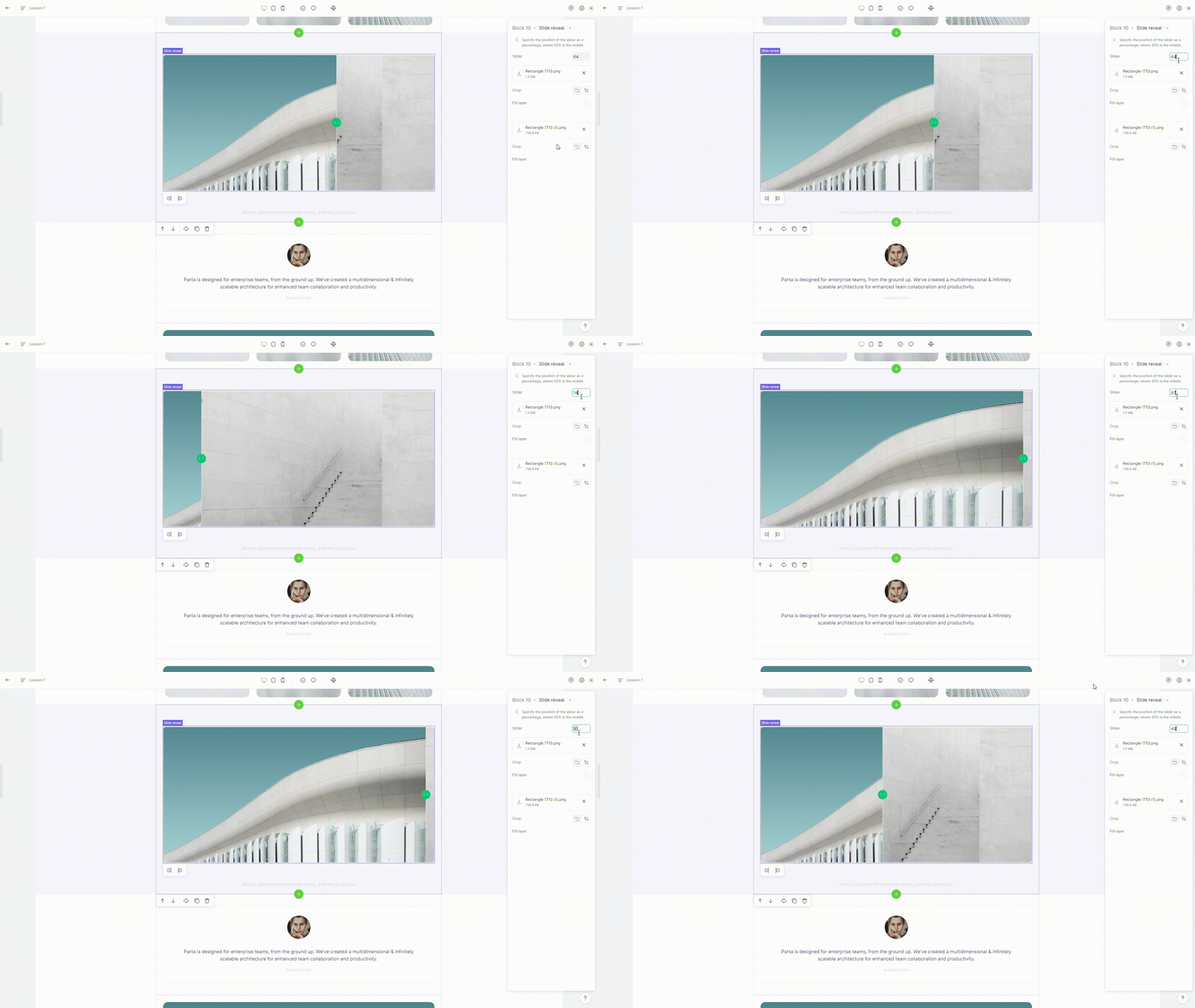
To set default slider position, set the value from 1 to 100 in the property **slider**.

<figure><img src="https://3560131808-files.gitbook.io/~/files/v0/b/gitbook-x-prod.appspot.com/o/spaces%2FoKhlOpFC8JmF8TcxylWx%2Fuploads%2FQYLMEplnKEOHug0TlyxG%2FEditor%20-%20Google%20Chrome%202024-03-07%2010-32-20.gif?alt=media&#x26;token=2544a3f5-880a-4283-81f4-64f86bf03de6" alt=""><figcaption></figcaption></figure>

### 2. Change image

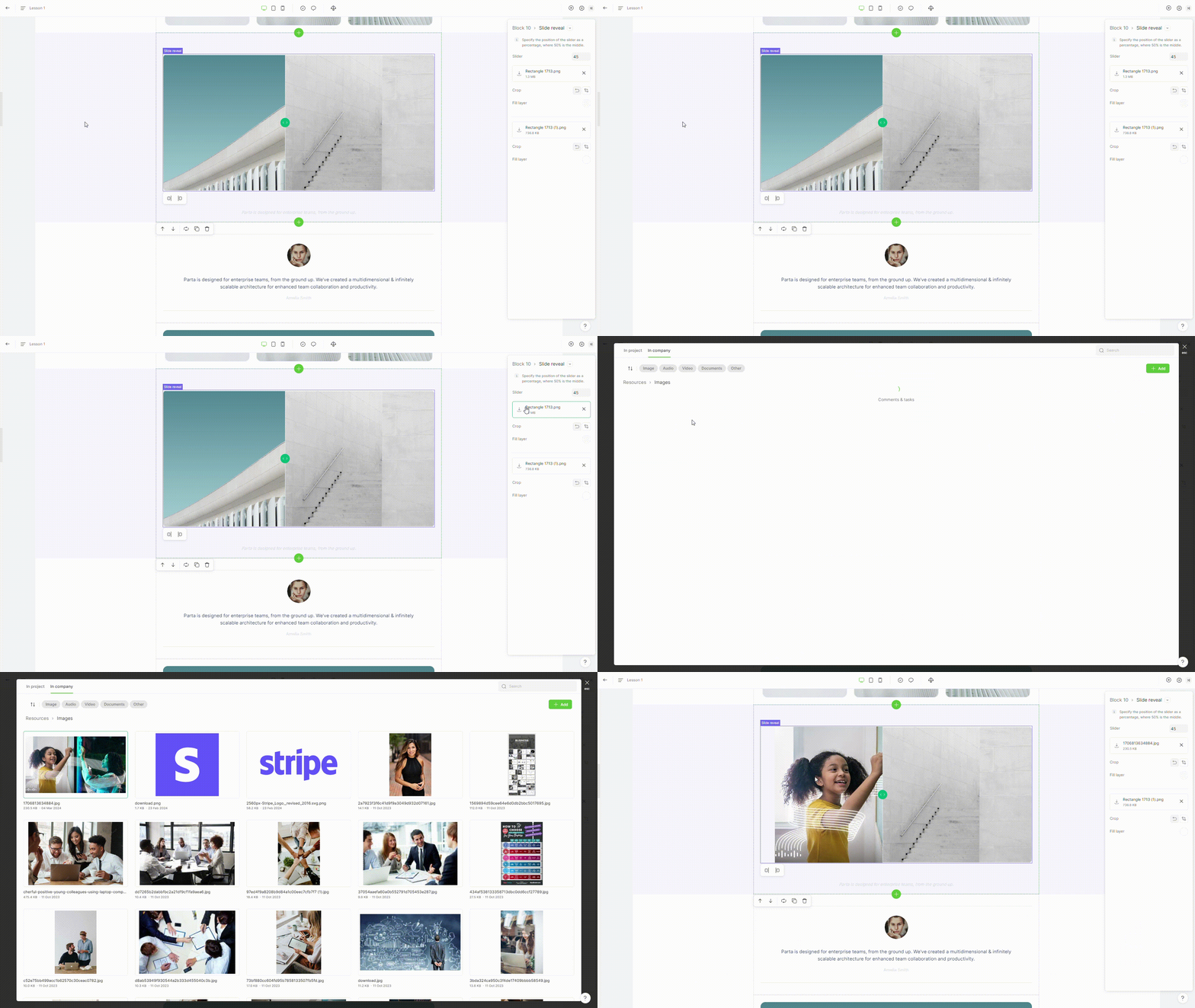
To change the image, click on the image file's name and select or [upload ](https://help.parta.io/editor/edit-elements/set-interactive-elements/broken-reference)new image.

<figure><img src="https://3560131808-files.gitbook.io/~/files/v0/b/gitbook-x-prod.appspot.com/o/spaces%2FoKhlOpFC8JmF8TcxylWx%2Fuploads%2Fr2T3C9giJD4e3t66sk9H%2FEditor%20-%20Google%20Chrome%202024-03-07%2010-34-34.gif?alt=media&#x26;token=45c0dfe0-9e9c-49ad-a64e-276e36fc96d6" alt=""><figcaption></figcaption></figure>

### 3. Crop image

You can crop the image in slide reveal [just like you would with the image element](#id-3.crop-image).

### 4. Fill layer

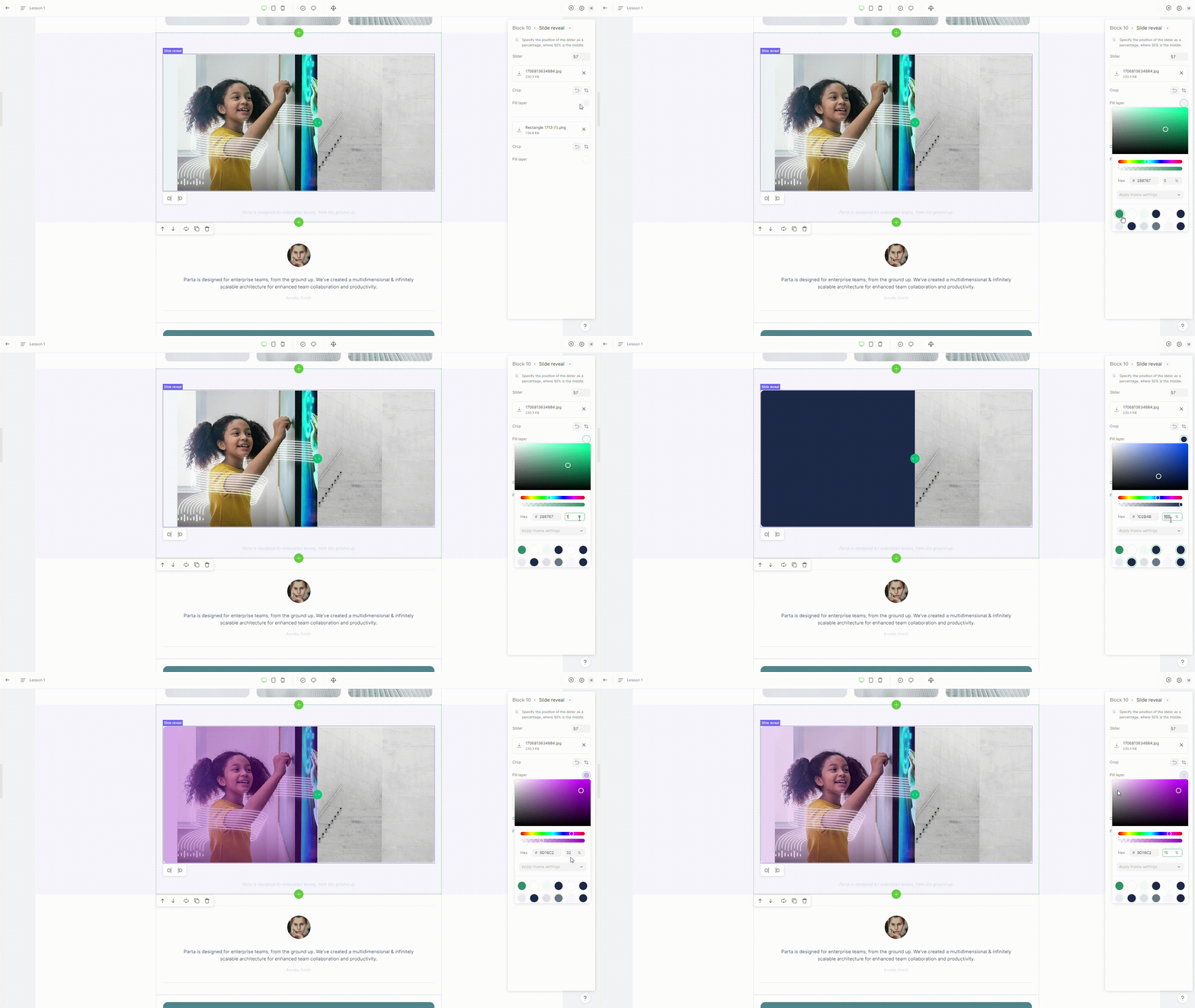
You can place an extra color layer on top of the image.

<figure><img src="https://3560131808-files.gitbook.io/~/files/v0/b/gitbook-x-prod.appspot.com/o/spaces%2FoKhlOpFC8JmF8TcxylWx%2Fuploads%2F36A9gLNzBXnmgEb2KQri%2FEditor%20-%20Google%20Chrome%202024-03-07%2010-38-58.gif?alt=media&#x26;token=6f424dec-b35f-440f-961f-0dea874156c9" alt=""><figcaption></figcaption></figure>

### 5. Add text

You can add text over the images by simply **double-clicking on the desired image**.
<figure><img src="https://3560131808-files.gitbook.io/~/files/v0/b/gitbook-x-prod.appspot.com/o/spaces%2FoKhlOpFC8JmF8TcxylWx%2Fuploads%2FCvOUkLBSP6vf9FtkI05e%2FEditor%20-%20Google%20Chrome%202024-03-07%2010-42-42.gif?alt=media&#x26;token=cd7c747c-a551-437a-9323-9c58e17688b4" alt=""><figcaption></figcaption></figure>