# Slider

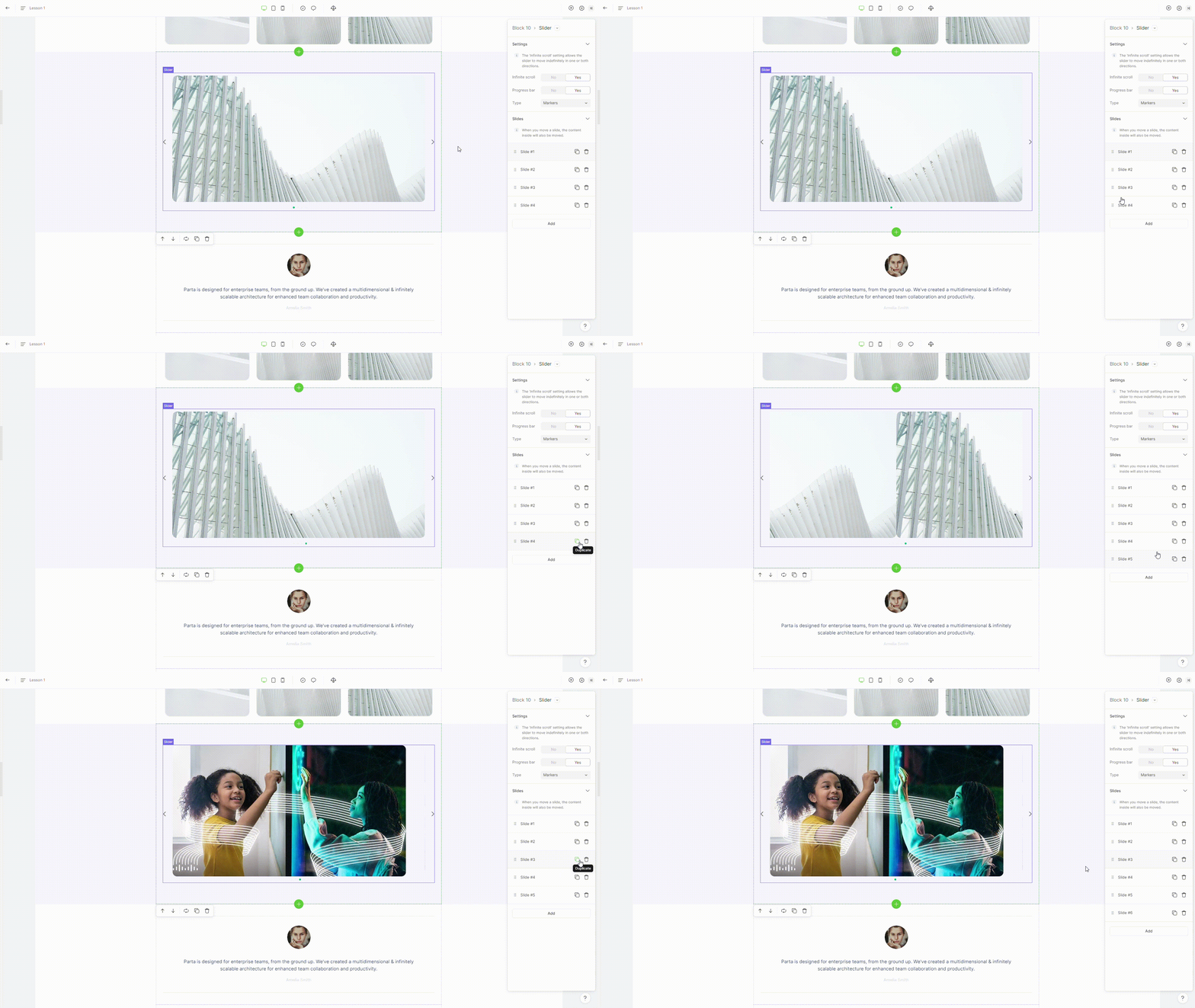
Allows the user to switch between different content using control buttons (left and right). This is useful for viewing content in the form of slides.

<figure><img src="https://3560131808-files.gitbook.io/~/files/v0/b/gitbook-x-prod.appspot.com/o/spaces%2FoKhlOpFC8JmF8TcxylWx%2Fuploads%2FDXaOyGCPWa766sjRkSw3%2FScreenshot_1.png?alt=media&#x26;token=b3211a4d-016d-407a-b54d-aa1e08ef8bfc" alt=""><figcaption></figcaption></figure>

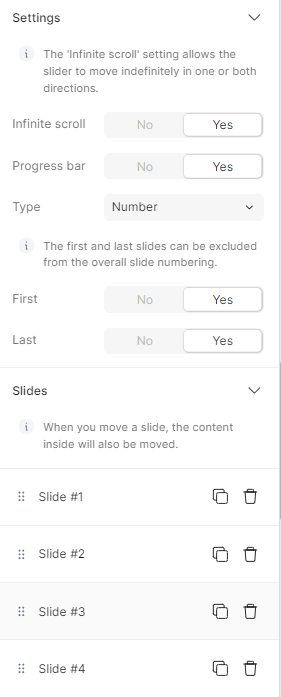
#### Double-click on an element to view its settings.

<figure><img src="https://3560131808-files.gitbook.io/~/files/v0/b/gitbook-x-prod.appspot.com/o/spaces%2FoKhlOpFC8JmF8TcxylWx%2Fuploads%2F2OUQghSNJ4r3IM2qIgFa%2FScreenshot_2.png?alt=media&#x26;token=7b287453-7e07-4724-aac4-f61106e30ec7" alt=""><figcaption></figcaption></figure>

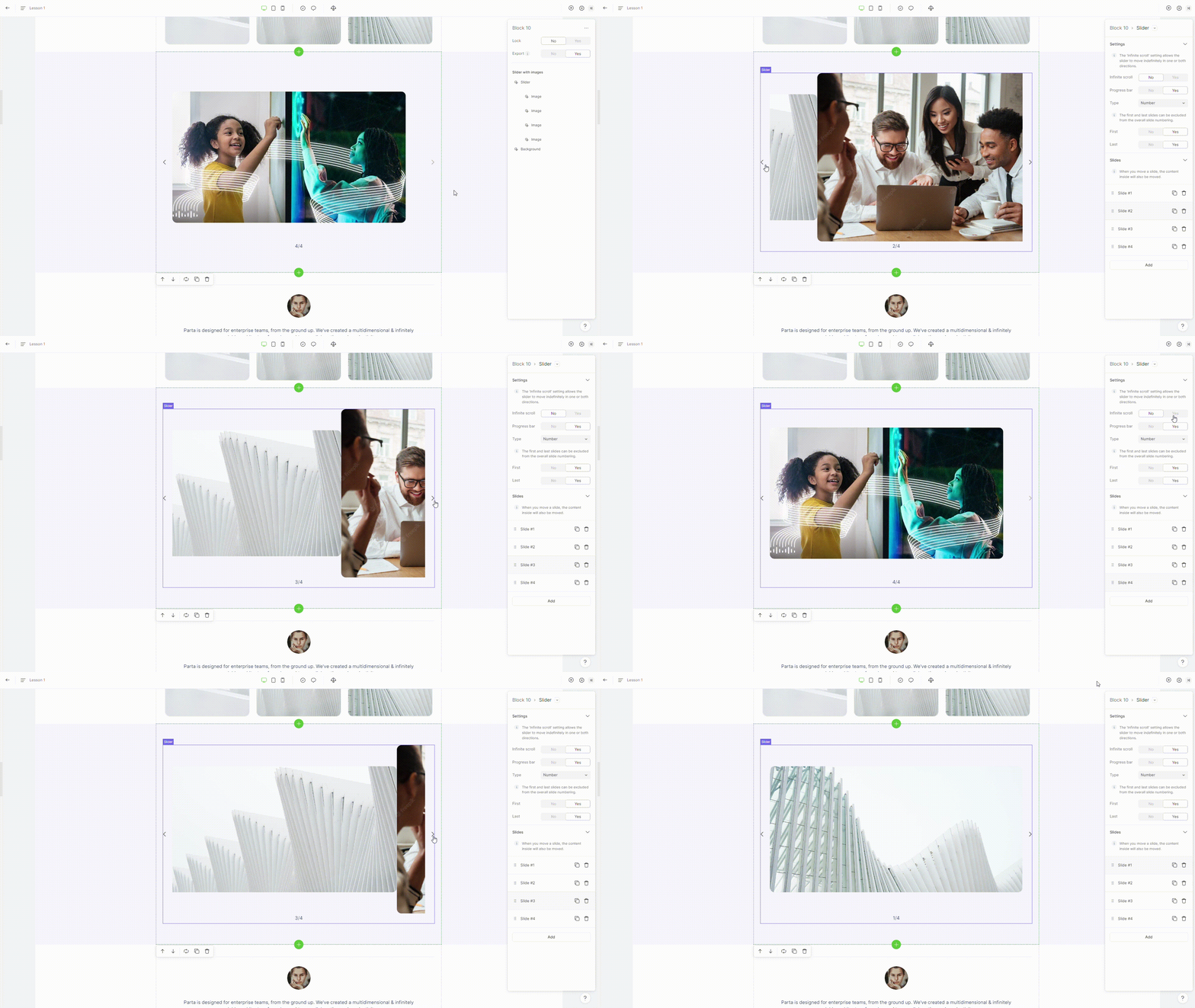
### 1. Infinite scroll

To make infinite scroll, switch property **infinite scroll** to **yes.**

<figure><img src="https://3560131808-files.gitbook.io/~/files/v0/b/gitbook-x-prod.appspot.com/o/spaces%2FoKhlOpFC8JmF8TcxylWx%2Fuploads%2FJH0JCnDLLFLfmlSdwZlh%2FEditor%20-%20Google%20Chrome%202024-03-07%2009-52-50.gif?alt=media&#x26;token=de9ae2f2-ed4f-41fe-aa49-29c9f8a40a93" alt=""><figcaption></figcaption></figure>

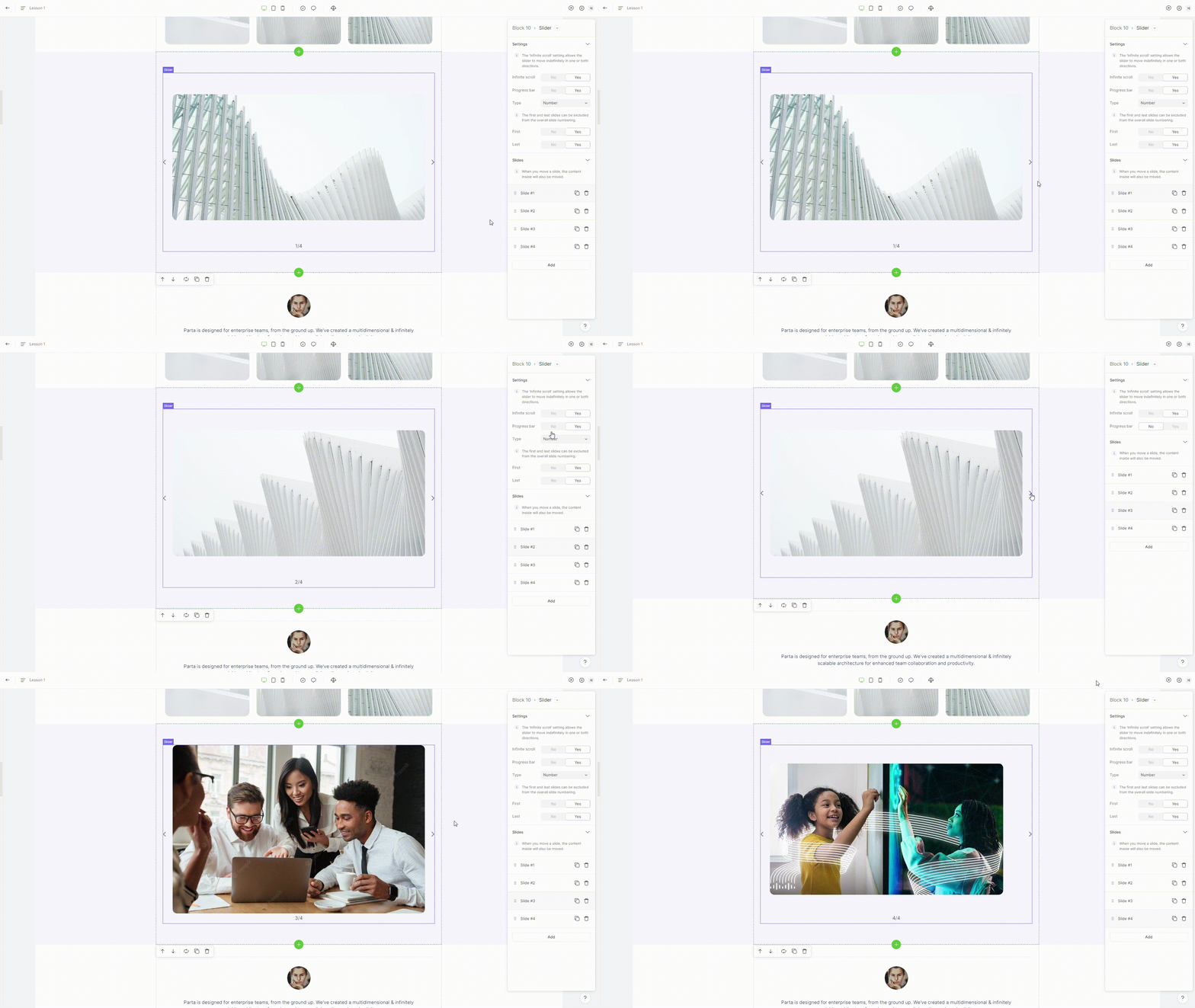
### 2. Progress bar

To show a progress bar under slider, switch property **progress bar** to **yes.**

<figure><img src="https://3560131808-files.gitbook.io/~/files/v0/b/gitbook-x-prod.appspot.com/o/spaces%2FoKhlOpFC8JmF8TcxylWx%2Fuploads%2F0Nt2OSxTanO2gsERoGGO%2FEditor%20-%20Google%20Chrome%202024-03-07%2009-55-57.gif?alt=media&#x26;token=7e4eb51e-5ccb-4764-93c1-3512f2aa5079" alt=""><figcaption></figcaption></figure>

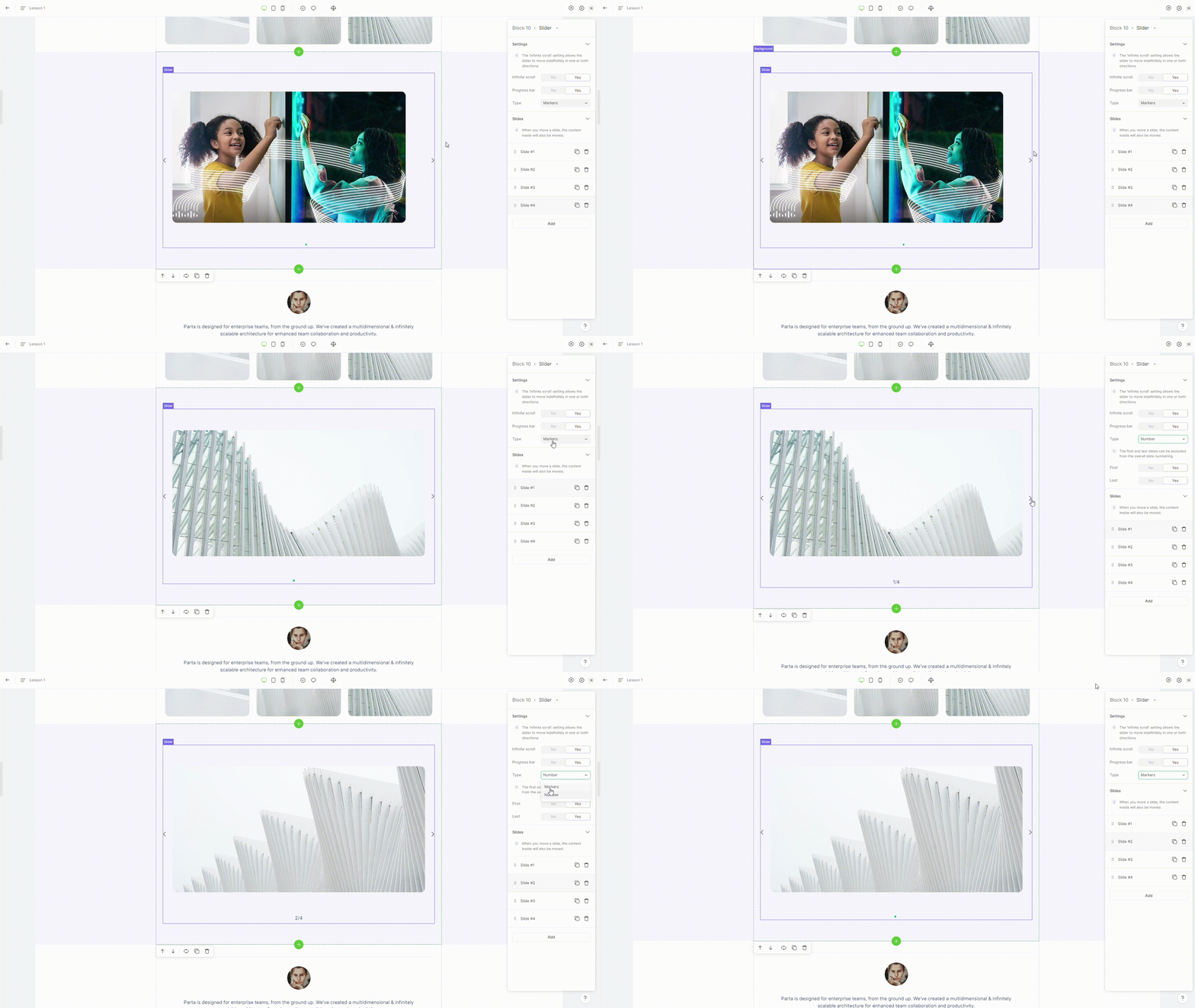
### 3. Progress bar type

To change a progress bar type, select **markers** or **number** in property **type.**

<figure><img src="https://3560131808-files.gitbook.io/~/files/v0/b/gitbook-x-prod.appspot.com/o/spaces%2FoKhlOpFC8JmF8TcxylWx%2Fuploads%2FcGDzDve9dMrPsLsxUyqr%2FEditor%20-%20Google%20Chrome%202024-03-07%2009-59-05.gif?alt=media&#x26;token=a1eb6166-ec2f-498e-a89c-22b4abee97be" alt=""><figcaption></figcaption></figure>

### 4. Add slider item

To add a new slider item, click on "**Add**" button placed in the element settings

<figure><img src="https://3560131808-files.gitbook.io/~/files/v0/b/gitbook-x-prod.appspot.com/o/spaces%2FoKhlOpFC8JmF8TcxylWx%2Fuploads%2F4SYAfutiUBbt3Xn3JQQq%2FEditor%20-%20Google%20Chrome%202024-03-07%2010-01-54.gif?alt=media&#x26;token=6d1a795b-39b0-4d9a-b8d4-bdab576887c8" alt=""><figcaption></figcaption></figure>

### 5. Delete slider item

To remove a slider item, select the **“delete”** option in the element settings.

<figure><img src="https://3560131808-files.gitbook.io/~/files/v0/b/gitbook-x-prod.appspot.com/o/spaces%2FoKhlOpFC8JmF8TcxylWx%2Fuploads%2FUZ0gVntOJ0u3Tg0qmvoX%2FEditor%20-%20Google%20Chrome%202024-03-07%2010-02-21.gif?alt=media&#x26;token=b2e70ae9-8757-4c18-8f79-b46f64527b8d" alt=""><figcaption></figcaption></figure>

### 6. Duplicate slider item

To duplicate a slider item, select the **"duplicate"** option in the element settings.

<figure><img src="https://3560131808-files.gitbook.io/~/files/v0/b/gitbook-x-prod.appspot.com/o/spaces%2FoKhlOpFC8JmF8TcxylWx%2Fuploads%2Ft7kl272fqGC7VLplDGLc%2FEditor%20-%20Google%20Chrome%202024-03-07%2010-02-06.gif?alt=media&#x26;token=ac0b9fac-621d-41ac-b631-bedcc469a266" alt=""><figcaption></figcaption></figure>

### 7. Move slider item

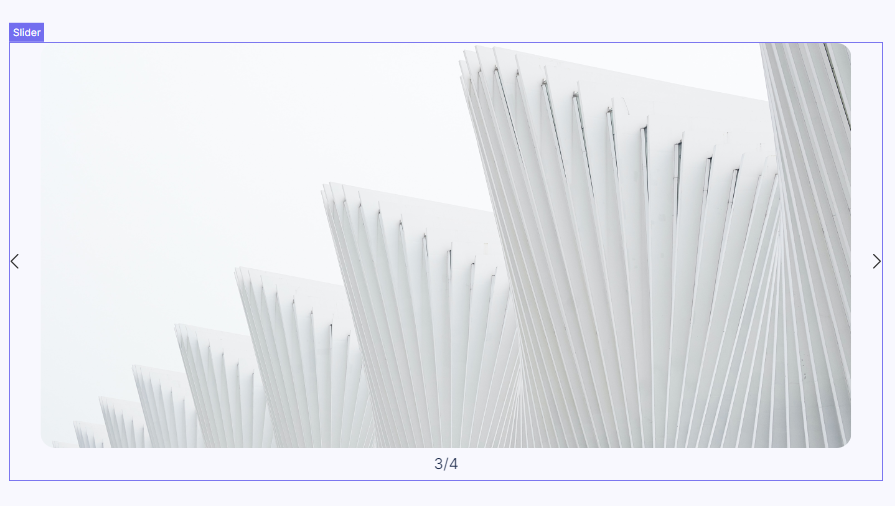
To move an slider item, just drag the slider item to where you want it to appear.
<figure><img src="https://3560131808-files.gitbook.io/~/files/v0/b/gitbook-x-prod.appspot.com/o/spaces%2FoKhlOpFC8JmF8TcxylWx%2Fuploads%2FPTBIGhw42Es9Yxc4kBfu%2FEditor%20-%20Google%20Chrome%202024-03-07%2010-08-30.gif?alt=media&#x26;token=23776a31-0815-49fd-bcb0-37094bb0e813" alt=""><figcaption></figcaption></figure>