# Image

A graphic element, typically used to illustrate text or demonstrate a concept, can vary in size and format.

<figure><img src="https://3560131808-files.gitbook.io/~/files/v0/b/gitbook-x-prod.appspot.com/o/spaces%2FoKhlOpFC8JmF8TcxylWx%2Fuploads%2FFpEdoQWWDJlQBezSpWb5%2FScreenshot_3.png?alt=media&#x26;token=e02f369c-12fd-424c-83d6-4d9c011b8bf3" alt=""><figcaption></figcaption></figure>

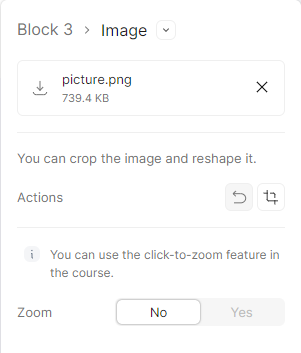
#### Double-click on an element to view its settings.

<figure><img src="https://3560131808-files.gitbook.io/~/files/v0/b/gitbook-x-prod.appspot.com/o/spaces%2FoKhlOpFC8JmF8TcxylWx%2Fuploads%2FpRAGLux33Ddceyexs0a5%2FScreenshot_4.png?alt=media&#x26;token=83211985-3770-4620-8cfe-e1198be0e401" alt=""><figcaption></figcaption></figure>

### Image actions:

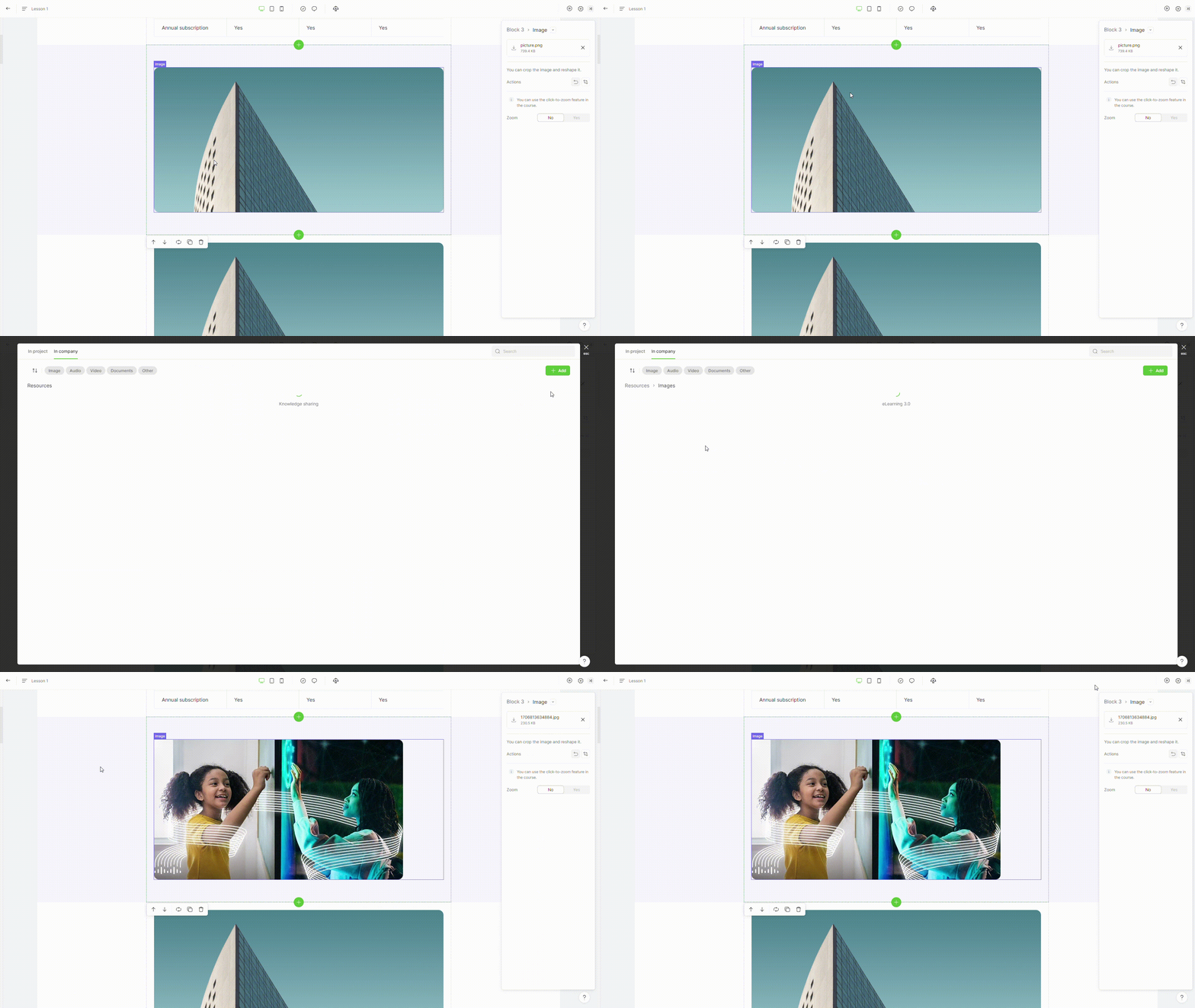
### 1. Change image

To change the image, click on the image file's name and select or upload new image.

<figure><img src="https://3560131808-files.gitbook.io/~/files/v0/b/gitbook-x-prod.appspot.com/o/spaces%2FoKhlOpFC8JmF8TcxylWx%2Fuploads%2FtCqjUHAqISROATMulkVm%2FEditor%20-%20Google%20Chrome%202024-03-04%2014-19-20.gif?alt=media&#x26;token=a75360c6-cc00-4536-8d7d-1270020a6e89" alt=""><figcaption></figcaption></figure>

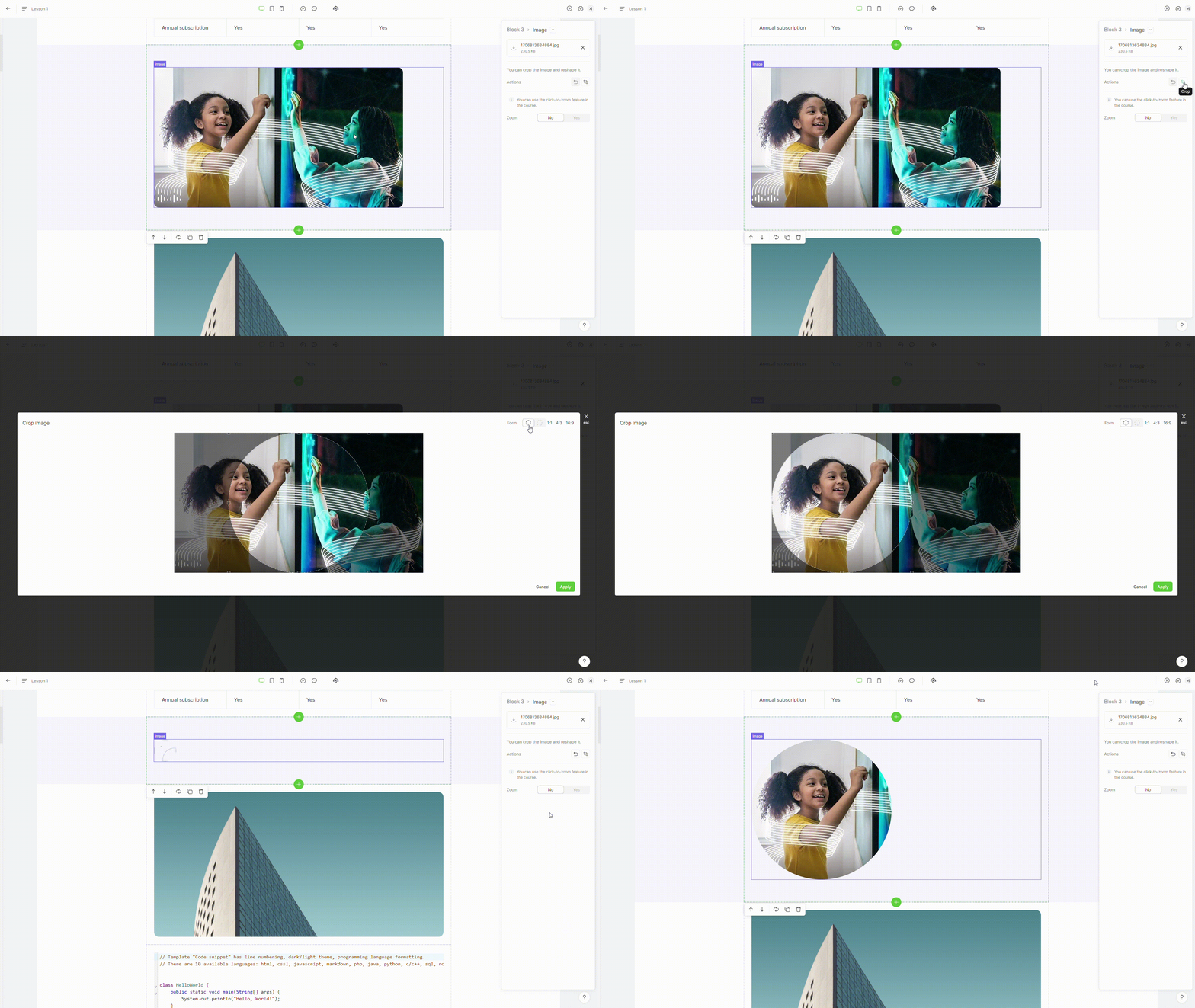
### 2. Crop image

To crop an image, select the shape (square, circle), set the proportion, and apply it to the image.

<figure><img src="https://3560131808-files.gitbook.io/~/files/v0/b/gitbook-x-prod.appspot.com/o/spaces%2FoKhlOpFC8JmF8TcxylWx%2Fuploads%2FMdAp179OZmjpysxdDMRa%2FEditor%20-%20Google%20Chrome%202024-03-04%2014-19-39.gif?alt=media&#x26;token=0ba79ec2-0038-4a1c-852d-0159f233a2f5" alt=""><figcaption></figcaption></figure>

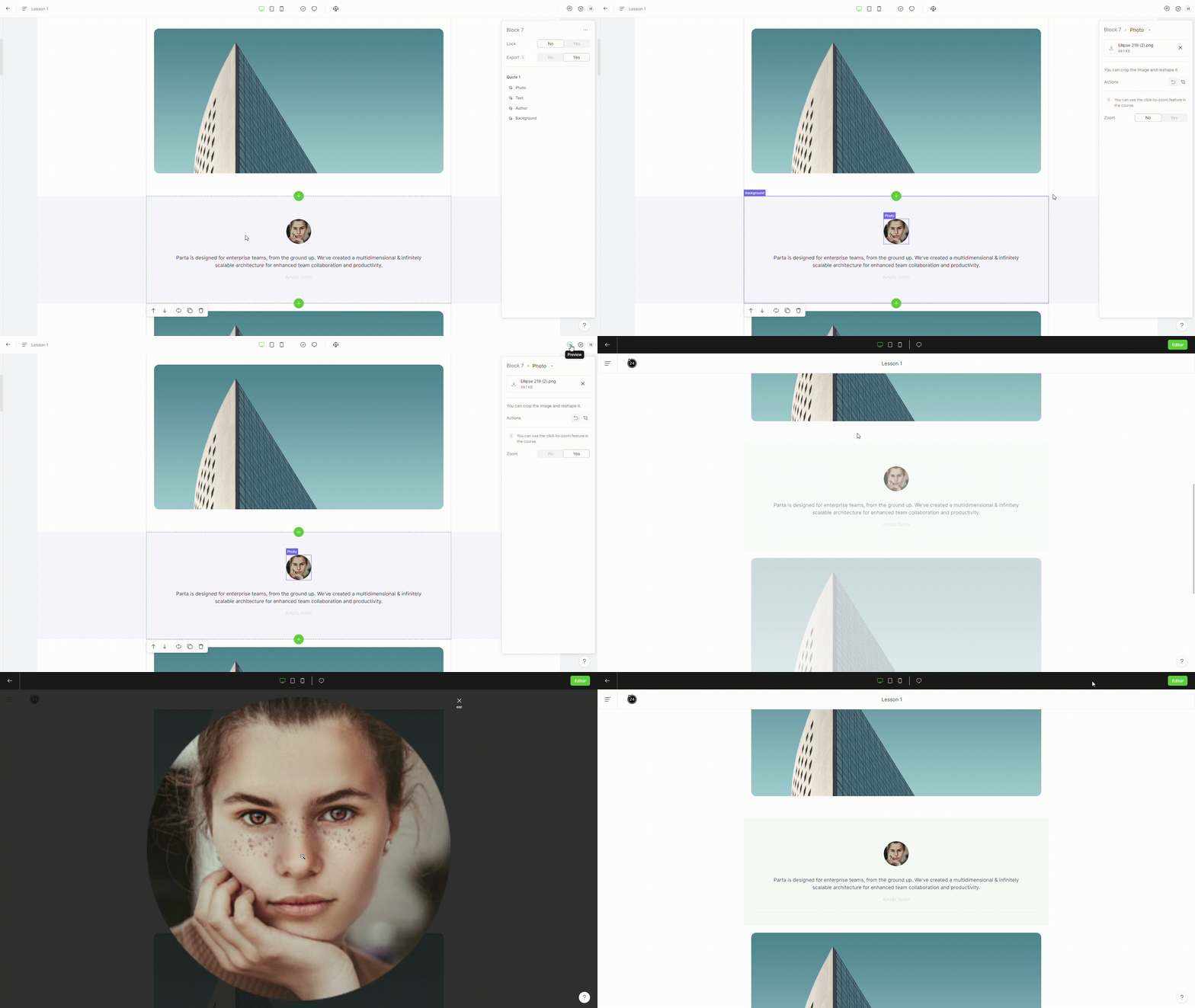
### 3. Zoom image

To enlarge an image, set the zoom property to yes.
<figure><img src="https://3560131808-files.gitbook.io/~/files/v0/b/gitbook-x-prod.appspot.com/o/spaces%2FoKhlOpFC8JmF8TcxylWx%2Fuploads%2F3zFktDjr20RBeP1xcunv%2FEditor%20-%20Google%20Chrome%202024-03-04%2014-20-37.gif?alt=media&#x26;token=7c44bded-d658-4507-a64e-40ea07cad724" alt=""><figcaption></figcaption></figure>