# Table

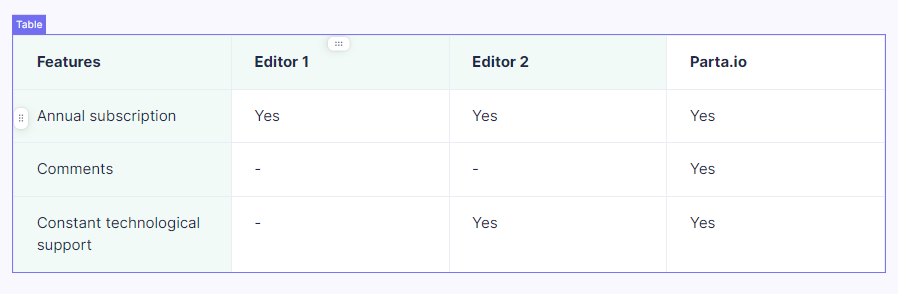
An table element  is a structured way to organize and display data in rows and columns, making it easier to read and understand. Each row typically represents a unique item, entity, or data point, while each column represents a specific aspect or attribute of that item. Tables are commonly used to display numerical data, lists, comparisons, and various types of information in a compact and logical format.&#x20;

<figure><img src="https://3560131808-files.gitbook.io/~/files/v0/b/gitbook-x-prod.appspot.com/o/spaces%2FoKhlOpFC8JmF8TcxylWx%2Fuploads%2FafmFByklj0I8a3VNDWOP%2FScreenshot_6.png?alt=media&#x26;token=5aa8cce7-ce59-49d1-928d-bf116040870a" alt=""><figcaption></figcaption></figure>

{% hint style="info" %}
To access table settings, simply click on the cell or table and the options will appear.
{% endhint %}

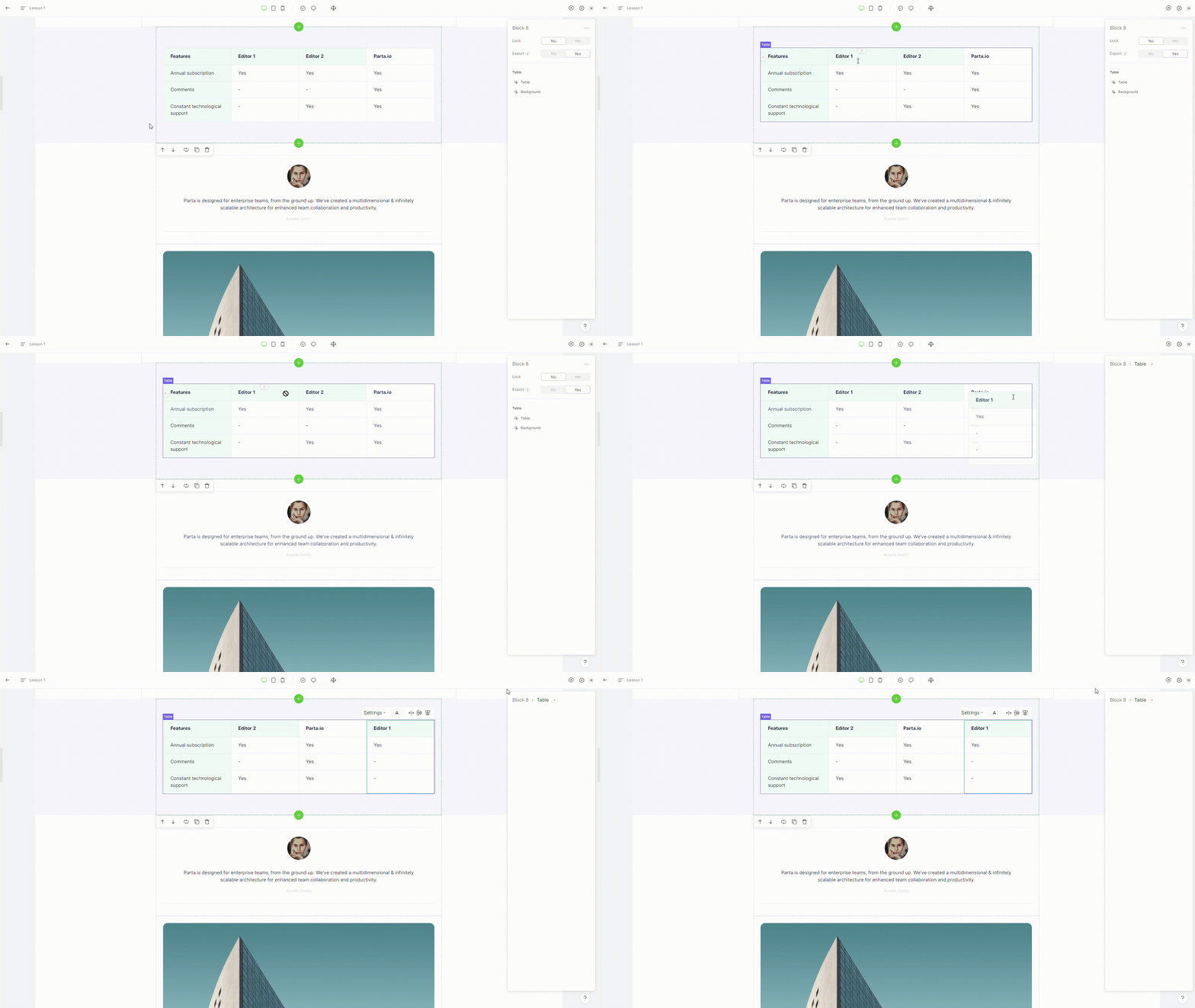
### 1. Move column

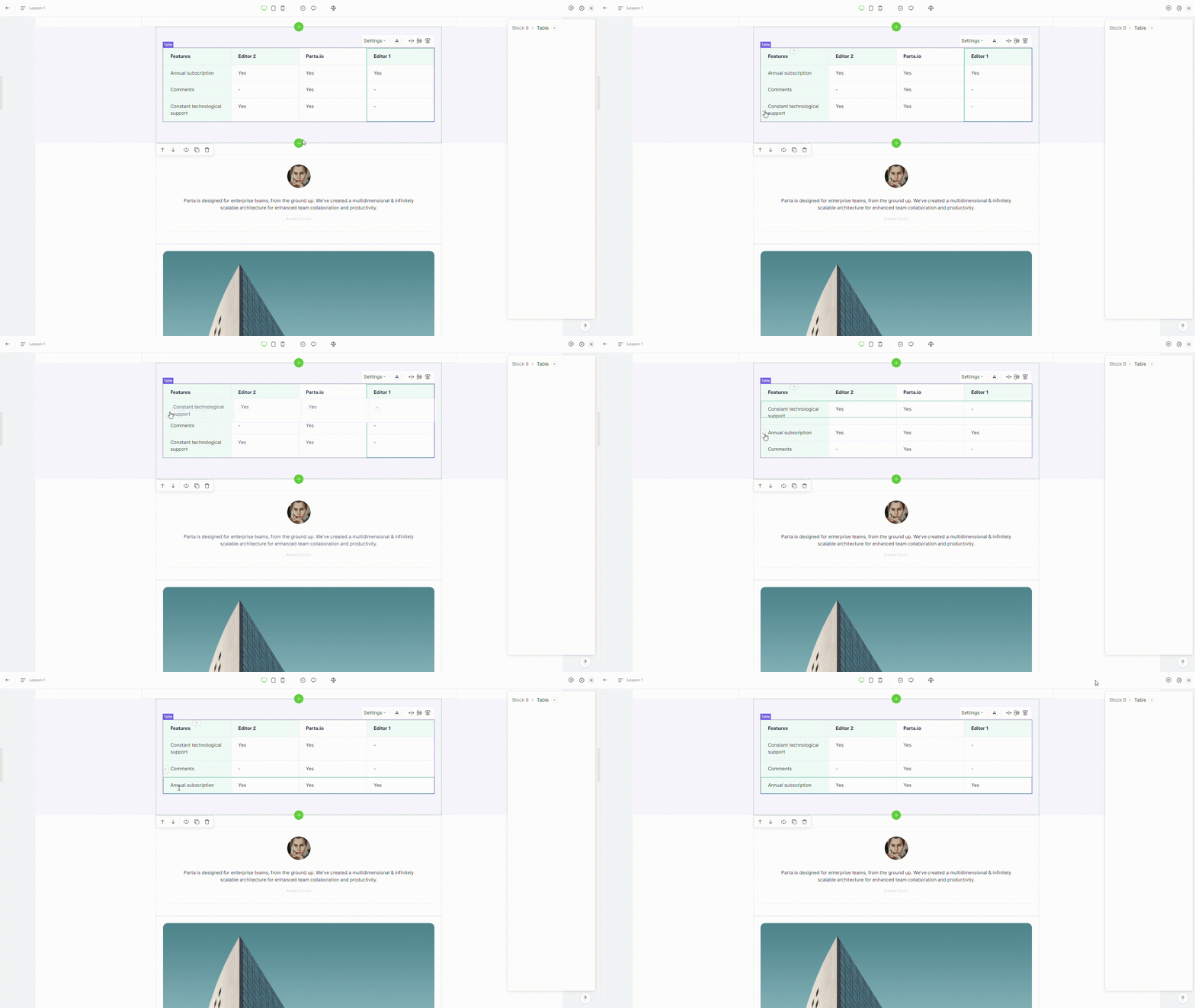
To move a column, drag and drop it to the new place you want it to be.

<figure><img src="https://3560131808-files.gitbook.io/~/files/v0/b/gitbook-x-prod.appspot.com/o/spaces%2FoKhlOpFC8JmF8TcxylWx%2Fuploads%2FLB7e0W8M7z2dyWsxTKVd%2FEditor%20-%20Google%20Chrome%202024-03-05%2014-46-36.gif?alt=media&#x26;token=970bd1ef-7bf3-4667-b29a-899beeaf63d3" alt=""><figcaption></figcaption></figure>

### 2. Move row

To move a row, drag and drop it to the new place you want it to be.

<figure><img src="https://3560131808-files.gitbook.io/~/files/v0/b/gitbook-x-prod.appspot.com/o/spaces%2FoKhlOpFC8JmF8TcxylWx%2Fuploads%2F8UPw6hJ8KelcwWQ19OVL%2FEditor%20-%20Google%20Chrome%202024-03-05%2014-46-51.gif?alt=media&#x26;token=ec14eabb-471c-4ded-a054-6ba5e279ffa5" alt=""><figcaption></figcaption></figure>

### 3. Add column/row

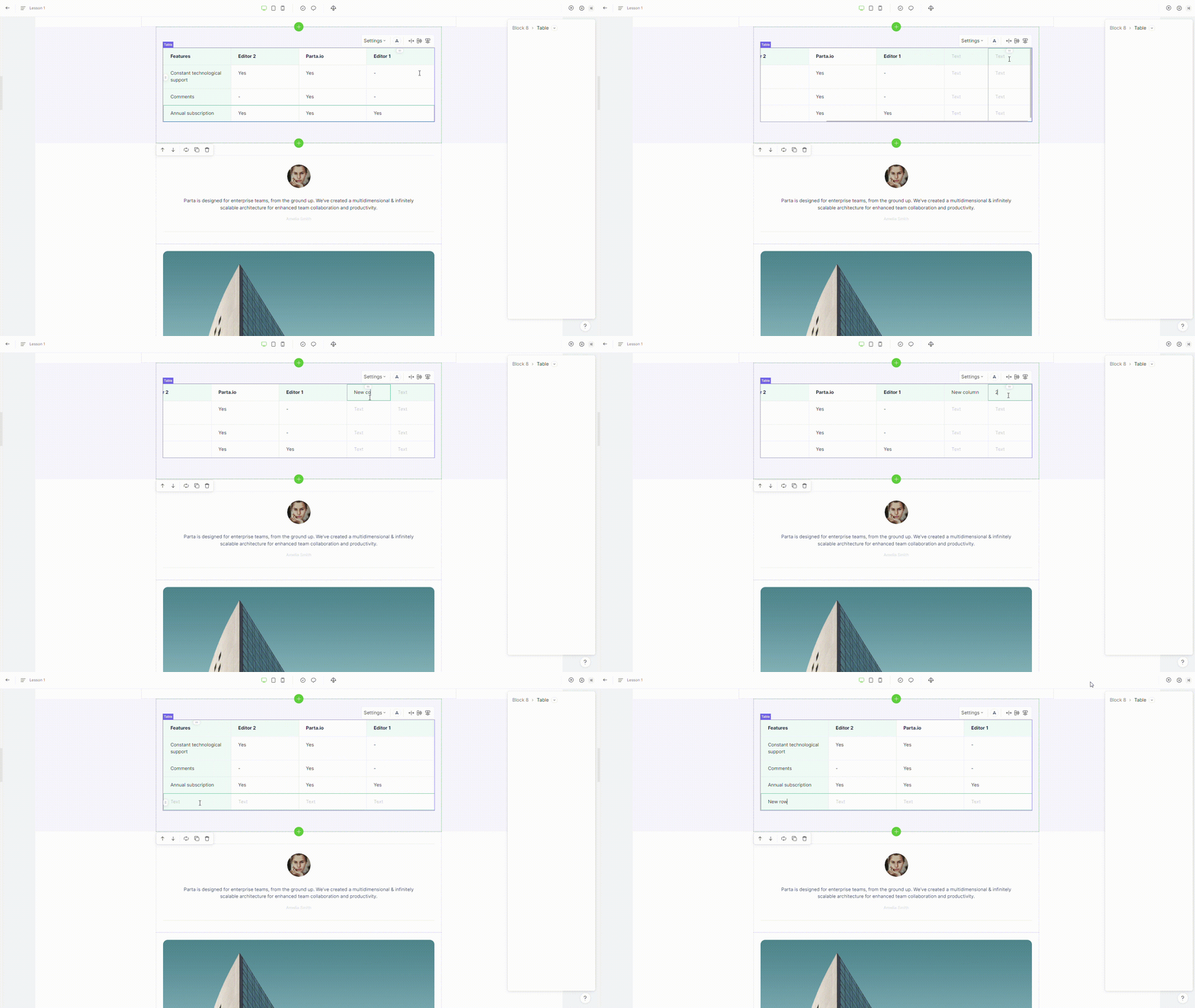
To add a column or row, click on add a **column**/**row** button placed at top right corner.

<figure><img src="https://3560131808-files.gitbook.io/~/files/v0/b/gitbook-x-prod.appspot.com/o/spaces%2FoKhlOpFC8JmF8TcxylWx%2Fuploads%2F7AYxJNFl3aWFClI5ac1q%2FEditor%20-%20Google%20Chrome%202024-03-05%2017-17-09.gif?alt=media&#x26;token=3a6a975d-87a1-4f84-aea3-eea6682d8b43" alt=""><figcaption></figcaption></figure>

### 4. Delete column/row

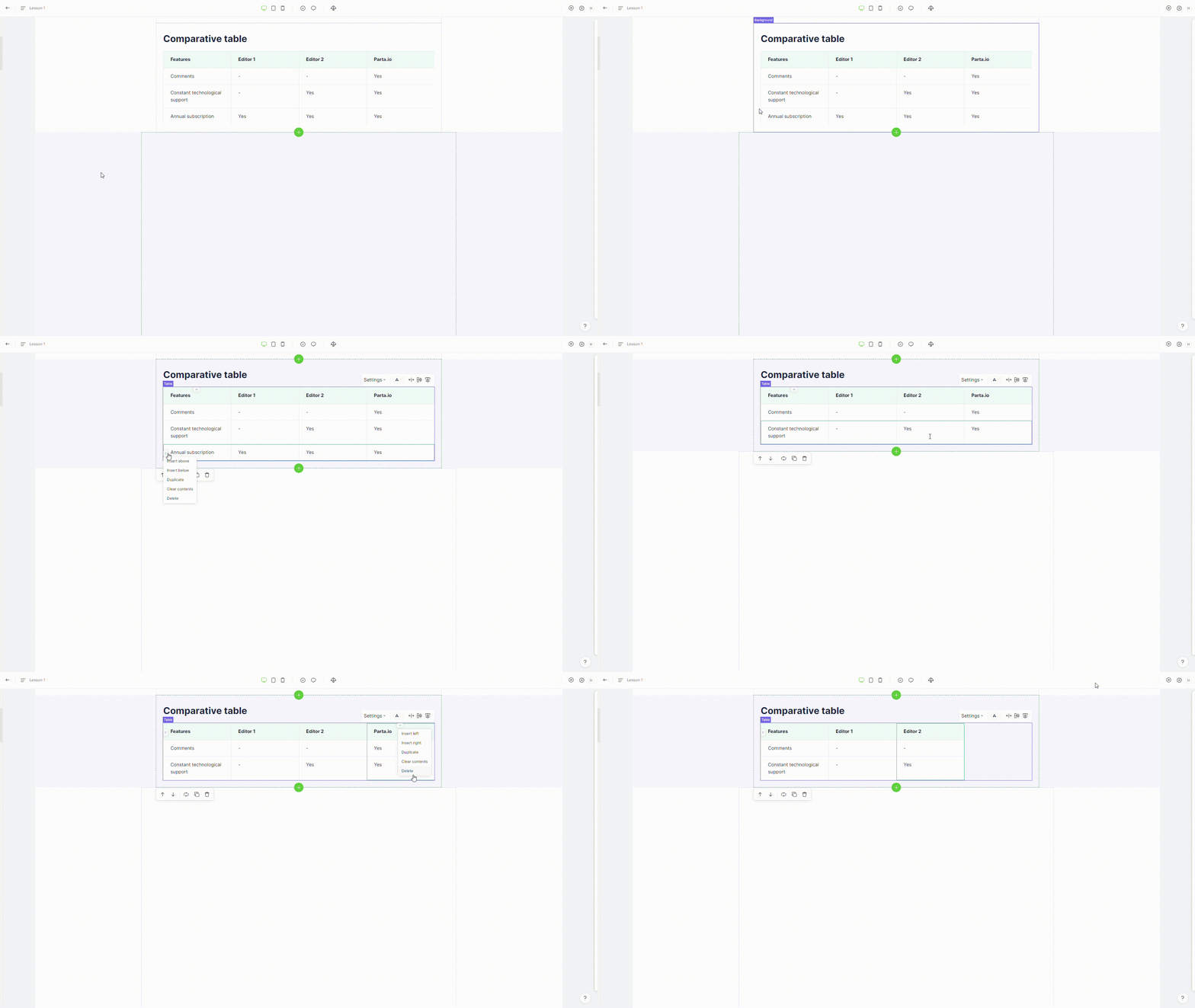
To remove a column or row, first choose the column or row you want to delete, then click the button for that column or row and select the **"delete"** option.

<figure><img src="https://3560131808-files.gitbook.io/~/files/v0/b/gitbook-x-prod.appspot.com/o/spaces%2FoKhlOpFC8JmF8TcxylWx%2Fuploads%2F2pvNHZEZ4BMXDR5z4QWW%2FEditor%20-%20Google%20Chrome%202024-03-06%2013-11-03.gif?alt=media&#x26;token=84f42101-ada0-4090-99d6-b2900cefb0a6" alt=""><figcaption></figcaption></figure>

### 5. Resize column

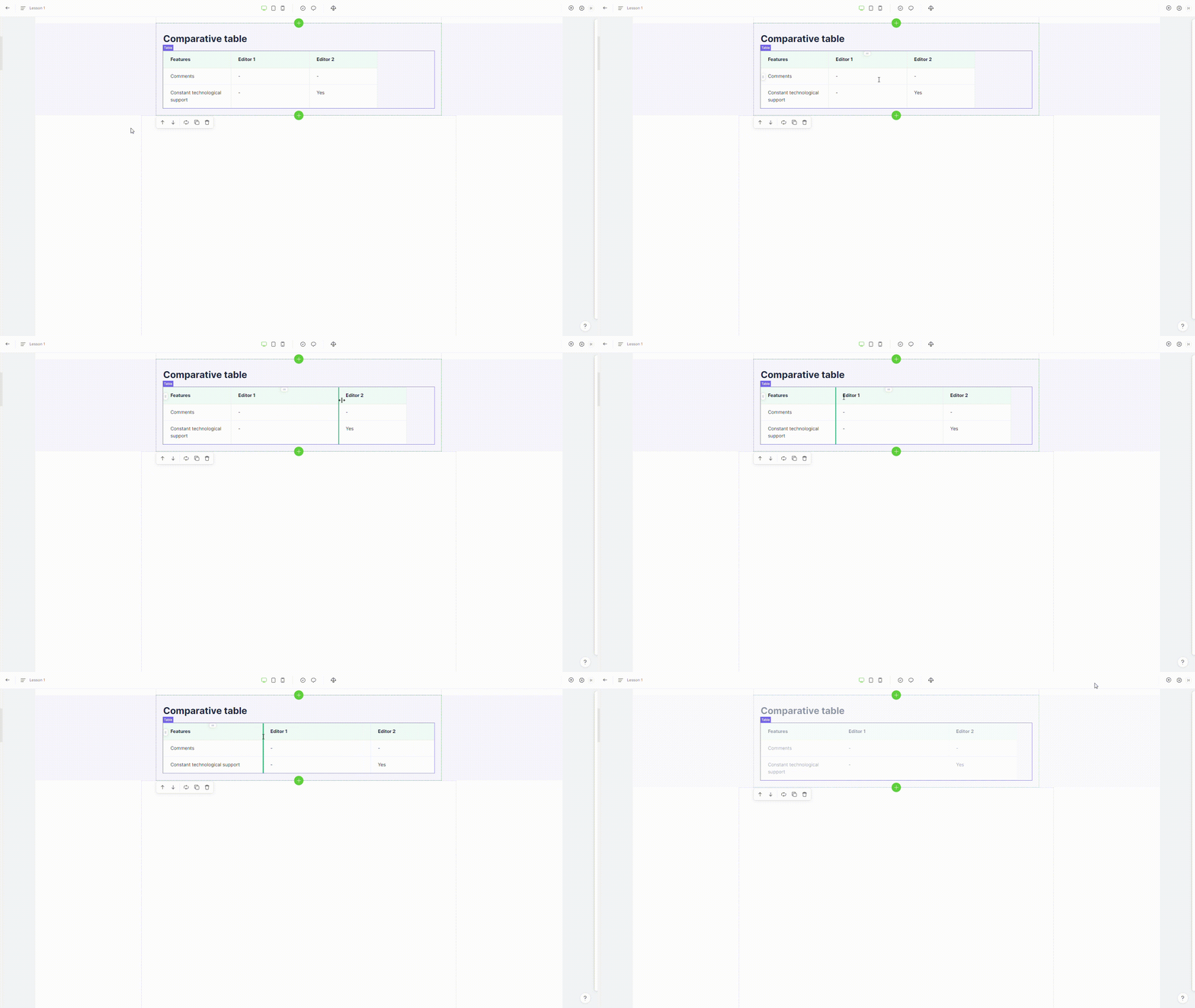
To change the width of a column, simply drag the column to your preferred width.

<figure><img src="https://3560131808-files.gitbook.io/~/files/v0/b/gitbook-x-prod.appspot.com/o/spaces%2FoKhlOpFC8JmF8TcxylWx%2Fuploads%2FT29MKfG5ekivaE2qvH5o%2FEditor%20-%20Google%20Chrome%202024-03-06%2013-15-03.gif?alt=media&#x26;token=8b31c3b5-d5c5-4e75-9847-c277839fe38a" alt=""><figcaption></figcaption></figure>

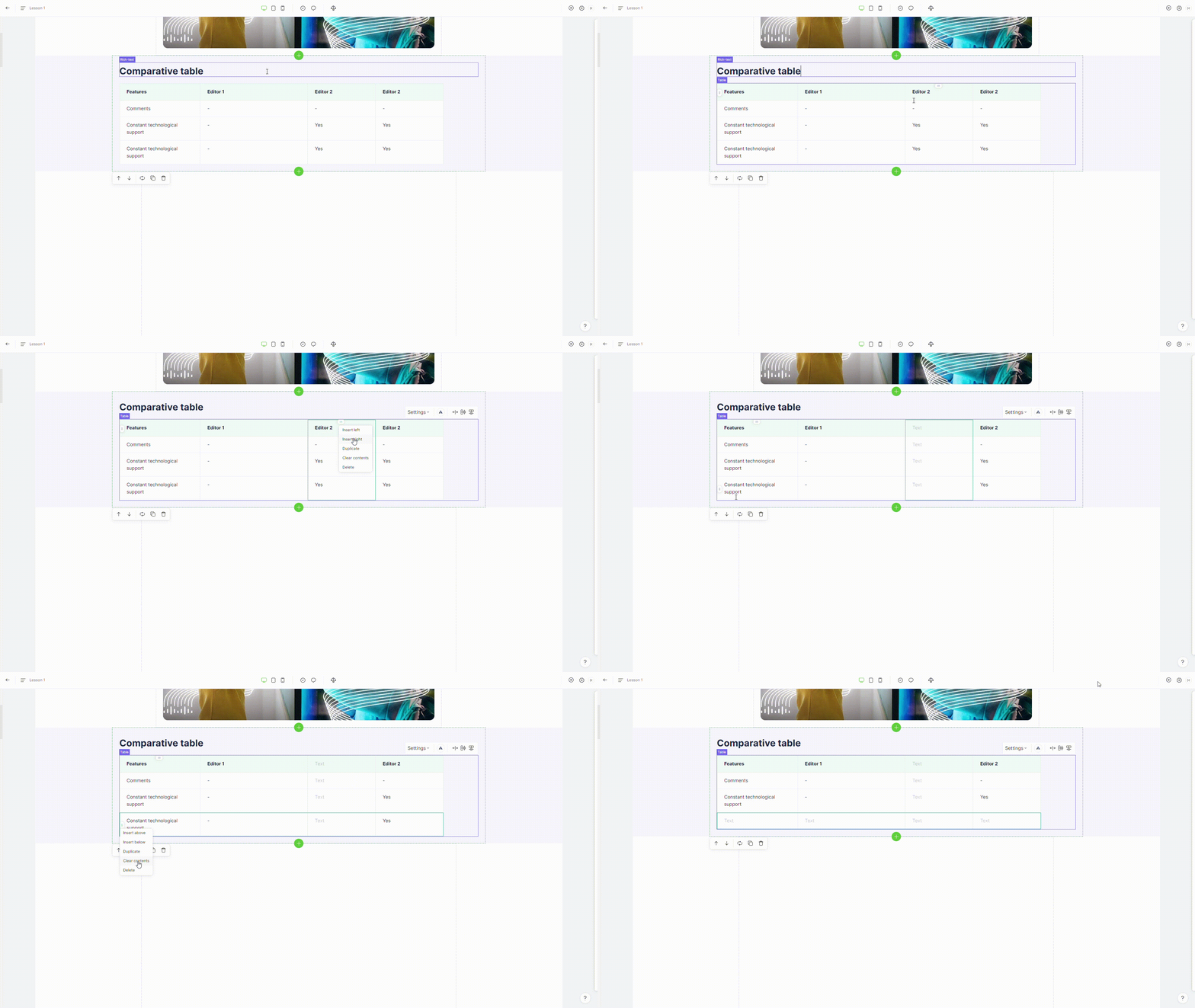
### 6. Duplicate column/row

To duplicate a column or row, first select the column or row you want to duplicate, then click the button for that column or row and select the **"duplicate"** option.

<figure><img src="https://3560131808-files.gitbook.io/~/files/v0/b/gitbook-x-prod.appspot.com/o/spaces%2FoKhlOpFC8JmF8TcxylWx%2Fuploads%2FXImSH61yY41aghtZNGsz%2FEditor%20-%20Google%20Chrome%202024-03-06%2013-17-43.gif?alt=media&#x26;token=b789125e-5c55-42ad-9ae2-ba73394e3c42" alt=""><figcaption></figcaption></figure>

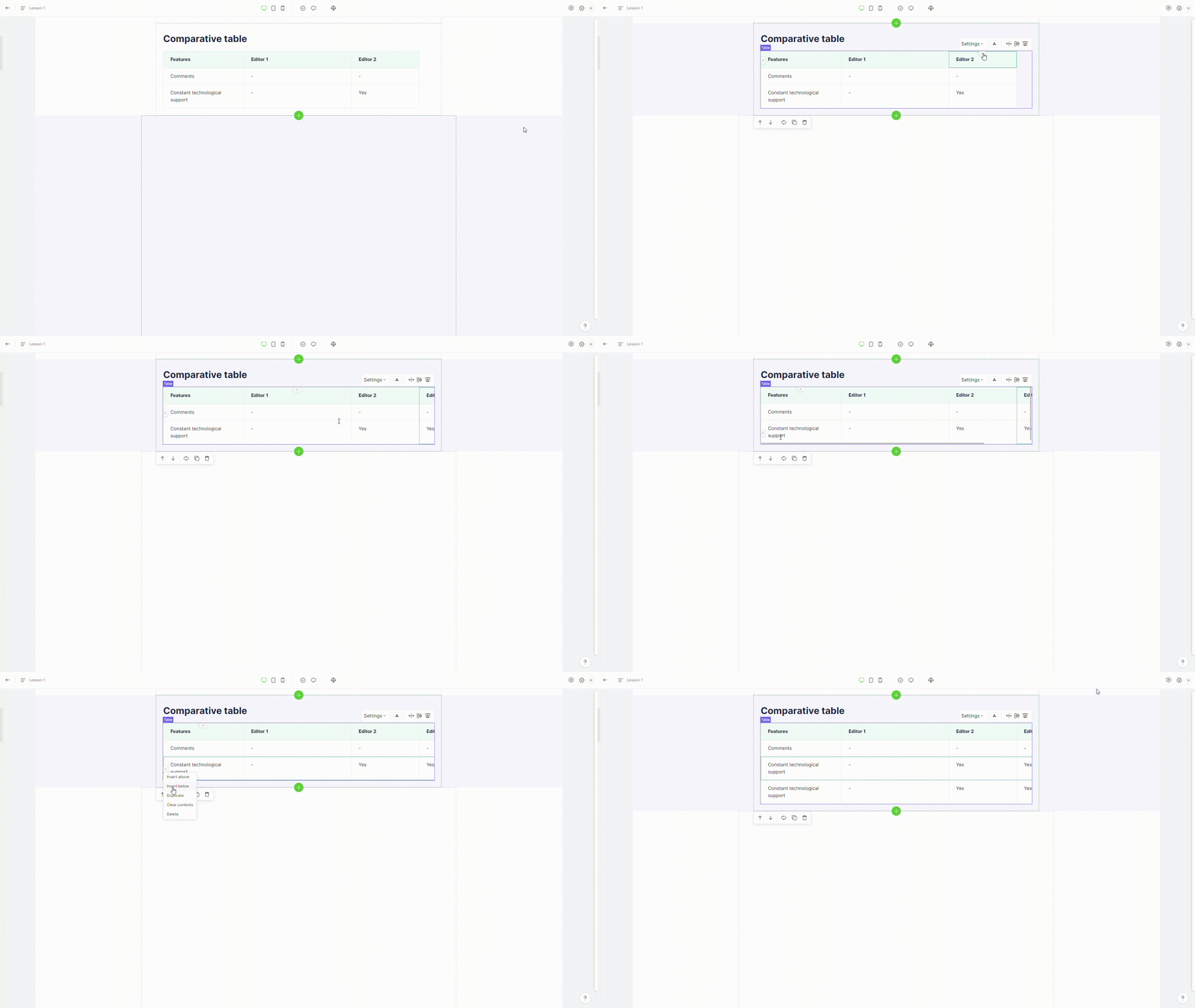
### 7. Clear column/row

To clear content in a column or row, first select the column or row you want to duplicate, then click the button for that column or row and select the **"clear contents"** option.

<figure><img src="https://3560131808-files.gitbook.io/~/files/v0/b/gitbook-x-prod.appspot.com/o/spaces%2FoKhlOpFC8JmF8TcxylWx%2Fuploads%2FzsoBLORqVCx6kagGMxXS%2FEditor%20-%20Google%20Chrome%202024-03-06%2013-18-28.gif?alt=media&#x26;token=f3b859a3-fac4-43ef-b3f4-bc0326b0b7f2" alt=""><figcaption></figcaption></figure>

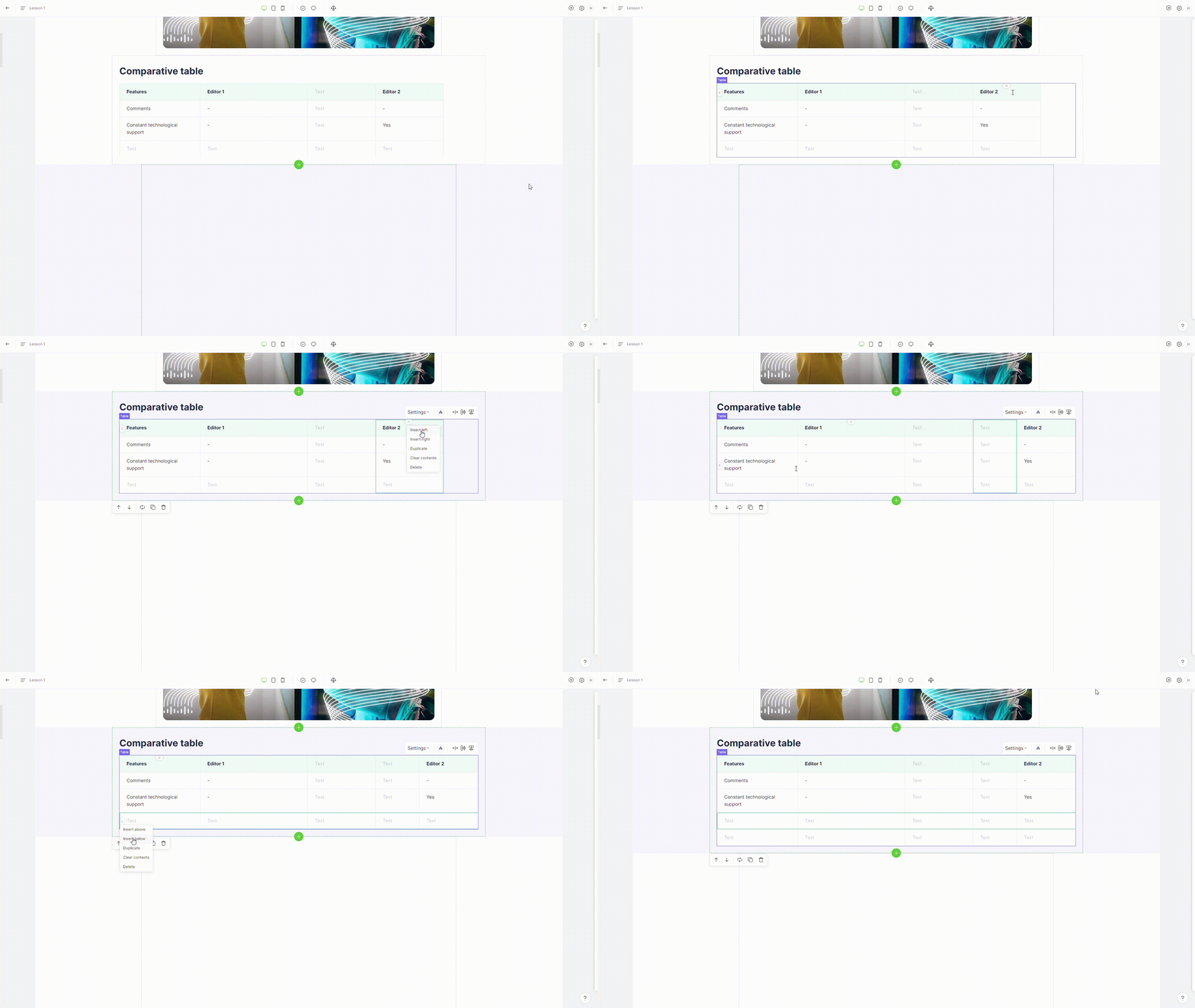
### 8. Add column/row

To add a column or row, first choose the column or row you want to duplicate, then click the button for that column or row and select the **"insert left/right or insert above/below"** option.
<figure><img src="https://3560131808-files.gitbook.io/~/files/v0/b/gitbook-x-prod.appspot.com/o/spaces%2FoKhlOpFC8JmF8TcxylWx%2Fuploads%2FpjIdQoWjbVBFTyDxqHRh%2FEditor%20-%20Google%20Chrome%202024-03-06%2013-26-19.gif?alt=media&#x26;token=bda936dc-7beb-45f1-921e-6065291ecb1b" alt=""><figcaption></figcaption></figure>