> For the complete documentation index, see [llms.txt](https://help.parta.io/llms.txt). Markdown versions of documentation pages are available by appending `.md` to page URLs; this page is available as [Markdown](https://help.parta.io/editor/edit-elements/set-media-and-content-elements/video-1.md).
# Video
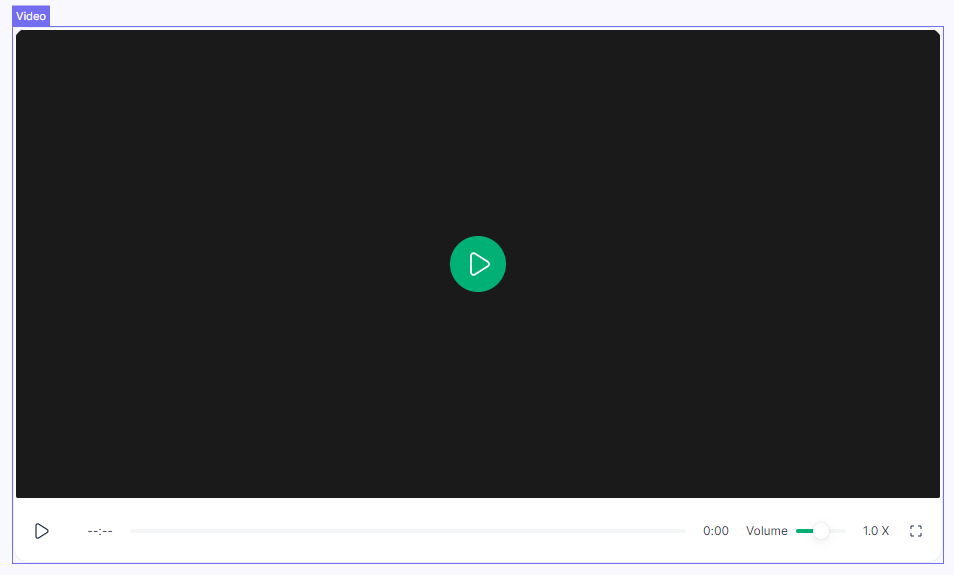
An element that includes video files, which can be used for training, entertainment, or demonstrating a product or service.
{% hint style="info" %}
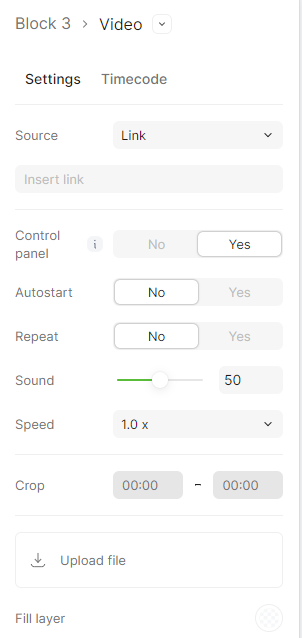
To view video settings, double-click on the video control panel.
{% endhint %}
### Video settings:
### 1. Change source
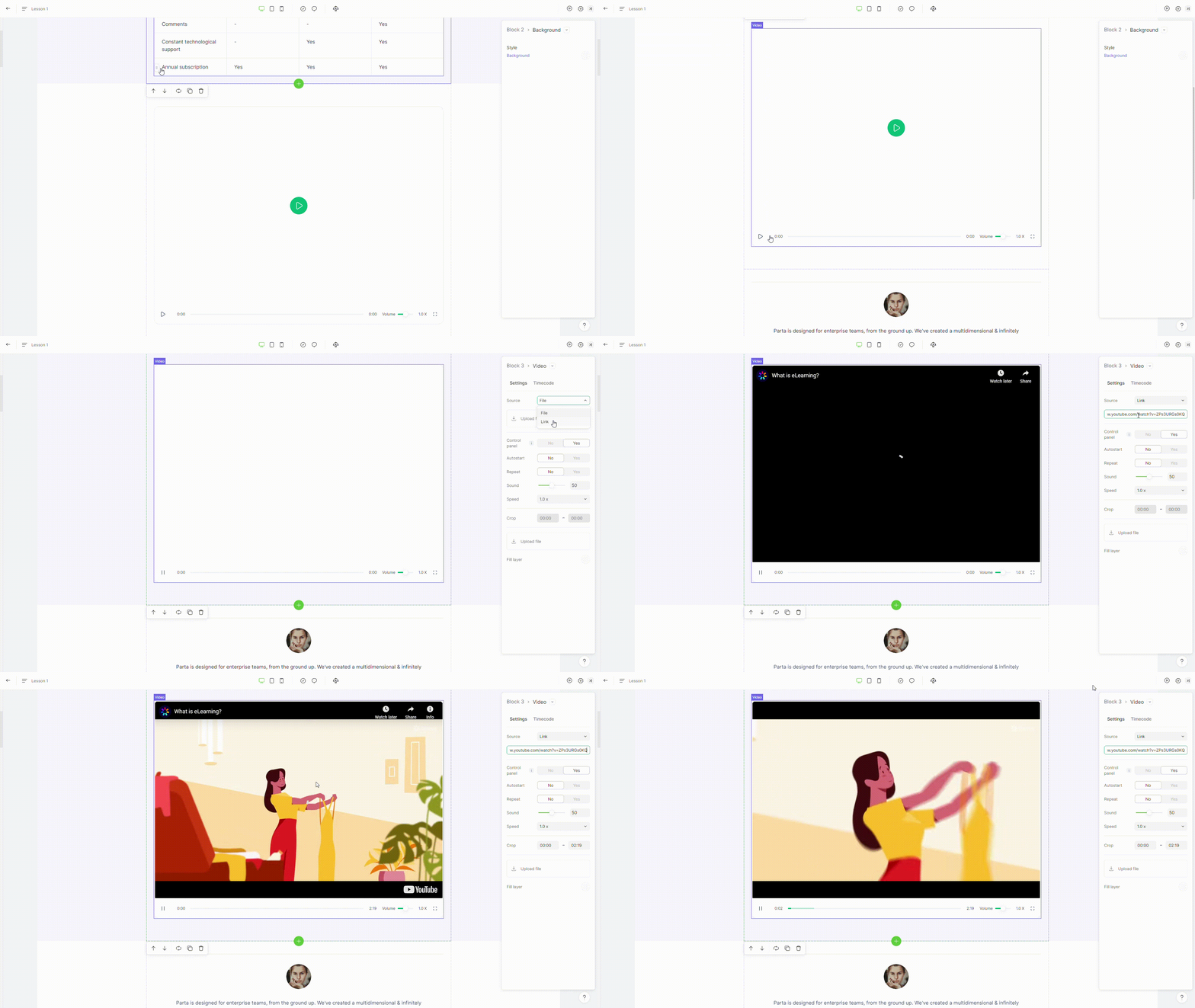
A video can be played either from an uploaded video file or through a link, such as YouTube link.
### 2. Hide control panel
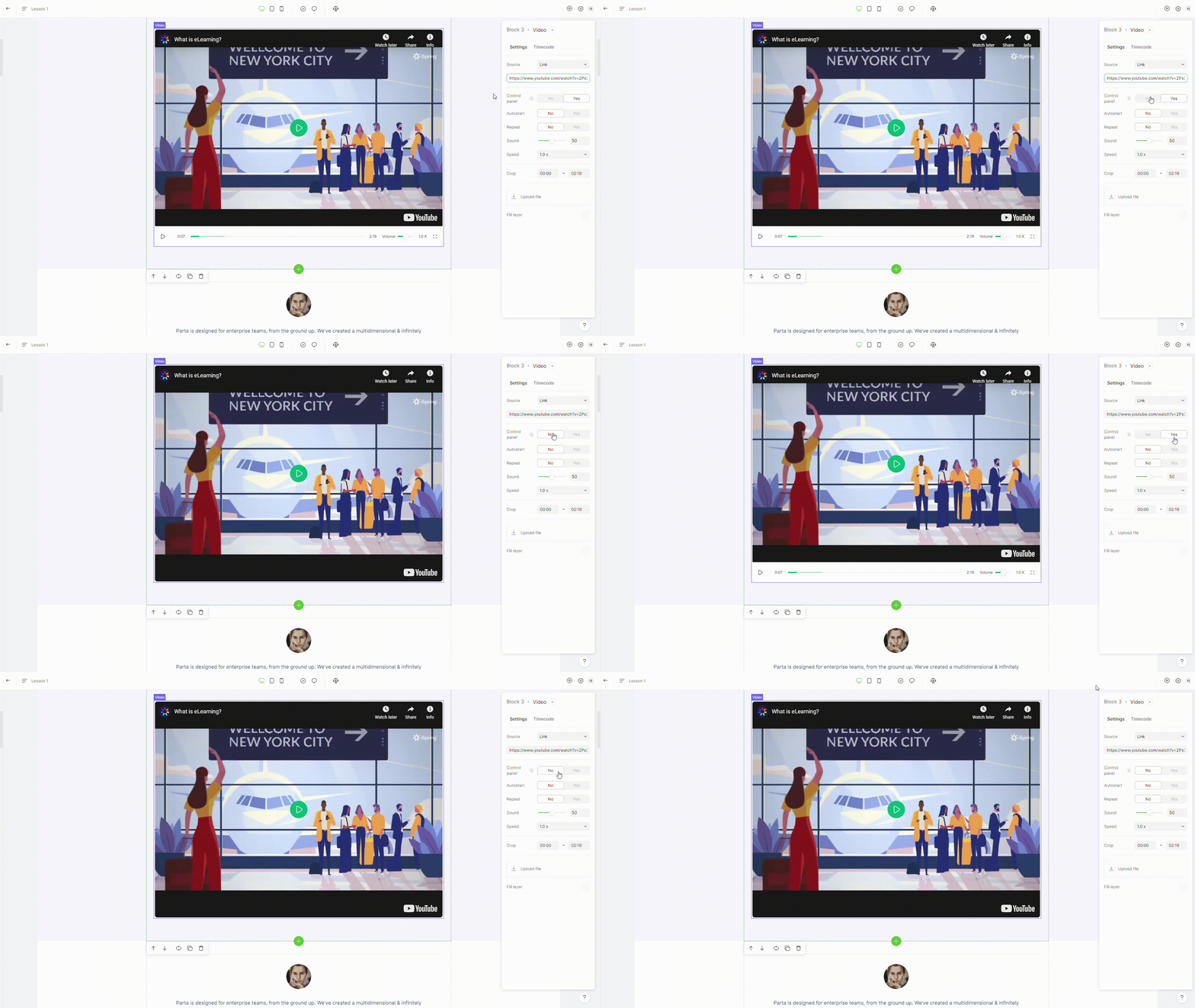
To hide the control panel, select "**no**" in the "**control panel"** setting.
### 3. Autostart video
To prevent automatic video start, select "**no**" in the "**autostart**" setting.
### 4. Repeat video
To repeat the video, select "**yes**" in the "**repeat**" setting.
### 5. Default sound volume
Adjust the soundbar to increase or decrease the default volume.
### 6. Default video speed
Select default video speed from the list
### 7. Crop (trim) video start and end time
To trim the beginning and end of a video, use the start time and end time settings.
### 8. Thumbnail for a video
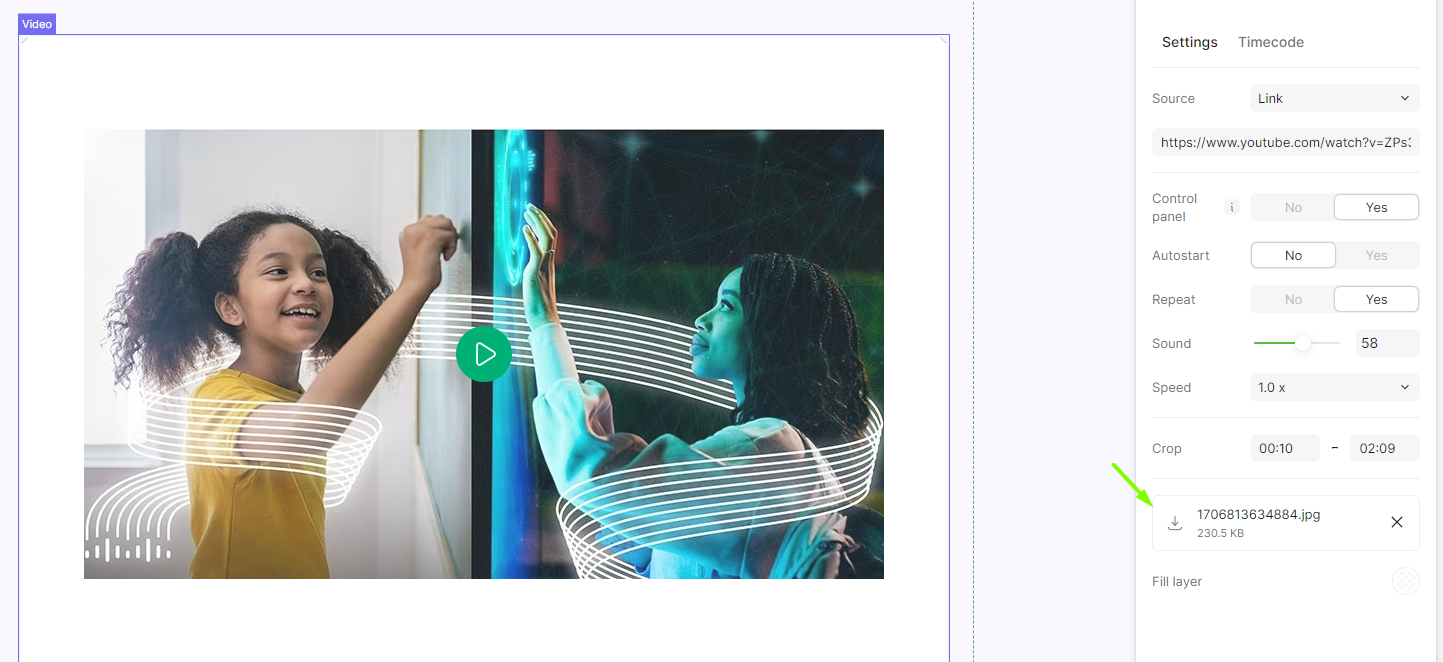
To upload cover image for a video, select the image in “**upload file**” setting.
### 9. Colored overlay for video
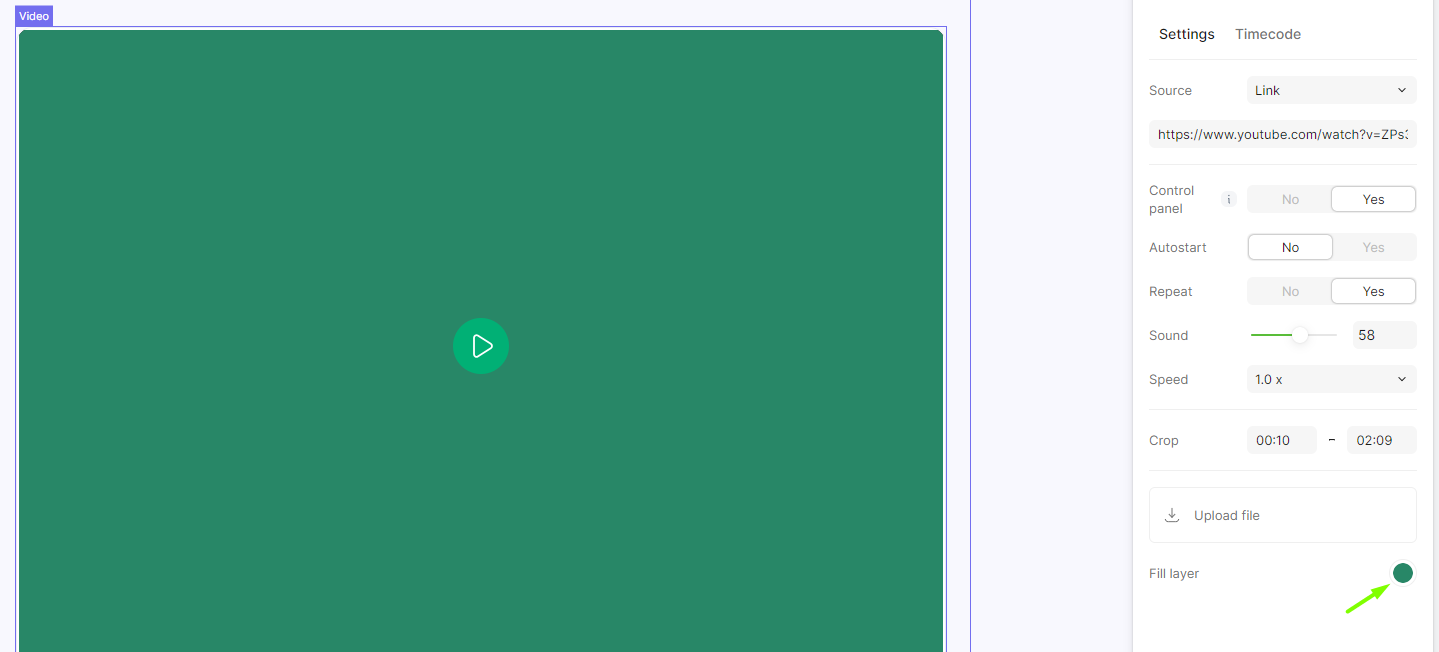
To select overlay for a video, select the color in “**fill layer**” setting.
### 10. Adding time code
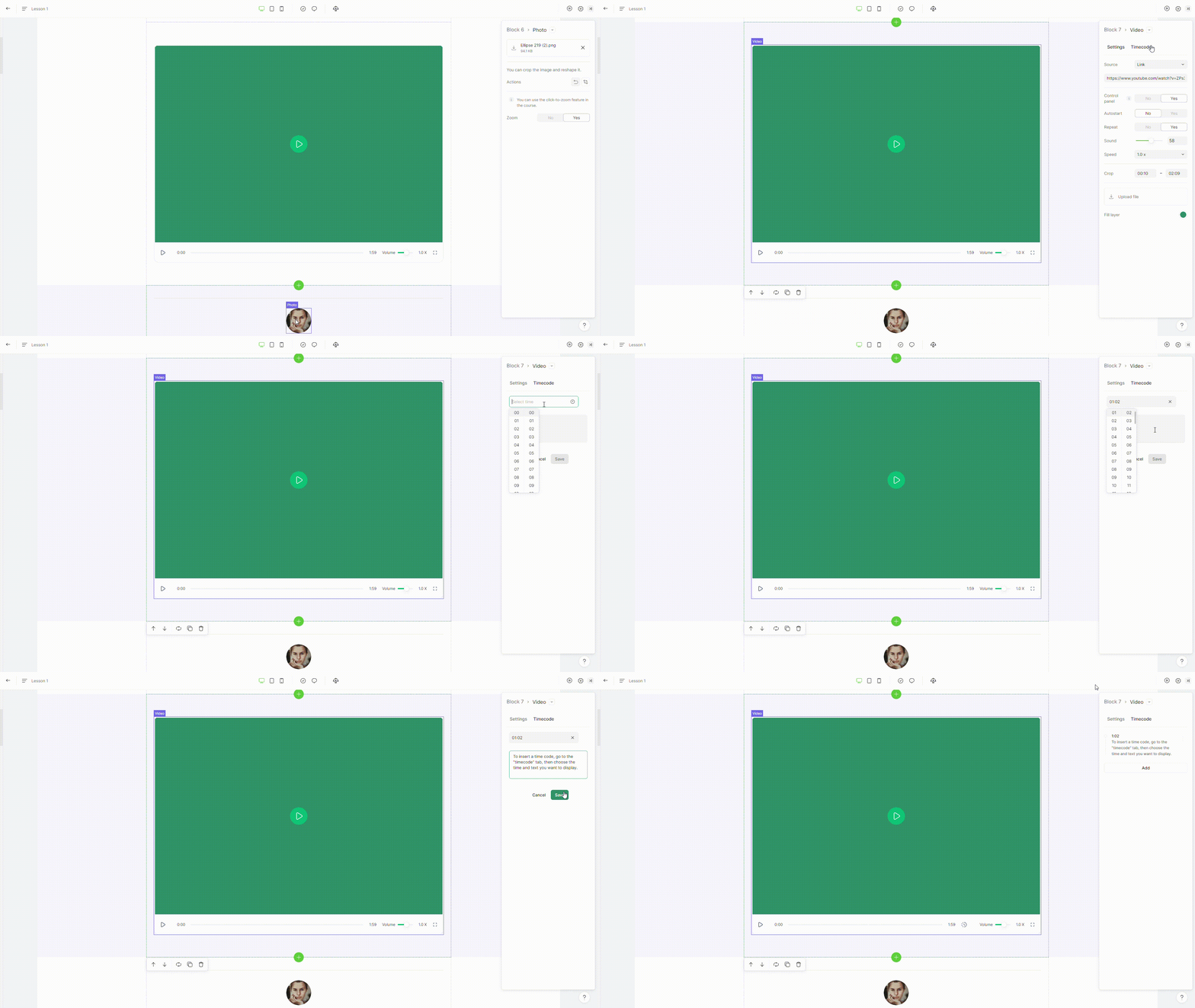
To insert a time code, go to the "timecode" tab, then choose the time and text you want to display.