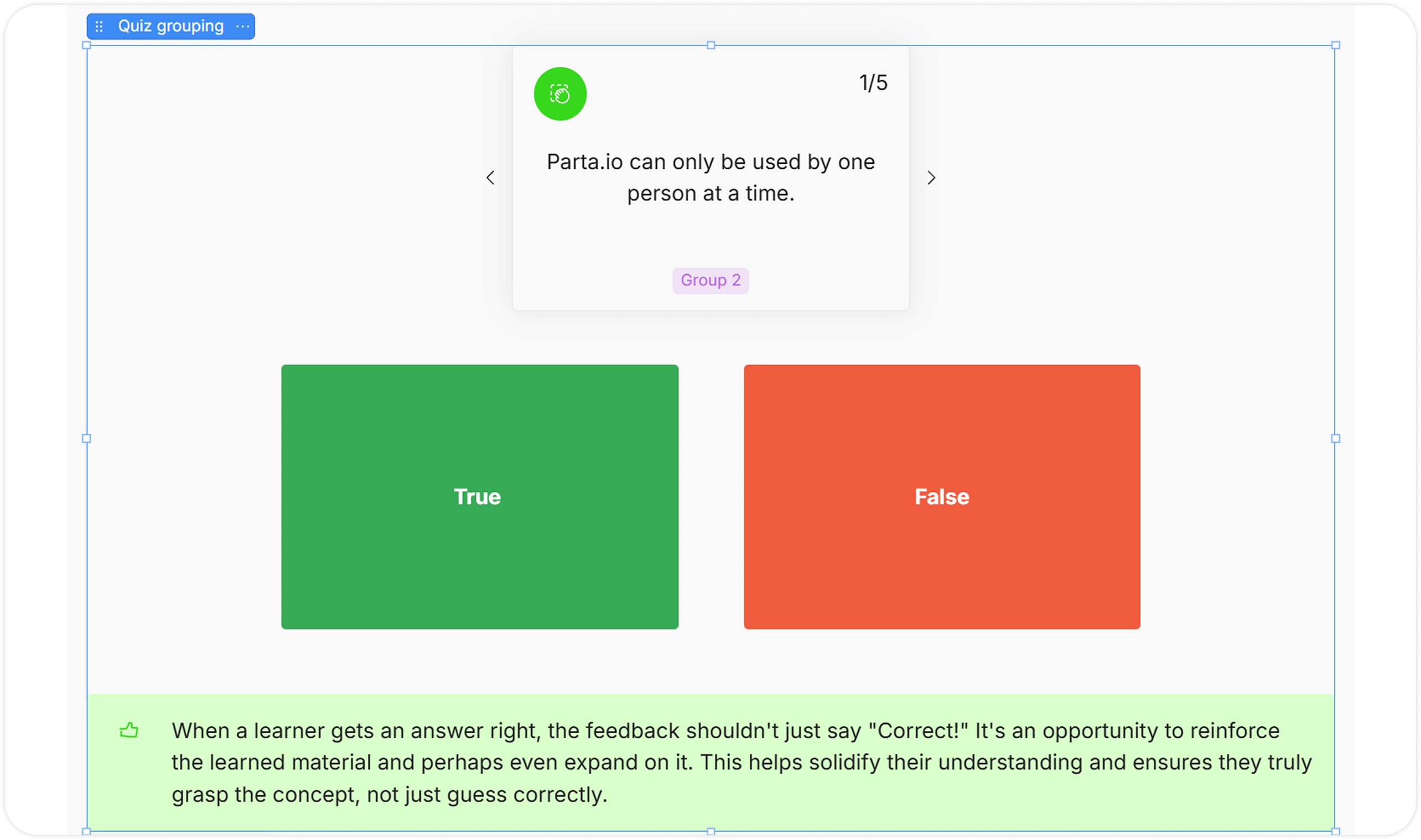
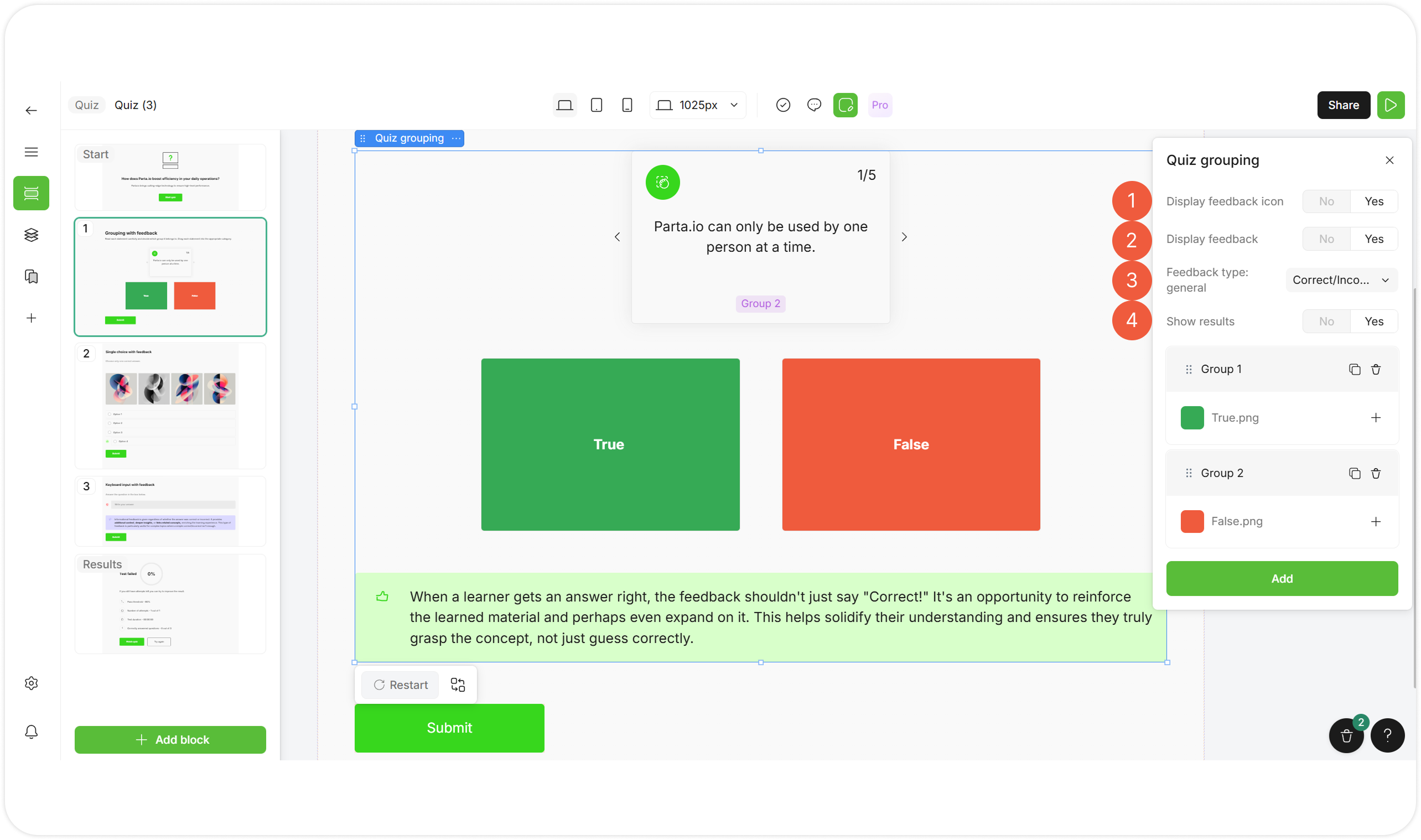
| № | Setting | Description |
|---|---|---|
| 1 | Display feedback icon | Shows / hides the feedback icons next to the answers. Select an option:
|
| 2 | Display feedback | Shows / hides the Feedback type: general option. Select an option:
|
| 3 | Feedback type: general | Enable the Display feedback option to start editing. Allows to set general feedback. Select an option from the drop-down menu:
|
| 4 | Show results | Shows / hides the number of correct answers. Select an option:
|
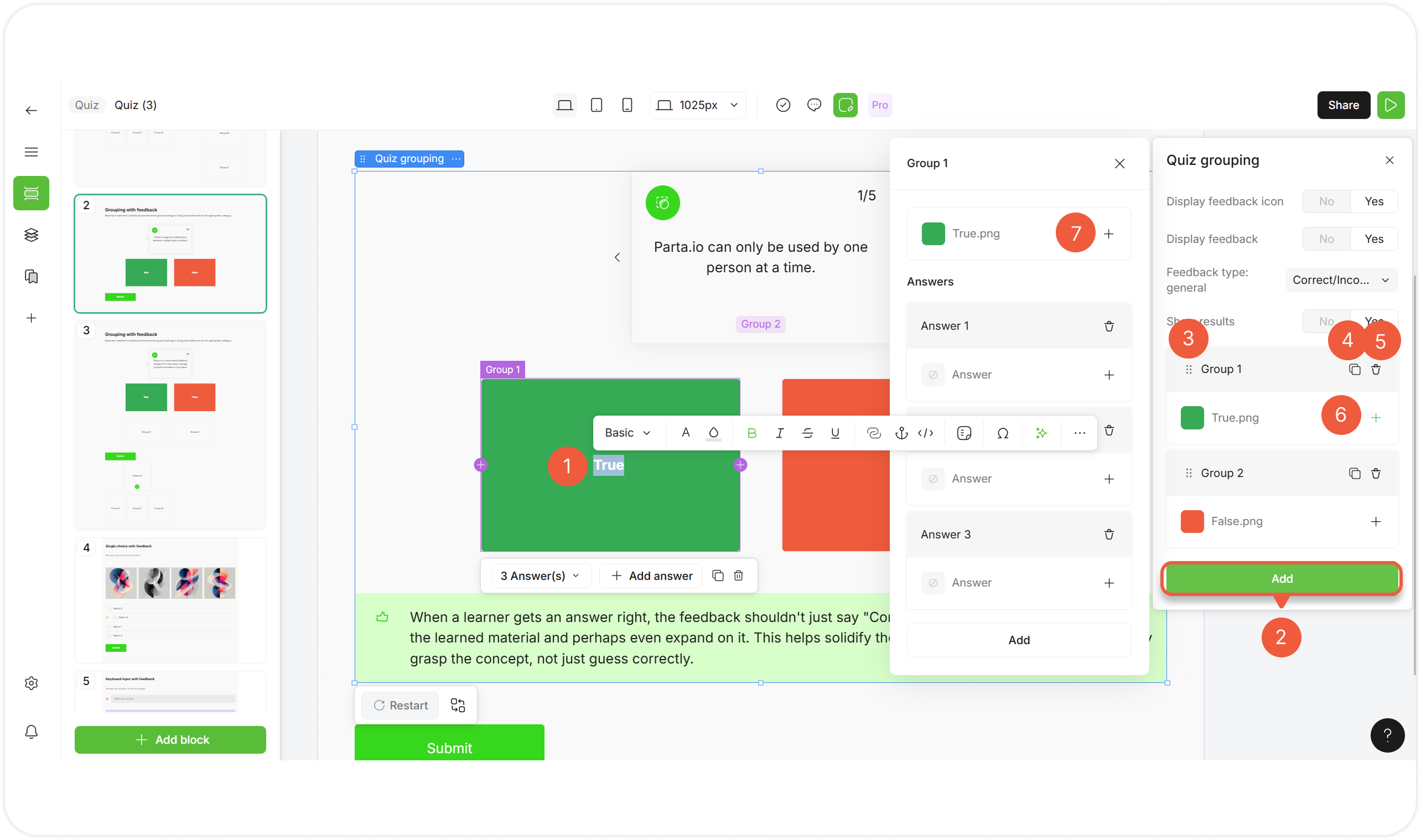
| № | Action | Description |
|---|---|---|
| 1 | Edit group text | a. Select a group at the template; b. Double-click on the text; c. Enter the group text. |
| 2 | Add a group | Click the Add button. |
| 3 | Move a group | a. Click and hold the icon; b. Drag a group to change its position in the list. |
| 4 | Duplicate a group |
|
| 5 | Delete a group |
|
| 6 | Open group settings | Click + to open detailed group settings with the answers related to the group. A pop-up window will appear. |
| 7 | Add a group cover | a. Open group settings; b. Click + to open the image uploading settings window. |
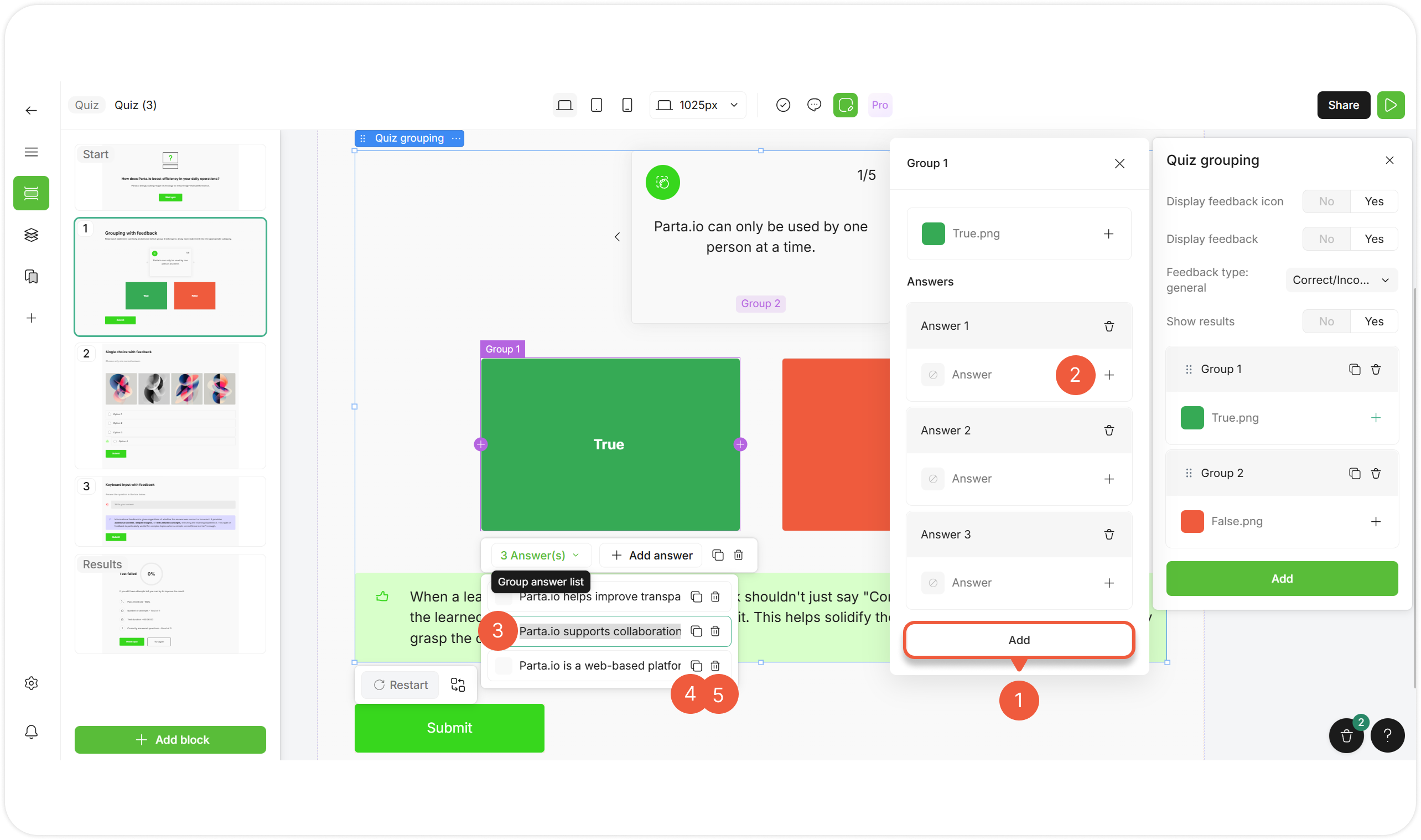
| № | Action | Description |
|---|---|---|
| 1 | Add an answer |
|
| 2 | Add an answer image | Click + next to the answer to open the image uploading settings window. |
| 3 | Edit answer text | a. Click the Group answer list; b. Double-click the answer; c. Enter the answer text. |
| 4 | Duplicate an answer | Click the Duplicate answer icon. |
| 5 | Delete an answer |
|