# Work in the Editor

## What is an Editor?&#x20;

The **editor** is a basic course constructor that allows to create and organize structured, interactive courses using [pre-built templates](https://help.parta.io/editor/edit-blocks/manage-templates).

## Edit a Project

### Open a Project Editor

After [creating a project](https://help.parta.io/project/set-projects/create-a-project)  and its [outline](https://help.parta.io/project/set-a-project-structure/create-a-course-outline), start editing to add content.

<figure><img src="https://3560131808-files.gitbook.io/~/files/v0/b/gitbook-x-prod.appspot.com/o/spaces%2FoKhlOpFC8JmF8TcxylWx%2Fuploads%2FrhkhUgGYPc7zU2cVf5L5%2FEdit_a_Project.01.png?alt=media&#x26;token=2f52d4d6-464f-4e72-b98f-39944fd4712b" alt=""><figcaption></figcaption></figure>

{% stepper %}
{% step %}
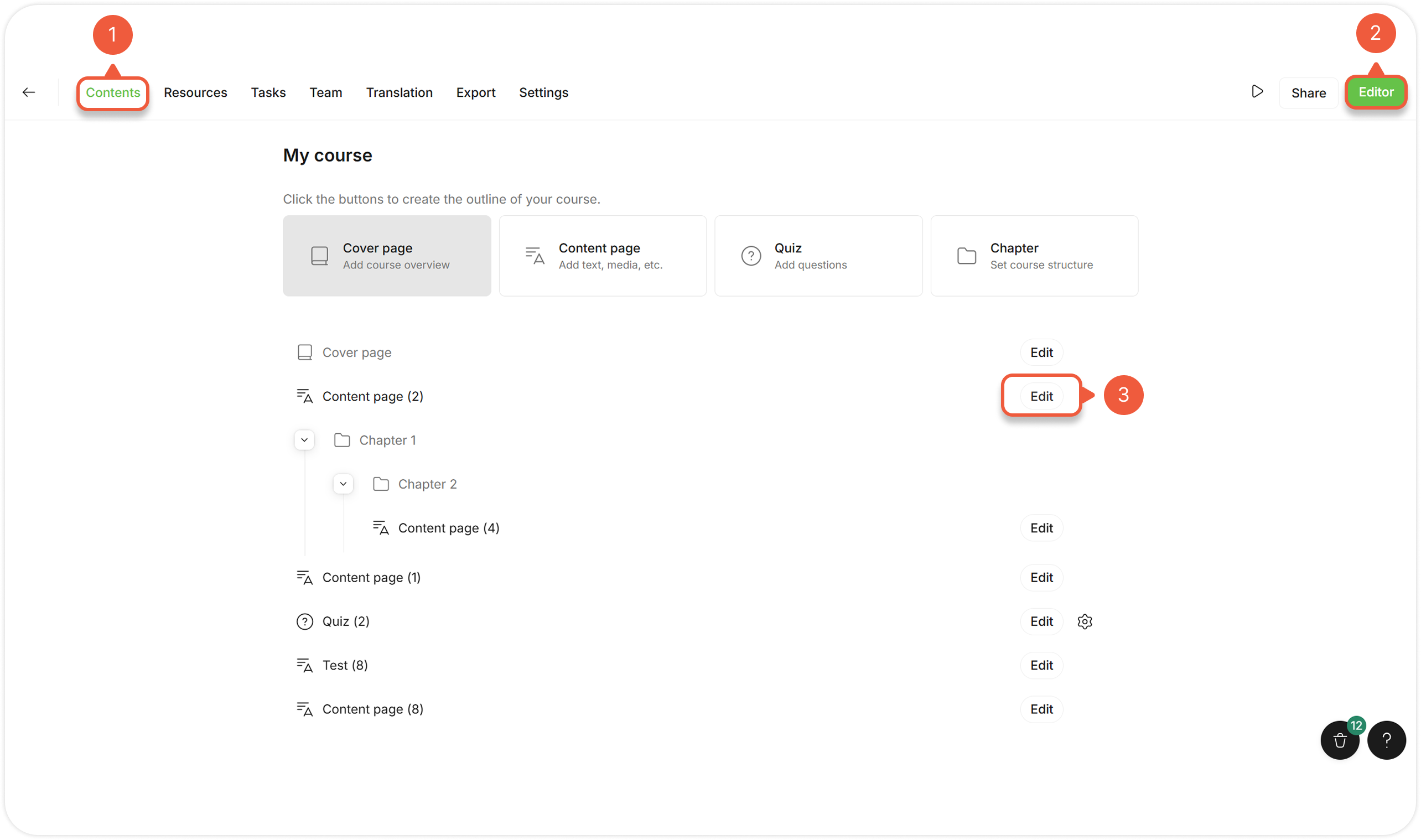
[Open a Project](https://help.parta.io/project/set-projects/manage-a-project#open-a-project) and go to the **Contents** tab.
{% endstep %}

{% step %}
Click the **Editor** button.

An editor page of the **first Project section** will appear.
{% endstep %}

{% step %}
Click the **Edit** button next to the section.

An editor page of the **Project section** will appear.
{% endstep %}
{% endstepper %}

### Use Templates

Improve course creation by using and customizing templates to simplify content development and keep it consistent.

Over 100 categorized templates help creators get started.

<figure><img src="https://3560131808-files.gitbook.io/~/files/v0/b/gitbook-x-prod.appspot.com/o/spaces%2FoKhlOpFC8JmF8TcxylWx%2Fuploads%2FVdW4mRIywzgUmwtiwwNV%2FEdit_a_Project.02.png?alt=media&#x26;token=a770d72b-d568-4044-8dfd-c28d5a0fa66f" alt=""><figcaption></figcaption></figure>

{% stepper %}
{% step %}
[Add a template](https://help.parta.io/editor/edit-blocks/add-a-block)  to build a section structure.
{% endstep %}

{% step %}
[Manage a template](https://help.parta.io/editor/edit-blocks/manage-templates) to operate with blocks.
{% endstep %}

{% step %}
[Edit a default template](https://help.parta.io/editor/edit-elements)  to add course content.
{% endstep %}

{% step %}
Save any content as a [custom template](https://help.parta.io/editor/edit-blocks/manage-templates)  for future use to work faster with preset templates and set course development standards.
{% endstep %}

{% step %}
Customize templates to create unique blocks using the [no-code editor](https://help.parta.io/no-code-editor).
{% endstep %}
{% endstepper %}

## Navigate in the Editor

Quickly navigate the editor components for a smooth editing experience and effortless content interaction.

### Move between Sections

<figure><img src="https://3560131808-files.gitbook.io/~/files/v0/b/gitbook-x-prod.appspot.com/o/spaces%2FoKhlOpFC8JmF8TcxylWx%2Fuploads%2F6S6tFXz1fuKImfkwCrZ4%2FEdit_a_Project.03.png?alt=media&#x26;token=cdf3e657-fb70-46f3-baca-538df720b8ee" alt=""><figcaption></figcaption></figure>

Use **Course content** tab to conveniently explore the content.

{% stepper %}
{% step %}
[Open an editor](#open-a-project-editor) and click the **Course content** icon to open the **Project structure menu**.

A list of all Project sections will appear.
{% endstep %}

{% step %}
Click on the section in the list to jump to its editing.

{% hint style="info" %}
Click on the **v** icon to collapse the chapter's nested sections for easier navigation.
{% endhint %}
{% endstep %}

{% step %}
Manage sections.

> **a.** Hover over the section.
>
> **b.** Click the **Settings** icon.&#x20;
>
> **c.** Select an available action.

{% hint style="success" %}
You can **edit, delete or duplicate** sections from the **Course content** tab.
{% endhint %}
{% endstep %}

{% step %}
Add new sections via corresponding button.

{% hint style="warning" %}
You can't add a Chapter from the **Course content** menu.
{% endhint %}
{% endstep %}
{% endstepper %}

### Move between Blocks

Use **Section block list** tab to easily navigate through the section content.

<figure><img src="https://3560131808-files.gitbook.io/~/files/v0/b/gitbook-x-prod.appspot.com/o/spaces%2FoKhlOpFC8JmF8TcxylWx%2Fuploads%2F5IR3MvdI8q65duCUgkyR%2FEdit_a_Project.04.png?alt=media&#x26;token=5d2b833c-f259-4c0a-be23-023dc1798d2b" alt=""><figcaption></figcaption></figure>

{% stepper %}
{% step %}
[Open an editor](https://help.parta.io/editor/work-in-the-editor/edit-a-project#open-a-project-editor) and click the **Section block lis**t icon to open the block menu.

A list of all section blocks will appear.
{% endstep %}

{% step %}
Click on the block in the list to select it and jump to it in the editor.
{% endstep %}

{% step %}
Move a block:

> a. Click and hold the block.
>
> b. Drag the section.

The green line indicates the new section position.
{% endstep %}
{% endstepper %}

### Move between Elements

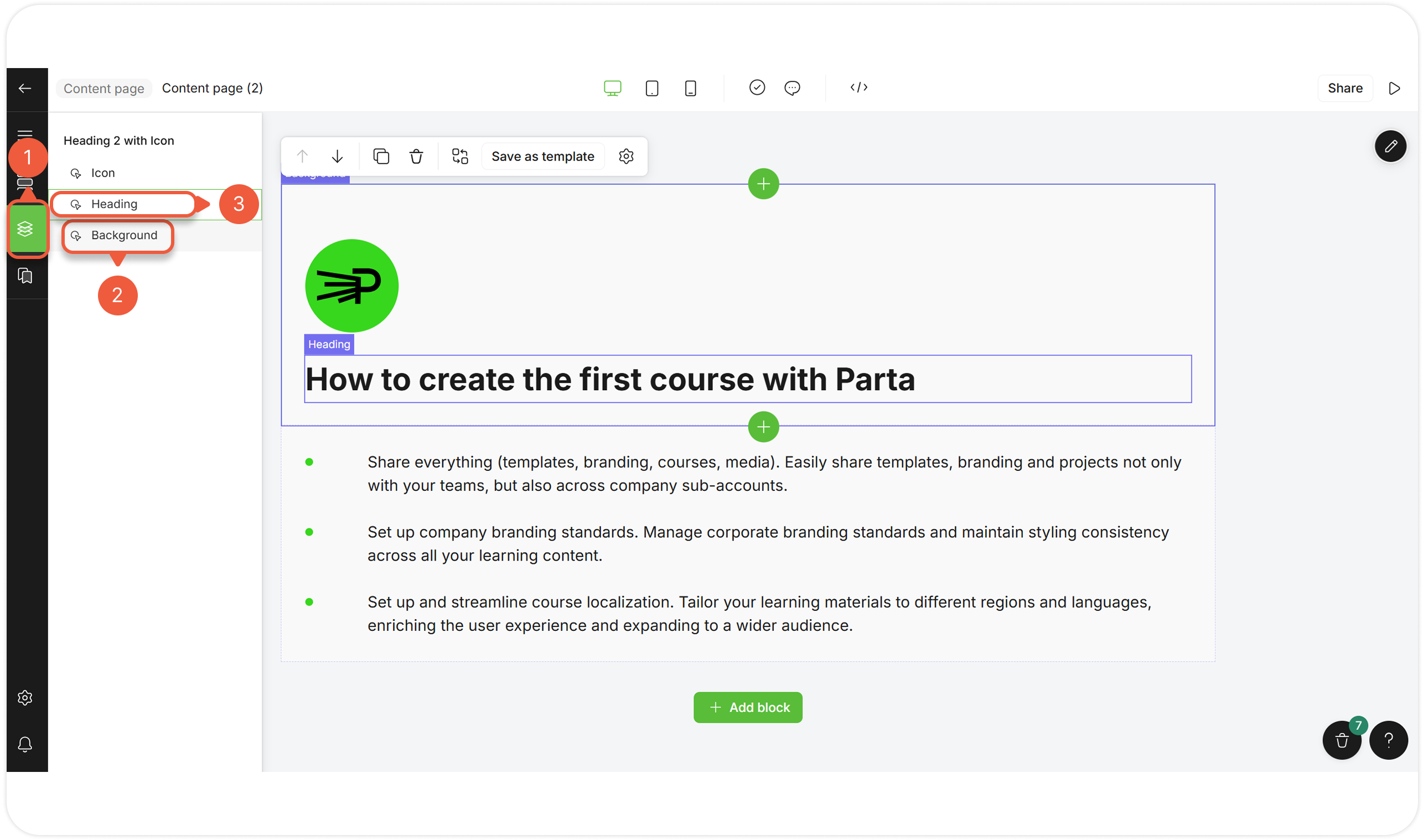
Use **Block structure** tab to display the block structure and interact with all the individual and grouped elements.

<figure><img src="https://3560131808-files.gitbook.io/~/files/v0/b/gitbook-x-prod.appspot.com/o/spaces%2FoKhlOpFC8JmF8TcxylWx%2Fuploads%2FuNNL3ZfNqzwRW3FcFepG%2FEdit_a_Project.05.png?alt=media&#x26;token=d31daaa6-8939-4dbe-8b60-29475cef53e1" alt=""><figcaption></figcaption></figure>

{% stepper %}
{% step %}
[Open an editor](https://help.parta.io/editor/work-in-the-editor/edit-a-project#open-a-project-editor) and click the **Block structure** icon to open the block structure menu.

A list of all individual elements, grouped into content blocks, will appear.
{% endstep %}

{% step %}
Hover over the element in the list to highlight it in the editor.
{% endstep %}

{% step %}
Click on the element in the list to select it and open its settings window.
{% endstep %}
{% endstepper %}

## Preview a Course

Preview a course as you build it.&#x20;

<figure><img src="https://3560131808-files.gitbook.io/~/files/v0/b/gitbook-x-prod.appspot.com/o/spaces%2FoKhlOpFC8JmF8TcxylWx%2Fuploads%2FWKO297138MVKRUs6BDM3%2FEdit_a_Project.06.png?alt=media&#x26;token=5819e640-5081-4188-aae9-9d2c8eba37f4" alt=""><figcaption></figcaption></figure>

{% stepper %}
{% step %}
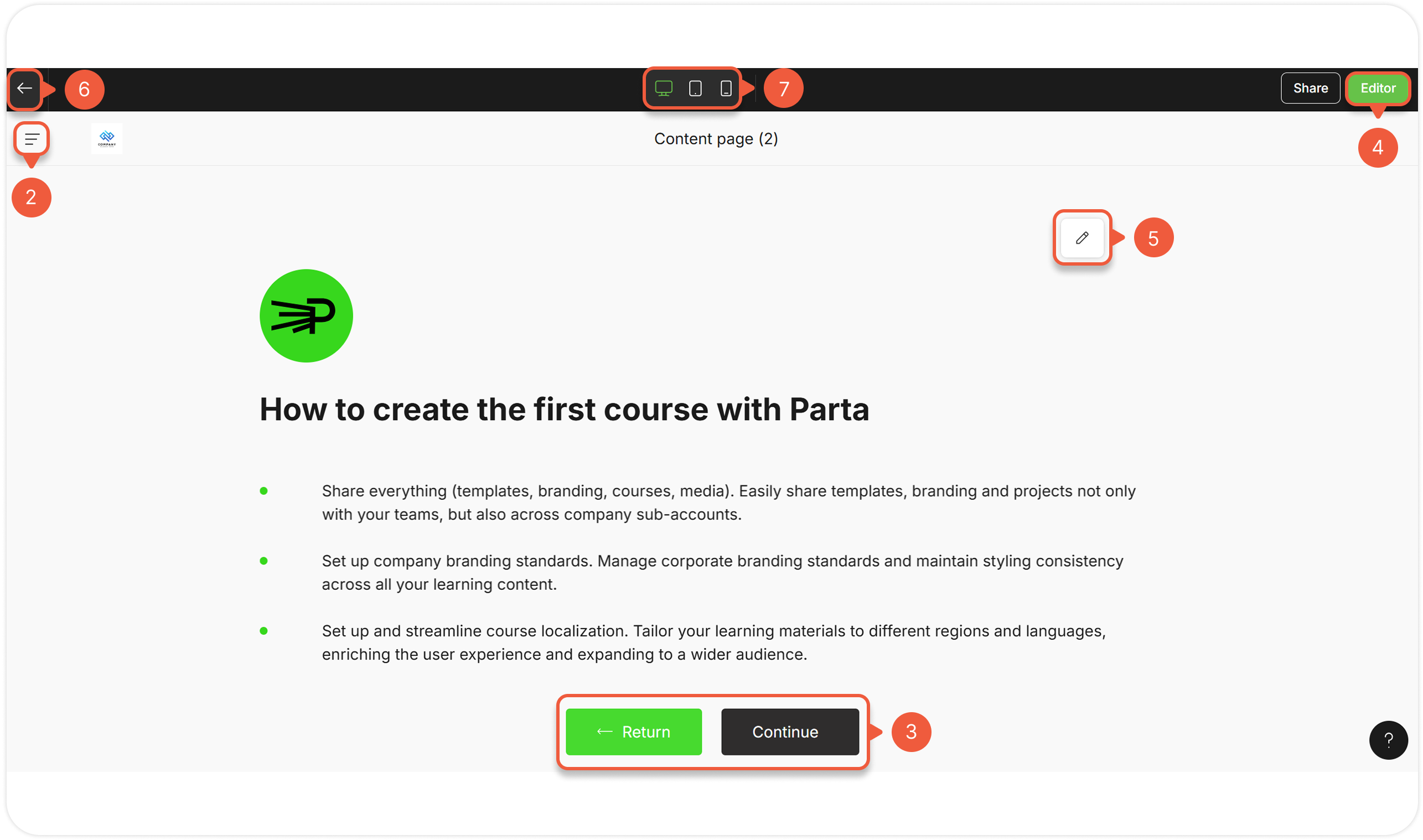
[Open a project](https://help.parta.io/project/set-projects/manage-a-project#open-a-project) or [an editor](#open-a-project-editor) and click on the **Preview** icon.

A preview of the course will appear.

<figure><img src="https://3560131808-files.gitbook.io/~/files/v0/b/gitbook-x-prod.appspot.com/o/spaces%2FoKhlOpFC8JmF8TcxylWx%2Fuploads%2F5Fobko6PUxUpoTqLjccB%2FEdit_a_Project.07.png?alt=media&#x26;token=240077bf-0a3b-44d9-b992-5650cc7ac4bd" alt=""><figcaption></figcaption></figure>
{% endstep %}

{% step %}
Click **Open navigation menu** to navigate randomly through the sections.
{% endstep %}

{% step %}
Click **Return / Continue** buttons at the bottom of the previewed page to to navigate linearly through the sections.
{% endstep %}

{% step %}
Click on the **Editor** button to return to the editor.

{% hint style="success" %}
Editor will open the section that is previewed at the present time.
{% endhint %}
{% endstep %}

{% step %}
Click on the **editor** icon on the right top of the block to edit to the specific block.
{% endstep %}

{% step %}
Click the **Back** icon to go to the **Course outline / Contents** tab of the course.
{% endstep %}

{% step %}
Select device type to change the screen size.

**Compare different devices view** in **editor** or **preview** mode to ensure that course components perfectly display on any screen size.
{% endstep %}
{% endstepper %}