> For the complete documentation index, see [llms.txt](https://help.parta.io/llms.txt). Markdown versions of documentation pages are available by appending `.md` to page URLs; this page is available as [Markdown](https://help.parta.io/export/export-a-course.md).
# Export a Course
## Create a New Course Export
Download a course in various formats and versions.
{% stepper %}
{% step %}
[Open a Project](/project/set-projects/manage-a-project.md) and go to the **Export** tab.
{% endstep %}
{% step %}
Select an export format:
* [SCORM options](/export/export-to-lms.md) ([static SCORM](/export/export-to-lms/export-scorm.md), [dynamic SCORM](/export/export-to-lms/export-dynamic-scorm.md), [integration with LMS](/export/export-to-lms/integrate-with-lms.md));
* [PDF](/export/export-pdf.md);
* [HTML5](/export/export-html.md);
* [Markdown](/export/export-markdown.md).
{% endstep %}
{% endstepper %}
Export settings will be saved after downloading a course.
### Select Languages to Export
If a course has Language Versions, choose which languages to include in the export.
{% stepper %}
{% step %}
Open a Project and go to the **Export** tab.
{% endstep %}
{% step %}
Select an export format and expand the Multilingual Course section.
{% endstep %}
{% step %}
Select the languages to include.
The Parent Language is always included. Only synced languages can be selected.
{% endstep %}
{% endstepper %}
{% hint style="info" %}
Languages with an outdated or unfinished translation are not included — they are listed in a warning. PDF and Markdown are exported in one language. A new language appears in Content Space only after you update the published content. See **Multilingual Courses Overview**.
{% endhint %}
## Manage Saved Export Settings
{% stepper %}
{% step %}
[Open a Project](https://help.parta.io/project-general-settings/set-a-project/manage-a-project) and go to the **Export** tab.
{% endstep %}
{% step %}
Click **Add export** to [export in different format](#create-a-new-course-export).
{% endstep %}
{% step %}
Click the **...** icon next to the saved export settings and select an option:
* **Edit**: Change saved export settings;
* **Delete:** Delete saved export settings.
{% endstep %}
{% endstepper %}
## Exclude from Export
Hide sections/blocks that are not relevant to certain users. Excluded materials won't appear in export or preview.
### Exclude a Section
{% hint style="warning" %}
Excluded sections can't be shared.
{% endhint %}

{% stepper %}
{% step %}
[Open a Project](/project/set-projects/manage-a-project.md) and go to the **Contents** tab.
{% endstep %}
{% step %}
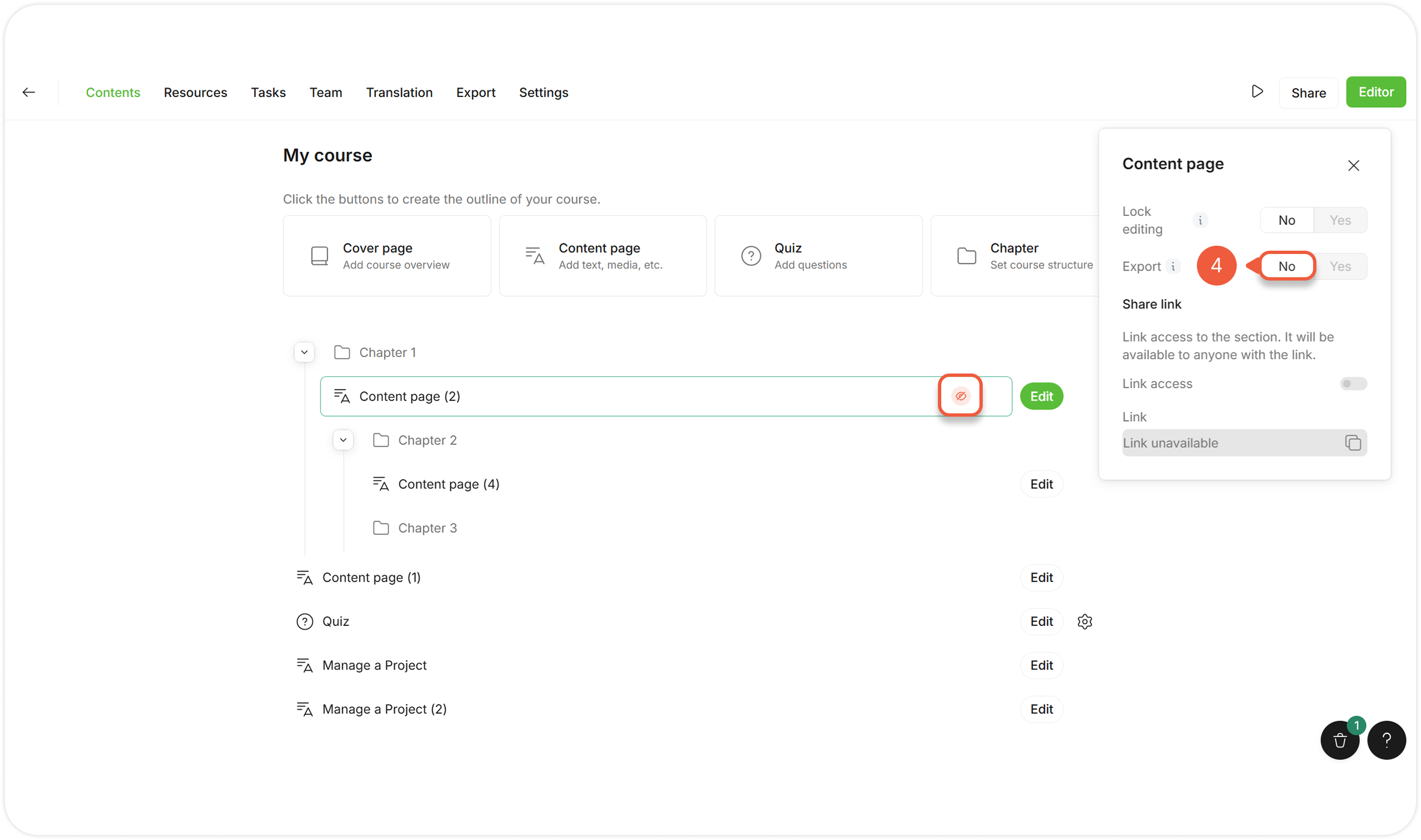
Hover over and click the **Settings** icon next to the section.
{% endstep %}
{% step %}
Select **Section settings**.
A pop-up window will appear.
{% endstep %}
{% step %}
Click **No** next to the **Export** setting.
An unable export icon will appear next to the section.
The changes will be saved automatically.
{% endstep %}
{% endstepper %}
### Exclude a Block
{% stepper %}
{% step %}
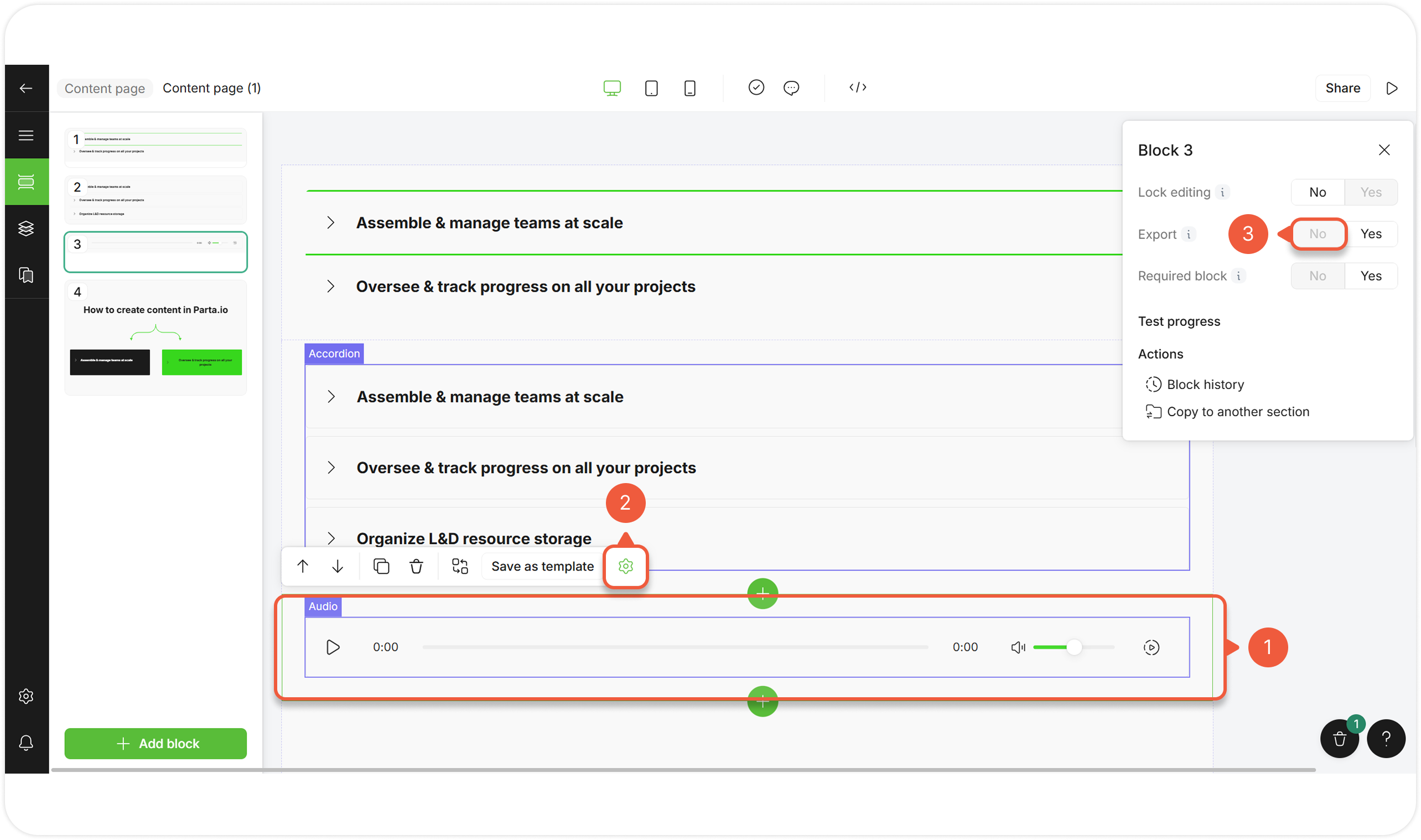
[Open an editor](/editor/work-in-the-editor.md) and select a block.
{% endstep %}
{% step %}
Click the **Block settings** icon.
A pop-up window will appear.
{% endstep %}
{% step %}
Click **No** next to the **Export setting**.
The changes will be saved automatically.
{% endstep %}
{% endstepper %}
.png?alt=media&token=bdae05ef-9b47-4caf-b560-e97e98ab69b5)
.png?alt=media&token=e0a5fc7e-e86d-400e-a7af-e5d3895c76fc)