# Export SCORM

## What is SCORM?

**SCORM** is a **Sharable Content Object Reference Model**, a technical standard for online learning that allows e-learning content to be compatible across different Learning Management Systems (LMS).&#x20;

It acts as a "universal language," ensuring that courses created with Parta.io can be used and tracked on any SCORM-compliant LMS, making content portable and reusable.

## Export a Course as SCORM

<figure><img src="https://3560131808-files.gitbook.io/~/files/v0/b/gitbook-x-prod.appspot.com/o/spaces%2FoKhlOpFC8JmF8TcxylWx%2Fuploads%2FFVSth9OP4QGL8r6Fs07L%2FExport_SCORM.01.png?alt=media&#x26;token=34ed8739-58ea-4e18-ae0e-c46abae87666" alt=""><figcaption></figcaption></figure>

{% stepper %}
{% step %}
[Open a Project](https://help.parta.io/project/set-a-project/manage-a-project)  and go to the **Export** tab.
{% endstep %}

{% step %}
Select **SCORM**.

A new window will appear.

<figure><img src="https://3560131808-files.gitbook.io/~/files/v0/b/gitbook-x-prod.appspot.com/o/spaces%2FoKhlOpFC8JmF8TcxylWx%2Fuploads%2FxJMwBd3izT2QxgqiJVoL%2FExport_SCORM.02.png?alt=media&#x26;token=79fb18c0-dba5-4307-8c9b-a788f07b0942" alt=""><figcaption></figcaption></figure>
{% endstep %}

{% step %}
Click **No** to cancel saving the export settings.
{% endstep %}

{% step %}
Enter the export name.

Name the saved export settings to to easily find previously exported courses with these settings in the Archive or the History tabs.
{% endstep %}

{% step %}
Edit [general SCORM settings](#edit-general-scorm-settings).
{% endstep %}

{% step %}
Click the **Export** button.
{% endstep %}
{% endstepper %}

## Export a Course as Multiple SCORM

<figure><img src="https://3560131808-files.gitbook.io/~/files/v0/b/gitbook-x-prod.appspot.com/o/spaces%2FoKhlOpFC8JmF8TcxylWx%2Fuploads%2FVmr26RzIumJPgWY2Hf2C%2FExport_SCORM.03.png?alt=media&#x26;token=69793254-c32e-4ff5-b16b-769e7b05e9b4" alt=""><figcaption></figcaption></figure>

{% stepper %}
{% step %}
[Open a Project](https://help.parta.io/project/set-a-project/manage-a-project) and go to the **Export** tab.
{% endstep %}

{% step %}
Go to the **Multiple** tab.
{% endstep %}

{% step %}
Select **SCORM**.

A new window will appear.

<figure><img src="https://3560131808-files.gitbook.io/~/files/v0/b/gitbook-x-prod.appspot.com/o/spaces%2FoKhlOpFC8JmF8TcxylWx%2Fuploads%2Fjo3moRhSufzbgMYaXHt4%2FExport_SCORM.04.png?alt=media&#x26;token=ee7ac2ea-7d2e-4e46-84a4-eb3d8412be7a" alt=""><figcaption></figcaption></figure>
{% endstep %}

{% step %}
Click **No** to cancel saving the export settings.
{% endstep %}

{% step %}
Enter the export name.

Name the saved export settings to to easily find previously exported courses with these settings in the Archive or the History tabs.
{% endstep %}

{% step %}
Edit general SCORM settings:

* [Content to publish](#id-3.-content-to-publish)\
  Click the gear icon to [edit a section based on its type](#id-2.-completion-tracking).
* [Media resource resolution ](#id-4.-media-resource-resolution)
* [Data and reporting](#id-5.-data-and-reporting)
  {% endstep %}

{% step %}
Click the **Export** button.
{% endstep %}
{% endstepper %}

## Edit General SCORM Settings

<figure><img src="https://3560131808-files.gitbook.io/~/files/v0/b/gitbook-x-prod.appspot.com/o/spaces%2FoKhlOpFC8JmF8TcxylWx%2Fuploads%2FxTlh6jVOhctS6SG0jx6A%2FExport_SCORM.05.png?alt=media&#x26;token=44305178-40d6-440b-aa2c-f3f2cfe8542e" alt=""><figcaption></figcaption></figure>

### 1. SCORM version

Select the SCORM version supported by your LMS from the drop-down menu:

* SCORM 2004 4th Edition;
* SCORM 2004 3rd Edition;
* SCORM 1.2.

### 2. Completion tracking

Click **Completion tracking** and select the course credits option from the **Track progress and completion** drop-down menu:

{% stepper %}
{% step %}

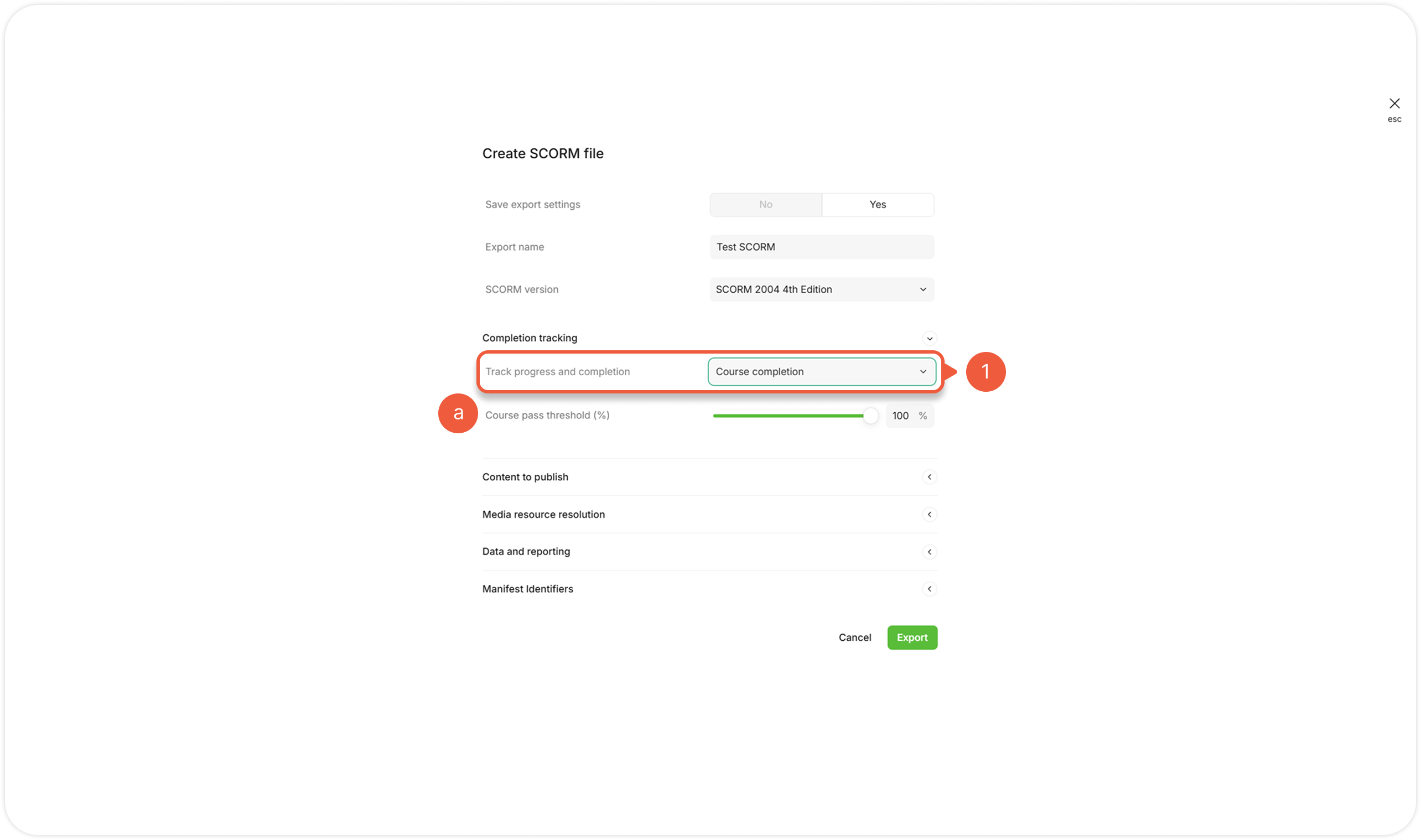
#### **Course completion**

<figure><img src="https://3560131808-files.gitbook.io/~/files/v0/b/gitbook-x-prod.appspot.com/o/spaces%2FoKhlOpFC8JmF8TcxylWx%2Fuploads%2Fc5o1STT9YkBZt34M6Ysg%2FExport_SCORM.06.png?alt=media&#x26;token=cb25e421-3ca7-4c24-9b05-555e88d7ab72" alt=""><figcaption></figcaption></figure>

Calculates course progress based on the course completion.

> **a. Course pass threshold (%)**
>
> Adjust the slider or enter the percentage value inside the input window to specify the passing threshold.
> {% endstep %}

{% step %}

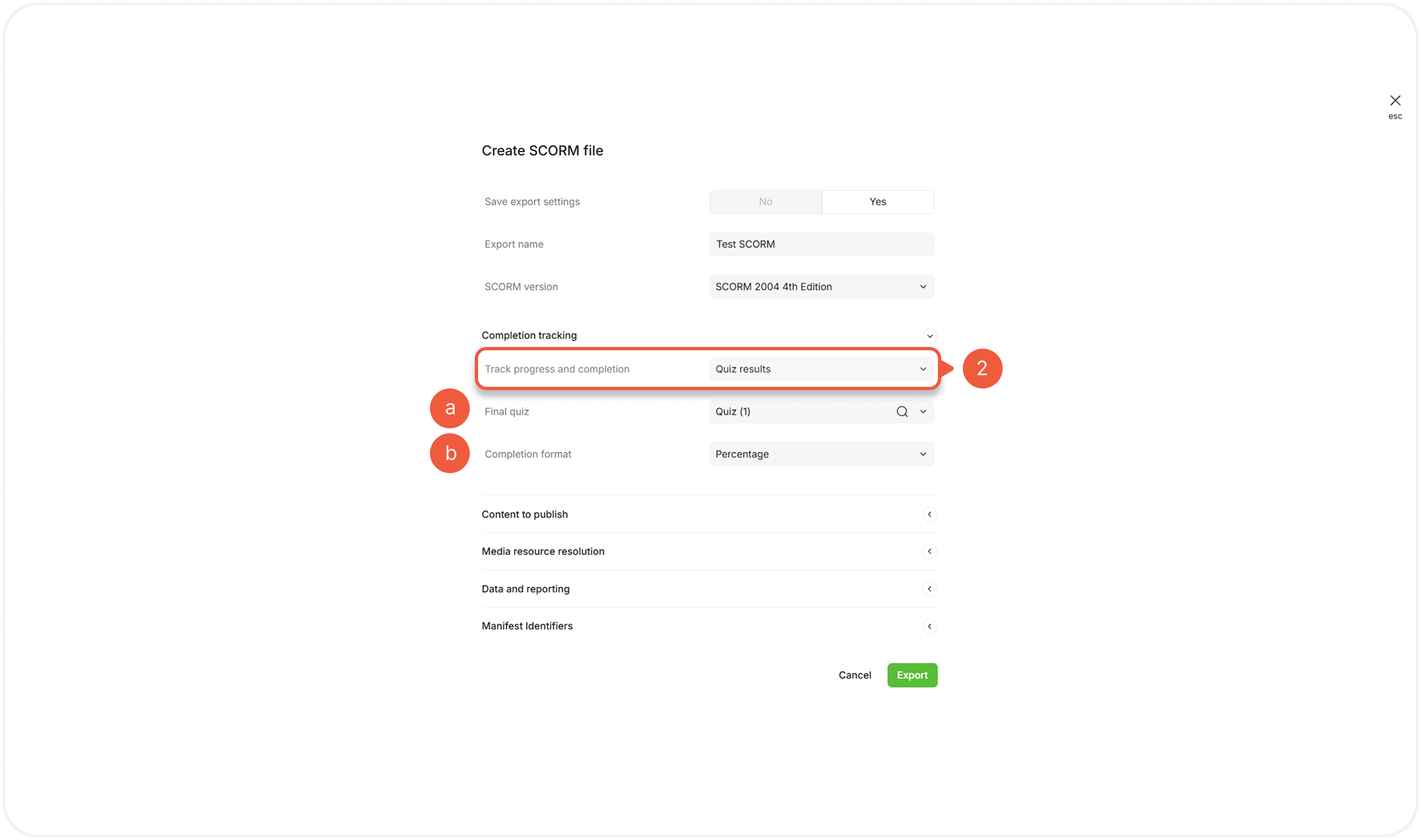
#### **Quiz results**

<figure><img src="https://3560131808-files.gitbook.io/~/files/v0/b/gitbook-x-prod.appspot.com/o/spaces%2FoKhlOpFC8JmF8TcxylWx%2Fuploads%2FZI1yVIQF78TV9DQprGjj%2FExport_SCORM.07.png?alt=media&#x26;token=cbd16d92-b78d-4893-8be9-151ab152ba22" alt=""><figcaption></figcaption></figure>

Calculates course progress based on the quiz completion.

> **a. Final quiz**
>
> Select a quiz to calculate a course progress from a drop-down menu.<br>
>
> **b. Completion format**
>
> Choose assessment type from the drop-down menu:
>
> * **Percentage**: Sends a 0-100 value to cmi.score.raw (cmi.score.max at 100);\
>   \&#xNAN;**!** The percentage value of the quiz passing threshold is specified at the **Project -> Contents tab -> Quiz section** settings.
> * **Points**: Sends the number of correct answers cmi.score.raw, (cmi.score.max equals the total quiz questions).
>   {% endstep %}
>   {% endstepper %}

### 3. Content to publish

Click **Content to publish** to show the list of sections included in an exported course.

{% hint style="warning" %}
[Exclude a section](https://help.parta.io/export-a-course#exclude-from-export) from the export at the **Contents** tab.
{% endhint %}

### 4. Media resource resolution

Click **Media resource resolution** to open the settings.

<figure><img src="https://3560131808-files.gitbook.io/~/files/v0/b/gitbook-x-prod.appspot.com/o/spaces%2FoKhlOpFC8JmF8TcxylWx%2Fuploads%2F5ibw5q69f27FgxaThFos%2FExport_SCORM.09.png?alt=media&#x26;token=b725b1c5-71df-416a-a133-8e9a5fc3caa7" alt=""><figcaption></figcaption></figure>

{% stepper %}
{% step %}

#### **Video resolution**

Select the compression option from the drop-down menu.
{% endstep %}
{% endstepper %}

{% hint style="success" %}
Compressing a video significantly increases the time it takes to generate a SCORM package and reduces the SCORM package size.
{% endhint %}

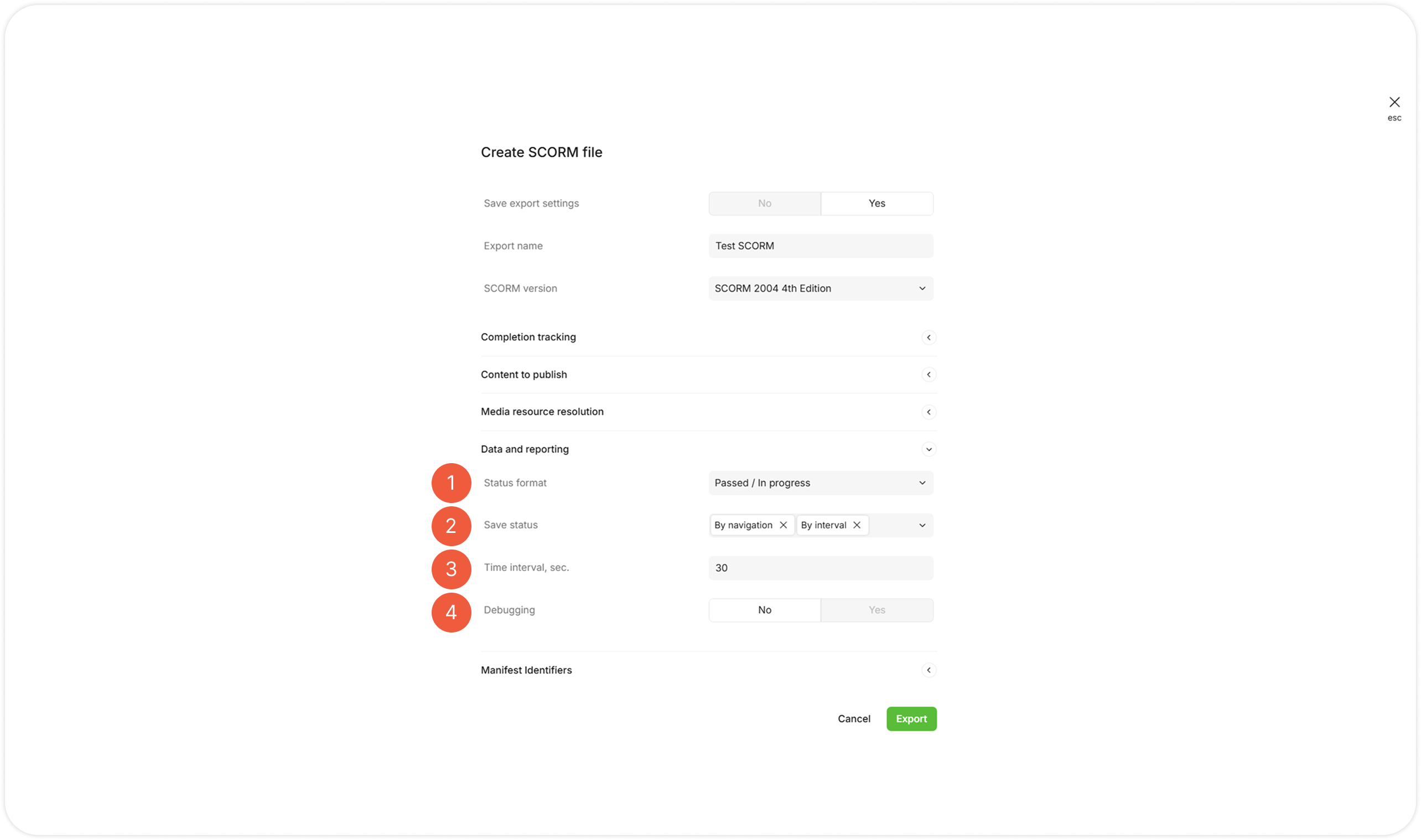
### 5. Data and reporting

Click **Data and reporting** to open the settings.

<figure><img src="https://3560131808-files.gitbook.io/~/files/v0/b/gitbook-x-prod.appspot.com/o/spaces%2FoKhlOpFC8JmF8TcxylWx%2Fuploads%2FIaLgNSxYtRcZsLwTQAHe%2FExport_SCORM.10.png?alt=media&#x26;token=e7a245a3-d768-448c-85ac-21239a50013a" alt=""><figcaption></figcaption></figure>

{% stepper %}
{% step %}

#### **Status format**

Select statuses from the drop-down menu:

* **Passed / In progress**: Displays the completion status of a module or course. If students complete a module or course, their status is displayed as "Passed." If they have not completed it, it is displayed as "In Progress."

| Statuses transmitted to LMS                                                  | completionStatus | successStatus |
| ---------------------------------------------------------------------------- | ---------------- | ------------- |
| On the course start                                                          | incomplete       | unknown       |
| When you pass the quiz                                                       | completed        | passed        |
| When you fail the quiz                                                       | incomplete       | unknown       |
| In courses without a final quiz, when you view the needed content percentage | completed        | passed        |

* **Passed / Failed**: Reflects the outcome of a quiz or student assessment. If students have earned enough points or passed, their status is displayed as "Passed." If not, it is displayed as "Failed."

<table><thead><tr><th width="249">Statuses transmitted to LMS</th><th width="249">completionStatus</th><th>successStatus</th></tr></thead><tbody><tr><td>On the course start</td><td>incomplete</td><td>unknown</td></tr><tr><td>When you pass the quiz</td><td>completed</td><td>passed</td></tr><tr><td>When you fail the quiz</td><td>completed</td><td>failed</td></tr><tr><td>In courses without a final quiz, when you view the needed content percentage</td><td>Not applicable</td><td>Not applicable</td></tr></tbody></table>

* **Completed / Failed**: Reveals quiz results or assessment scores, with "Completed" if  students score enough points or passes, and "Failed" if they do not.

| Statuses transmitted to LMS                                                  | completionStatus | successStatus  |
| ---------------------------------------------------------------------------- | ---------------- | -------------- |
| On the course start                                                          | incomplete       | unknown        |
| When you pass the quiz                                                       | completed        | unknown        |
| When you fail the quiz                                                       | incomplete       | failed         |
| In courses without a final quiz, when you view the needed content percentage | Not applicable   | Not applicable |

* **Completed / In progress**: Indicates if students have completed a module or course, with "Completed" for finished and "In Progress" for not.

| Statuses transmitted to LMS                                                  | completionStatus | successStatus  |
| ---------------------------------------------------------------------------- | ---------------- | -------------- |
| On the course start                                                          | incomplete       | Not applicable |
| When you pass the quiz                                                       | completed        | Not applicable |
| When you fail the quiz                                                       | incomplete       | Not applicable |
| In courses without a final quiz, when you view the needed content percentage | completed        | Not applicable |
| {% endstep %}                                                                |                  |                |

{% step %}

#### **Save status**

Specify one or multiple options for sending data from SCORM to LMS from the drop-down menu:

* Navigation: Involves sending a large amount of data frequently (suspendData);
* Interval: Involves sending a large amount of data at regular intervals;
* Unload: Involves sending data during the 'unload' and 'beforeunload' events of the LMS window.<br>
  {% endstep %}

{% step %}

#### **Time interval, sec.**

Specify a time interval value from 5 to 120 seconds for the **Interval** option of the **Save status** setting.
{% endstep %}

{% step %}

#### **Debugging**

Click **Yes** to activate the [debugging option](https://help.parta.io/export/export-to-lms/debug-a-course-in-lms).
{% endstep %}
{% endstepper %}

### 6. Manifest Identifiers

A manifest identifier is a unique name / character set used to identify a specific LMS within its manifest file. They help LMS to correctly distinguish, install, and update courses.

Click **Manifest Identifiers** to open the settings.

<figure><img src="https://3560131808-files.gitbook.io/~/files/v0/b/gitbook-x-prod.appspot.com/o/spaces%2FoKhlOpFC8JmF8TcxylWx%2Fuploads%2FBSspJpnuEwptWXVGJ8G5%2FExport_SCORM.10%20(1).png?alt=media&#x26;token=8b5e2501-8719-4c11-a9ae-a32620eedc33" alt=""><figcaption></figcaption></figure>

{% stepper %}
{% step %}

#### **Manifest ID's**

Select the option from the **Manifest ID's** drop-down menu:

> **a. New**
>
> Generate unique manifest IDs automatically.
>
> **b. Custom**
>
> Specify the custom manifest IDs to [rewrite a course in LMS](https://help.parta.io/export/export-to-lms/update-a-course-in-lms) at the fields:
>
> * Identifier;
> * Organization ID;
> * Item ID.
>   {% endstep %}
>   {% endstepper %}