# Integrate with LMS

### Set Up the Integration

To begin using the Skilljar integration, follow these steps:

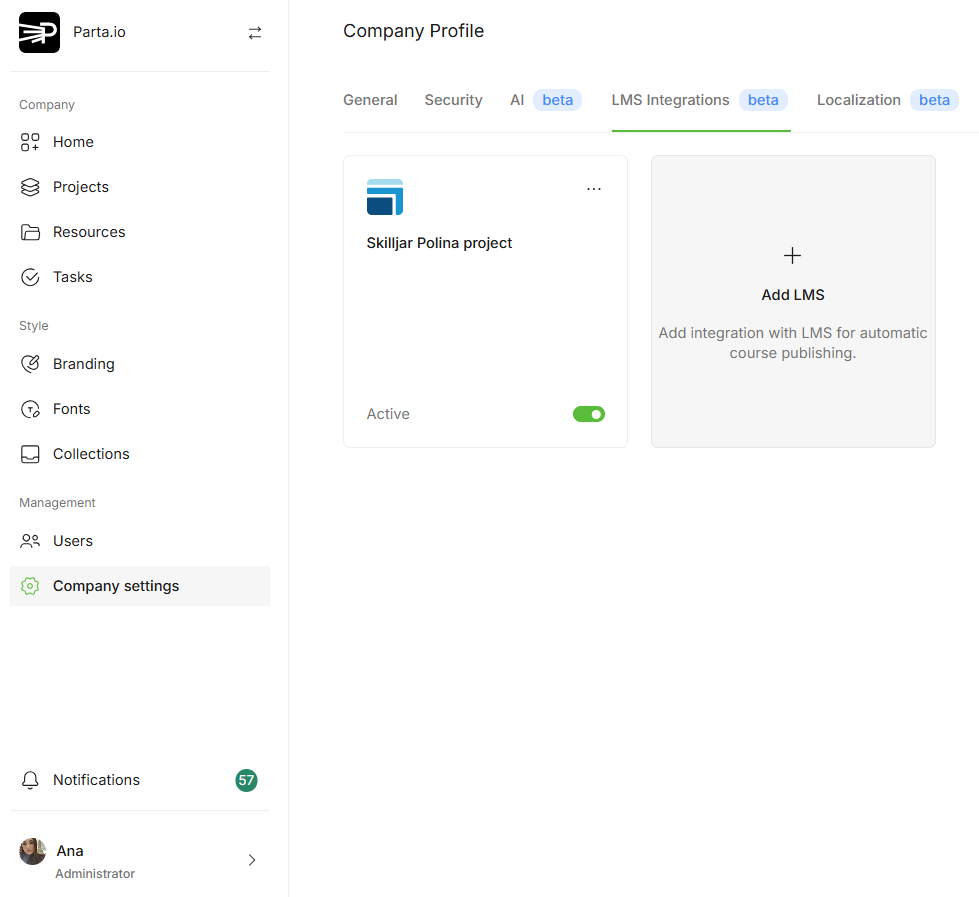
1. Go to **Company Settings** in Parta.io.
2. Open the **LMS Integrations** tab.

<figure><img src="/files/ABVmLv6Juoa91PVTfx0e" alt=""><figcaption><p>Parta.io account -> Company Settings -> LMS Integrations.</p></figcaption></figure>

3. Click **+ Add LMS**.
4. Select **Skilljar** from the list of LMS options.
5. Enter a name for your integration (e.g., "Skilljar Integration") and paste your **API Key** from Skilljar. *Note: You can create multiple integration connections with a single LMS.*
6. Save your settings. The integration will now be active.

Once set up, you’re ready to export courses from Parta.io to Skilljar.

### Publish Courses to Skilljar

After finalizing your course content in Parta.io, follow these steps to publish it to Skilljar:

1. Open your project -> **Export** tab.
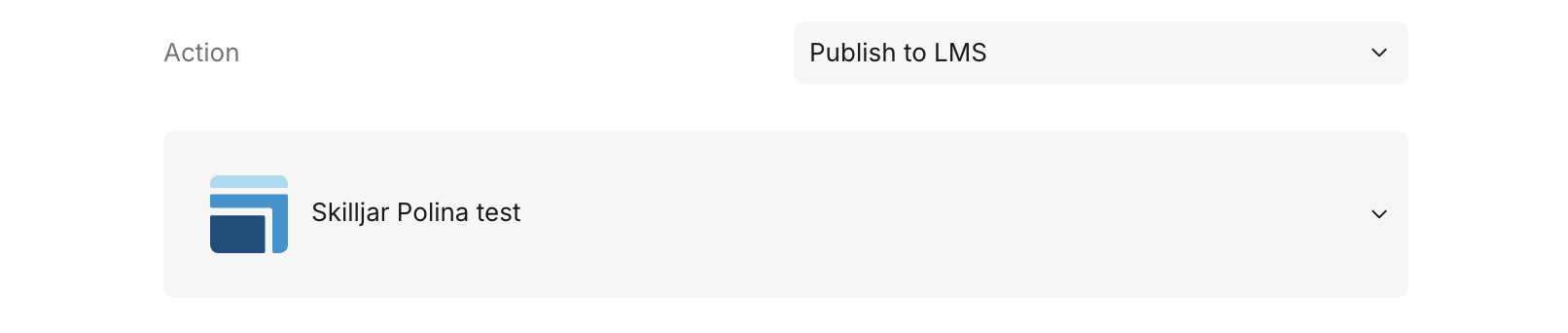
2. Action type is **Publish to LMS.**

<figure><img src="/files/4i3x9GUbOBnrU2yDQQot" alt=""><figcaption><p>If Skilljar is connected, it will appear automatically as the default export action.</p></figcaption></figure>

3. Select how you'd prefer to publish course content to Skilljar:

* **Single SCORM** (all sections combined into one SCORM file).
* **Multiple SCORMs** (each section in Parta exported as a separate SCORM file).

### **Single SCORM**&#x20;

All sections from your Parta project are combined into one SCORM package.

**Use when:** You want a single, streamlined SCORM file in your LMS.\
**Example:** 4 sections in Parta → 1 SCORM file after export.

1. Select **SCORM version** (see [Export courses article](/export/export-to-lms.md) for details).
2. Choose publishing type:
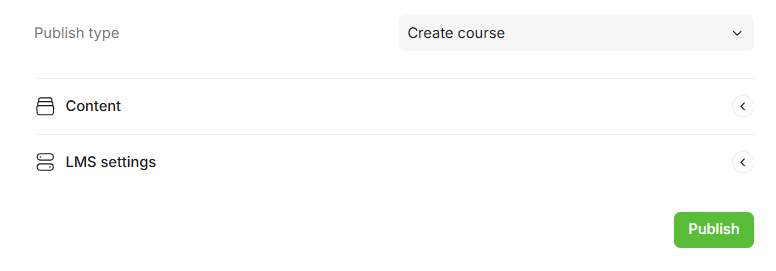
   1. **Create SCORM**: The file will appear under `Skilljar → Course Management → SCORM` (selected by default).
   2. **Create Course**: A course with one lesson (based on the SCORM) will be created automatically in Skilljar `Skilljar → Course Management → Courses`.
3. Configure **course progression logic** for the entire course. Learn more [here](broken://pages/4D1xQTz43c58bGU62CFD).&#x20;
4. Expand Content tab to check the content you will export.&#x20;
5. Adjust any [LMS-specific settings](/export/export-to-lms/export-scorm.md#edit-general-scorm-settings), such as course completion triggers or [debugging options](broken://pages/zi1PYazDsbF61UxMSnje), if needed.
6. When everything is configured, click **Publish**.
   4\. Your SCORM file will be sent to Skilljar and published based on your selected publishing type.

### **Multiple SCORMs**

Each section in your Parta project is exported as a separate SCORM file.

**Use when:** You want more detailed analytics, a flexible course structure, or the ability to reuse a single SCORM lesson across multiple courses.\
**Example:** 4 sections in Parta → 4 SCORM files, each added as a separate lesson in Skilljar.

1. Select **SCORM version** (see [Export courses article](/export/export-to-lms.md) for details).
2. Choose publishing type:
   * **Create SCORMs**: The files will appear under `Skilljar → Course Management → SCORM` (selected by default).
   * **Create Course**: A Skilljar course with multiple lessons (based on the Parta sections) will be created automatically `Skilljar → Course Management → Courses`.
3. Expand the Content tab to review exported content.
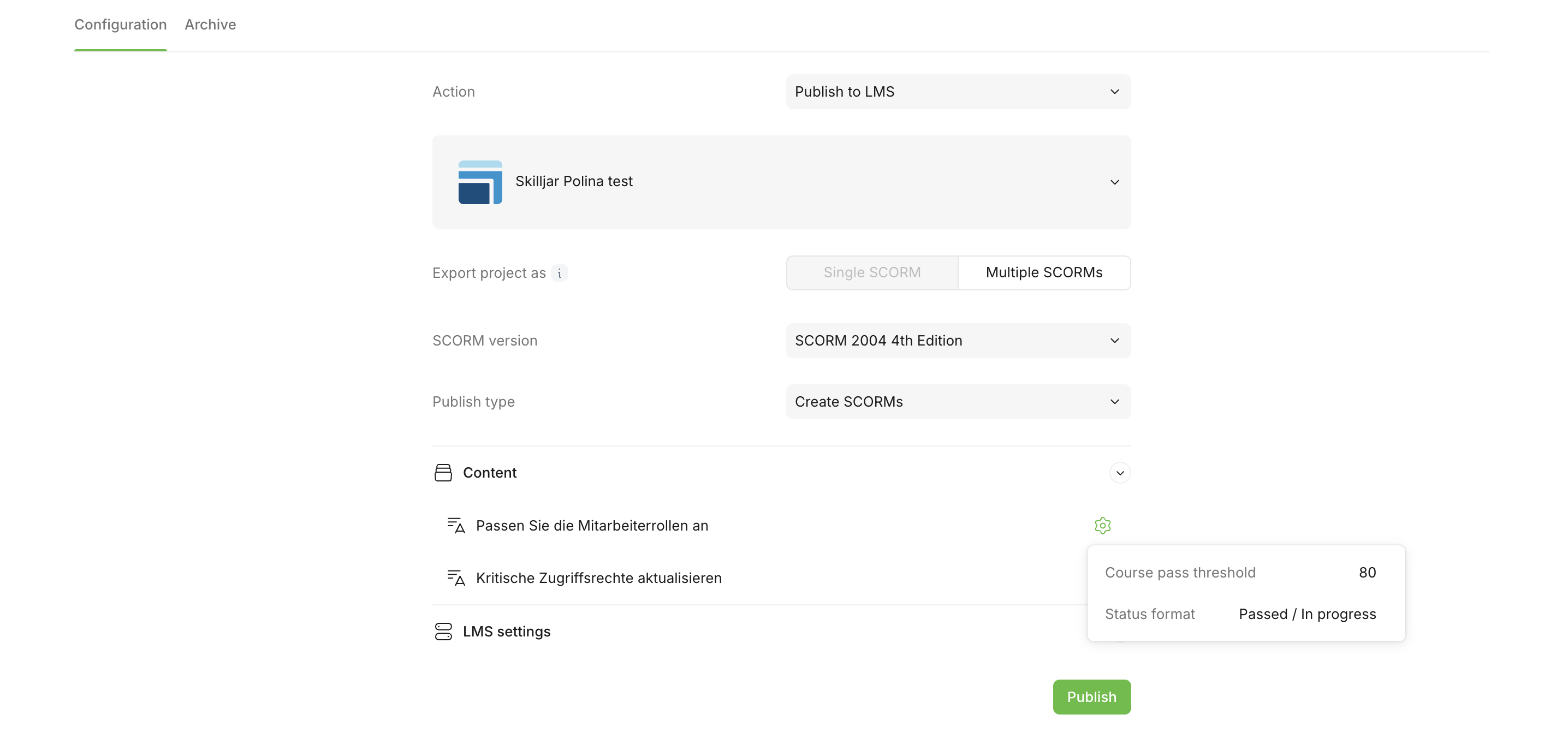
4. Configure **progression logic for each section individually** (see [Export courses article](/export/export-to-lms/export-scorm.md#edit-general-scorm-settings) for details):

   1. Click the ⚙️ icon next to each section title to adjust settings.
   2. You can also apply the same logic to all sections of a particular type (content or test).

   <figure><img src="/files/IaL6GIZVXEs6BBVb8UwJ" alt=""><figcaption></figcaption></figure>
5. Adjust any [LMS-specific settings](/export/export-to-lms/export-scorm.md#edit-general-scorm-settings), such as course completion triggers or [debugging options](/export/export-to-lms/debug-a-course-in-lms.md), if needed.
6. When everything is configured, click **Publish**.
   4\. Your SCORM files will be sent to Skilljar and published based on your selected publishing type.

### Things to keep in mind when using the multiple SCORMs option

* **Remove the sidebar menu**: Since each SCORM file will be added as a separate lesson, the sidebar is unnecessary and may confuse learners.
  * To remove:\
    `Branding → Section → Header → Menu button → Display menu → No.`
* **Disable navigation buttons**: These can mislead users when navigating between separately exported SCORM packages.
  * To remove:\
    `Branding → Section → Navigation buttons → Display buttons → No`
* **Internal links and buttons will be disabled**: Any in-course links between sections created in Parta won’t function after export.
* **Course progression logic applies per SCORM file**: Progression settings will only affect the specific section exported in each SCORM package, not the course as a whole.

### Update Published Courses

If your course has already been exported to Skilljar, when you make changes to a course in Parta.io, you can update it in Skilljar.

1. Make the necessary edits in Parta.io.
2. Go back to the **Export** tab.
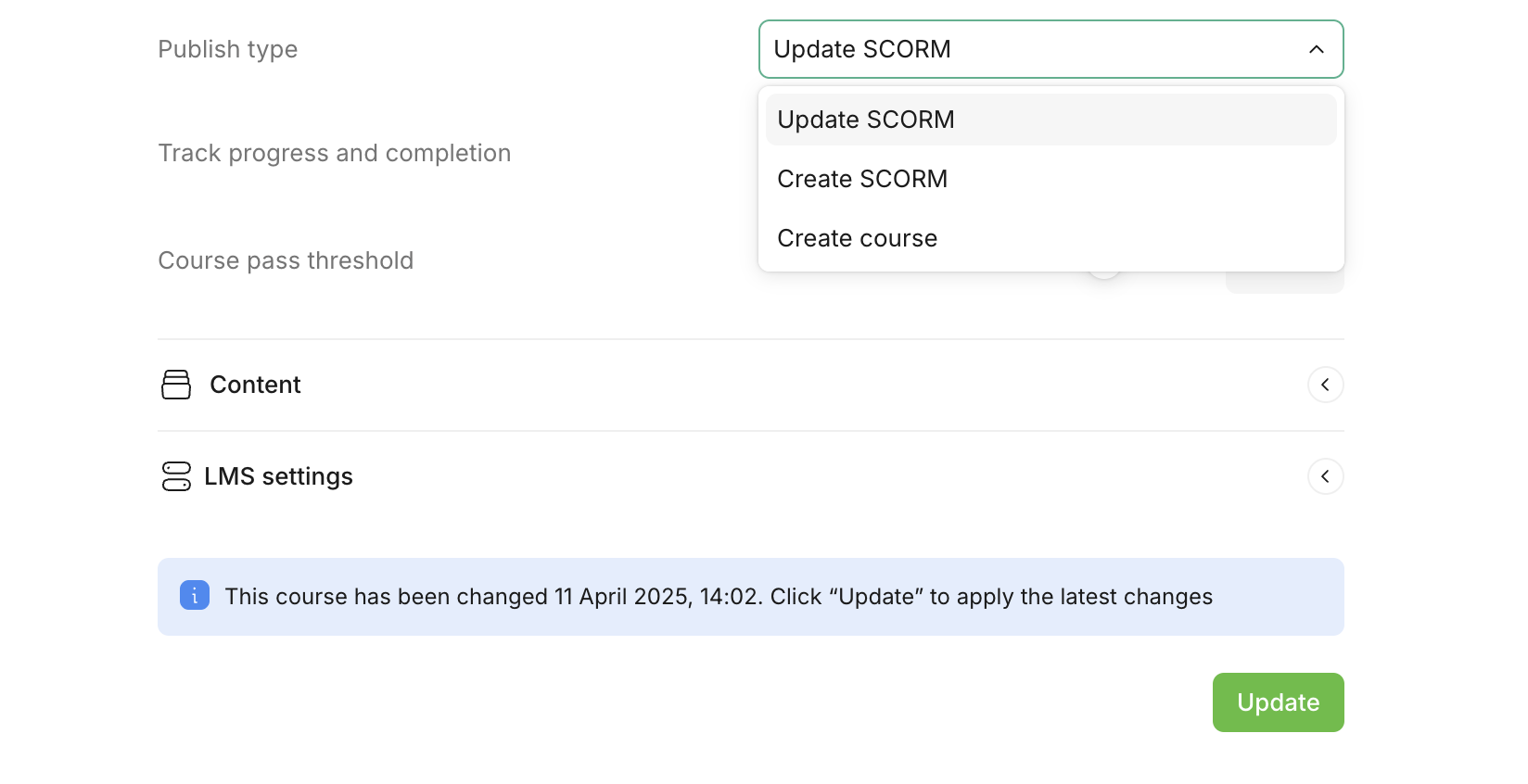
3. You’ll see three publishing options:

{% tabs %}
{% tab title="Update SCORM" %}
This option is the best one if you want to update previously published SCORMs (as individual lessons).

<figure><img src="/files/7W5UoBJAJkPyj8euITtV" alt=""><figcaption><p><em>If the notification doesn't appear, please refresh the page.</em></p></figcaption></figure>

* When you click **Update**, Parta will generate **new SCORM packages** and automatically **replace the old versions** in **all Skilljar courses** where those files were previously used.
* If your update includes **newly created sections**, **Parta will not automatically create new lessons** in Skilljar. You’ll need to **manually add** these new SCORM(s) files to the appropriate course(s).

{% hint style="success" %}
**Updating SCORM files via Parta.io does not affect learner progress in Skilljar. All user data and completion statuses remain intact.**
{% endhint %}
{% endtab %}

{% tab title="Create SCORM" %}
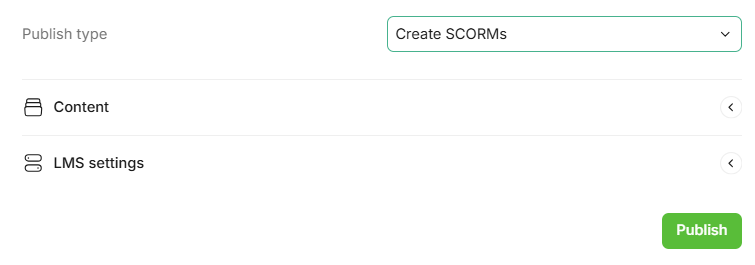
You will create a new SCORM package (or multiple packages) in Skilljar. The files will appear under `Skilljar → Course Management → SCORM (selected by default)`.

<figure><img src="/files/yDj2yXzGV2Vq1FEJrjNi" alt=""><figcaption></figcaption></figure>

### How Updates Work

The update process in Parta.io works **independently** from the original publishing type.

{% hint style="info" %}
If you choose **Create SCORM(s)**, Parta will generate new SCORM packages in Skilljar, but it **won’t update any existing courses**—you’ll need to manage that manually.
{% endhint %}
{% endtab %}

{% tab title="Create course" %}
A Skilljar course will be automatically created—either with one lesson or multiple lessons, based on the sections in Parta `Skilljar → Course Management → Courses`.

<figure><img src="/files/gPOrvi6Cclc3IWPdxOVB" alt=""><figcaption></figcaption></figure>

### How Updates Work

The update process in Parta.io works **independently** from the original publishing type.

{% hint style="info" %}
If you choose **Create a course**, Parta will generate new SCORM packages in Skilljar, but it **won’t update any existing courses**—you’ll need to manage that manually.
{% endhint %}
{% endtab %}
{% endtabs %}

### Summary

* SCORM export gives you flexibility in how your course is structured and delivered inside Skilljar.
* You can fully control course completion logic, navigation rules, and content structure before export.
* Our integration supports iterative updates—so your team can continuously improve courses without manual re-imports.

This integration bridges Parta.io and Skilljar, making it easier than ever to manage your eLearning content effectively.&#x20;


---

# Agent Instructions: Querying This Documentation

If you need additional information that is not directly available in this page, you can query the documentation dynamically by asking a question.

Perform an HTTP GET request on the current page URL with the `ask` query parameter:

```
GET https://help.parta.io/export/export-to-lms/integrate-with-lms.md?ask=<question>
```

The question should be specific, self-contained, and written in natural language.
The response will contain a direct answer to the question and relevant excerpts and sources from the documentation.

Use this mechanism when the answer is not explicitly present in the current page, you need clarification or additional context, or you want to retrieve related documentation sections.