> For the complete documentation index, see [llms.txt](https://help.parta.io/llms.txt). Markdown versions of documentation pages are available by appending `.md` to page URLs; this page is available as [Markdown](https://help.parta.io/integrations/intercom-fin.md).

# Intercom Fin

Connect a Parta portal to Intercom so Fin AI Agent and Fin Copilot answer customer questions with the content of your published courses and link to the course page. Parta pushes the content itself, so the portal can stay closed: no public crawling, no extra copies of your courses.

### How it works

Fin's website crawler reads only public pages. A closed portal cannot be crawled, so Parta sends the content through Intercom's API instead: every published course in the portal becomes a set of pages in your Intercom workspace, one page per course section, with the section text and a link back to the course. The pages live under one content source per portal, named after the portal address. Parta keeps them up to date on every publish and removes them when a course leaves the portal.

What is sent: course and section titles, the text of each section as HTML, and the page URL. Learner data is never sent.

### Before you start

* An Intercom workspace with Fin AI Agent (or Fin Copilot), and an Intercom teammate who may install apps in it.
* Company administrator rights in Parta.
* A Parta portal that is **Published** with at least one published course. Courses built in Parta are sent; uploaded SCORM packages are not, they contain no text Parta can read.
* An Intercom workspace hosted in the US data center. The app does not support workspaces in the EU or Australia yet.

### Part A. Connect your Intercom workspace

Parta talks to Intercom through its own Intercom app. You install it once per workspace, in the company settings; one connection serves every portal of your company. A portal cannot create a connection, it only picks one.

#### 1. Start the connection

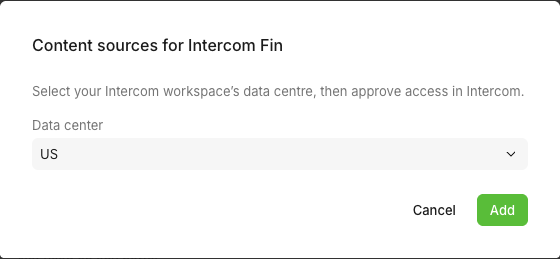
In Parta open **Company settings → Portal integrations**. In the **Content sources for Intercom Fin** section, click the card with the **+**. Leave **Data center** at **US** and click **Add**.

<figure><img src="https://3560131808-files.gitbook.io/~/files/v0/b/gitbook-x-prod.appspot.com/o/spaces%2FoKhlOpFC8JmF8TcxylWx%2Fuploads%2FZCgXsRJWztHptBkSBDqu%2F1-company-connect-intercom.png?alt=media&amp;token=37d5c588-dcd1-476a-81b4-bd9f19dc434f" alt="Data center dialog of a new Intercom connection"><figcaption><p>Data center dialog of a new Intercom connection</p></figcaption></figure>

#### 2. Approve the app in Intercom

Intercom opens its install screen for the Parta app. The app asks for two permissions: **Read and write AI content** (to create and update the pages) and **Read admins** (to learn which workspace it was installed in). Check that the workspace at the top is the right one and approve.

Back in Parta you see *Intercom App is connected*, and the section has a card with the workspace name, the data center, the portals that use it and the switch **Active**.

You can also start from the Parta app in the Intercom App Store: Intercom opens Parta, you sign in if needed, and Parta opens this dialog in the company you used last. After you approve the app you land back in **Portal integrations**.

A workspace can be connected to one Parta company only. If it is already connected to another one, Parta shows *This Intercom workspace is already connected to another company.* and changes nothing.

### Part B. Turn Fin on for the portal

#### 3. Open the Fin card

Open **Content space → Portals**, open the portal and switch to the **Integrations** tab. Under **AI assistants** click **Content sources for Intercom Fin**. The card shows **Not connected** until the portal is set up, and **Active** after.

If your company has no Intercom connection for Fin yet, the click takes you to **Company settings → Portal integrations**: do Part A first.

#### 4. Fill in the dialog

<figure><img src="https://3560131808-files.gitbook.io/~/files/v0/b/gitbook-x-prod.appspot.com/o/spaces%2FoKhlOpFC8JmF8TcxylWx%2Fuploads%2FnWalSYMNYkC9o1XWfbxf%2F2-portal-fin-settings.png?alt=media&amp;token=d49e4c2a-1879-46e1-b7d9-3d3057460dbc" alt="Content sources for Intercom Fin dialog of a portal"><figcaption><p>Content sources for Intercom Fin dialog of a portal</p></figcaption></figure>

| Field                     | Value                                                                                           |
| ------------------------- | ----------------------------------------------------------------------------------------------- |
| **Account**               | The connection from step 2. Nothing is picked for you; switched-off connections are not offered |
| **Course links**          | Leave at **Source links**, see [Where course links point](#where-course-links-point)            |
| **Include gated content** | Shown for a closed portal only, see [Content of a closed portal](#content-of-a-closed-portal)   |

Click **Save**. This turns Fin on for the portal: Parta creates the content source in your workspace and queues a full sync of every published course. The dialog shows **Last sync:** with the time of the last successful run, and **Never synced** until then; it refreshes by itself while it is open.

If the portal already publishes to Fin and you pick another **Account**, **Save** first asks *Change the Intercom account?*: the source and all its pages are removed from the previous workspace, then the portal is synced to the new one. Click **Change account** or **Back**.

#### 5. Check the source in Intercom

In Intercom open **Fin AI Agent → Knowledge → Sources** (in some workspaces: **Help Center → Content → Sources**). The new source appears with the portal address. Open it and make sure it is used by **AI Agent** and, if you use it, **Fin Copilot**. From now on Fin uses your courses in answers and cites the course page.

<figure><img src="https://3560131808-files.gitbook.io/~/files/v0/b/gitbook-x-prod.appspot.com/o/spaces%2FoKhlOpFC8JmF8TcxylWx%2Fuploads%2FIHsDxeX4PpOjWjNipWIZ%2F3-intercom-content-source.png?alt=media&amp;token=814c95ea-a851-44db-a86e-16b8c9a9af79" alt="The portal&#x27;s content source in Intercom"><figcaption><p>The portal's content source in Intercom</p></figcaption></figure>

### What you see in Intercom

* One content source per portal, named after the portal address.
* One page per course section. The page title is the section title, the body is the section text, and the page URL is the course link (see below).
* Pages are sent with the locale *English*, the only locale the Intercom API accepts today; Fin still answers in the visitor's language.

### Content of a closed portal

A portal is closed when its **Access** tab does not allow anonymous visitors. Its pages are still sent to Intercom, and Fin Copilot can always use them, but Fin AI Agent — the one that answers your customers — uses them only if **Include gated content** is on.

Turn it on when anyone who writes to your Messenger may read about these courses. Leave it off if the course text is for signed-in learners only: your support team still gets it in Copilot, customers do not. A Fin answer only cites the course; opening the link still goes through the portal's access check.

### Keeping content in sync

You do not need to do anything after the first sync. Parta updates Intercom when the portal changes:

| What you do in Parta                                                        | What happens in Intercom                                                                           |
| --------------------------------------------------------------------------- | -------------------------------------------------------------------------------------------------- |
| Publish a course, or add a published course to the portal                   | Its sections are added; sections whose text did not change are skipped                             |
| Change a course and republish it                                            | Changed sections are updated, removed sections are deleted                                         |
| Unpublish a course or remove it from the portal                             | Its pages are deleted                                                                              |
| A course gets a new link, for example after **Refresh link** or **Re-sync** | Its pages are sent again with the new link                                                         |
| Unpublish the portal, or switch the connection off in the company settings  | The source is deactivated: pages stay but Fin stops using them; switching back on reactivates them |
| Pick another **Account** in the dialog                                      | The source is deleted from the old workspace, and a full sync fills the new one                    |

**Force sync** next to **Last sync** runs a full sync on demand. It is a fallback: changes reach Intercom by themselves. It is available when the dialog has no unsaved changes; you see *Syncing…*.

If one course fails to sync, the dialog keeps showing that error until the course syncs again or a full sync passes without errors — a later success of another course does not hide it.

### Where course links point

Every course has a link Fin uses when it cites it: the link on the course page, and the URL of every page Fin receives for that course. Set it on the portal's **Content** tab: select the course and choose **External URL (LMS)…**.

<figure><img src="https://3560131808-files.gitbook.io/~/files/v0/b/gitbook-x-prod.appspot.com/o/spaces%2FoKhlOpFC8JmF8TcxylWx%2Fuploads%2Fn1oyKm7rXST2y1QiNeUW%2F4-course-link.png?alt=media&amp;token=bf68b2a6-07ee-4092-be0c-61f0dc20a2f5" alt="Course link dialog"><figcaption><p>Course link dialog</p></figcaption></figure>

The **Course link** dialog has a **Link source**:

| Link source                | Where the link comes from                                                                                                                                                                                                   |
| -------------------------- | --------------------------------------------------------------------------------------------------------------------------------------------------------------------------------------------------------------------------- |
| **Parta portal (default)** | The course's own page in this Parta portal.                                                                                                                                                                                 |
| An LMS integration         | The public link of that integration's export of the course, for example the course page in Skilljar. If the course has no link there yet, the option says **No public link**, and the course has no link until it gets one. |
| **Custom link**            | A link you type in yourself. It must start with `https://`.                                                                                                                                                                 |

Content Space is not offered as a link source: the course's page in this portal is **Parta portal (default)**.

The dialog shows the **Primary link:** with its source. With an LMS integration picked, follow the order the dialog suggests: **Refresh link** re-reads the link from the LMS and tells you whether it found one (*Link refreshed*, or *No public link yet: publish the course in the LMS first.*), then **Save changes**. **Reset** returns the source to **Parta portal (default)**.

A course whose source is an LMS integration but has no link there yet is left out of the sitemap and out of Fin: it is not sent, and if it was sent before, its pages are removed. Give it a link — publish it in the LMS and click **Refresh link**, or switch to a custom link — and it is sent automatically.

#### Sending every course's links through one integration

If your courses are all delivered through a single LMS integration, for example every course is in Skilljar, you can point Fin at that integration's links instead of each course's own setting. In the Fin dialog, set **Course links** to that integration; leave it at **Source links** to use each course's own link source as described above.

With an integration picked there, Fin uses only that integration's links: a course without one is not sent to Fin, even if it has a link in Parta some other way. The dialog then warns how many courses have no link in that integration and lists them, for example *2 courses don’t have a public link for Skilljar integration mirroring.*

<figure><img src="https://3560131808-files.gitbook.io/~/files/v0/b/gitbook-x-prod.appspot.com/o/spaces%2FoKhlOpFC8JmF8TcxylWx%2Fuploads%2F0lA2qeVwasBOjN4JKuN6%2F5-fin-links-warning.png?alt=media&amp;token=2fdc3d8a-e4d5-40fd-b3bb-985ec272747e" alt="Courses without a link in the picked integration"><figcaption><p>Courses without a link in the picked integration</p></figcaption></figure>

**Re-sync** in that warning reads the links of all listed courses from the LMS, one course after another, so it may take a while on a big portal; the warning shows *Refreshing links: 1 of 2*. Every course that gets a link is sent to Fin automatically and leaves the list. Courses that never were published to that LMS stay in the list — publish them there first. If the LMS did not answer for some courses, the warning says *Couldn’t refresh 1 link. Try again later.*

### Turning it off and revoking access

| What you want                                  | What to do                                                                                                                                                                                                                                  |
| ---------------------------------------------- | ------------------------------------------------------------------------------------------------------------------------------------------------------------------------------------------------------------------------------------------- |
| Remove one portal's content from Intercom      | In the Fin dialog click **Disconnect**. The dialog asks *Disconnect this portal?* — click **Disconnect** again (or **Back**). The source and all its pages are deleted from Intercom; the workspace connection stays for other portals.     |
| Pause Fin for every portal of a workspace      | In **Company settings → Portal integrations**, switch the workspace card off. Sources are deactivated, pages stay in Intercom; switching it back on reactivates them and syncs the portals again.                                           |
| Disconnect the workspace from Parta completely | On the workspace card choose **Delete** in its actions and confirm *Disconnect*. The sources of every portal using it are deleted, the Parta app is uninstalled from the workspace, and Parta deletes the connection with its access token. |

If you uninstall the Parta app in Intercom instead, Parta deletes its access token and the connection turns **Revoked**: Parta can no longer update or remove its pages in that workspace. The portals keep their Fin settings, and **Reconnect** brings every portal back with its own content source.

### If something does not work

| You see                                                                       | Cause and fix                                                                                                                                                                                                                                     |
| ----------------------------------------------------------------------------- | ------------------------------------------------------------------------------------------------------------------------------------------------------------------------------------------------------------------------------------------------- |
| The workspace card shows **Revoked**                                          | The Parta app was uninstalled in Intercom or its access was revoked. Choose **Reconnect** in the card's actions and approve the same workspace again: every portal using it works again. Then click **Force sync** in the portal's Fin dialog.    |
| *Intercom connection is revoked, reconnect it first* on **Save**              | The account picked in the dialog is **Revoked**. Reconnect it first, as above. You can still **Disconnect**.                                                                                                                                      |
| *This Intercom connection is turned off in the company settings…* on **Save** | The workspace card is switched off. Switch it on in the company settings or pick another account.                                                                                                                                                 |
| *This Intercom workspace is already connected to another company.*            | The workspace is connected to another Parta company. Delete the connection there first.                                                                                                                                                           |
| *The Intercom app is not configured in this environment*                      | Connecting to Intercom is not available in this Parta environment. Contact Parta support.                                                                                                                                                         |
| *Failed to connect Intercom*                                                  | The approval was cancelled in Intercom, Intercom did not confirm the installation, or the approval was finished while another Parta user was signed in in this browser. Check the data center and add the connection again.                       |
| After approving you land on the Parta home page with no message               | The approval took longer than 10 minutes. Add the connection again and approve right away.                                                                                                                                                        |
| The dialog shows an error mentioning the AI content permission                | The Parta app lacks a permission in your workspace. Contact Parta support; the connection stays in place.                                                                                                                                         |
| *Course links are already being refreshed…*                                   | A **Re-sync** of this portal is still running. Wait until the warning stops showing its progress.                                                                                                                                                 |
| A course never appears in Intercom                                            | It is not published, it is not in a published portal, it is an uploaded SCORM package, or it has no link in the integration picked in **Course links**. Newly published courses appear after their content is processed, usually within a minute. |
| Fin does not use the pages                                                    | The source is not used by AI Agent or Copilot in Intercom (step 5), or the portal is closed and **Include gated content** is off.                                                                                                                 |
