> For the complete documentation index, see [llms.txt](https://help.parta.io/llms.txt). Markdown versions of documentation pages are available by appending `.md` to page URLs; this page is available as [Markdown](https://help.parta.io/mcp/connect-parta.io-mcp-to-claude.md).
# Connect Parta.io MCP to Claude
Use Parta.io MCP to allow Claude to read and edit content in Parta.io directly from chat.
{% hint style="info" %}
Parta MCP works over the standard MCP protocol. Parta does not store or process incoming chat data.
{% endhint %}
### Step 1. Organization Setup
{% hint style="warning" %}
* To connect Parta.io MCP to your **organization** in Claude, follow the step 1 instructions as an **organization administrator or owner**.\
\
Everyone in your organization will be able to use it after finishing [activation](#step-2.-activate-the-connector).
* To connect Parta.io MCP to your **personal account** in Claude, follow the step 1 - 3 instructions as an **account owner**.
{% endhint %}
{% stepper %}
{% step %}
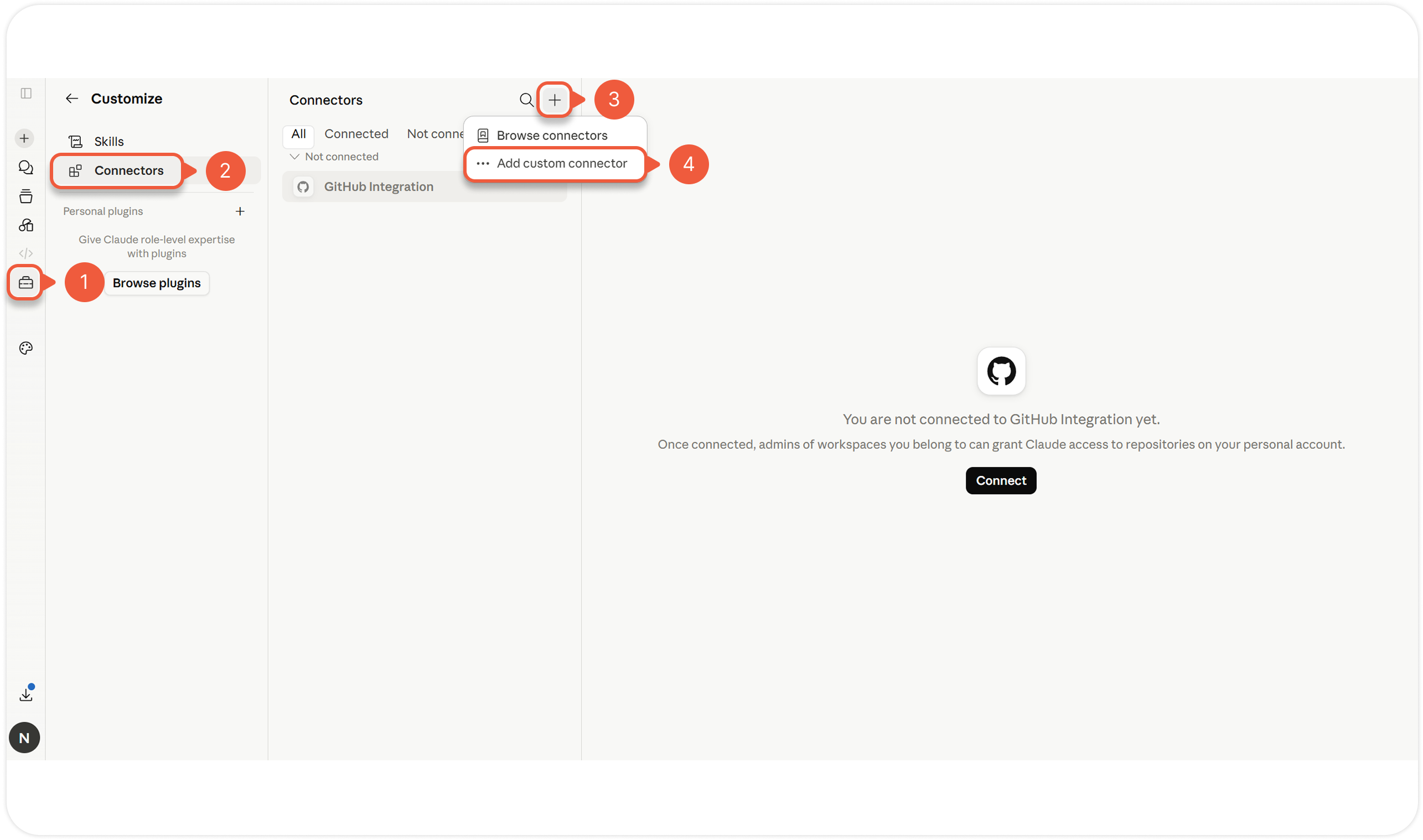
Open [Claude](https://support.claude.com/en/articles/8114491-get-started-with-claude) and go to **Customize**.
{% endstep %}
{% step %}
Go to **Connectors.**
{% endstep %}
{% step %}
Click **+ Add connector**.
A pop-up window will appear.
{% endstep %}
{% step %}
Click **Add Custom Connector**.
A pop-up window will appear.
{% endstep %}
{% step %}
Enter a connector title at the **Name** field.
**e.g.** `(test) Parta MCP`
{% endstep %}
{% step %}
Enter a connector server address at the **Remote MPC server URL** field.
**e.g.** `https://mcp.parta.io/inst-design/v1beta`
{% endstep %}
{% step %}
Click the **Add** button.
{% endstep %}
{% endstepper %}
### Step 2. Personal Setup
{% hint style="warning" %}
Each user must complete these steps individually, including users granted access through their organization.
{% endhint %}
{% stepper %}
{% step %}
Open [Claude](https://support.claude.com/en/articles/8114491-get-started-with-claude) and go to **Customize**.
{% endstep %}
{% step %}
Go to **Connectors.**
{% endstep %}
{% step %}
Select **Parta MCP** (or the custom name your admin set) at the **Connectors** list.
{% endstep %}
{% step %}
Click the **Connect** button.
A new Parta.io window will appear.
{% endstep %}
{% step %}
Click the **Allow access** button.
A new Claude window will appear.
{% endstep %}
{% step %}
Select an **Always allow** option from every available drop-down menu at the **Tool permissions** list.
Otherwise, the chat will prompt you for permission before every method execution.
{% endstep %}
{% endstepper %}
{% hint style="success" %}
Parta.io MCP is connected to your account.
{% endhint %}
### Step 3. Test the Connection
{% stepper %}
{% step %}
[Open a new chat at Claude](https://support.claude.com/en/articles/8114491-get-started-with-claude) and type the following text:
```
Give me a list of the available organizations in Parta
```
{% endstep %}
{% step %}
Make sure Claude returns a list.
{% endstep %}
{% endstepper %}
{% hint style="success" %}
The setup is complete.
{% endhint %}
### Troubleshooting
Have more questions? You might find answers below:
I am not redirected back to Claude after logging in
1. Close the browser tab;
2. Go back to **Customize → Connectors;**
3. Click **Connect** again for **Parta MCP**.
I see an Unauthorized error in chat
Your session may have expired.
1. Go to **Customize → Connectors;**
2. Disconnect and reconnect **Parta MCP**.
Claude Web fails working with images
Claude Web can fail on image-based tasks because of file storage limits;
* Use **Claude Desktop** for image-heavy workflows.
I get an error saying the monthly limit is reached
Each company has a monthly cap on MCP tool calls (500 during the trial period), which resets at the start of the calendar month.
* Contact the Parta.io team/support to discuss the tariff limits.
{% hint style="info" %}
If you are connecting to a test environment, use the invite link and server address provided by your team.
{% endhint %}