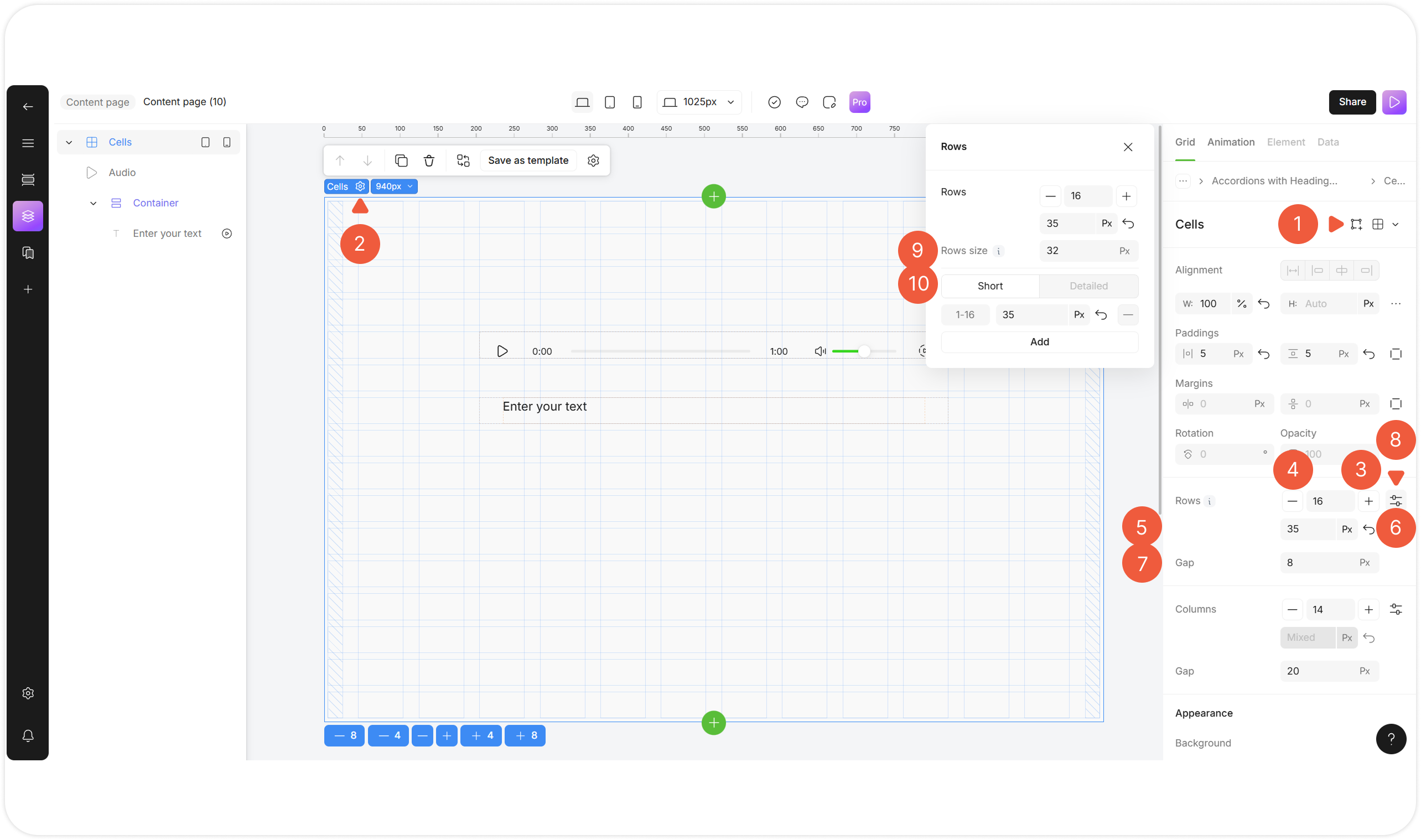
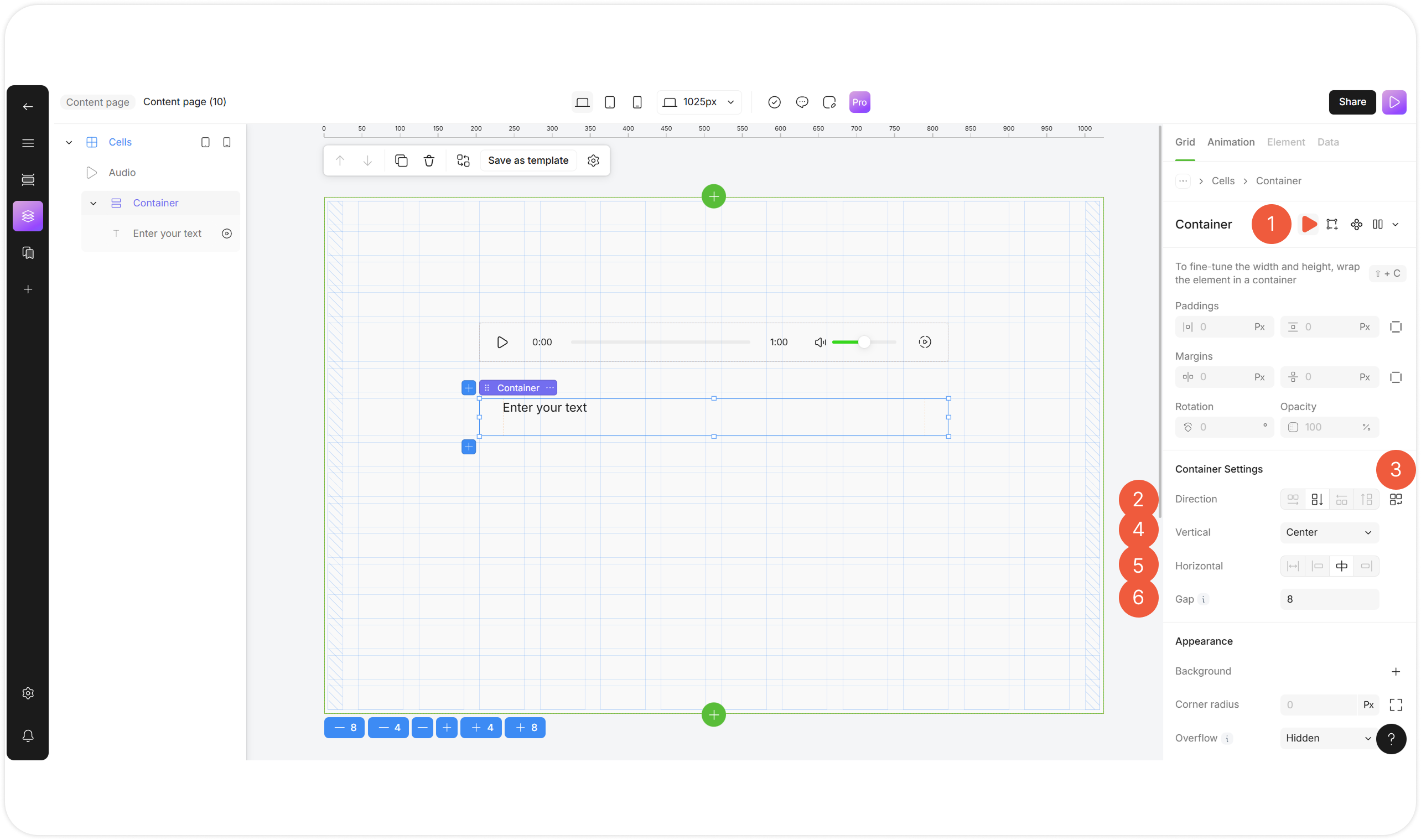
| 1 | Complex list | - Click the Make repeatable icon at the Grid tab.
An Add repeatable item icon will appear. The cells layout will be marked with the Complex list icon and will become a template for the list. |
| 2 | Edit grid | - Click the gear icon in the upper left corner of the block;
- Use the keyboard shortcut Cmd (Ctrl) + E.
Cells editing mode will appear:
- Adjust the columns / rows number and their size;
- Click X to close the Cells editing.
|
| 3 | Add row | - Go to the context menu and select the Add a row above / below options;
- Use the keyboard shortcut Cmd (Ctrl) + ↑ to add a row above;
- Use the keyboard shortcut Cmd (Ctrl) + ↓ to add a row below;
- Click + at the grid;
- Click + at the Row detailed settings window.
|
| 4 | Remove row | - Click - at the Grid tab;
- Click - at the Edit grid mode;
- Click - at the Row detailed settings window.
|
| 5 | Rows size | - Specify the row height in pixels, percents or fractions (fractional units).
|
| 6 | Reset to auto size | - Set the row height to the default value.
|
| 7 | Gap between Rows | - Specify the value of spacing between rows in pixels.
|
| 8 | Rows advanced settings | - Click the icon to open detailed rows settings.
|
| 9 | Rows size | - Set the minimum row height in pixels below which it will not decrease.
|
| 10 | Detailed rows | - Click Detailed to specify the settings for each row separately.
|
| 11 | Columns | Configures similar to rows. |