> For the complete documentation index, see [llms.txt](https://help.parta.io/llms.txt). Markdown versions of documentation pages are available by appending `.md` to page URLs; this page is available as [Markdown](https://help.parta.io/project/set-a-project-structure/manage-a-course-outline.md).
# Manage a Course Outline
After [creating a course outline](/project/set-a-project-structure/create-a-course-outline.md), change the order of sections if necessary.
## **Move a Section**
{% stepper %}
{% step %}
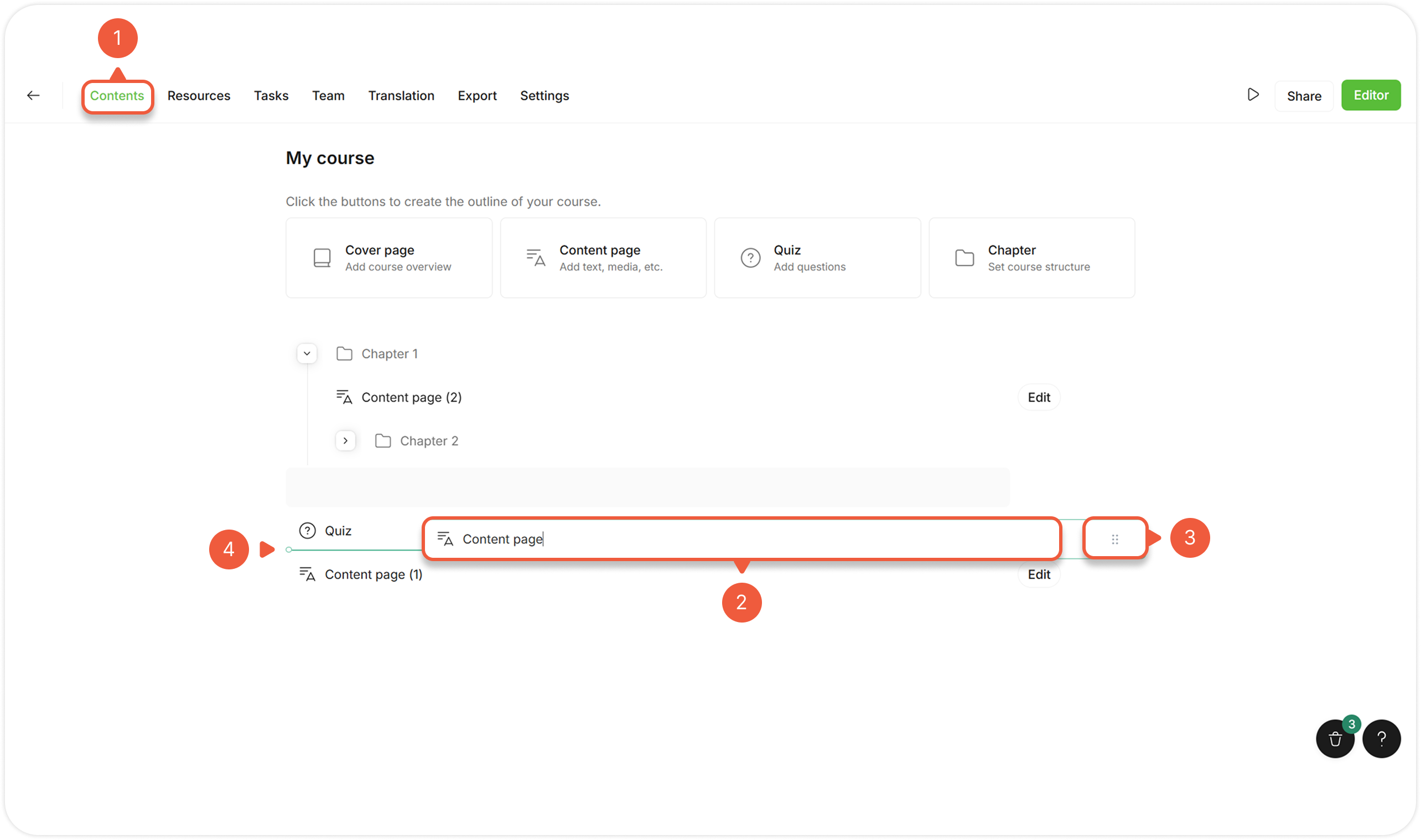
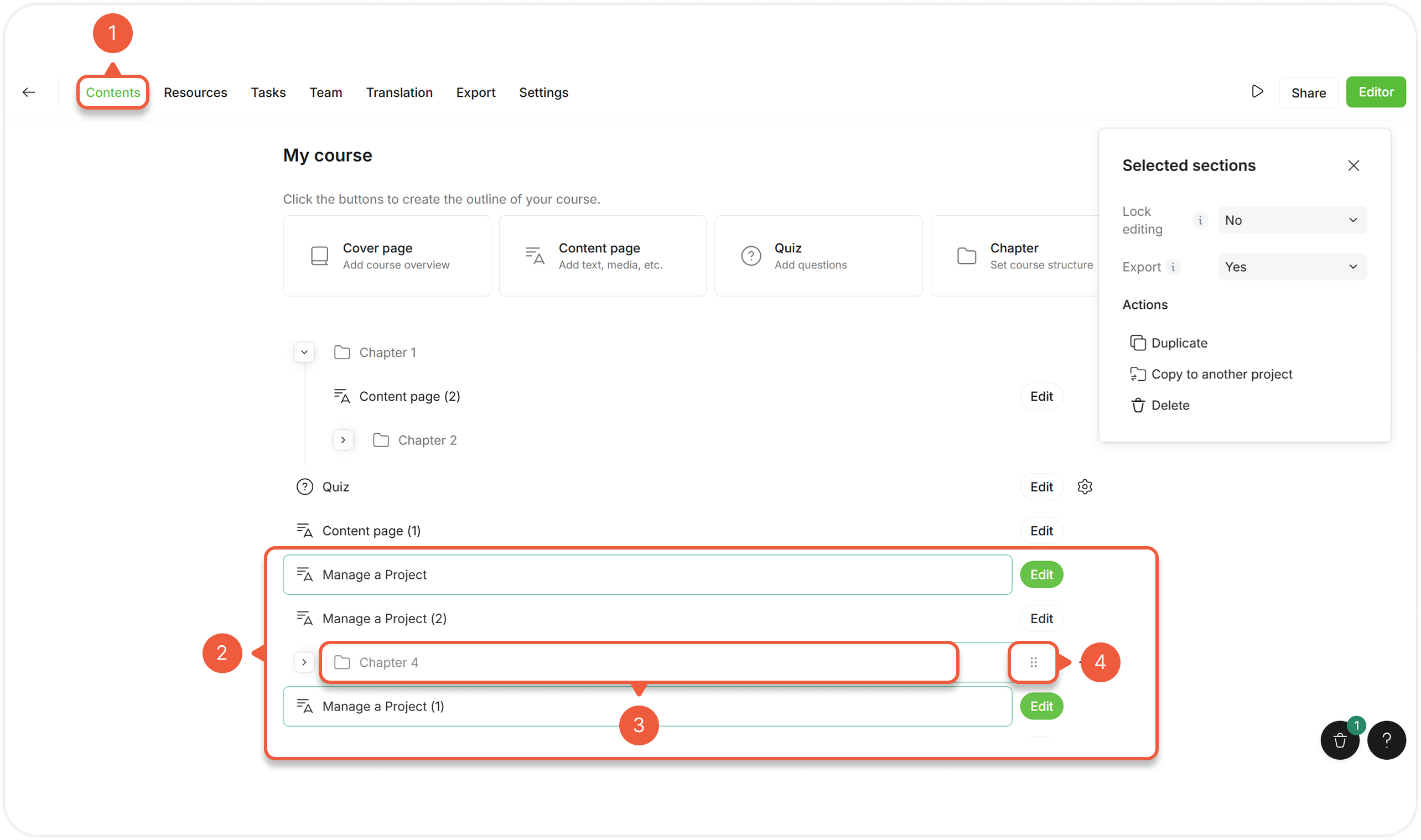
[Open a Project](/project/set-projects/manage-a-project.md) and go to the **Contents** tab.
{% endstep %}
{% step %}
Hover over the section.
{% endstep %}
{% step %}
Click and hold the icon next to the section name.
{% endstep %}
{% step %}
Drag the section.
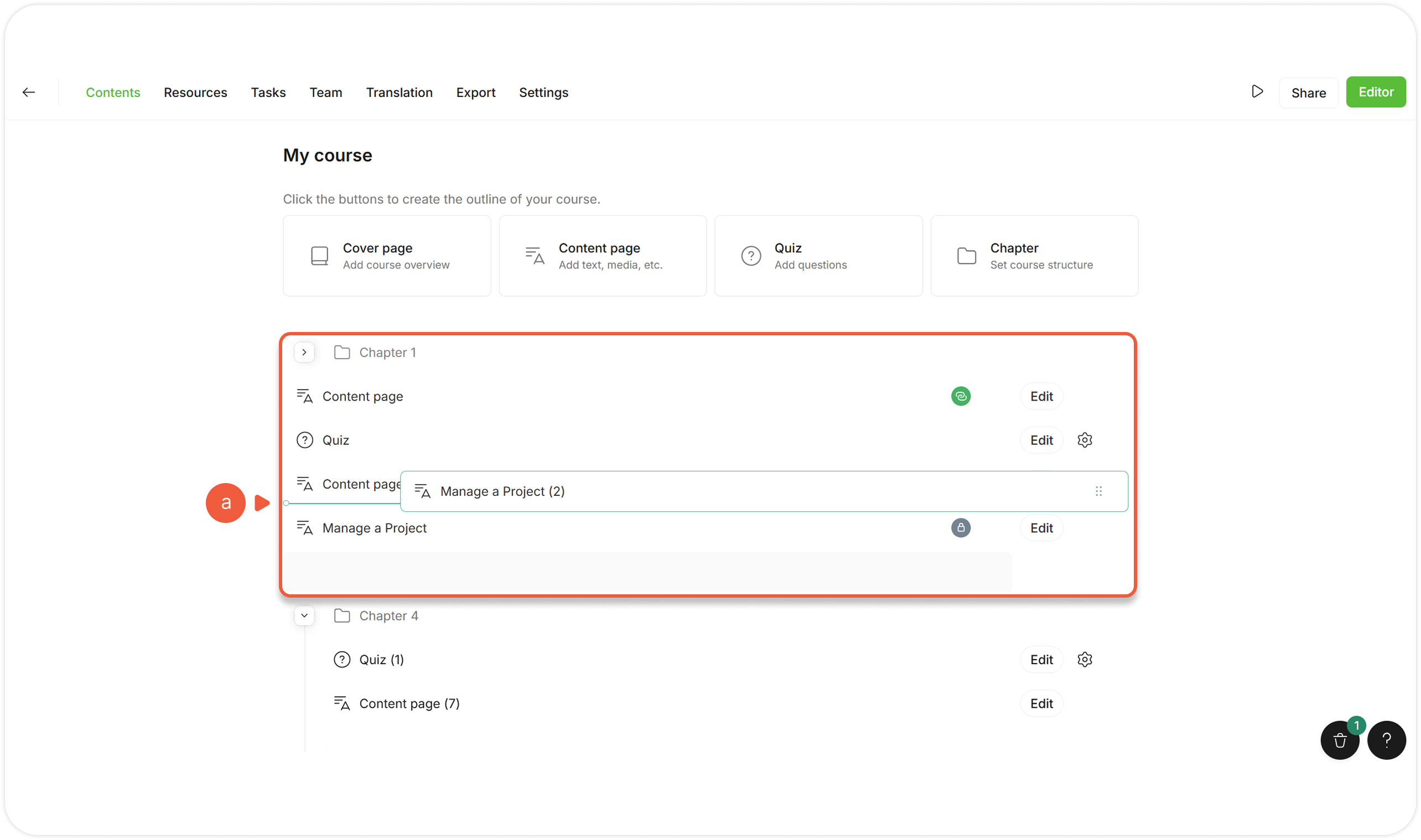
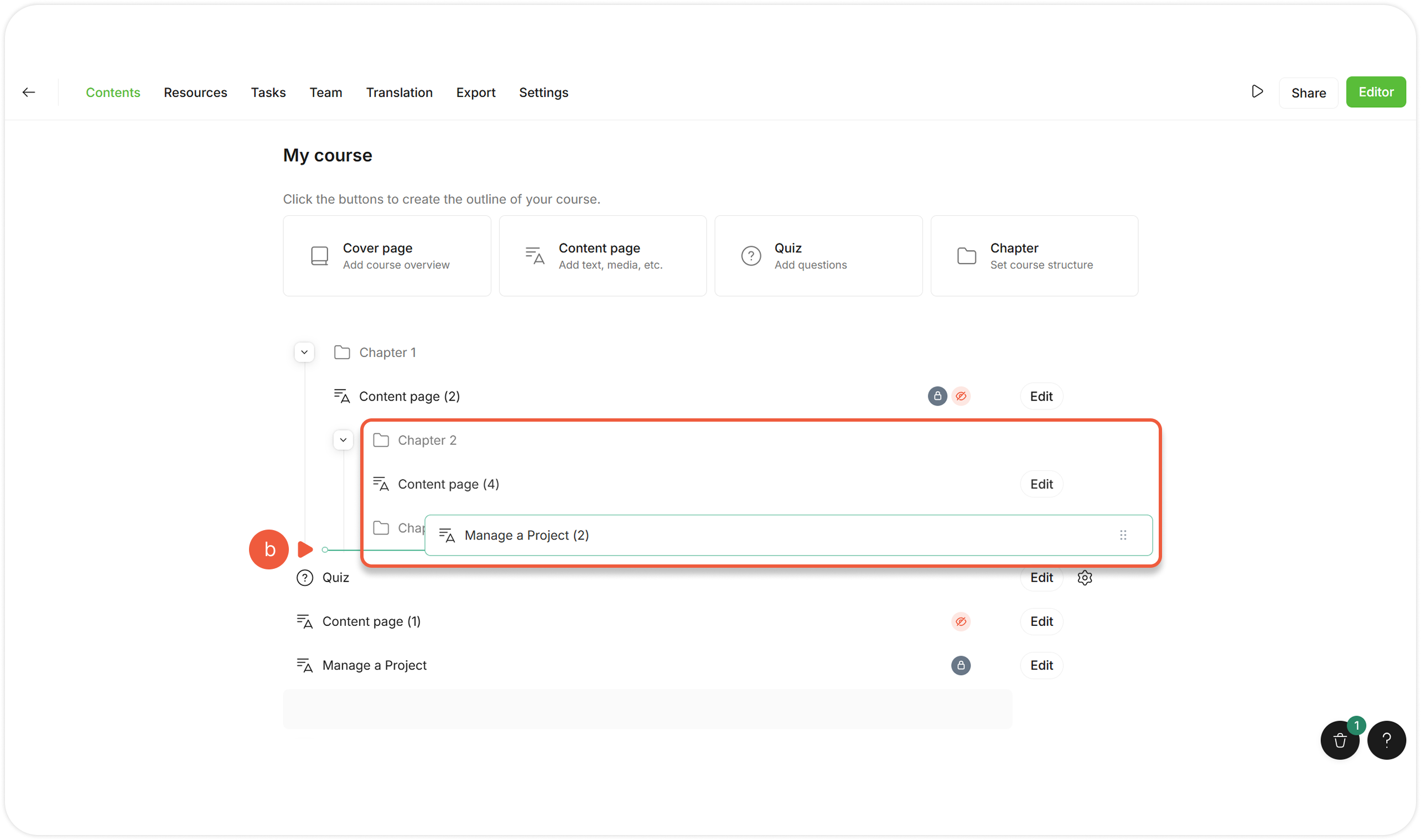
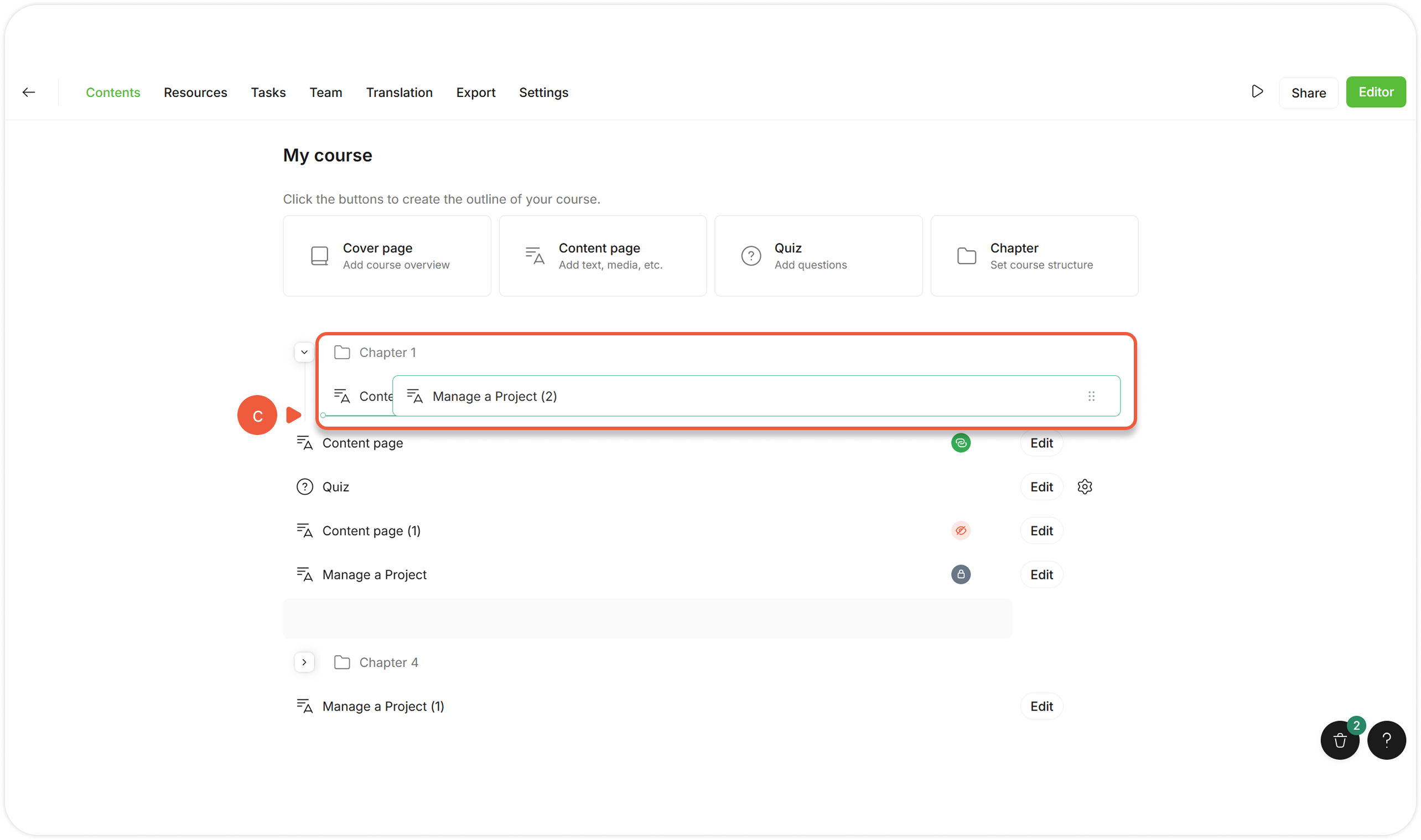
The green line indicates the new section position:
> **a.** To place a section **within the Project**, place the indicator line below / above the sections of the the Project.
> **b.** To place a section **after the Chapter**, place the indicator line at the Chapter level.
> **c.** To place a section **within the Chapter**, place the indicator line inside the Chapter.
{% endstep %}
{% endstepper %}
## **Move Multiple Section**
{% stepper %}
{% step %}
[Open a Project](/project/set-projects/manage-a-project.md) and go to the **Contents** tab.
{% endstep %}
{% step %}
Select multiple sections:
To select sections **within the Project / same Chapter**, press and hold **Shift** key and click on the sections;
* To select sections **within the Project / same Chapter**, press and hold **Shift** key and click on the sections;
* To select sections **of a Project or / and any Chapter**, press and hold **Ctrl** (or **Cmd** on Apple devices) and click on the sections;
* To select sections **grouped by a Chapter**, select the Chapter containing these nested sections.
{% endstep %}
{% step %}
Hover over any of selected sections.
{% endstep %}
{% step %}
Click and hold the icon next to the section name.
{% endstep %}
{% step %}
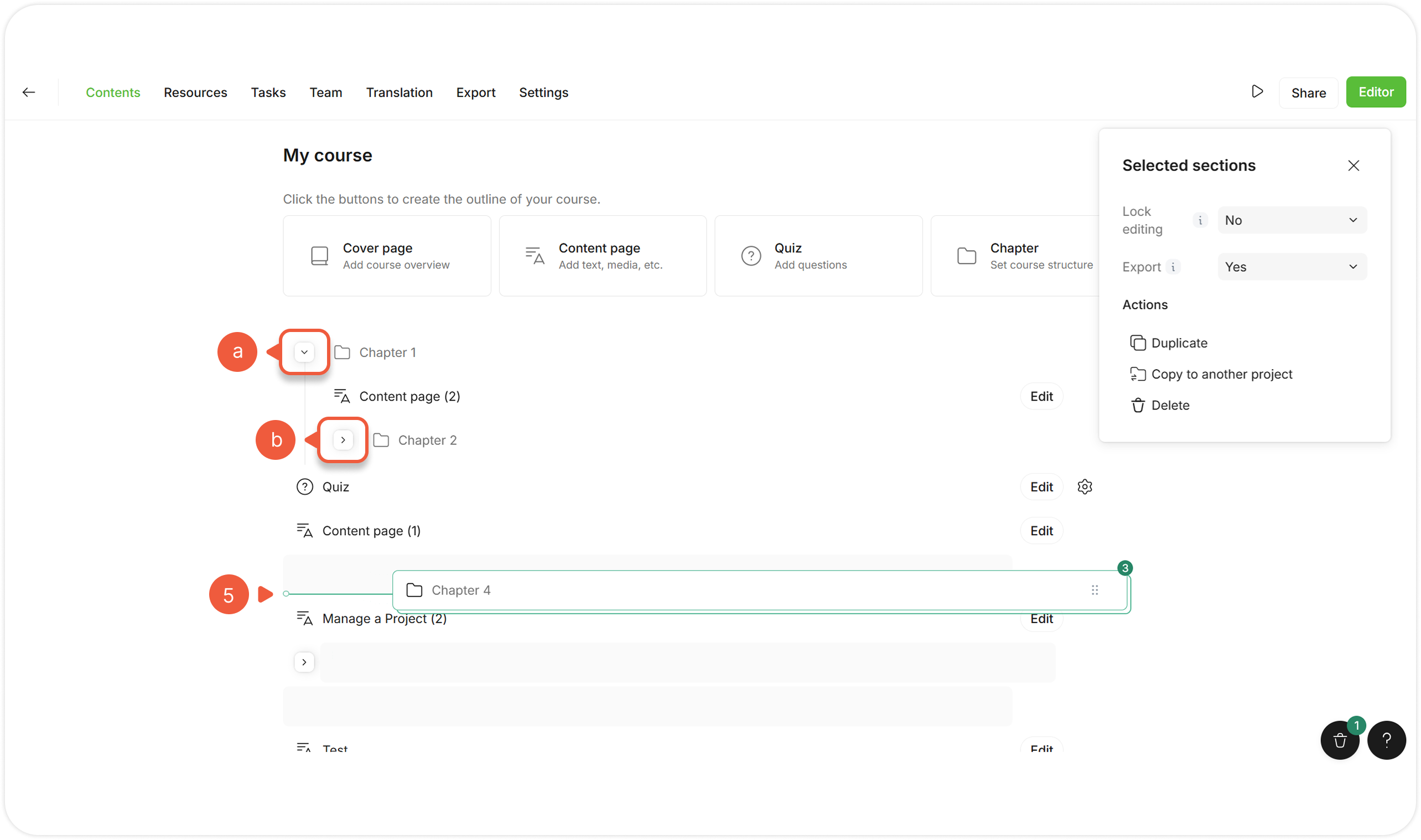
Drag the sections.
Collapse Chapters containing nested sections for easier structure management:
> **a.** Hover over the icon to the left of the Chapter (**v**).
>
> **b.** Click on the icon to make it look to the right (**>**).
> {% endstep %}
> {% endstepper %}
Dragging multiple sections works the same as dragging a single section.