> For the complete documentation index, see [llms.txt](https://help.parta.io/llms.txt). Markdown versions of documentation pages are available by appending `.md` to page URLs; this page is available as [Markdown](https://help.parta.io/project/set-projects/manage-a-project.md).
# Manage a Project
After [creating a Project](/project/set-projects/create-a-project.md), manage it according to the assigned [roles / permissions](/workspace/set-a-workspace.md).
## Open a Project

{% stepper %}
{% step %}
Go to the **Projects** tab.
{% endstep %}
{% step %}
Click on the Project name.
* If the Project is **out of folders**, click on the Project name directly;
* If the Project is **in the folder**, click on the folder name to open a folder first.
{% endstep %}
{% endstepper %}
## **Open the Last Created Project**
The default page provides quick access to 6 recently edited Projects, including the last one created.

{% stepper %}
{% step %}
Go to the **Home** page.
{% endstep %}
{% step %}
Click on the last Project you created in the **Project** list.
{% endstep %}
{% endstepper %}
## **Rename a Project**
Rename a Project either from the **Contents** tab or the **Settings** tab.
* From the **Contents** tab**:**
{% stepper %}
{% step %}
[Open your Project](/project/set-projects/manage-a-project.md) and go to the **Contents** tab.
{% endstep %}
{% step %}
Click on the Project name to put a cursor in a name field.
{% endstep %}
{% step %}
Type the new name.
The changes will be saved automatically.
{% endstep %}
{% endstepper %}
* From the **Settings** tab**:**

{% stepper %}
{% step %}
[Open your Project](/project/set-projects/manage-a-project.md) and go to the **Settings** menu tab.
{% endstep %}
{% step %}
Change the Project name in the **Course name** field.
{% endstep %}
{% step %}
Click the **Save** button.
A confirmation pop-up message will appear after saving the changes.
{% endstep %}
{% endstepper %}
## **Move a Project to Another Folder**
{% stepper %}
{% step %}
Go to the **Projects** tab.
{% endstep %}
{% step %}
Select the checkbox next to the Project.
A pop-up window will appear.
{% endstep %}
{% step %}
Select **Move**.
A pop-up window will appear.
{% endstep %}
{% step %}
Click on a folder name to move a Project.
Use a search field for quick access to the folders.
{% endstep %}
{% step %}
Click the **Move** button.
A confirmation message will appear after moving the Project at the **Notification** log.
{% endstep %}
{% endstepper %}
## **Copy a Project to Another Company**
Copy a Project to another workspace.

{% stepper %}
{% step %}
Go to the **Users** tab.
{% endstep %}
{% step %}
Click on the user name to open detailed user data.
A new window will appear.
{% endstep %}
{% step %}
Copy the user ID at the **ID in the company** field to the clipboard.
{% endstep %}
{% step %}
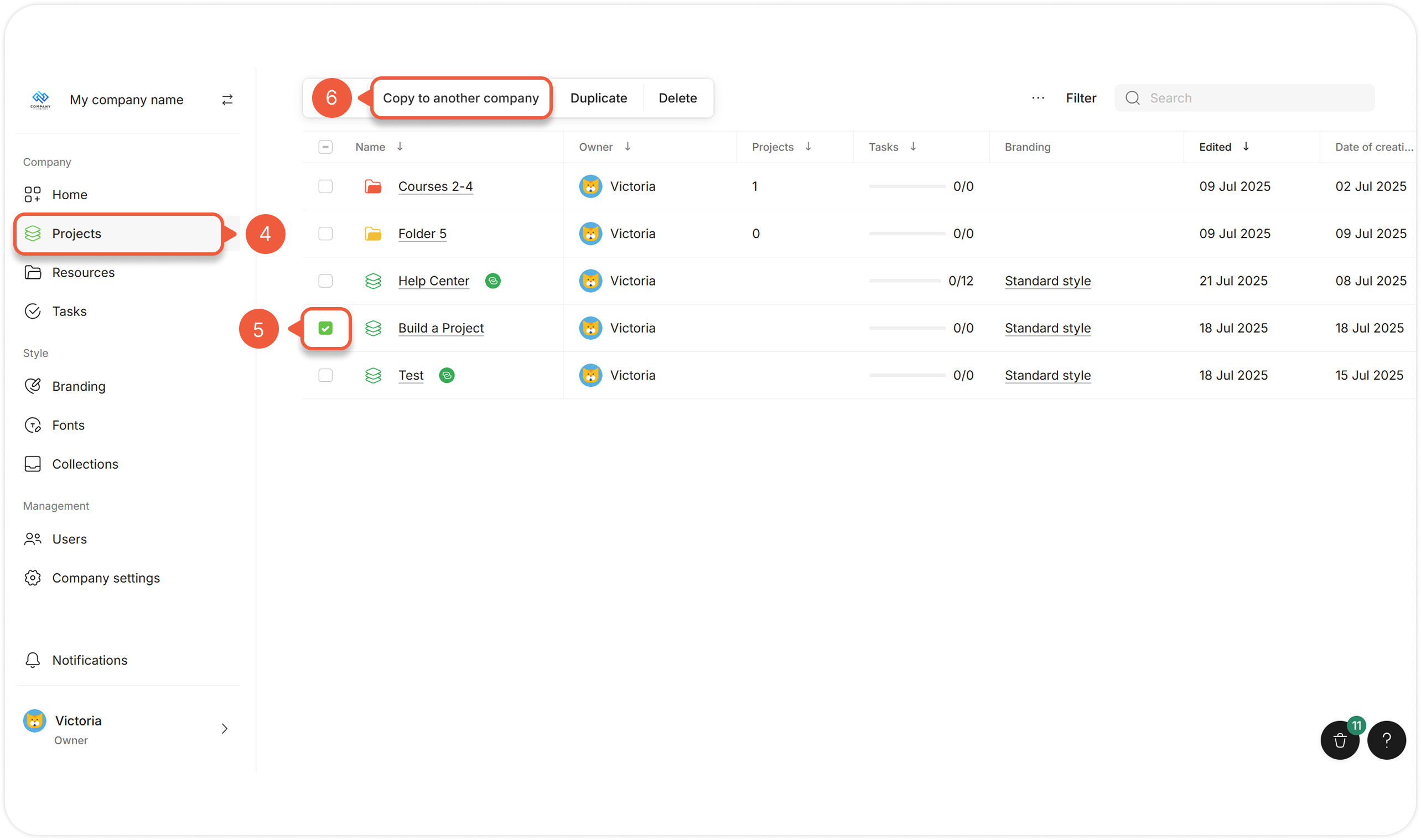
Go to the **Projects** tab.
{% endstep %}
{% step %}
Select the checkbox next to the Project.
{% endstep %}
{% step %}
Select **Copy to another company.**
The user whose ID is used will receive a notification via email and will be able to accept the action. 
{% endstep %}
{% endstepper %}
## **Duplicate a Project**

{% stepper %}
{% step %}
Go to the **Projects** tab.
{% endstep %}
{% step %}
Select the checkbox next to the Project.
A pop-up window will appear.
{% endstep %}
{% step %}
Select **Duplicate**
The Project copy will appear in the same folder / root directory as the original Project. 
{% endstep %}
{% endstepper %}
## **Delete a Project**

{% stepper %}
{% step %}
Go to the **Projects** tab.
{% endstep %}
{% step %}
Select the checkbox next to the Project.
A pop-up window will appear.
{% endstep %}
{% step %}
Select **Delete**.
A confirmation message will appear after moving the Project at the **Notification** log.
{% endstep %}
{% endstepper %}
## **Restore a Project**
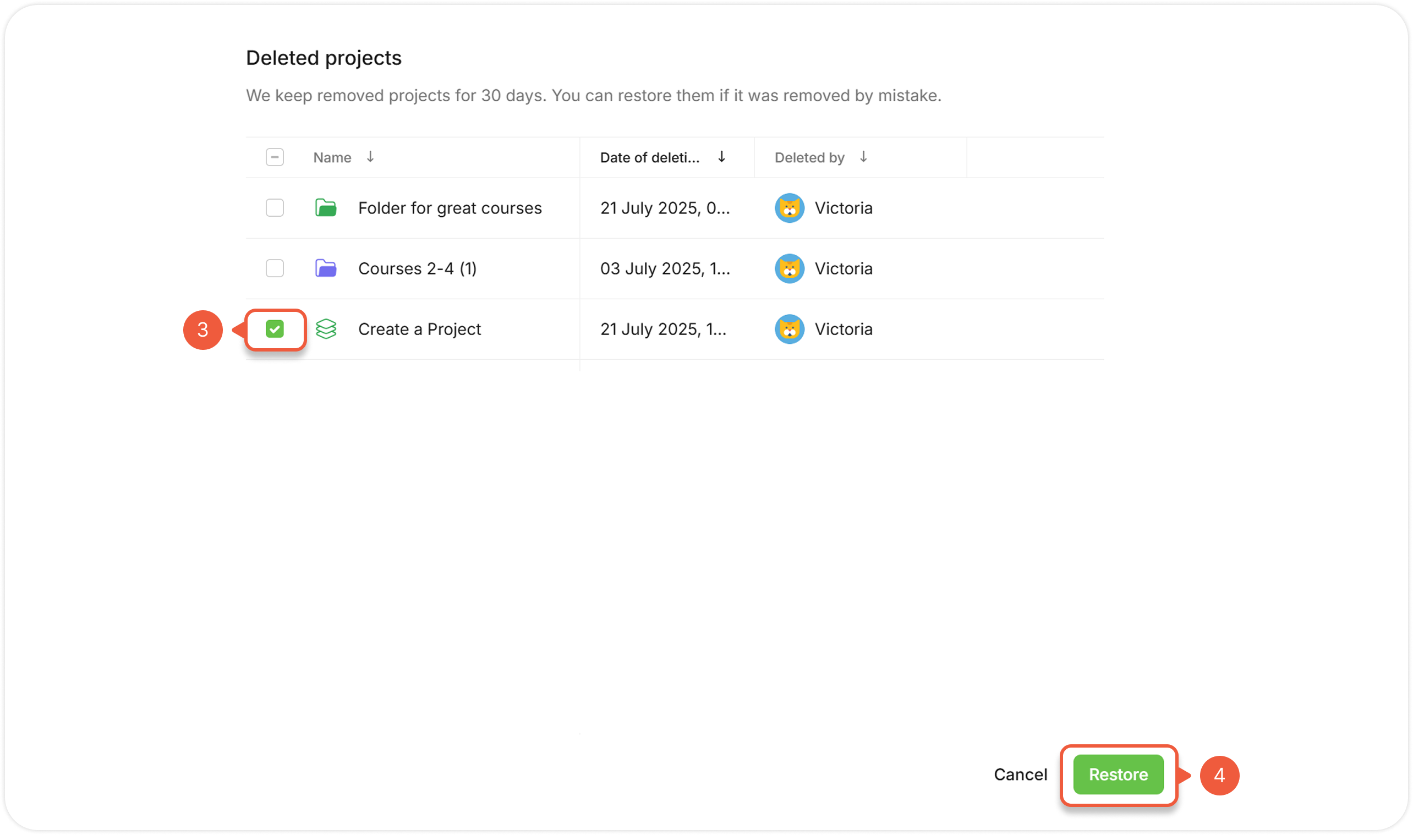
Removed Projects are available for **30 days** to restore.

{% stepper %}
{% step %}
Go to the **Projects** tab.
{% endstep %}
{% step %}
Click on the basket at the right bottom corner.
A pop-up window will appear.
{% endstep %}
{% step %}
Select the checkbox next to the Project(s).
{% endstep %}
{% step %}
Click the **Restore** button.
The restored Project will appear in the folder / root directory you are currently in when restoring. 
{% endstep %}
{% endstepper %}
## **Set Project Progression**
Allow learners to progress through the course freely or in stages.

{% stepper %}
{% step %}
[Open a Project](/project/set-projects/manage-a-project.md) and go to the **Settings** tab.
{% endstep %}
{% step %}
Choose a Project progression option from the drop-down **Course progression** menu:
* **Free:** Learners can choose any module or section to study;
* **Linear:** Learners must complete modules in a specific order.
Additional settings are available for the **Linear course progression** option:
> **a.** Choose an option from the drop-down **Quiz condition to complete the progress** menu:
>
> * **Quiz passed**\
> Learners take the quiz regardless of whether they answered correctly or not and go further through the course outline to the next module.
>
> * **Quiz successfully**\
> Learners pass the quiz if they give a number of correct answers equal to or greater than the percentage score required to pass the quiz.
>
> **b.** Adjust the slider or enter the percentage value inside the input window at the **Pass percentage to unlock section** setting.\
> \
> The next Project section will be available after the learners get acquainted the content volume that equal to or greater than the percentage score required to to unlock next section.
>
> **c.** Click **Yes** to enable completion progress checklist at the **Checklist of required content** setting.
>
> When enabled, this option **displays the content blocks required to continue or complete** the course when the user clicks the Continue button in a section, navigates between sections, or clicks the Complete Course button **without completing the required blocks**.
> {% endstep %}
{% step %}
Click the **Save** button.
A confirmation pop-up message will appear after saving the changes.
{% endstep %}
{% endstepper %}
## **Apply a Branding Template to a Project**
A [default branding template](/branding/work-with-branding.md) is applied to all new Projects. Apply a custom template to the specific Project.

{% stepper %}
{% step %}
[Open a Project](/project/set-projects/manage-a-project.md) and go to the **Settings** tab.
{% endstep %}
{% step %}
Choose a template to apply from the drop-down **Branding template** menu.
{% endstep %}
{% step %}
Click the **Save** button.
A confirmation pop-up message will appear after saving the changes.
{% endstep %}
{% endstepper %}
## **Perform Bulk Actions**
[Move to another Project](#move-a-project-to-another-folder), [duplicate](#duplicate-a-project) or [delete](#delete-a-project) multiple Projects at once.

{% stepper %}
{% step %}
Go to the **Projects** tab.
{% endstep %}
{% step %}
Select several checkboxes next to the Projects.
A pop-up window will appear.
{% endstep %}
{% step %}
Select the required action from the action menu.
Actions for multiple Projects work the same as actions for a single Project.
{% endstep %}
{% endstepper %}