Manage a Unit

Manage Units

Select a unit to perform an action.

Action
Description

1

Select

  • Click on a layout or an element at the block;

  • Go to the Block structure tab and click on the unit in the list.

! Use the Show parents hotkey to quickly navigate through nested units.

2

Open context menu

  • Select a unit and click on the Context menu icon.

A pop-up window will appear.

3

Copy

  • Go to the context menu and select the Copy option;

  • Use the keyboard shortcut Cmd (Ctrl) + C.

A unit will be copied to the clipboard.

4

Cut

  • Go to the context menu and select the Cut option;

  • Use the keyboard shortcut Cmd (Ctrl) + X.

A unit will be copied to the clipboard and will be deleted from the layout.

5

Delete

  • Go to the context menu and select the Delete option;

  • Use the Delete / Backspace keys.

A unit will be deleted from the layout.

6

Restore

  • Add a deleted unit via the Stash tab.

7

Hide

  • Go to the context menu and select the Hide option;

  • Click the hide icon at the Block structure tab;

  • Use the keyboard shortcut ⇧ (Shift) + H.

A unit will be hidden from the layout, but will remain on the Block structure tab.

8

Show hidden

  • Click the hide icon at the Block structure tab;

  • Use the keyboard shortcut ⇧ (Shift) + H.

A unit will appear at the layout.

9

Wrap in container

  • Go to the context menu and select the Wrap in container option;

  • Click the ⇧ + C button at the Grid tab;

  • Use the keyboard shortcut ⇧ (Shift) + C.

A unit will be wrapped in a centered container layout.

A Block structure tab will be opened.

10

Ungroup

  • Go to the context menu and select the Ungroup option;

  • Use the keyboard shortcut ⇧ (Shift) + U.

A unit will be unwrapped from the current layout.

A Block structure tab will be opened.

11

Navigate

  • Use the keyboard shortcut ⇧ (Shift) + ↑→↓←.

Navigate through the layout:

  • ⇧ (Shift) + left / right keys will change nesting (drop into children, drop out into parents);

  • ⇧ (Shift) + up / down keys will switch to the previous / next neighbor.

A Block structure tab will be opened.

12

Save as Asset

  • Click the Save to Asset icon at the Grid tab;

  • Use the keyboard shortcut Cmd (Ctrl) + S.

A unit will be saved as a template at the Asset tab.

Rename

  • Go to the Block structure tab and double-click on the unit name.

Paste

  • Use the keyboard shortcut Cmd (Ctrl) + V.

A unit will be pasted to the layout.

Undo

  • Use the keyboard shortcut Cmd (Ctrl) + Z.

The last action performed will be undone.

! Use the Block history option to manage all the block changes.

Redo

  • Use the keyboard shortcut Cmd (Ctrl) + Y;

  • Use the keyboard shortcut Cmd (Ctrl) + ⇧ (Shift) + Z.

The last undone action will be redone.

! Use the Block history option to manage all the block changes.

Show Box model

  • Press the Option (Alt) key and hover over the unit.

The following unit properties will be shown:

  • dimensions (w, h);

  • x / y axis (for Absolute layout);

  • paddings (if any);

  • margins (if any);

  • border (if any).

Show parents

  • Use the ⇧ (Shift) key.

Parent units labels will be displayed.

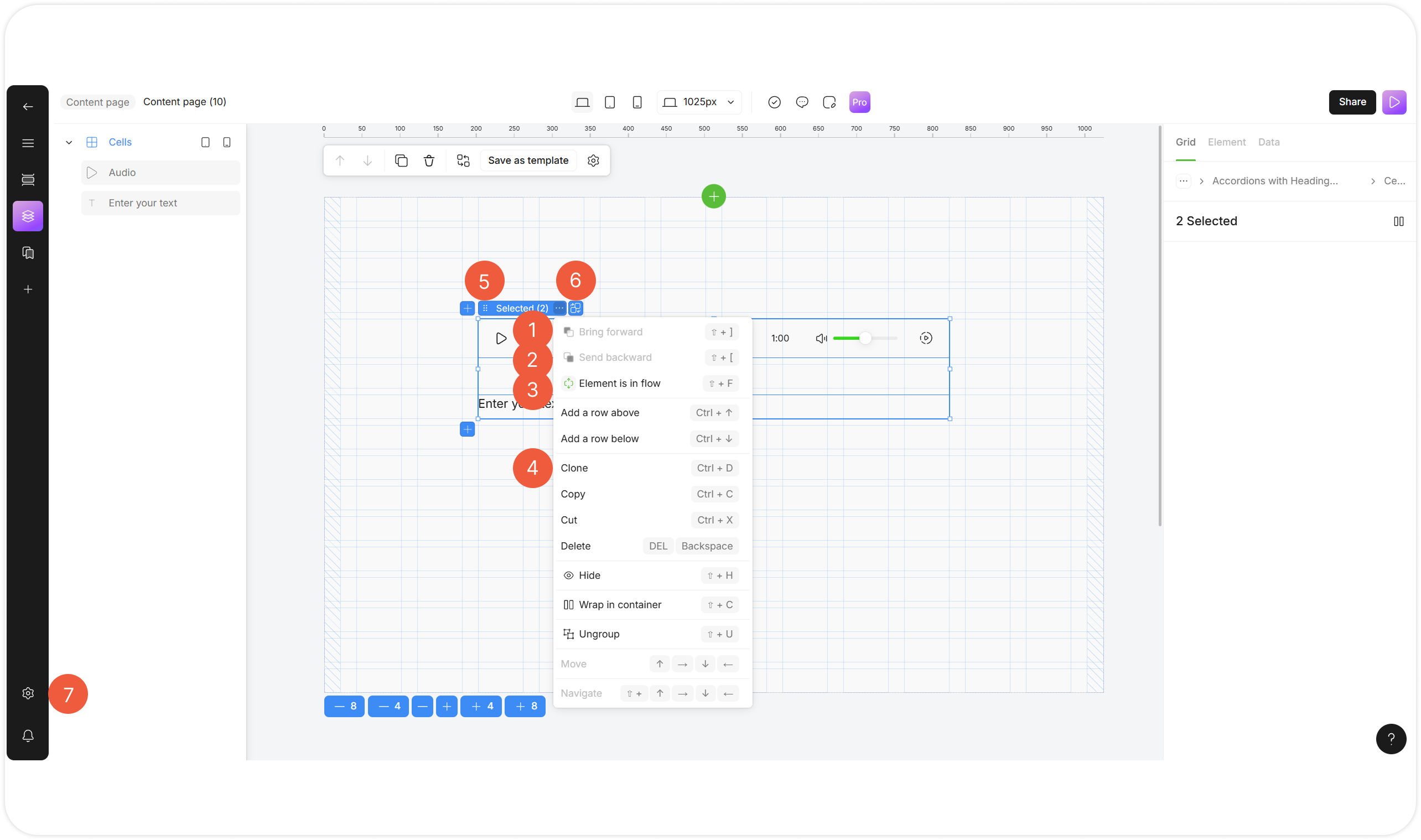
Manage Units in a Cells Layout

Select a unit wrapped in the Cells layout to perform an action.

Action
Description

1

Bring forward

  • Go to the context menu and select the Bring forward option;

  • Use the keyboard shortcut ⇧ (Shift) + ].

A unit will be moved forward to a layer above.

2

Send backward

  • Go to the context menu and select the Send backward option;

  • Use the keyboard shortcut ⇧ (Shift) + [.

A unit will be moved back to a layer below.

3

Element in flow

  • Click the Element in flow icon at the Block structure tab;

  • Go to the context menu and select the Element in flow option;

  • Use the keyboard shortcut ⇧ (Shift) + F.

A unit automatically stretches the grid to fit the unit size.

4

Clone

  • Go to the context menu and select the Clone option;

  • Use the keyboard shortcut Cmd (Ctrl) + D.

A duplicated unit will appear at the row below the original unit.

! If the duplicated unit takes up more than one row, the clone overlaps the original unit by -1 row.

5

Move

  • Hold and drag the unit;

  • Use the ↑→↓← keys.

A unit will be moved by one row / column.

6

Switch elements

  • Select 2 units via Cmd (Ctrl) key and click the Switch elements icon;

  • Select 2 units via Cmd (Ctrl) key and use the keyboard shortcut ⇧ (Shift) + S.

Units will change the order.

7

Show root grid

  • Use the keyboard shortcut Cmd (Ctrl) + G.

  • Enable Show root grid toggle at the editor settings.

The grid for the root will be shown / hidden.

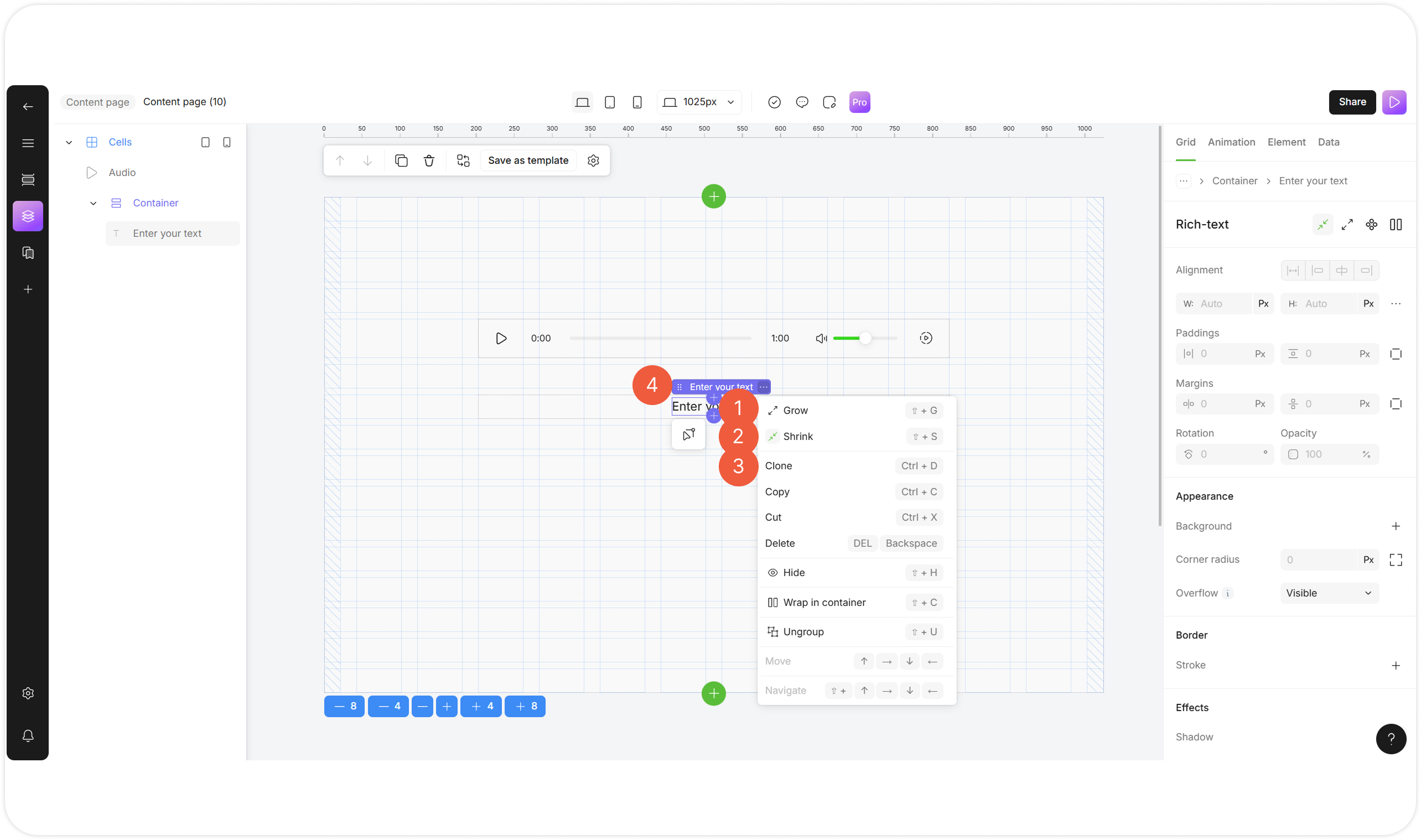
Manage Units in a Container Layout

Select a unit wrapped in the Container layout to perform an action.

Action
Description

1

Grow

  • Click the Grow icon at the Grid tab;

  • Go to the context menu and select the Grow option;

  • Use the keyboard shortcut ⇧ (Shift) + G.

A unit will expand and fill the available space.

2

Shrink

  • Click the Shrink icon at the Grid tab;

  • Go to the context menu and select the Shrink option;

  • Use the keyboard shortcut ⇧ (Shift) + S.

A unit will expand and fill the available space.

3

Clone

  • Go to the context menu and select the Clone option;

  • Use the keyboard shortcut Cmd (Ctrl) + D.

A duplicated unit will appear to the right of the original unit.

4

Move

  • Hold and drag the unit;

  • Use the ↑→↓← keys.

A unit will change the order.

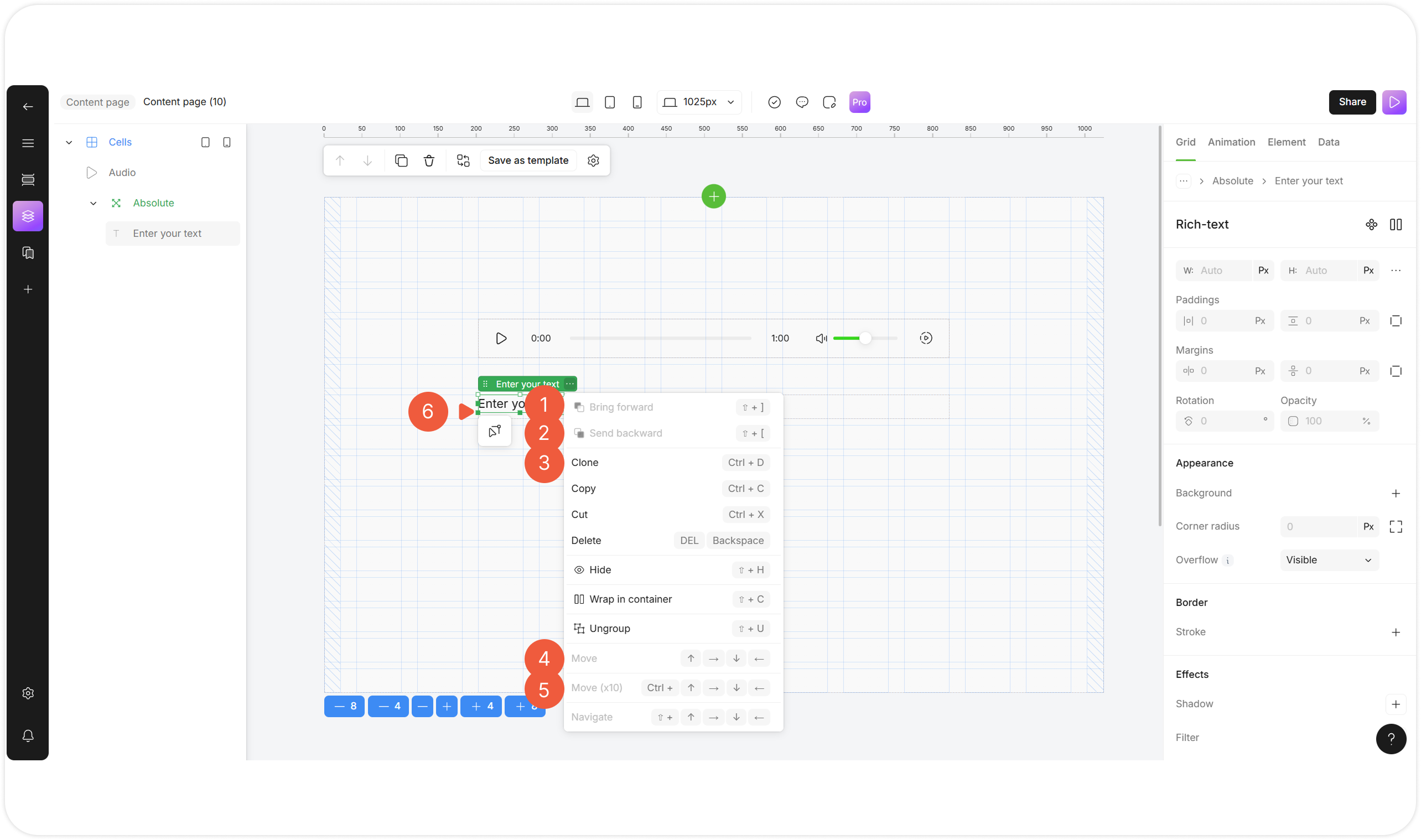
Manage Units in an Absolute Layout

Select a unit wrapped in the Absolute layout to perform an action.

Action
Description

1

Bring forward

  • Go to the context menu and select the Bring forward option;

  • Use the keyboard shortcut ⇧ (Shift) + ].

A unit will be moved forward to a layer above.

2

Send backward

  • Go to the context menu and select the Send backward option;

  • Use the keyboard shortcut ⇧ (Shift) + [.

A unit will be moved back to a layer below.

3

Clone

  • Go to the context menu and select the Clone option;

  • Use the keyboard shortcut Cmd (Ctrl) + D.

A duplicated unit will appear 10px to the right and down the original unit.

4

Move

  • Hold and drag the unit;

  • Use the ↑→↓← keys.

A unit will be moved by 1 px.

5

Move (x10)

  • Use the keyboard shortcut Cmd (Ctrl) + ↑→↓←.

A unit will be moved by 10 px.

6

Anchor to Absolute layer angle

  • Place your cursor over the border of the unit and double-click on the corner you want to snap to.

When an Absolute layout is resizing, the unit is scaling relative to the anchored corner.

Last updated