> For the complete documentation index, see [llms.txt](https://help.parta.io/llms.txt). Markdown versions of documentation pages are available by appending `.md` to page URLs; this page is available as [Markdown](https://help.parta.io/no-code-editor/edit-units/animate-a-unit.md).
# Animate a Unit
## Create a Simple Animation
{% stepper %}
{% step %}
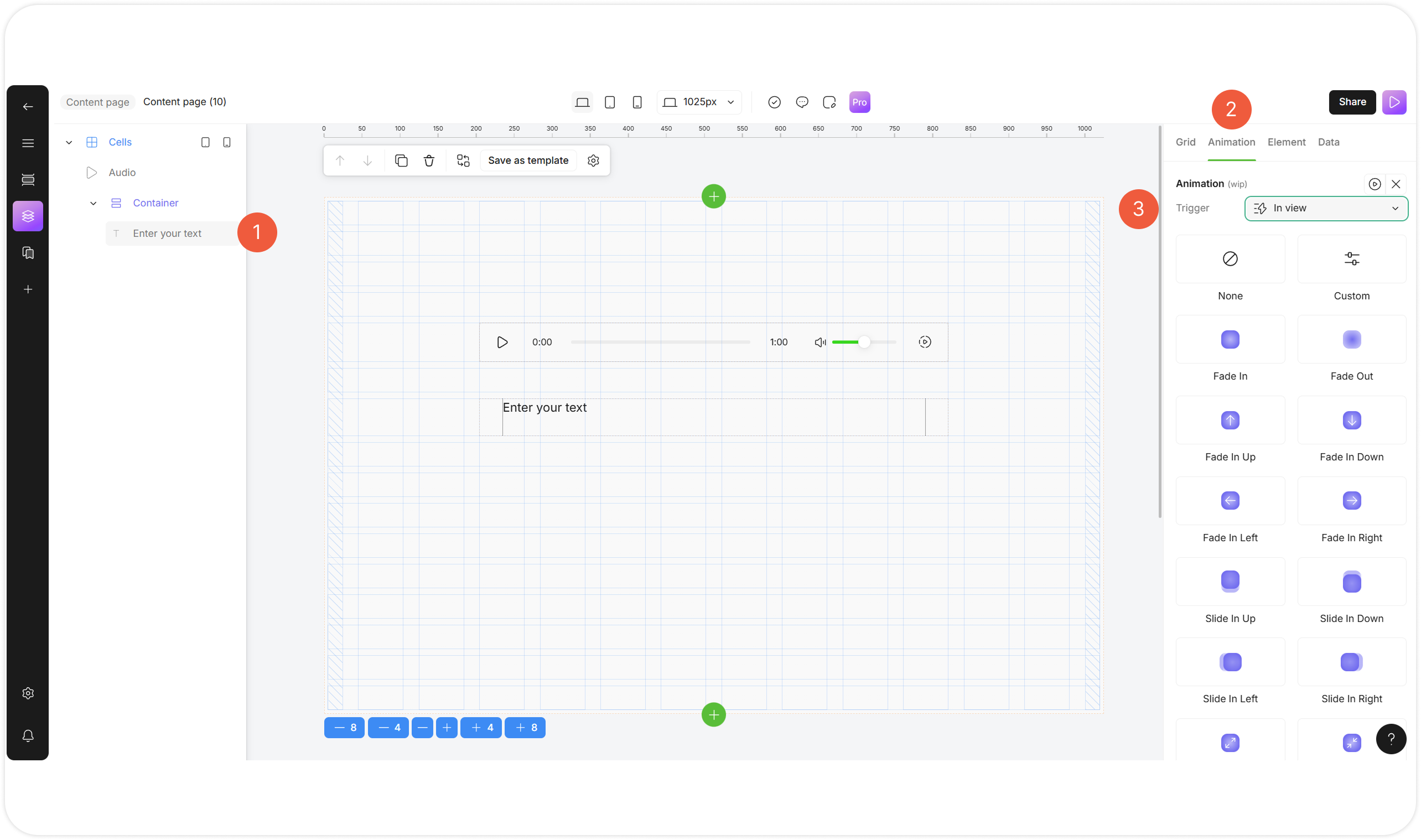
Select a unit and go to the **Animation** tab.
{% endstep %}
{% step %}
Select condition for starting animation from the drop-down menu:
* None;
* In view;
* Hover;
* Constant;
* Tap.
{% endstep %}
{% step %}
Click on the icon to select an animation type.
The settings will be saved automatically.
{% endstep %}
{% endstepper %}
## Create a Step-by-step Animation
{% stepper %}
{% step %}
Select a unit and go to the **Animation** tab.
{% endstep %}
{% step %}
Go to the **Custom settings**.
{% endstep %}
{% step %}
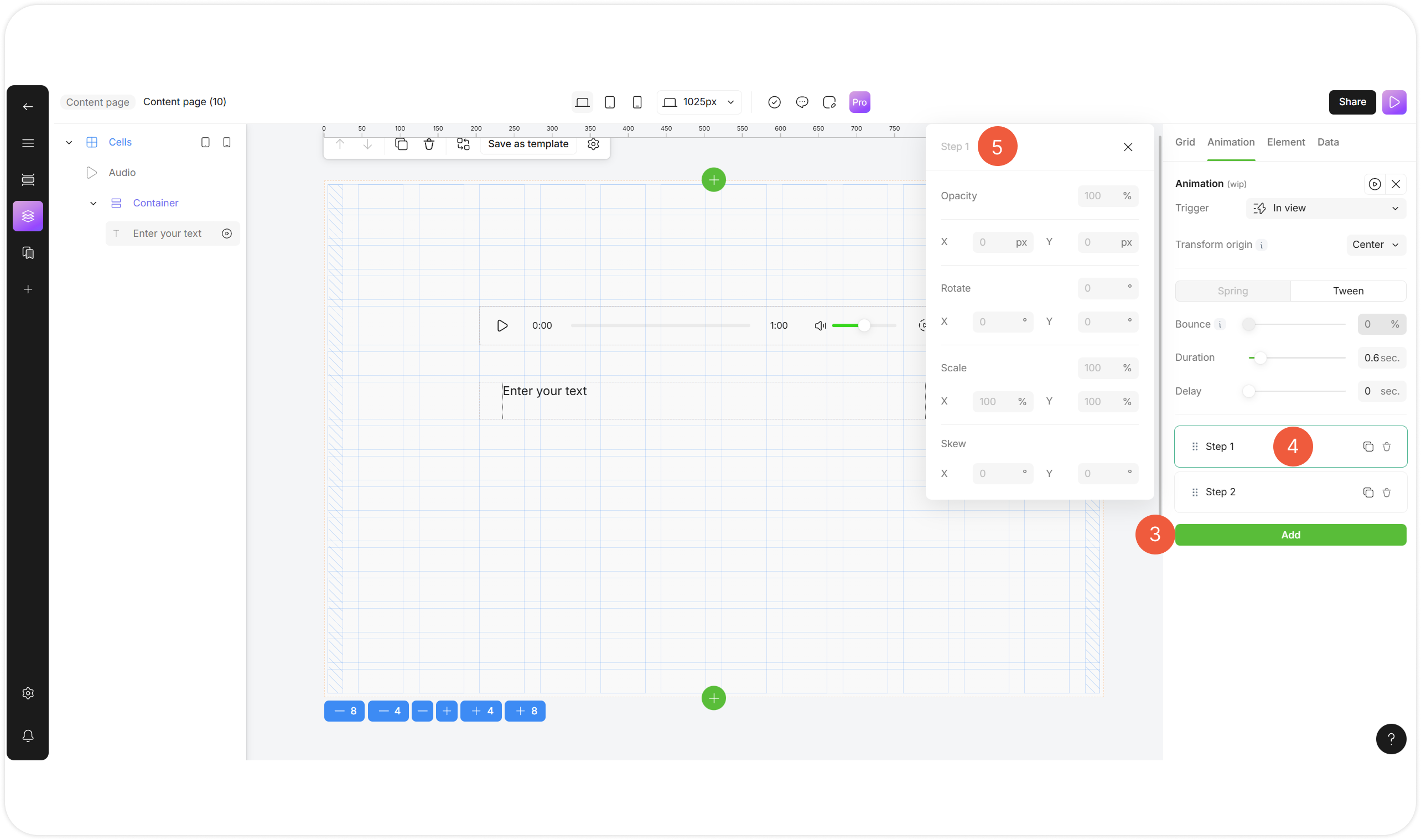
Click the **Add** button to add a step of animation.
{% endstep %}
{% step %}
Click on the step to open its settings.
A pop-up window will appear.
{% endstep %}
{% step %}
Set properties for visual transformations:
* **Opacity**: Controls unit transparency;
* **Rotate**: Turns a unit;
* **Scale**: Resizes a unit;
* **Skew**: Tilts a unit like a parallelogram.
{% endstep %}
{% endstepper %}
## Edit Advanced Animation Settings
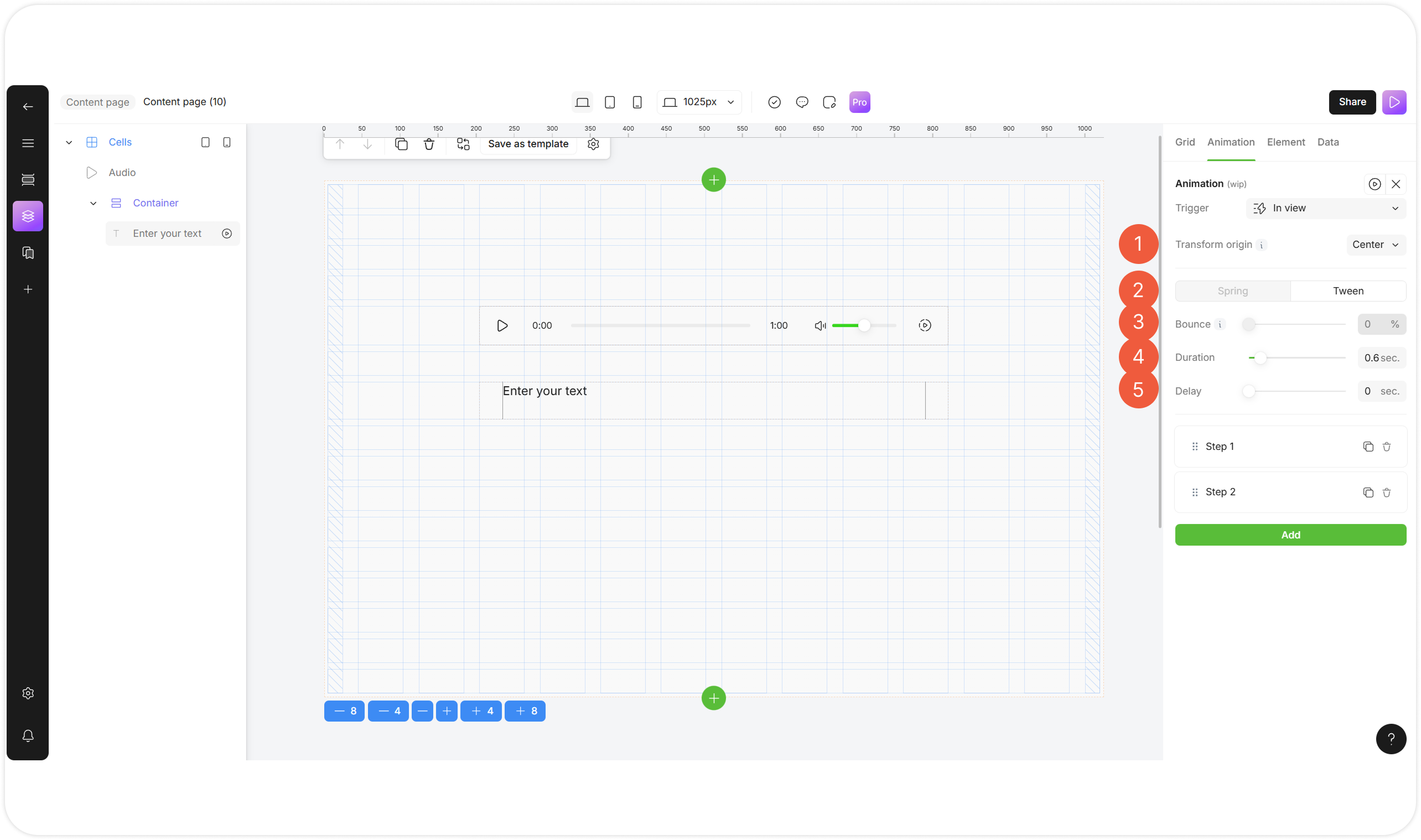
Go to the Custom settings to add the advanced animation effects.
{% stepper %}
{% step %}
### Transform origin
Select the point around which transformations (rotation, scaling) of the element occur from the drop-down menu. Available options:
* Center
* Top
* Bottom
* Left
* Right
* Top Left
* Top Right
* Bottom Left
* Bottom Right
{% endstep %}
{% step %}
### Animation techniques
* **Spring**: Select to simulate real-world spring physics! Great for bouncing buttons or natural drag-releases;
* **Tween**: Select to stand for “in-between.” This is a time-based animation that runs over a fixed duration.
{% endstep %}
{% step %}
### Bounce
Specify the bouncing effect, simulating a spring-like motion, in percent.
{% endstep %}
{% step %}
### Duration
Specify the animation duration in seconds.
{% endstep %}
{% step %}
### Delay
Specify the delay period for the animation to start in seconds.
{% endstep %}
{% endstepper %}